Manager Manual

How to add a new class

10 step guide for Eigo.AI manager users.

Note that the process described in this guide is applicable only to Institutional Managers. If you would like to create an institutional account on Eigo.AI please contact us.

1

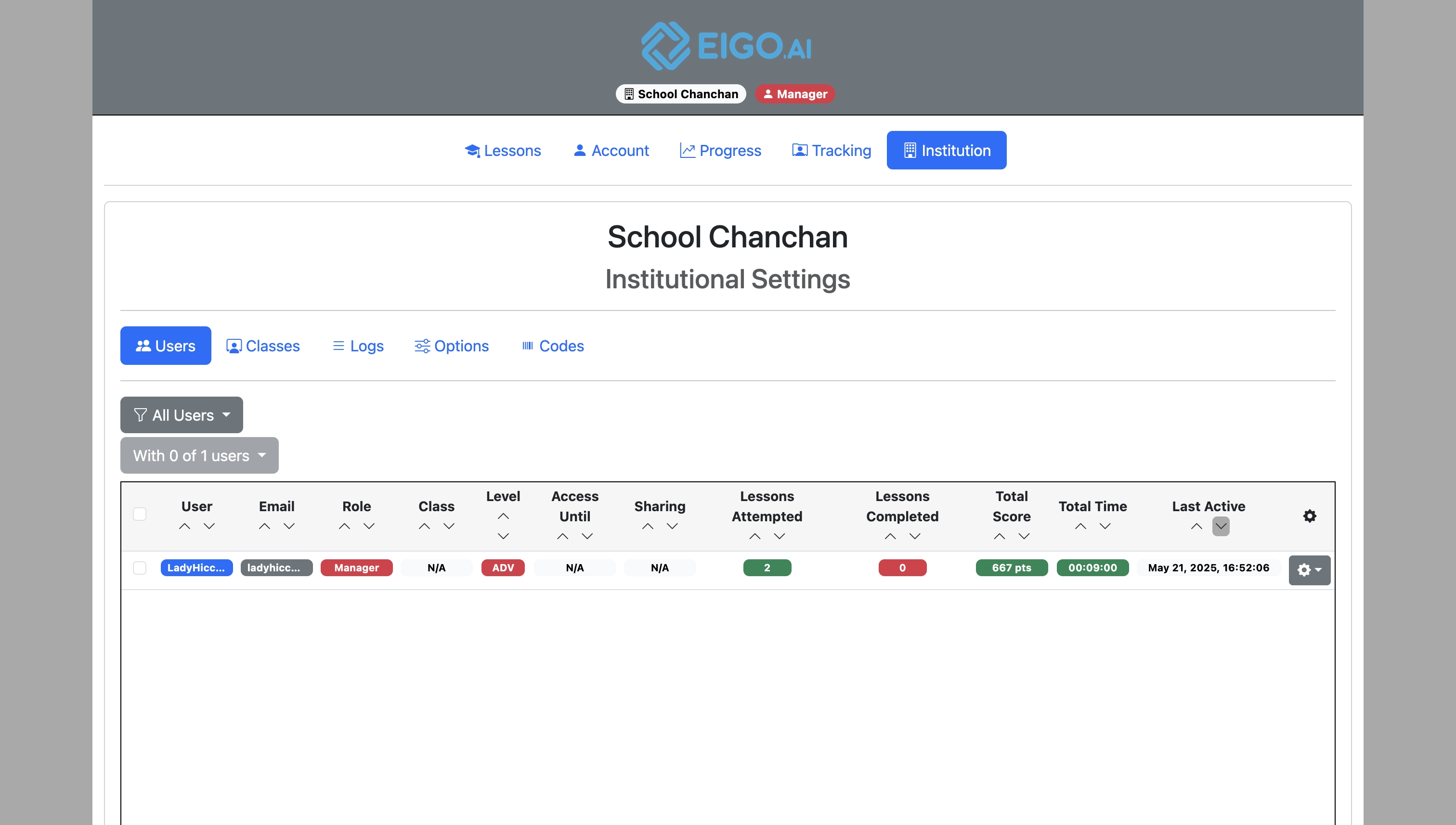
Sign in to Eigo.AI and click "Institution".
Screenshot for How to add a new class, step 1
2

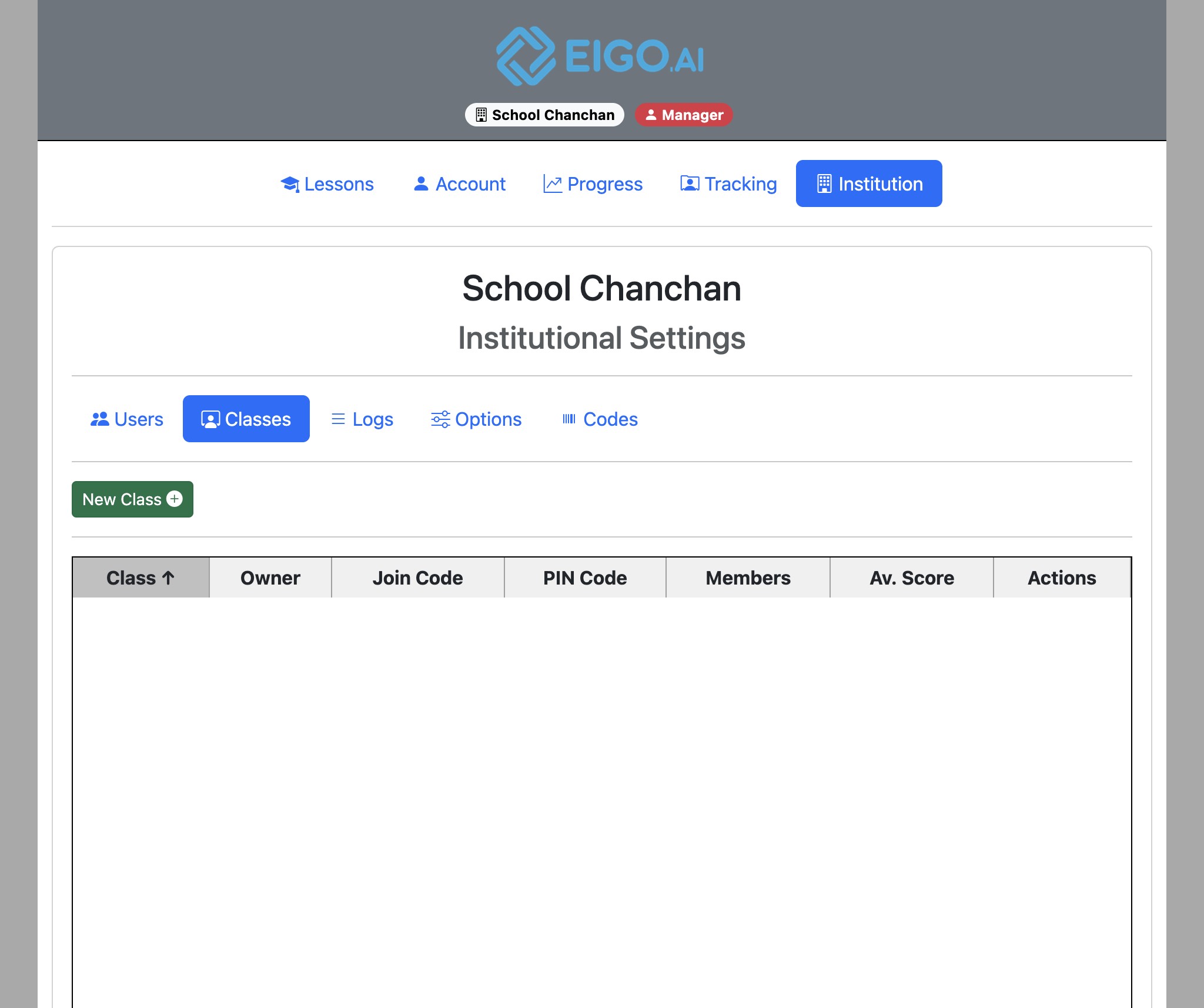
Click "Classes".

Screenshot for How to add a new class, step 2
3

Click "New Class".

Screenshot for How to add a new class, step 3
4

Click the "Class Name" field to enter the name.
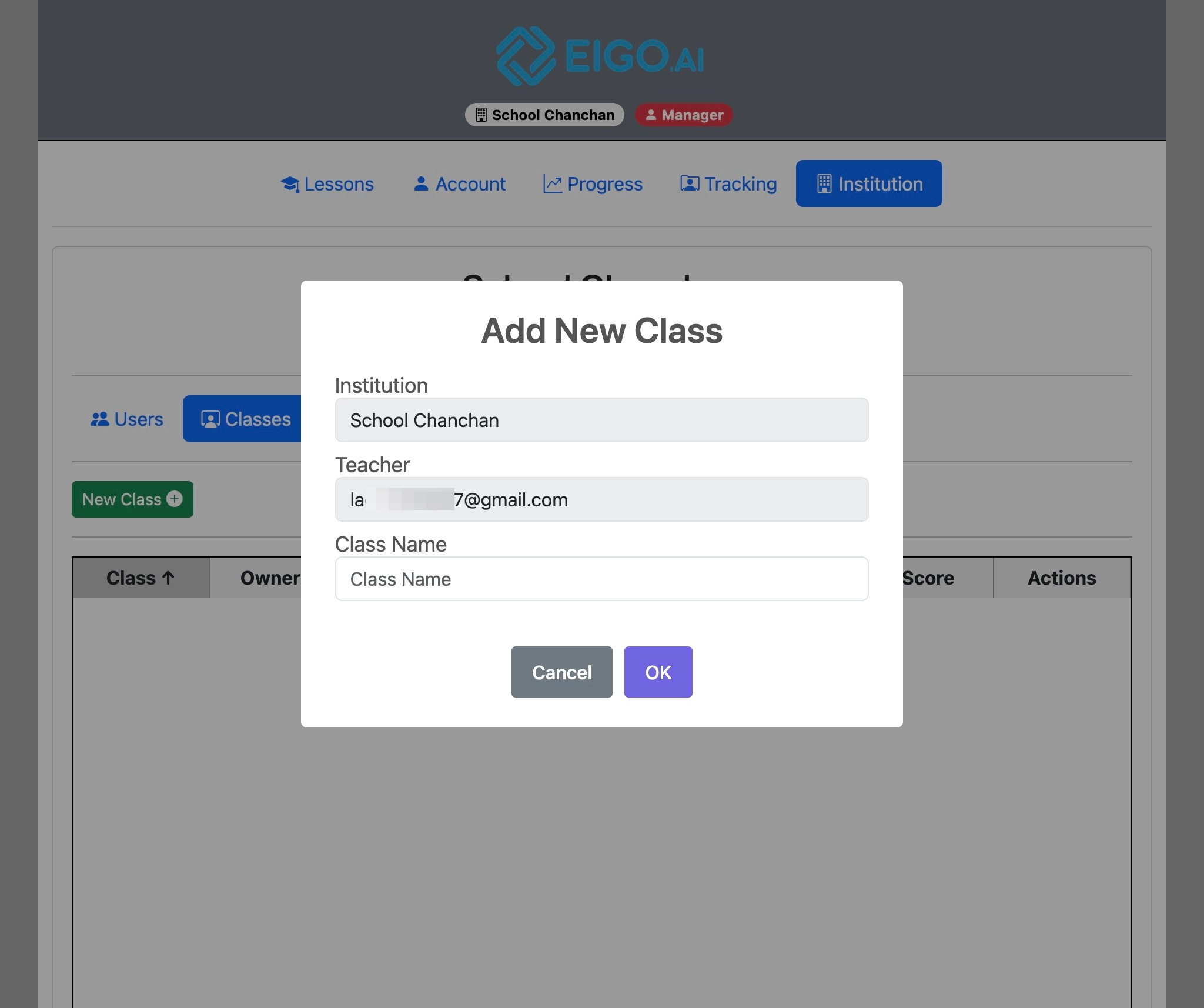
Screenshot for How to add a new class, step 4
5

Select the email of the teacher under your institution you wish to assign the class to.
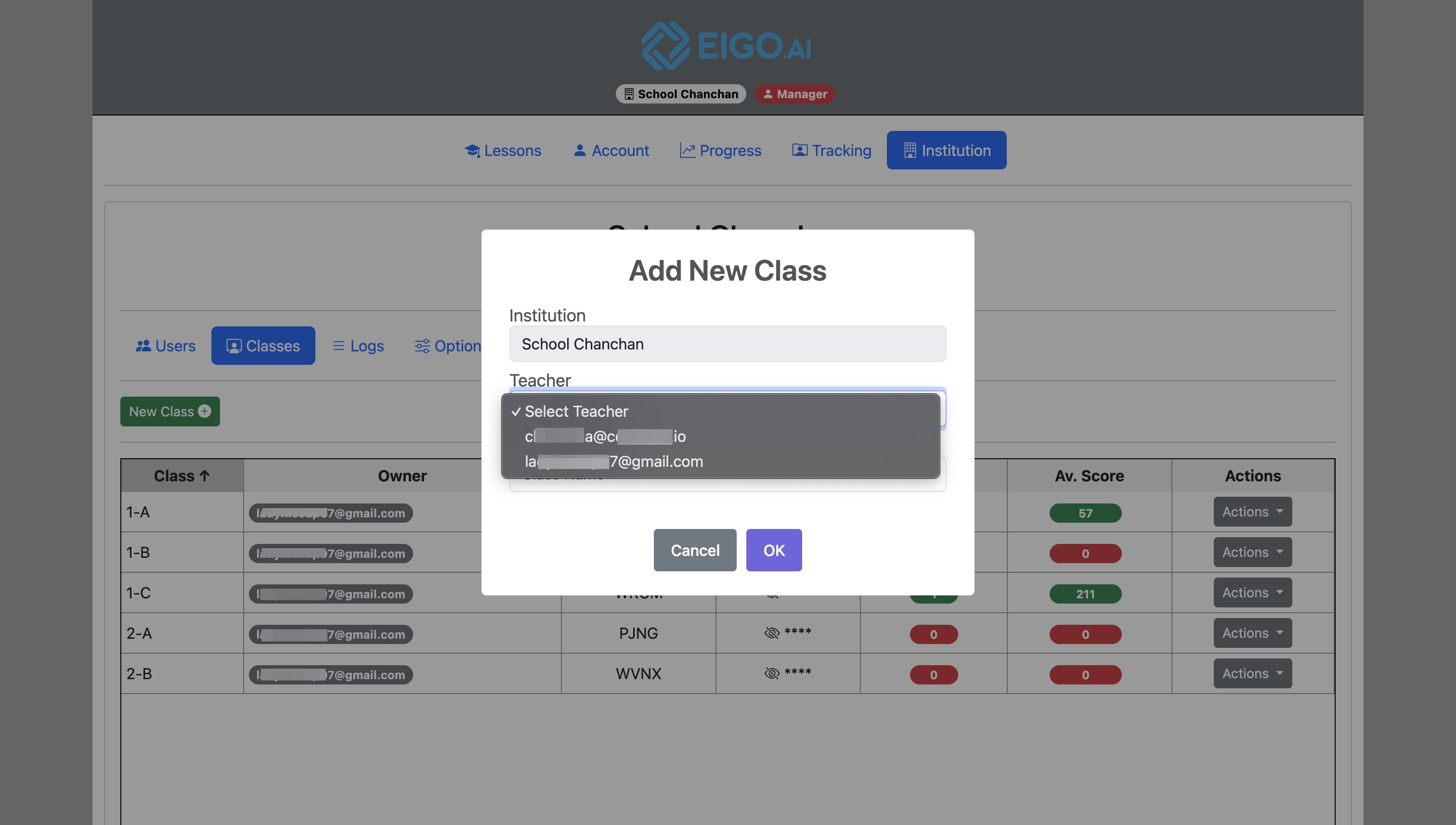
Screenshot for How to add a new class, step 5

If only one teacher exists in the institution, the option will be greyed out.

6

Click "OK" to confirm.
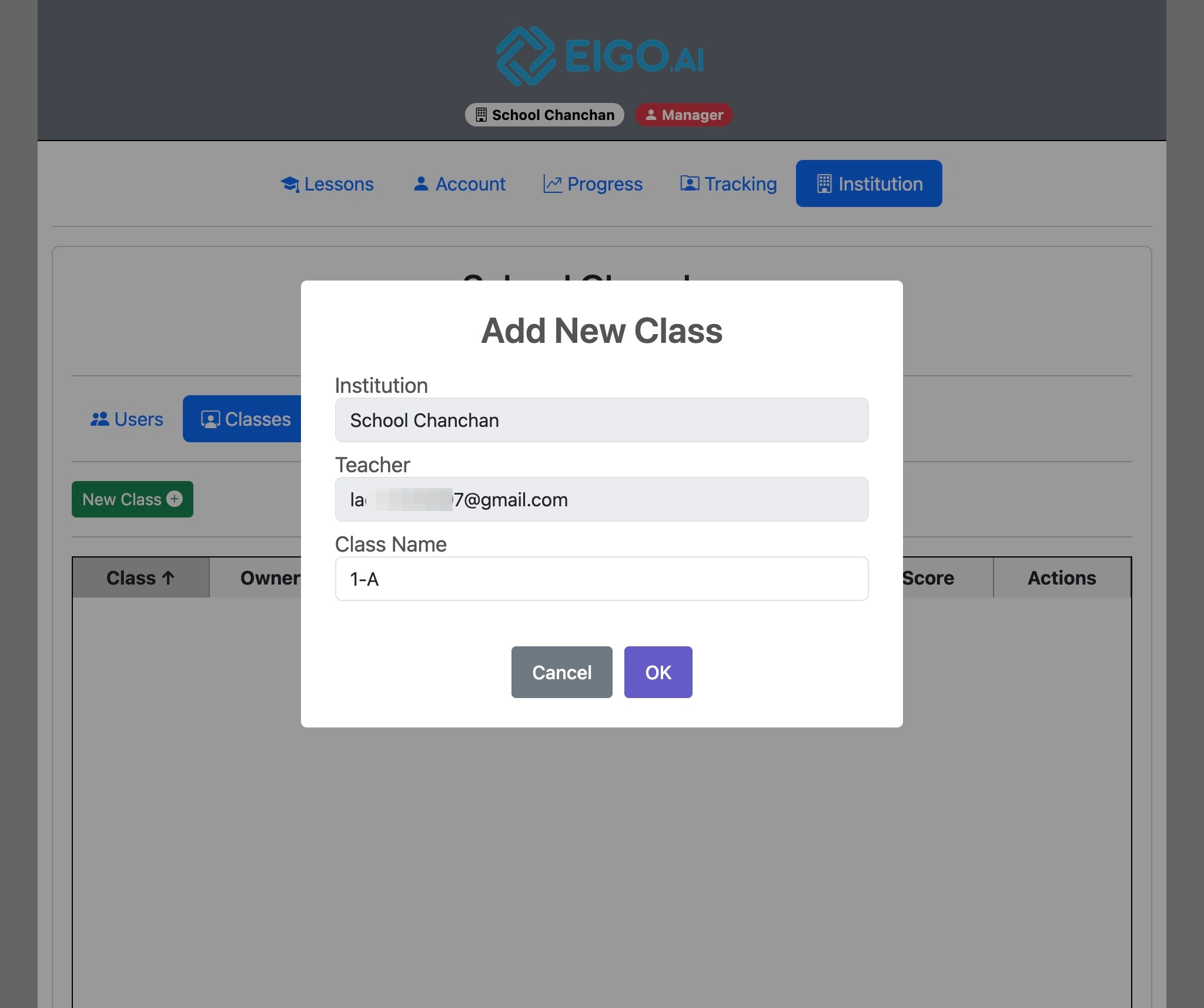
Screenshot for How to add a new class, step 6
7

The details of the new class are displayed.
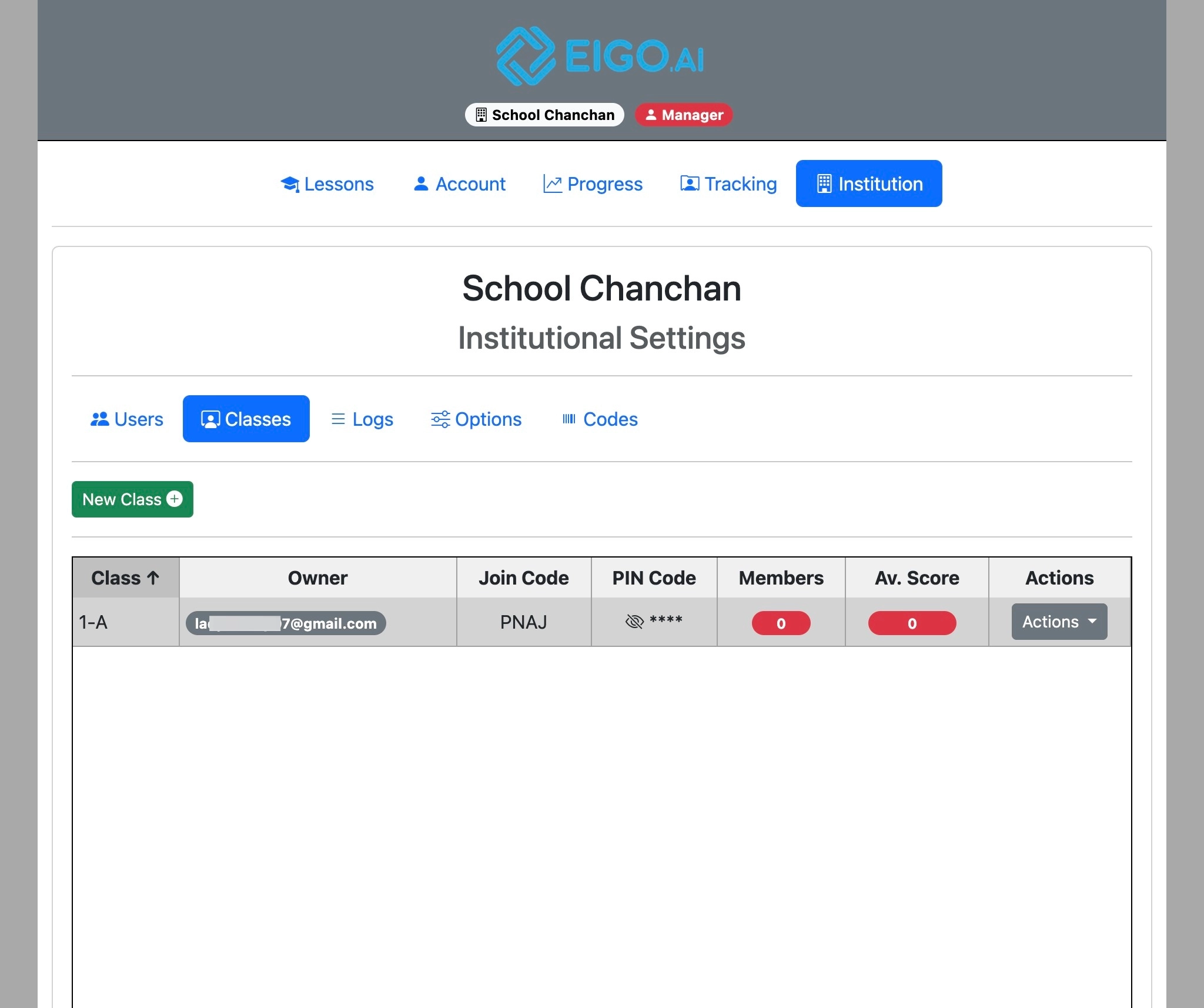
Screenshot for How to add a new class, step 7

The 'Join Code' and 'PIN Code' should be provided to students you would like to be able to join the class. The 'PIN Code' can be revealed by clicking the “eye” icon.

8

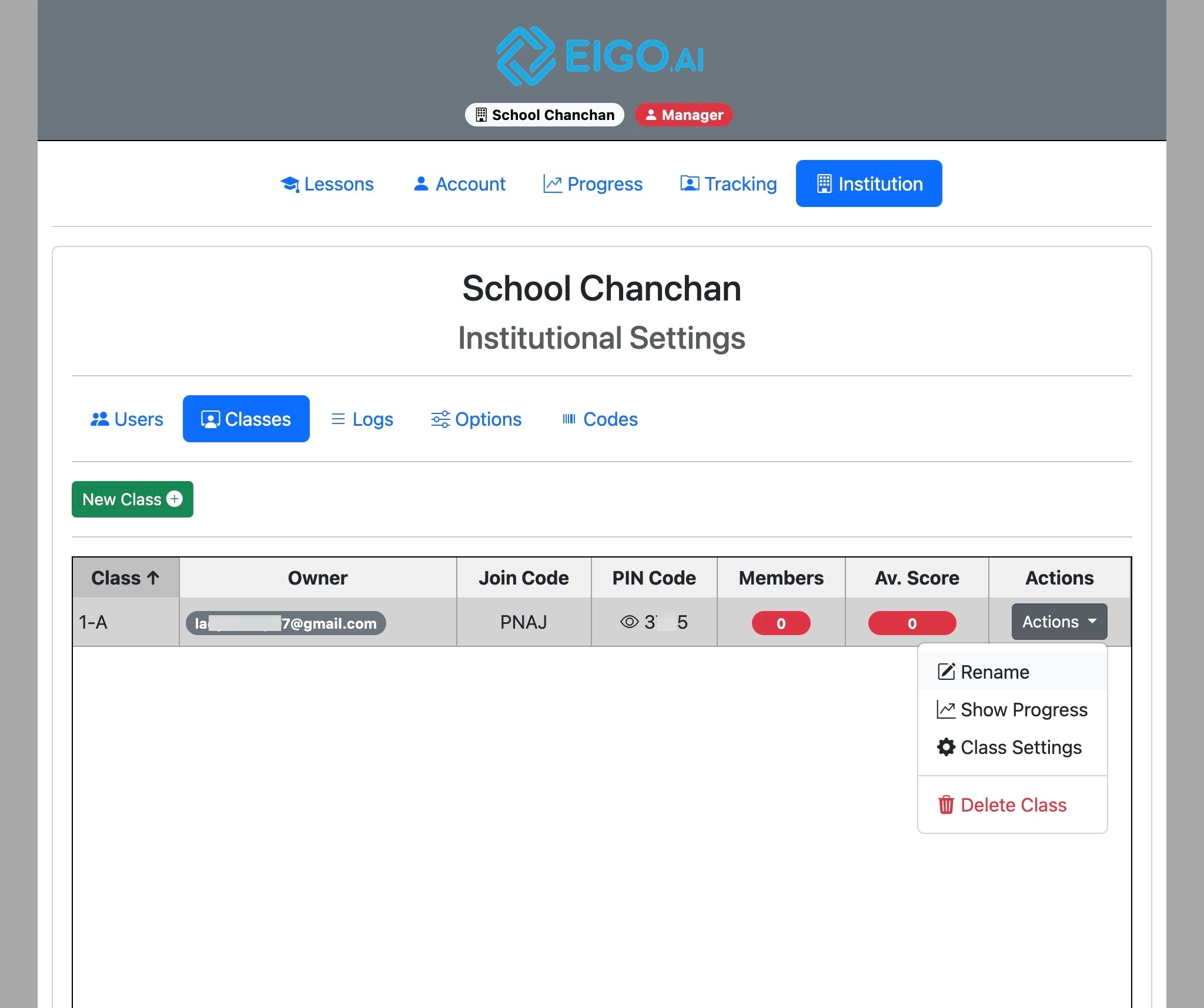
To rename a class, click "Actions".
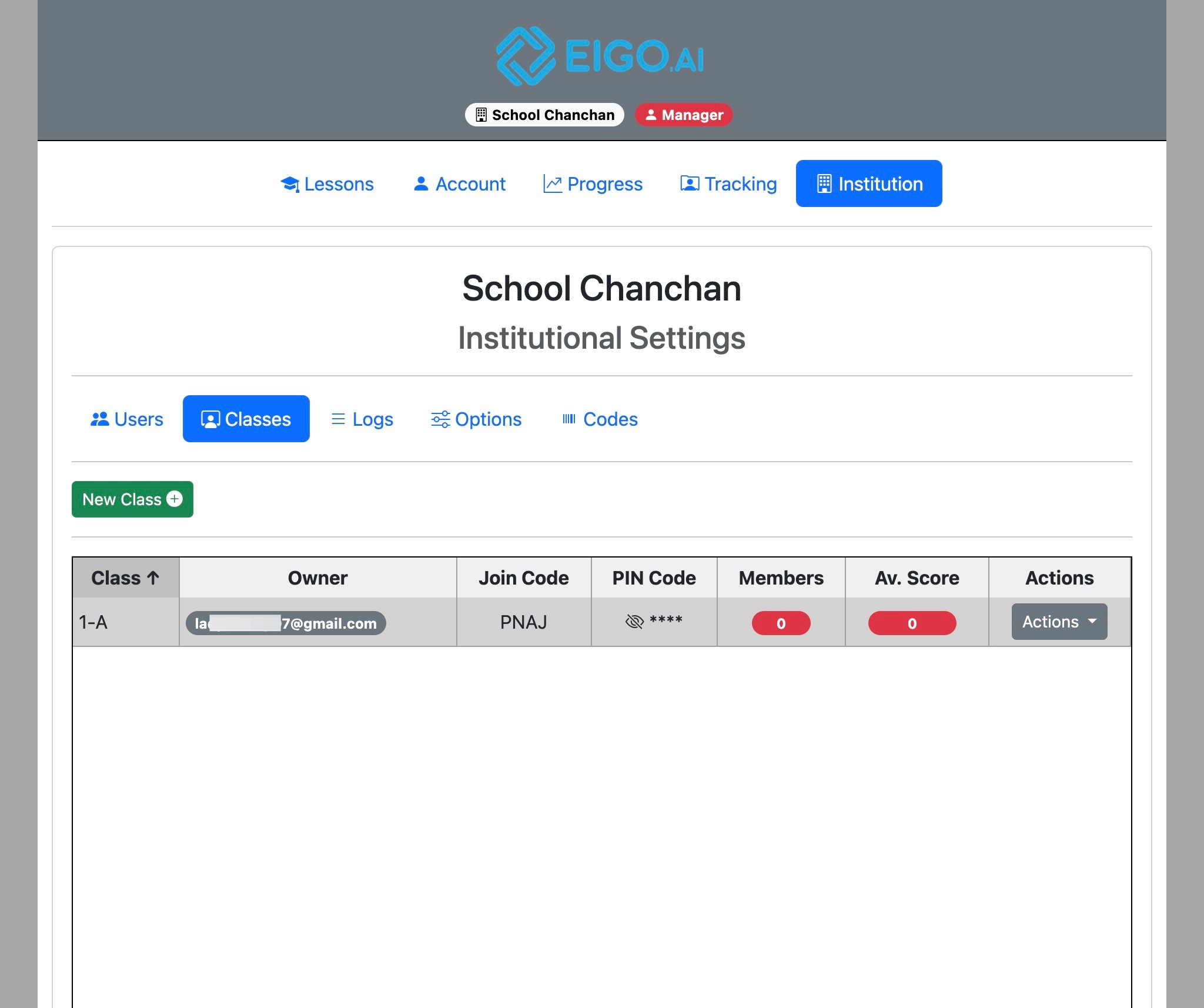
Screenshot for How to add a new class, step 8
9

Click "Rename".

Screenshot for How to add a new class, step 9
10

Type the new name for the class and click "OK" to update.
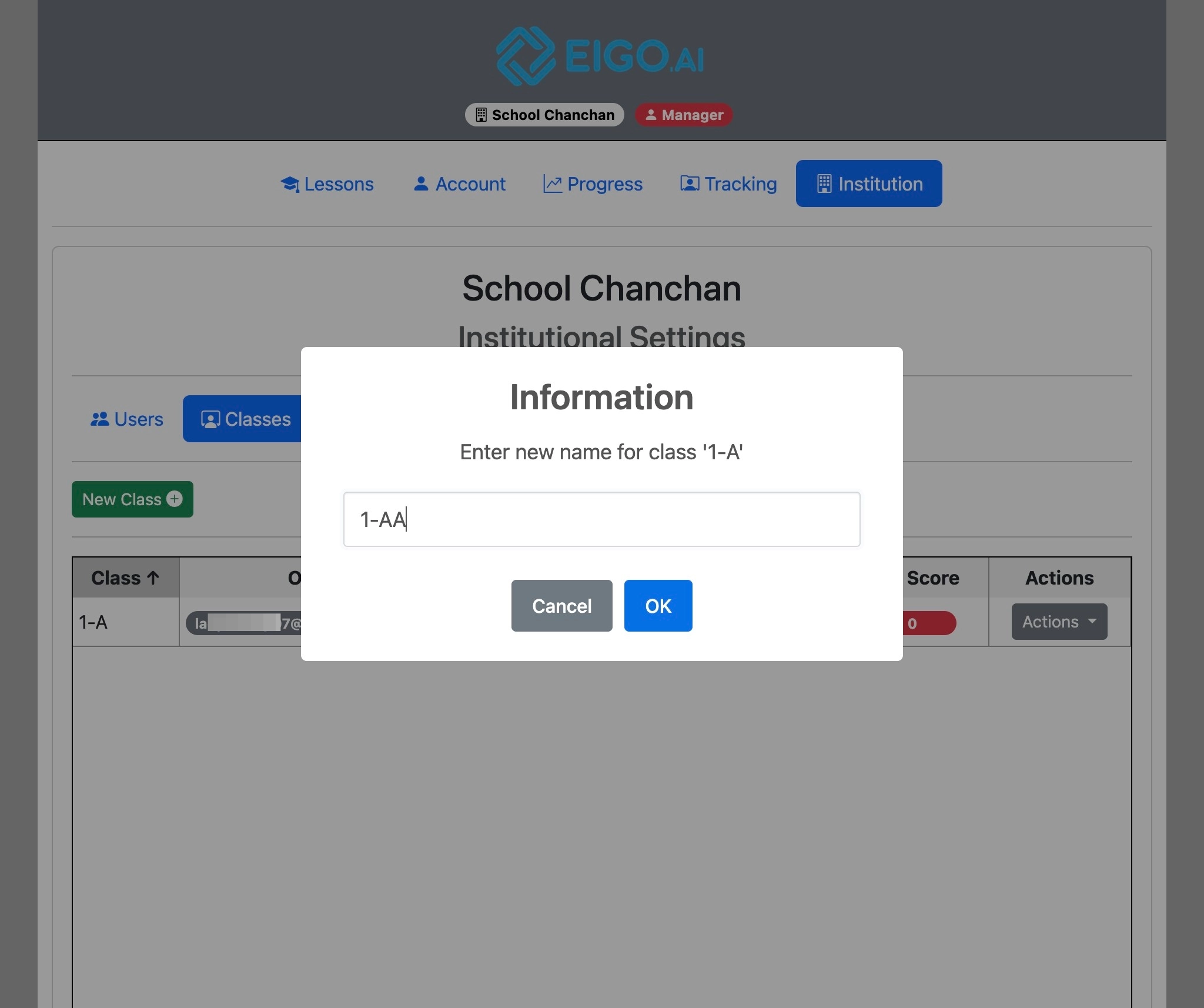
Screenshot for How to add a new class, step 10