Note that the process described in this guide is applicable only to Institutional Managers. If you would like to create an institutional account on Eigo.AI please contact us.
Navigate to https://eigo.ai/lessons/.
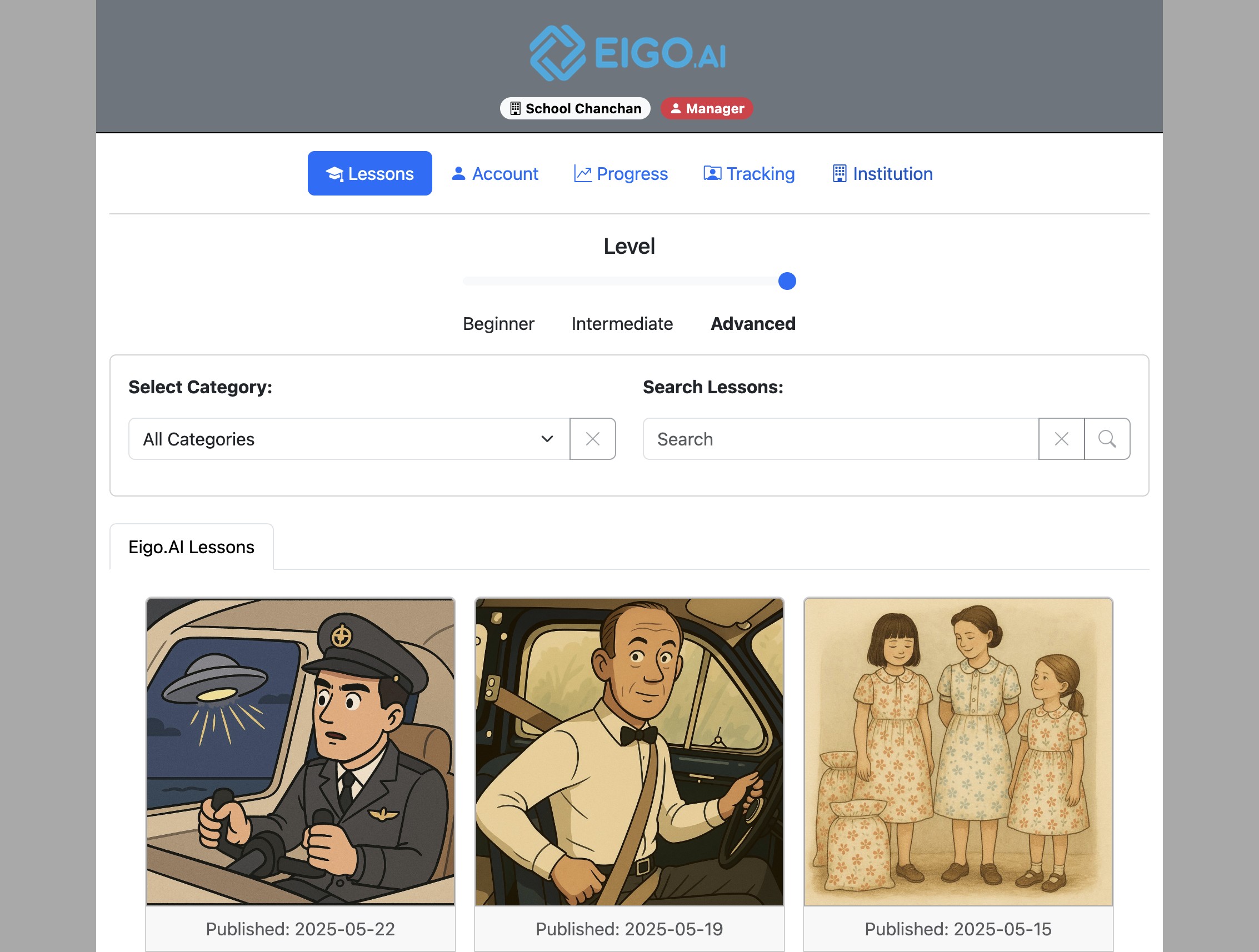
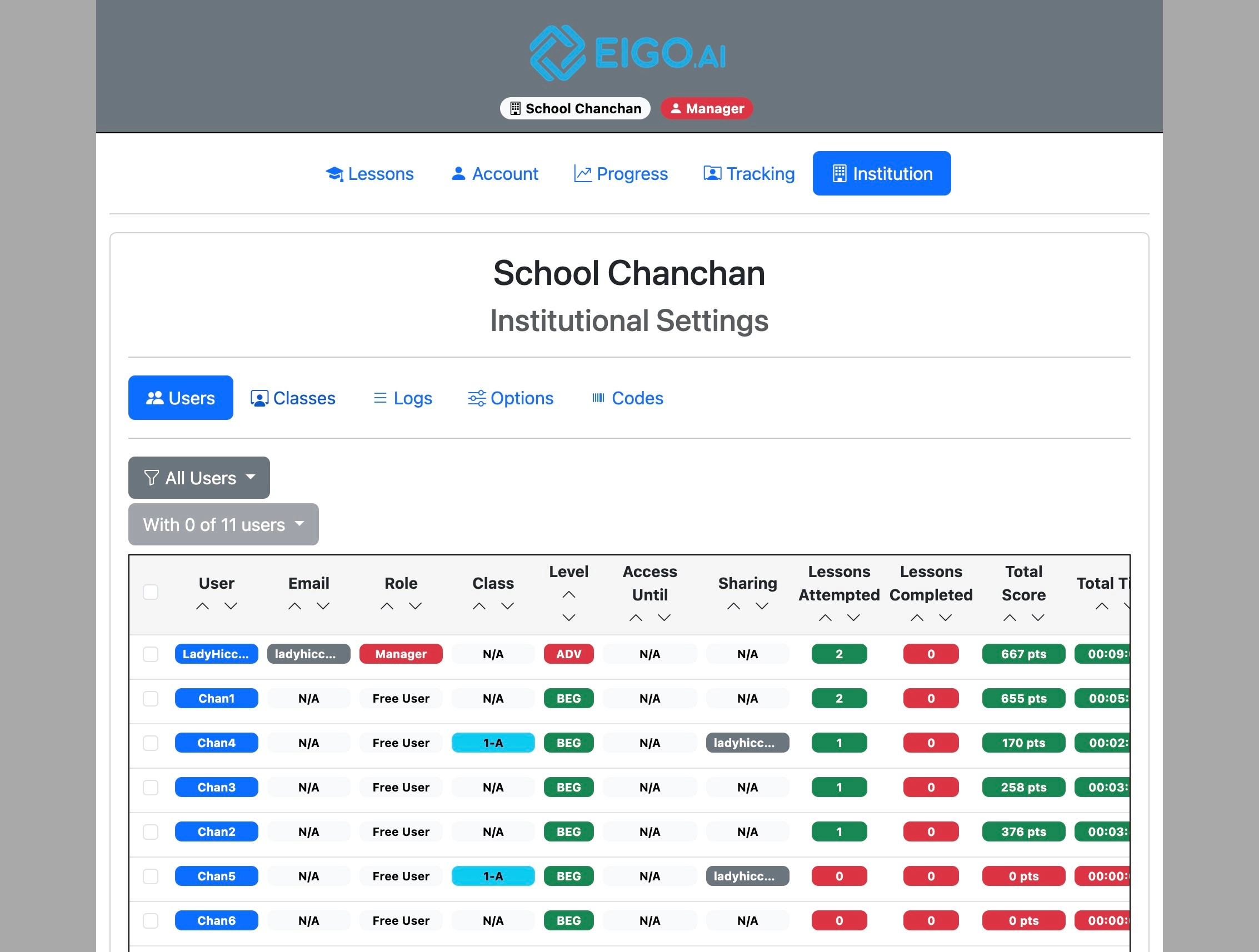
Click "Institution".
Click "Classes".
Click "Actions".
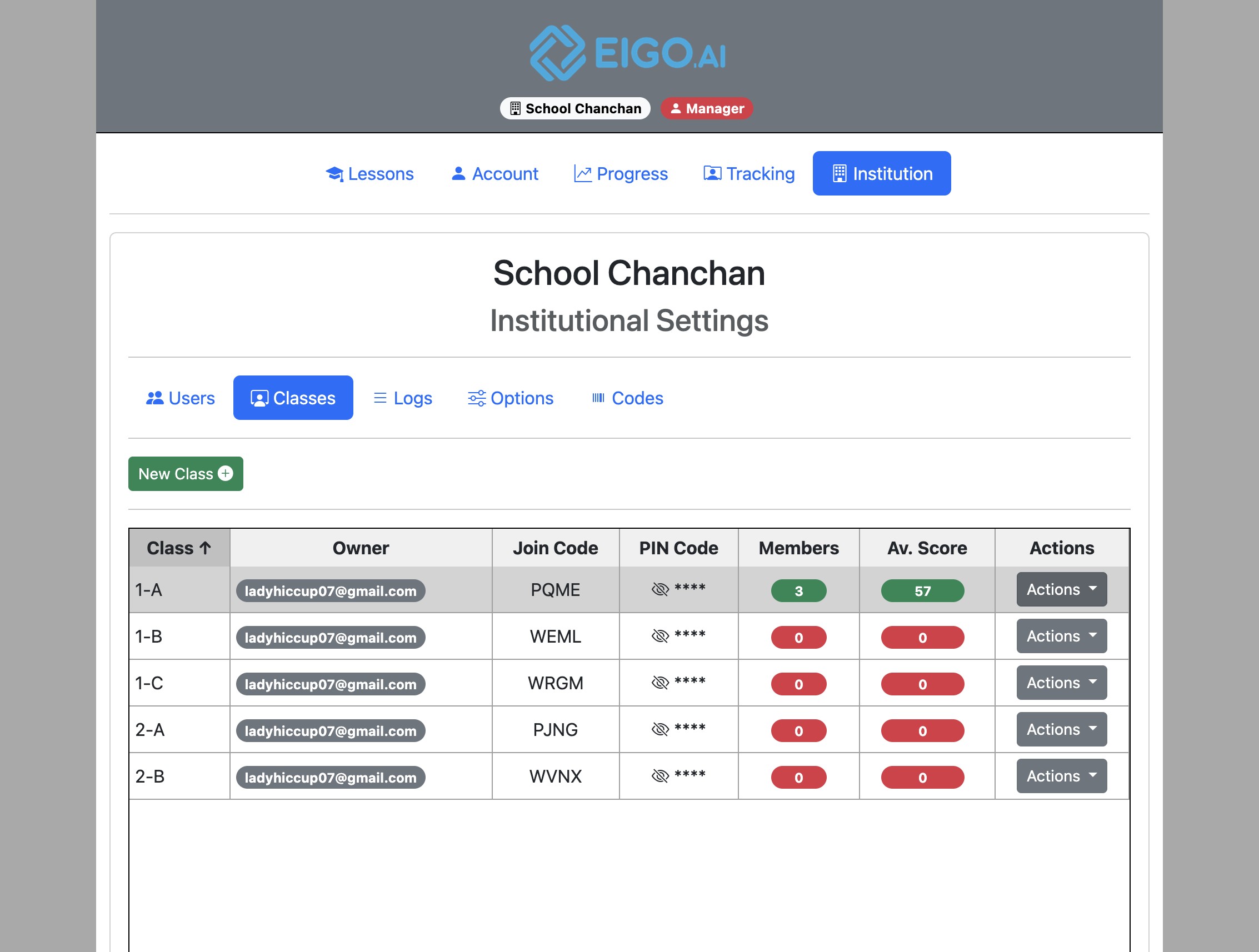
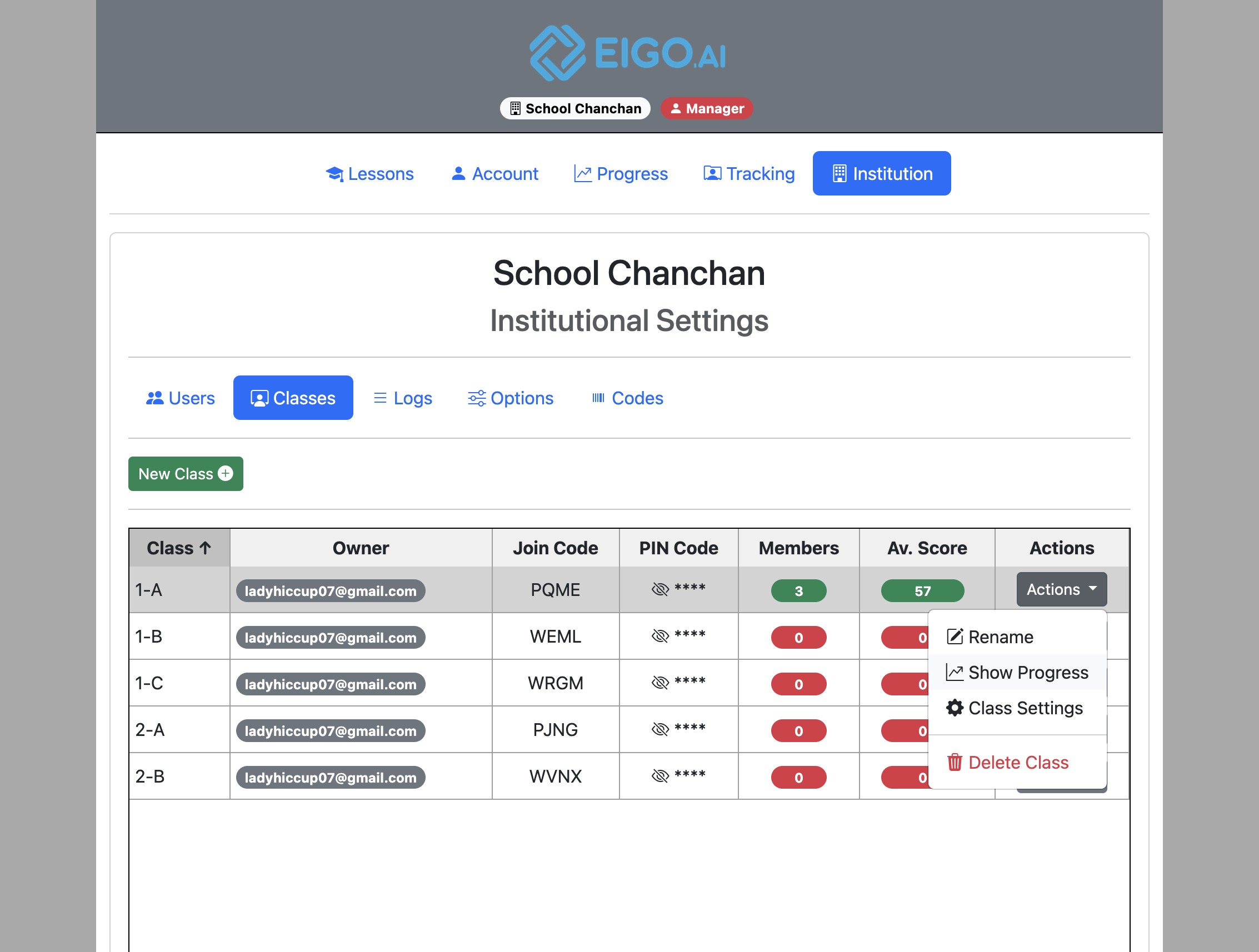
Click "Show Progress".
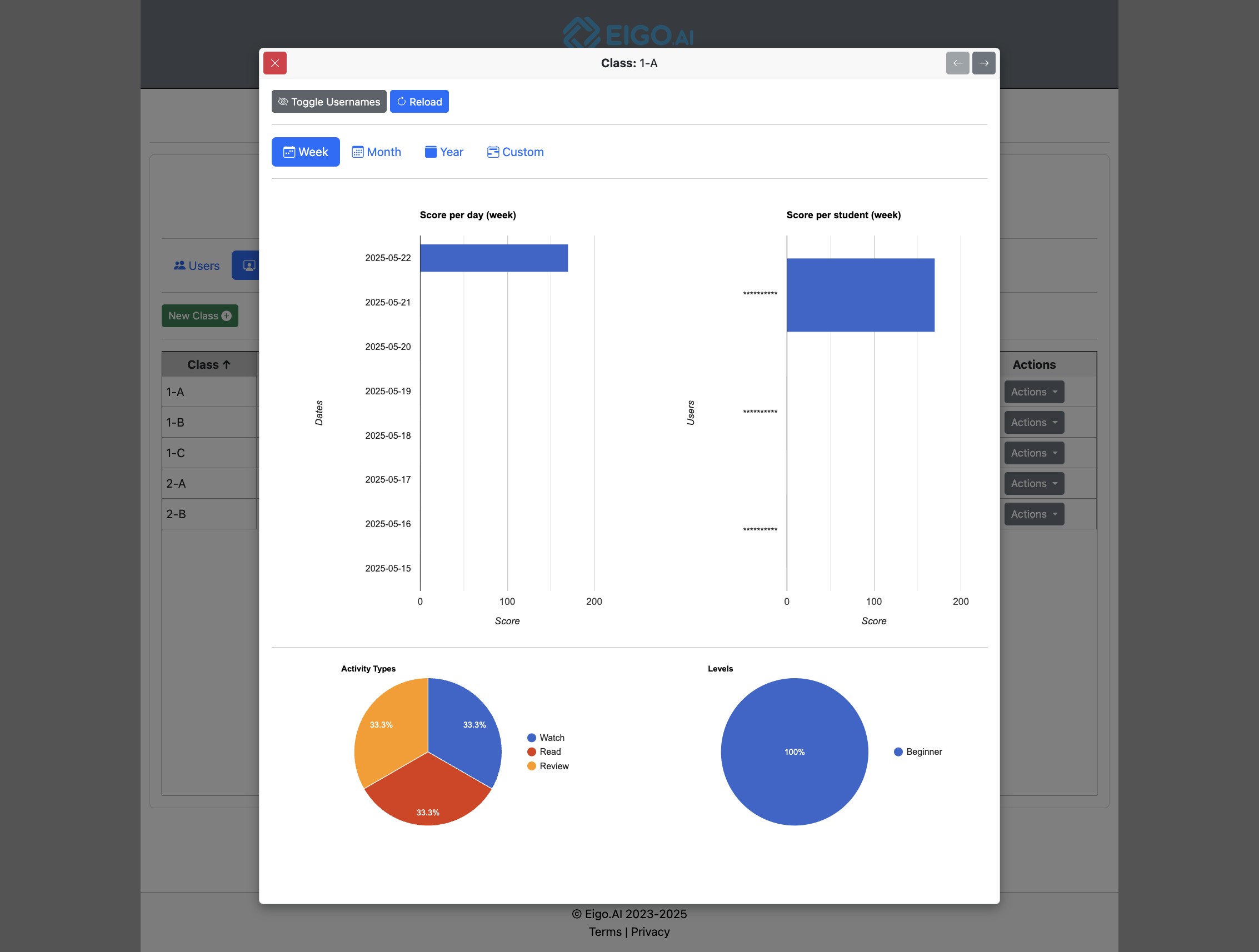
Click "Toggle Usernames" to reveal student names.
Class progress can be viewed by Week, Month, Year, or Custom range.
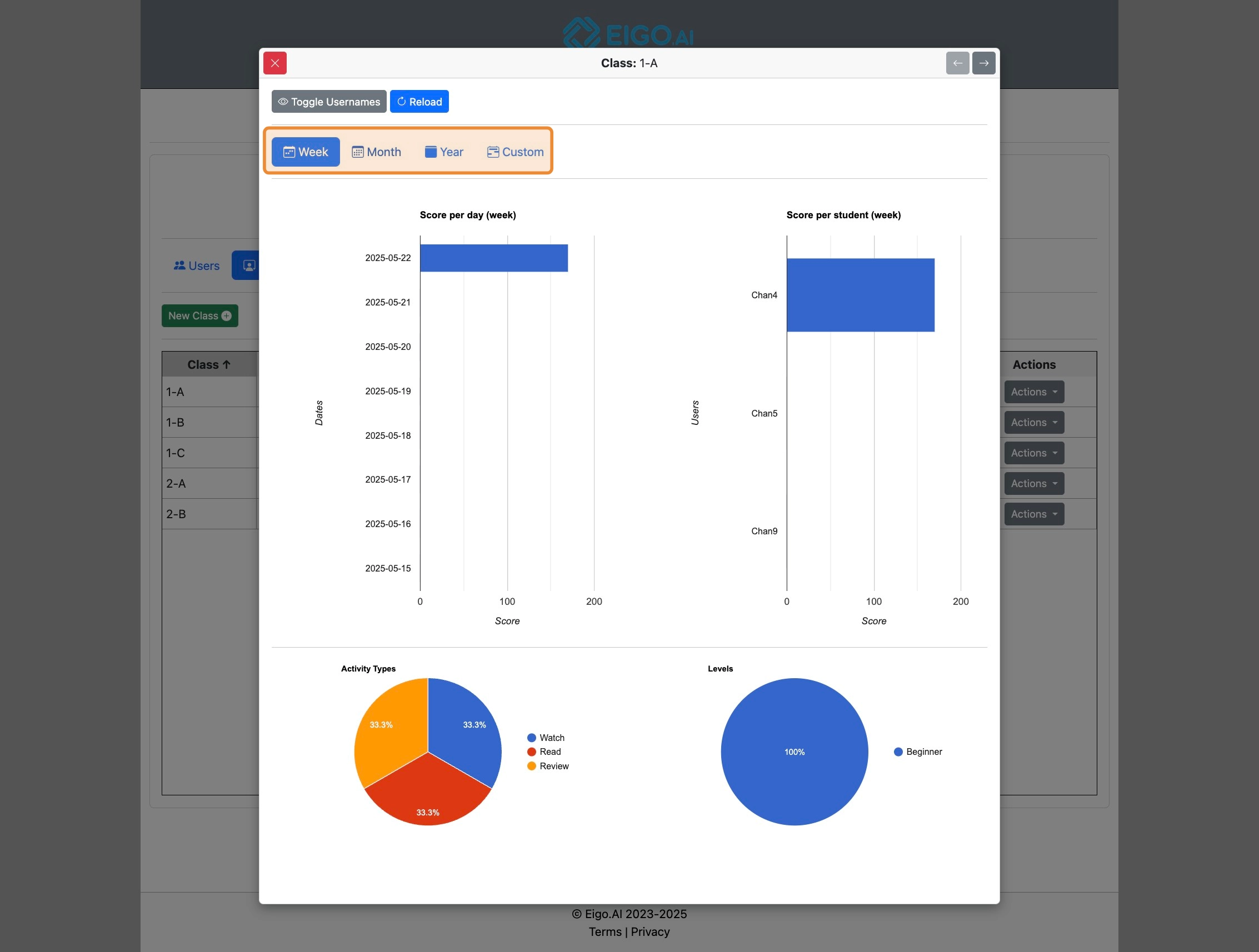
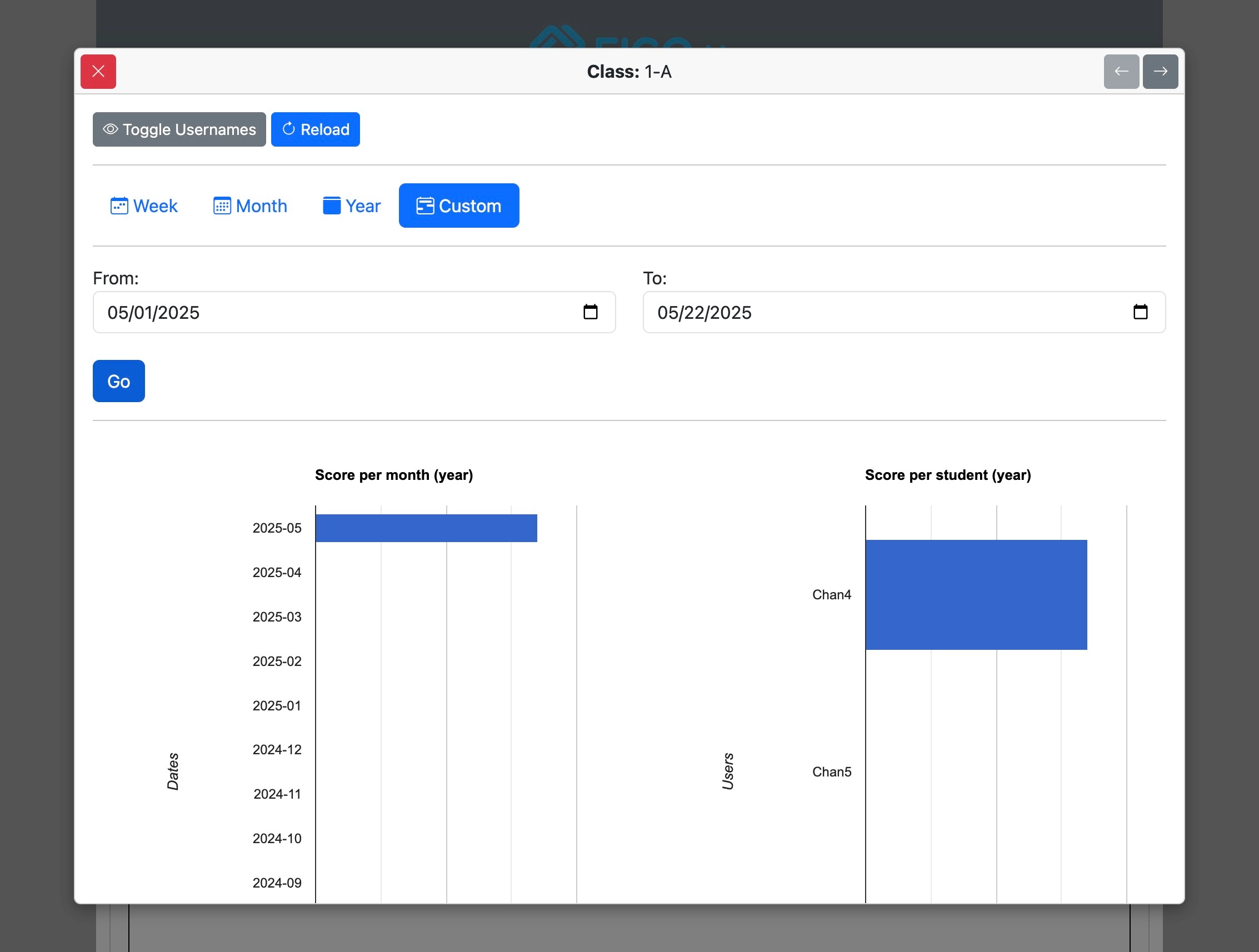
For 'Custom' class progress stats, select the From and To dates. Enter dates in mm/dd/yyyy format or use the calendar icon to pick a date.
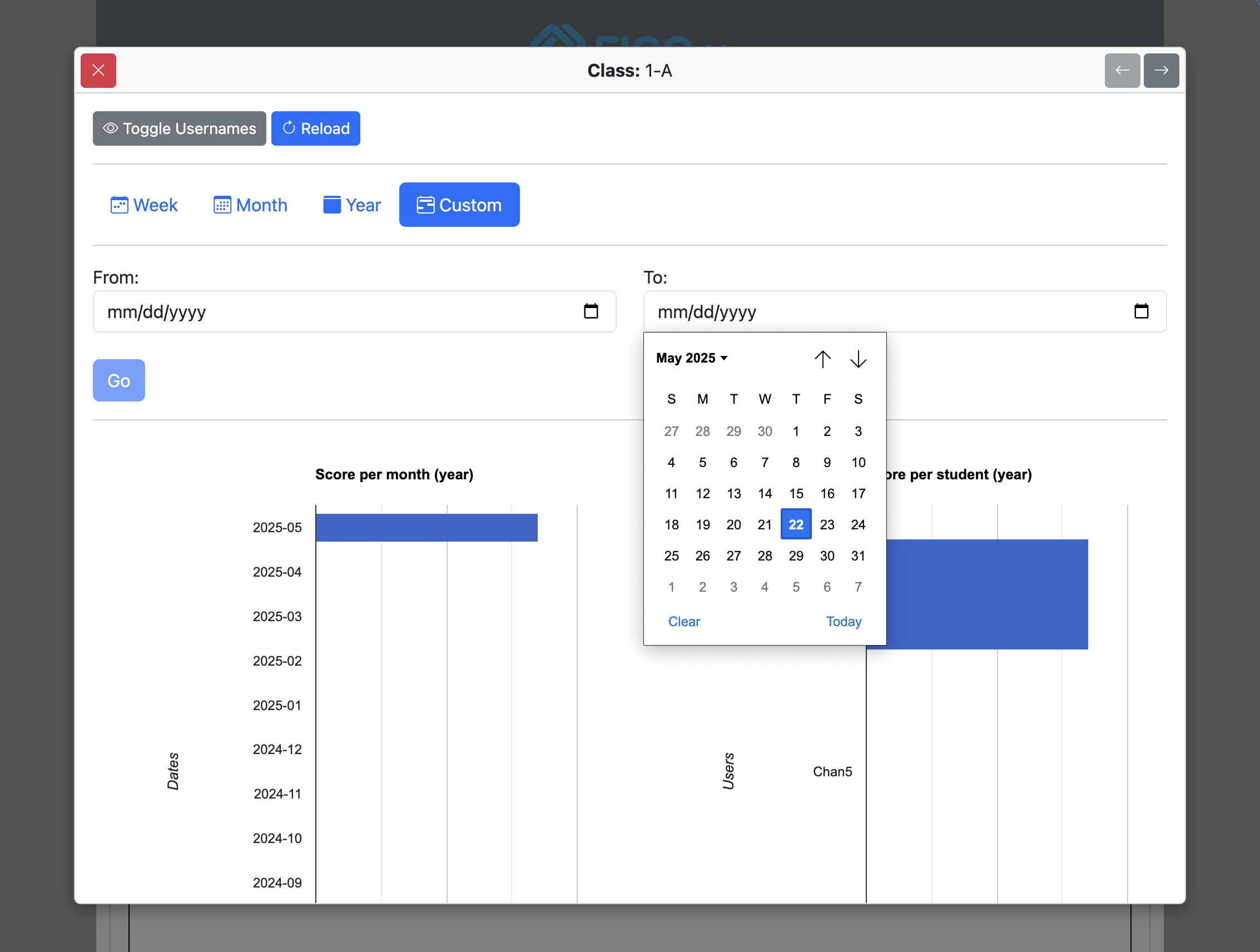
Click 'Go' to view class progress for the selected custom date range.
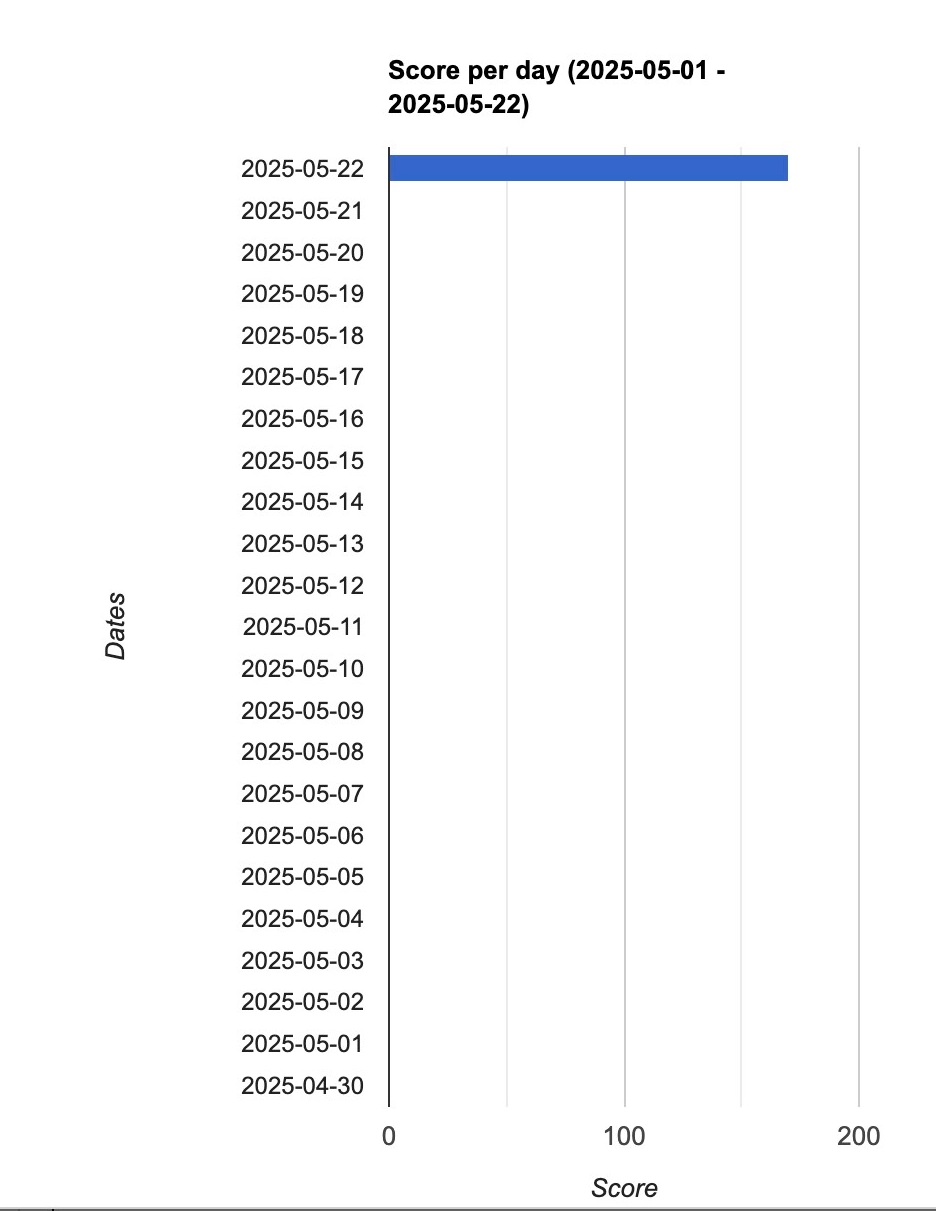
The 'Score per day' chart shows the combined total score achieved per day by the entire class, whether in a week, month, year or custom range.
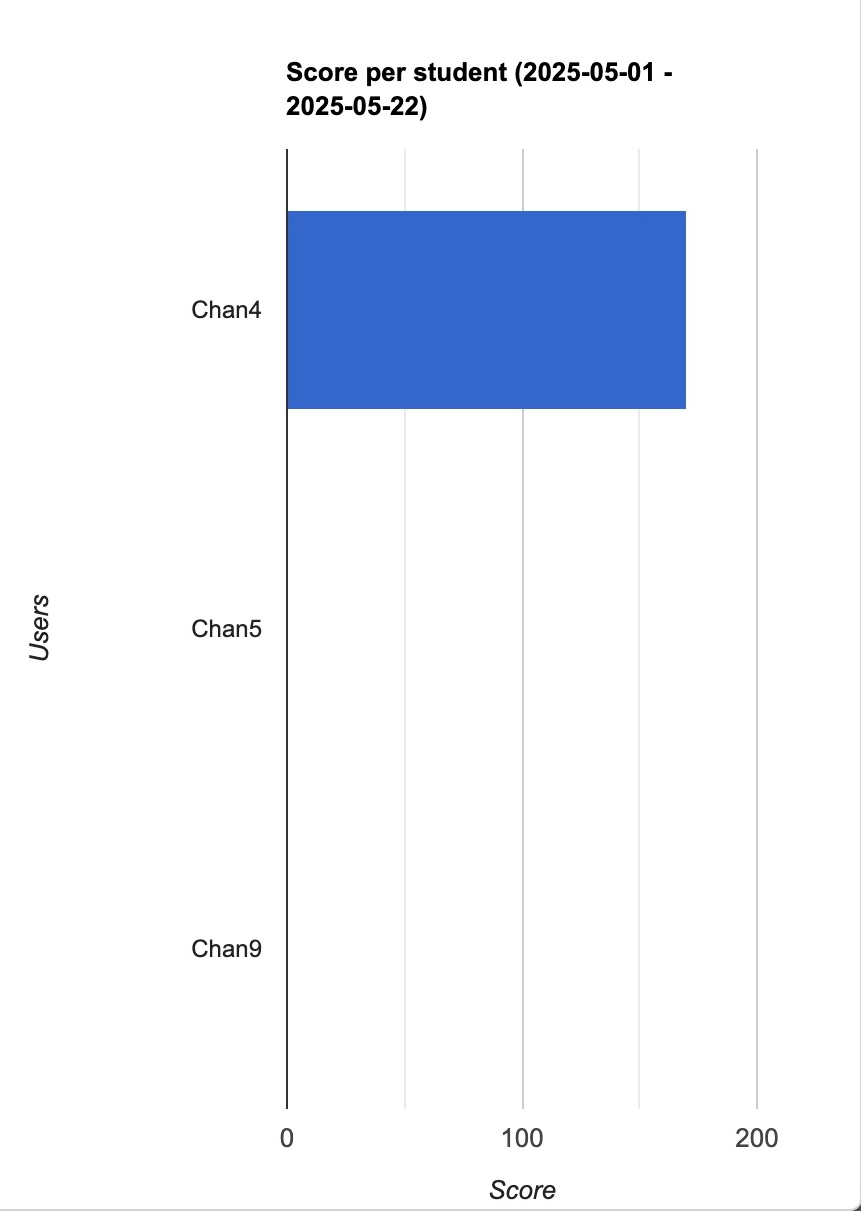
The "Score per student" chart shows scores achieved per student, whether in a week, month, year or custom range.
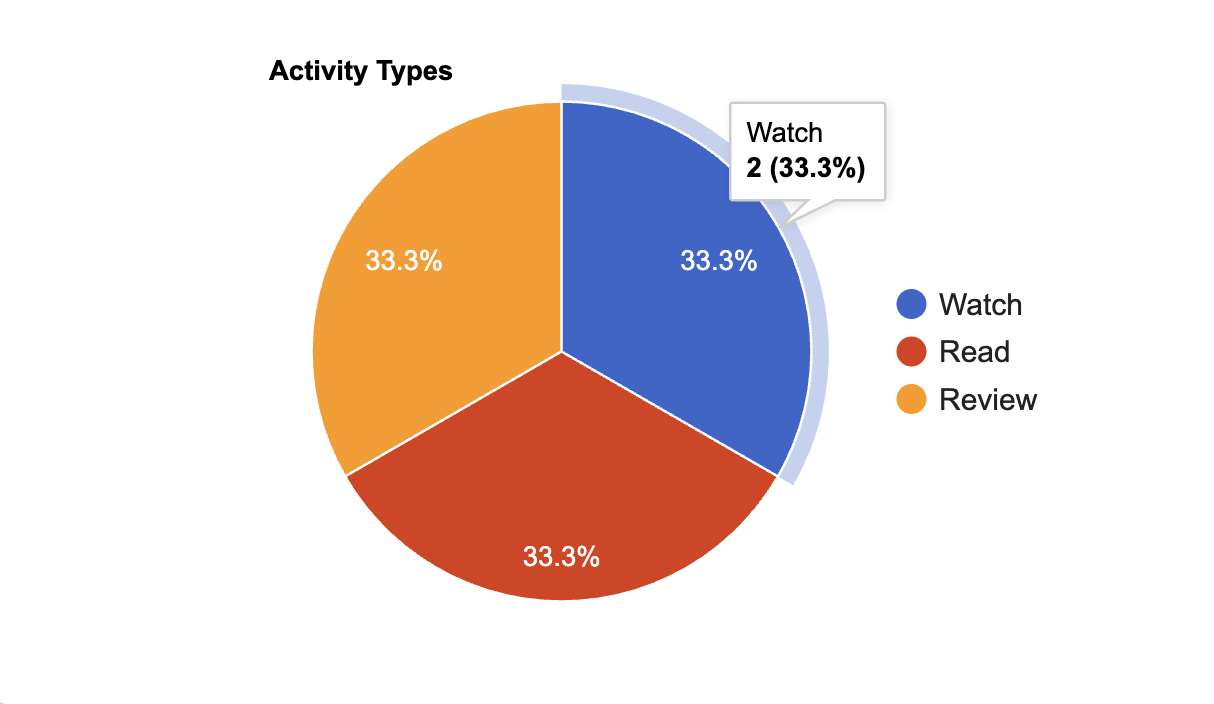
The "Activity Types" chart shows total activity types that have been submitted by the class.
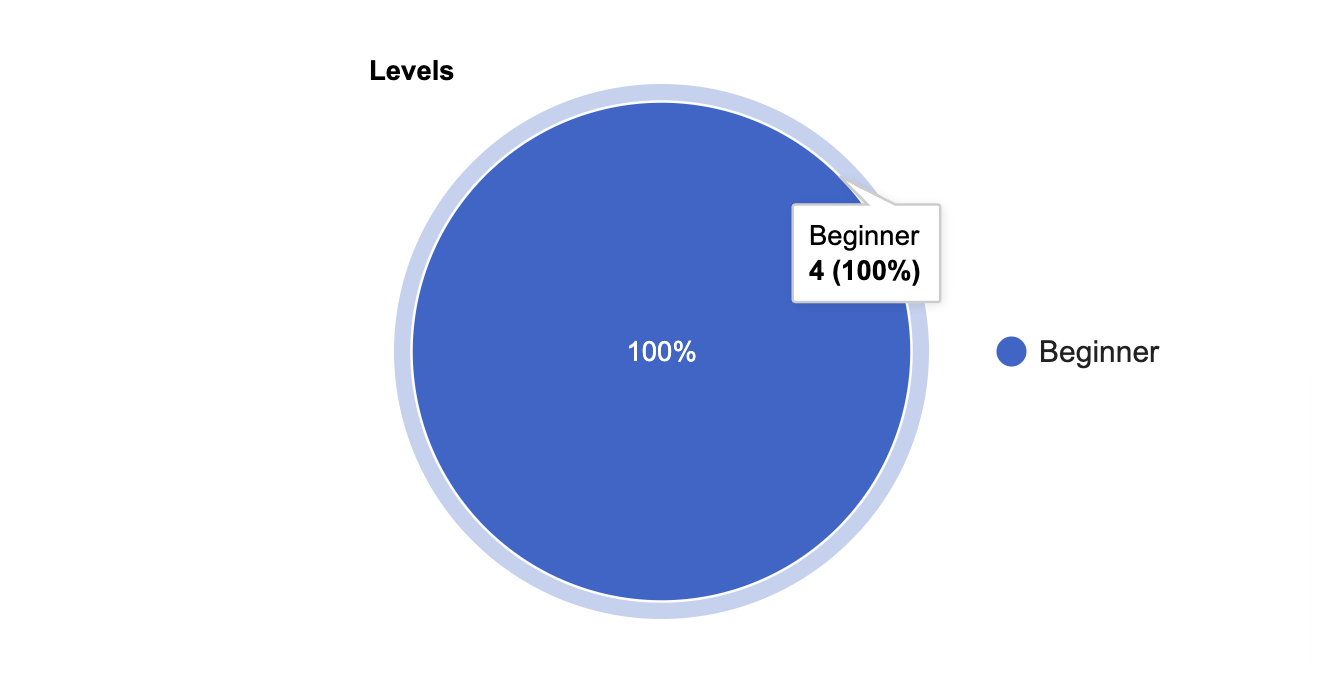
The "Levels" chart shows the total activities submitted per level by the entire class.