Student Manual

How to change your password

8 step guide for Eigo.AI student users.

You can change your password on Eigo.AI if you have registered using your email address. If you registered with Google or Microsoft, your password can be changed only through those services.

2

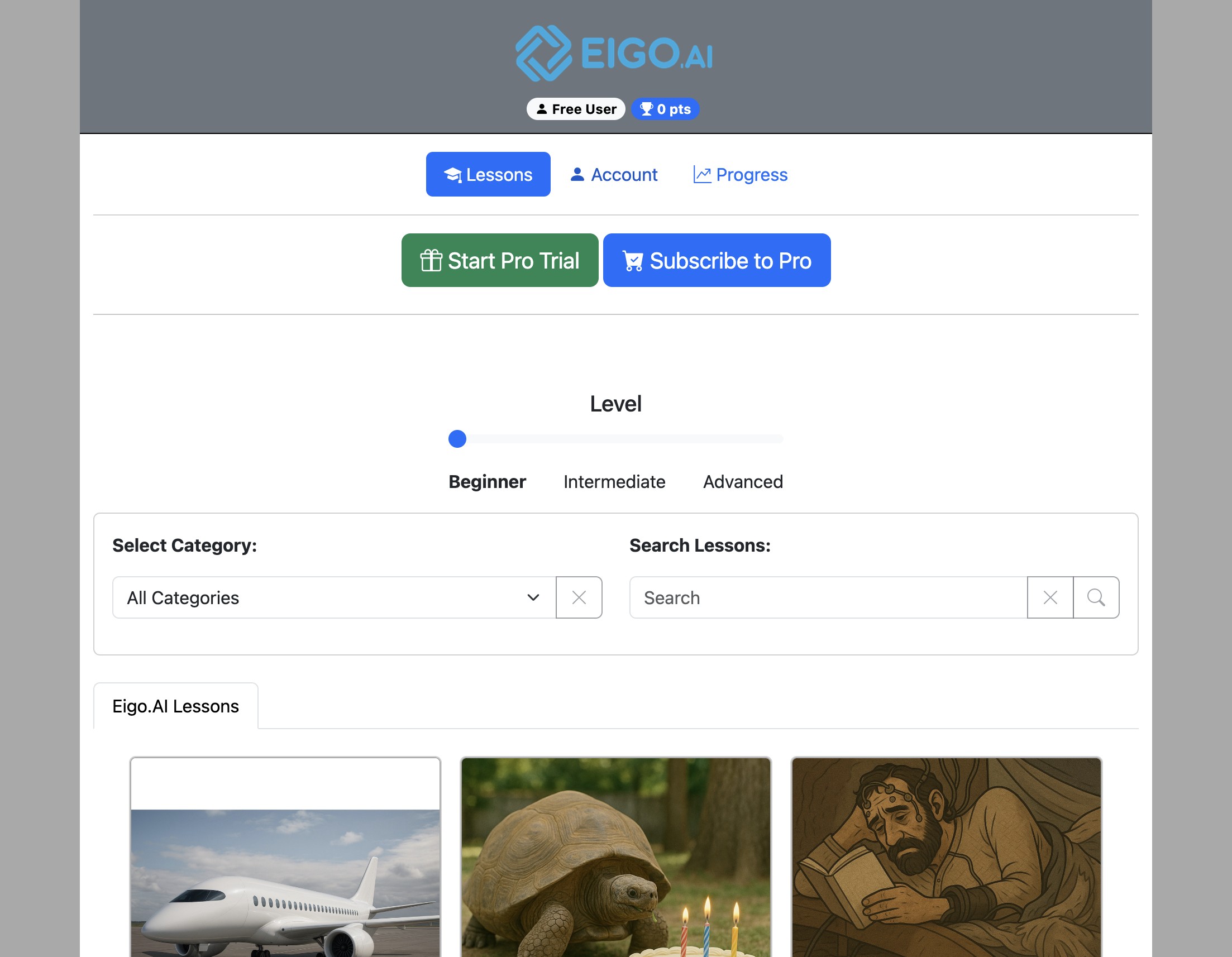
Click "Account"

Screenshot for How to change your password, step 2
3

Under the 'Profile' tab, click "Change Password".
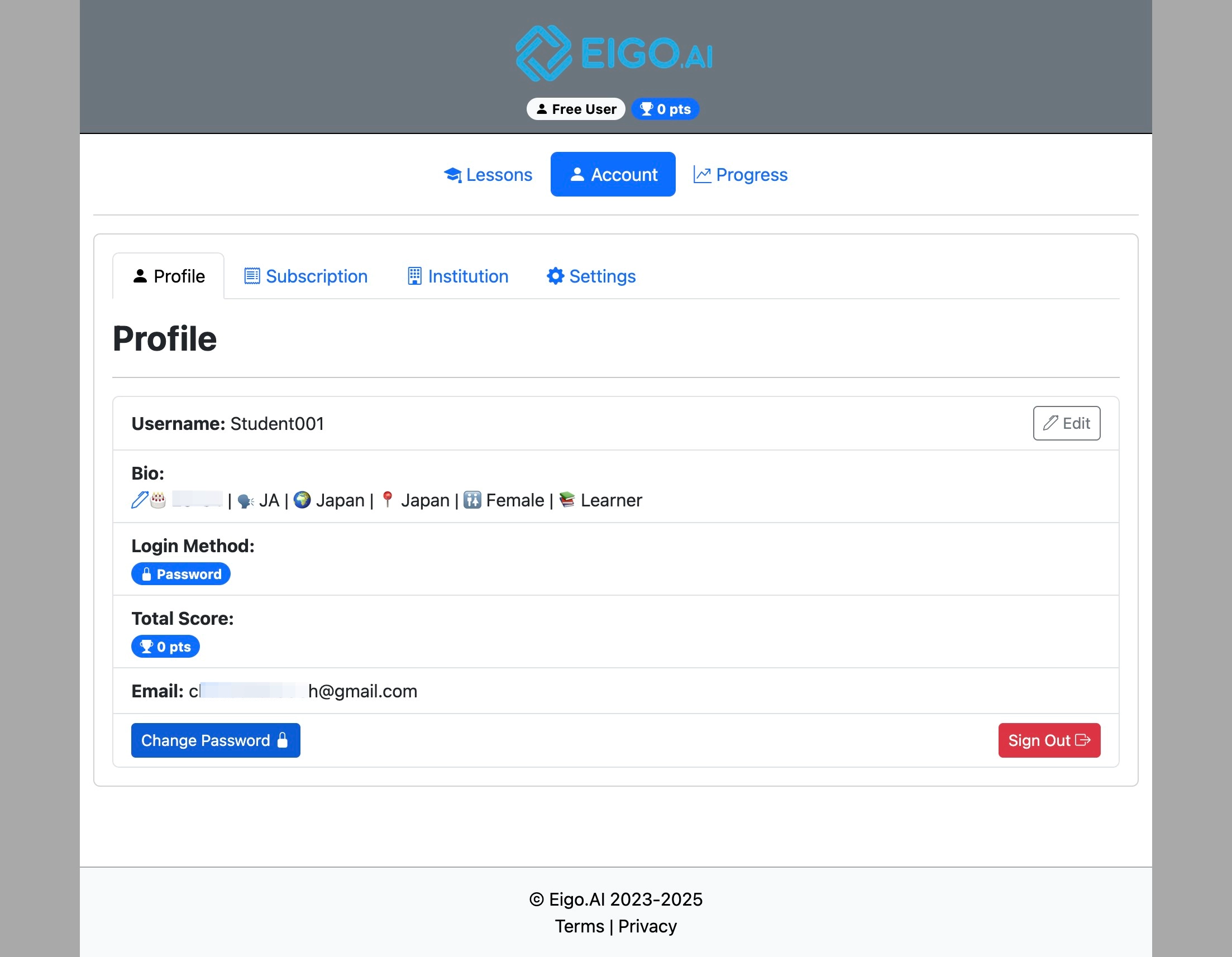
Screenshot for How to change your password, step 3
4

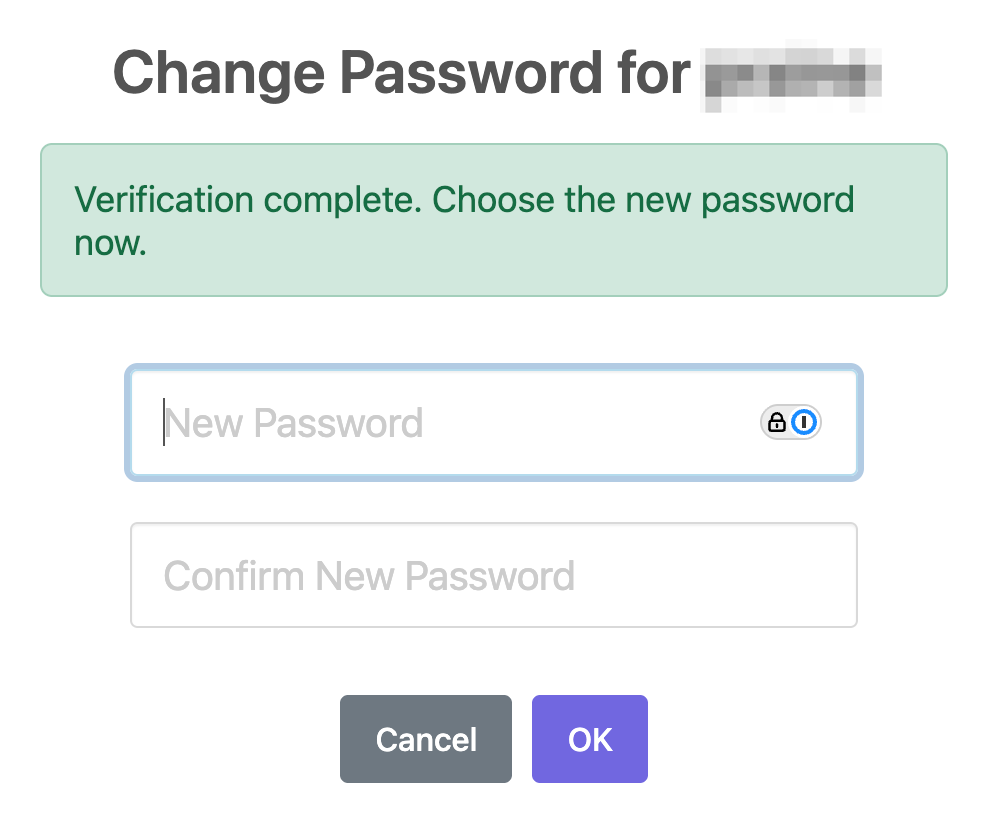
Enter your old and new password.

Screenshot for How to change your password, step 4
5

If this is the first time changing your password, open the welcome email received in your registered email address to find your autogenerated password.

Screenshot for How to change your password, step 5
6

Enter this autogenerated password under 'Old Password' and enter the password of your choice under 'New Password' and then confirm the new password.

7

Click "OK" to confirm.

Screenshot for How to change your password, step 7
8

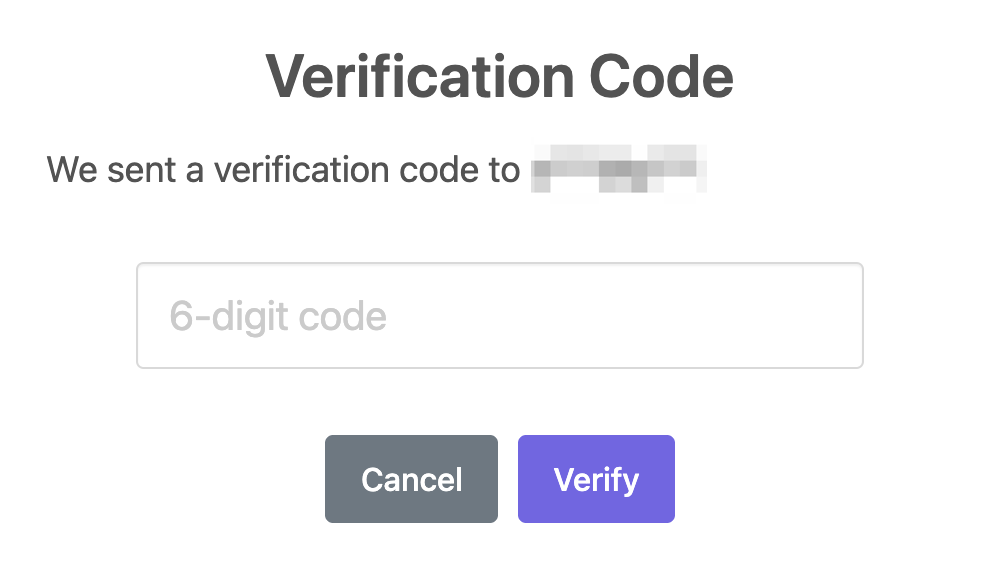
To reset a forgotten password, sign out of the account, navigate to https://eigo.ai/account/?screen=sign_in and click "Forgot Password".

Screenshot for How to change your password, step 8

Here's the link to step-by-step guide on How to reset your password.