Speak clearly with your own accent
Eigo.AI uses a global-English speech recognition model designed to recognize a range of English accents. Our approach is informed by English as a Lingua Franca (ELF): using English to communicate with people from different language backgrounds. You do not need to copy a British or American accent.
Listen to the example, then say the target sentence clearly at a comfortable pace. Speak compares the words it recognizes with the target sentence. The score does not separately assess individual sounds or fluency. A quiet room and a clear microphone recording can help the system hear you. If feedback seems inaccurate, try again when retries are available or ask your teacher.
Navigate to https://eigo.ai/lessons/

Select a lesson you would like to study.

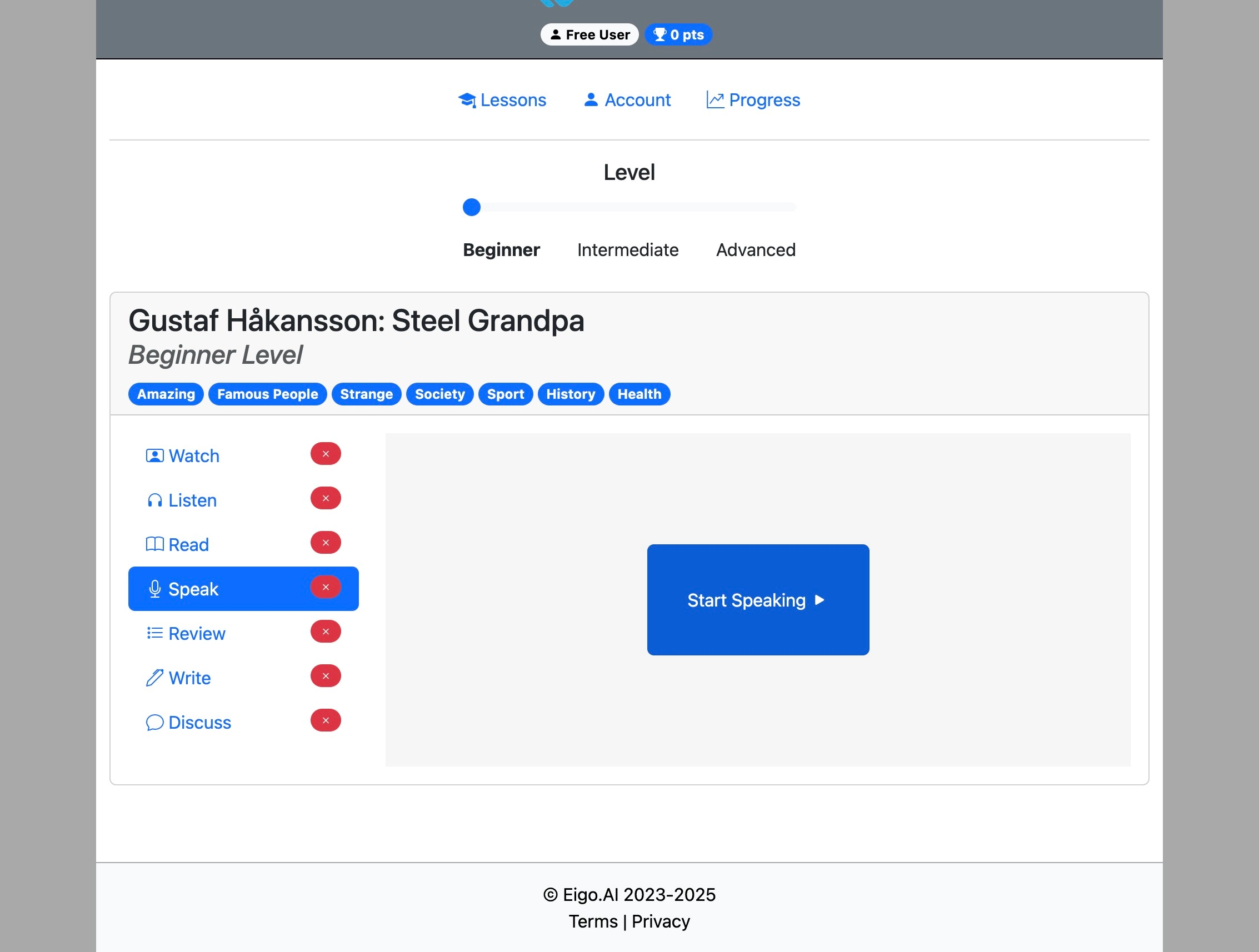
Select the "Speak" activity.
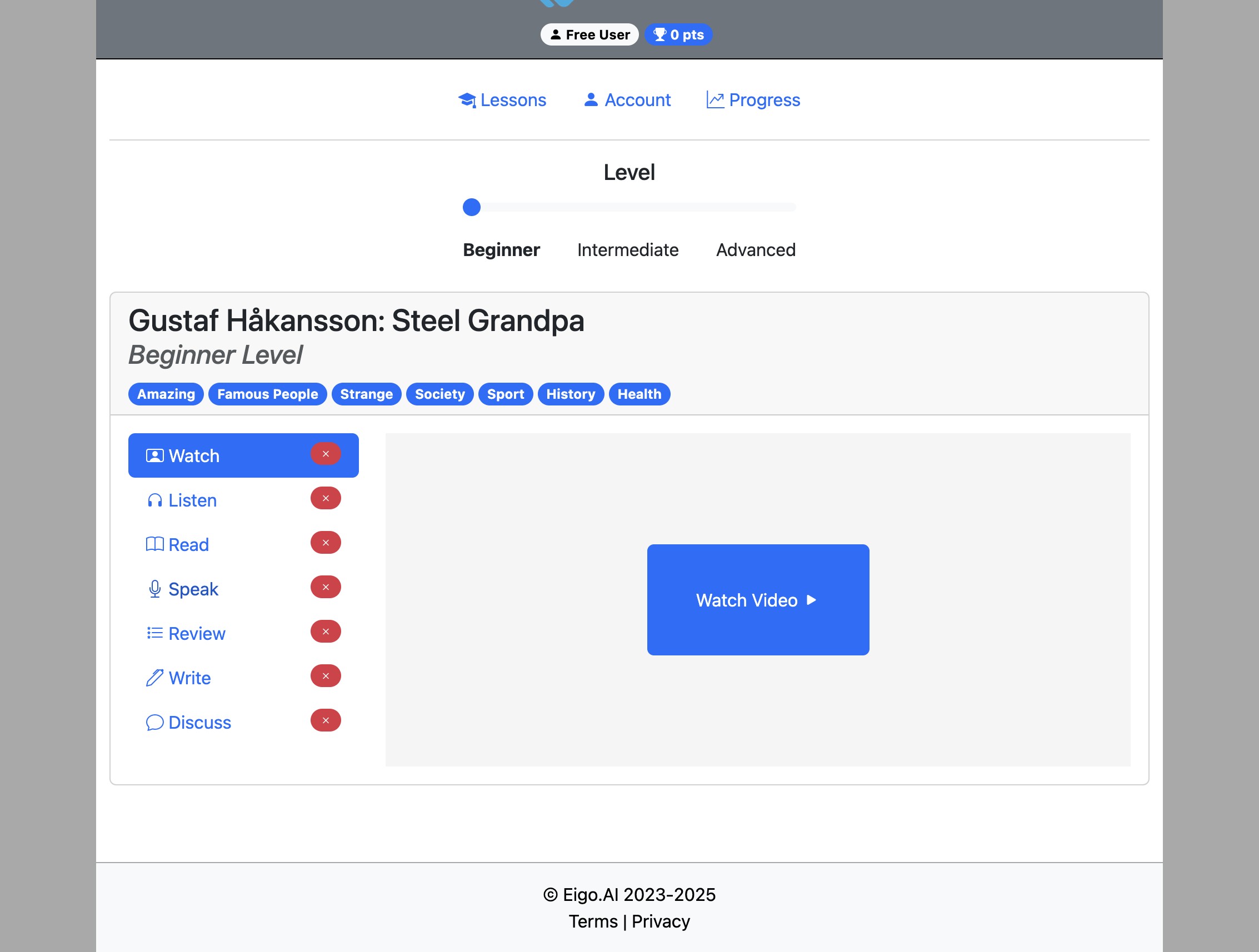
Click "Start Speaking"
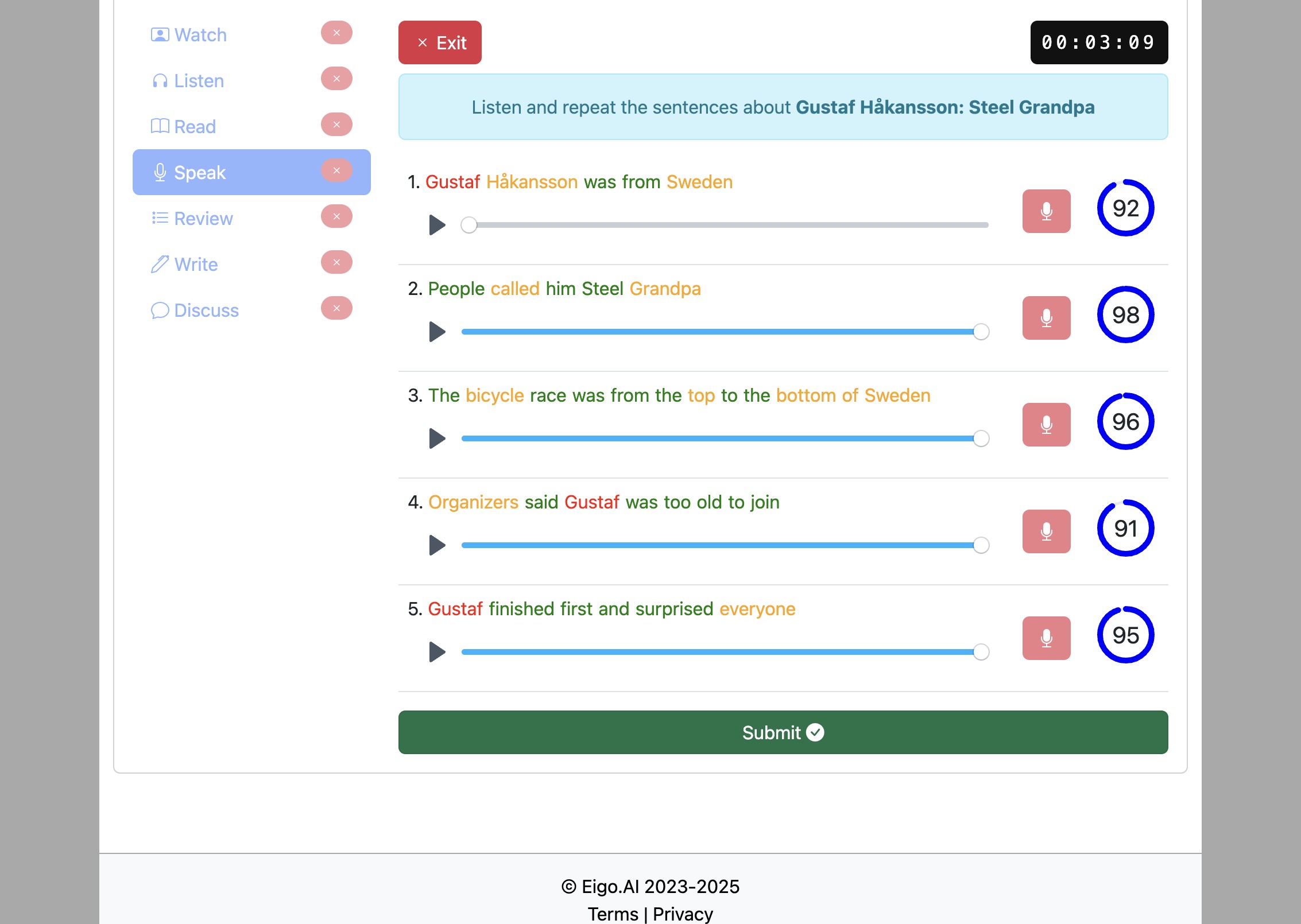
Click the "Play" button under each sentence to listen to the pronunciation.
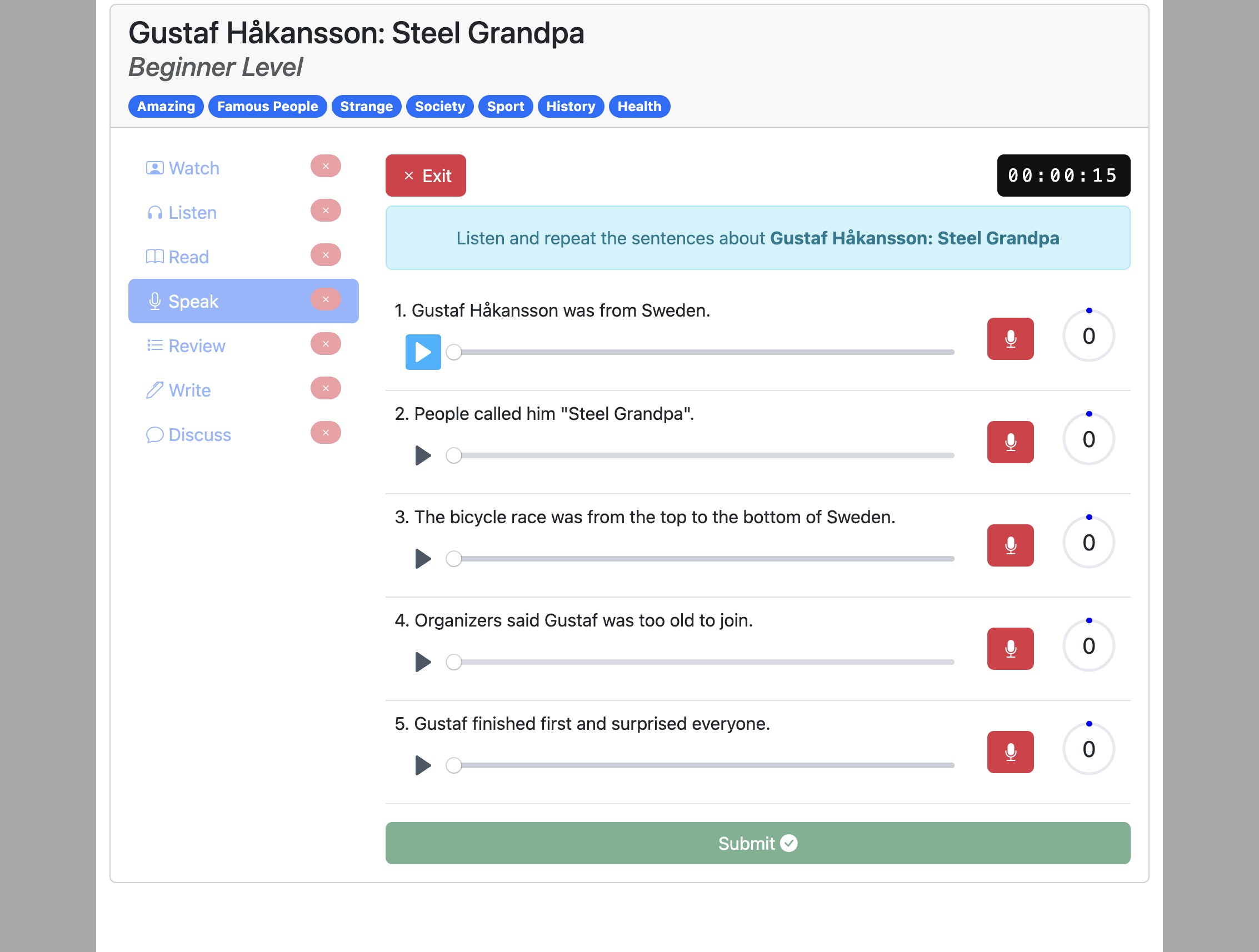
Click the "Record" button and repeat the sentence.
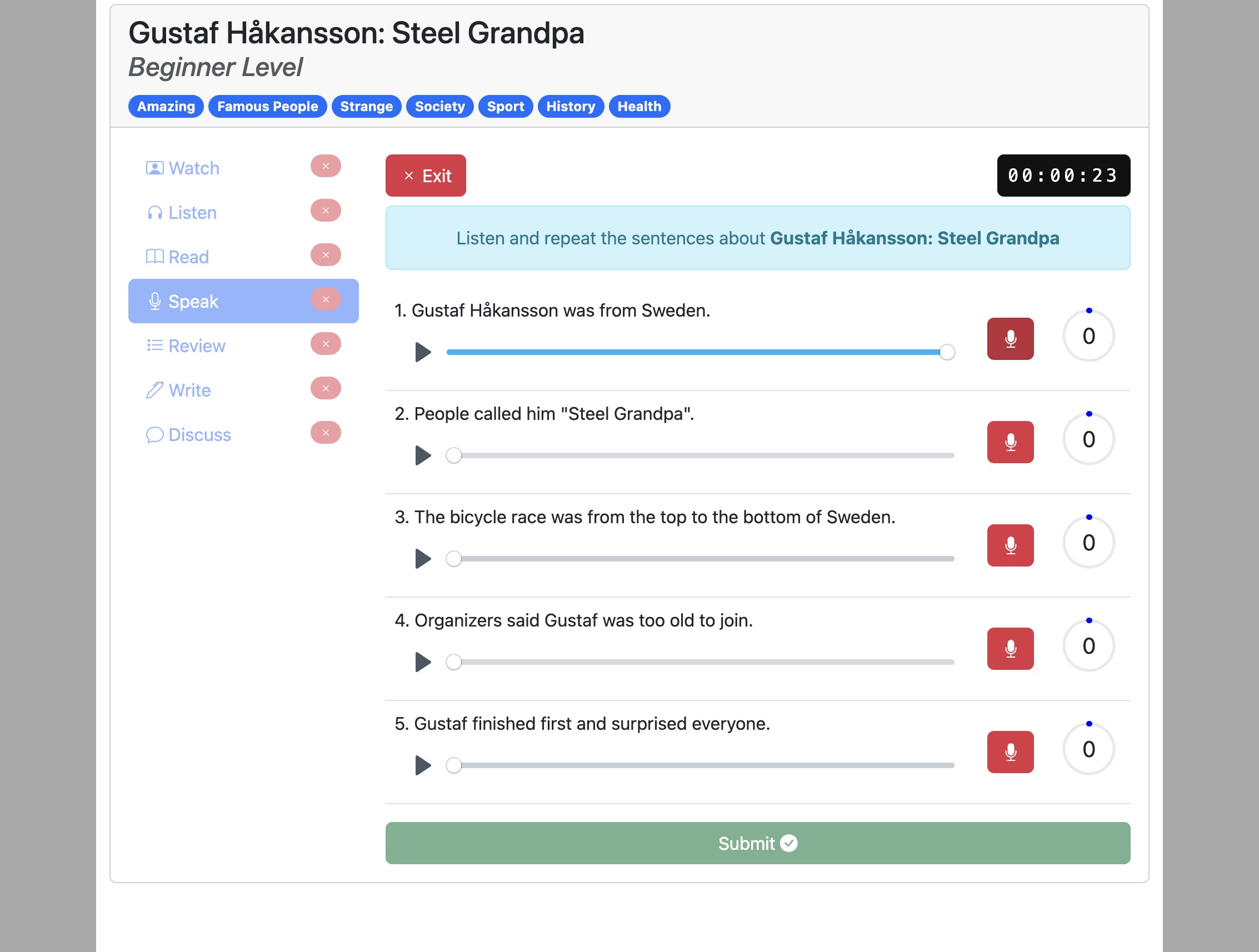
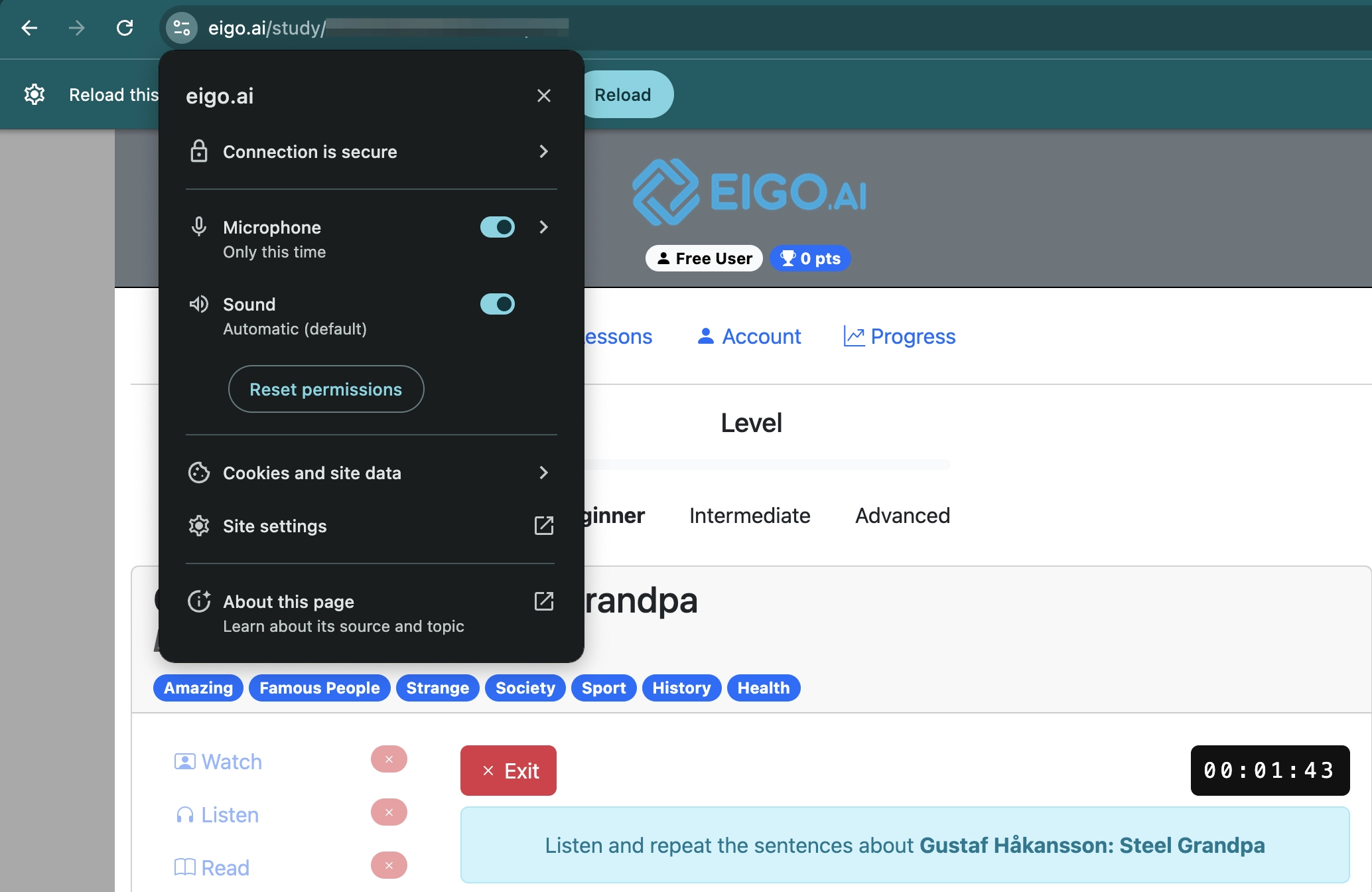
Don't forget to grant access to your microphone before recording your response.
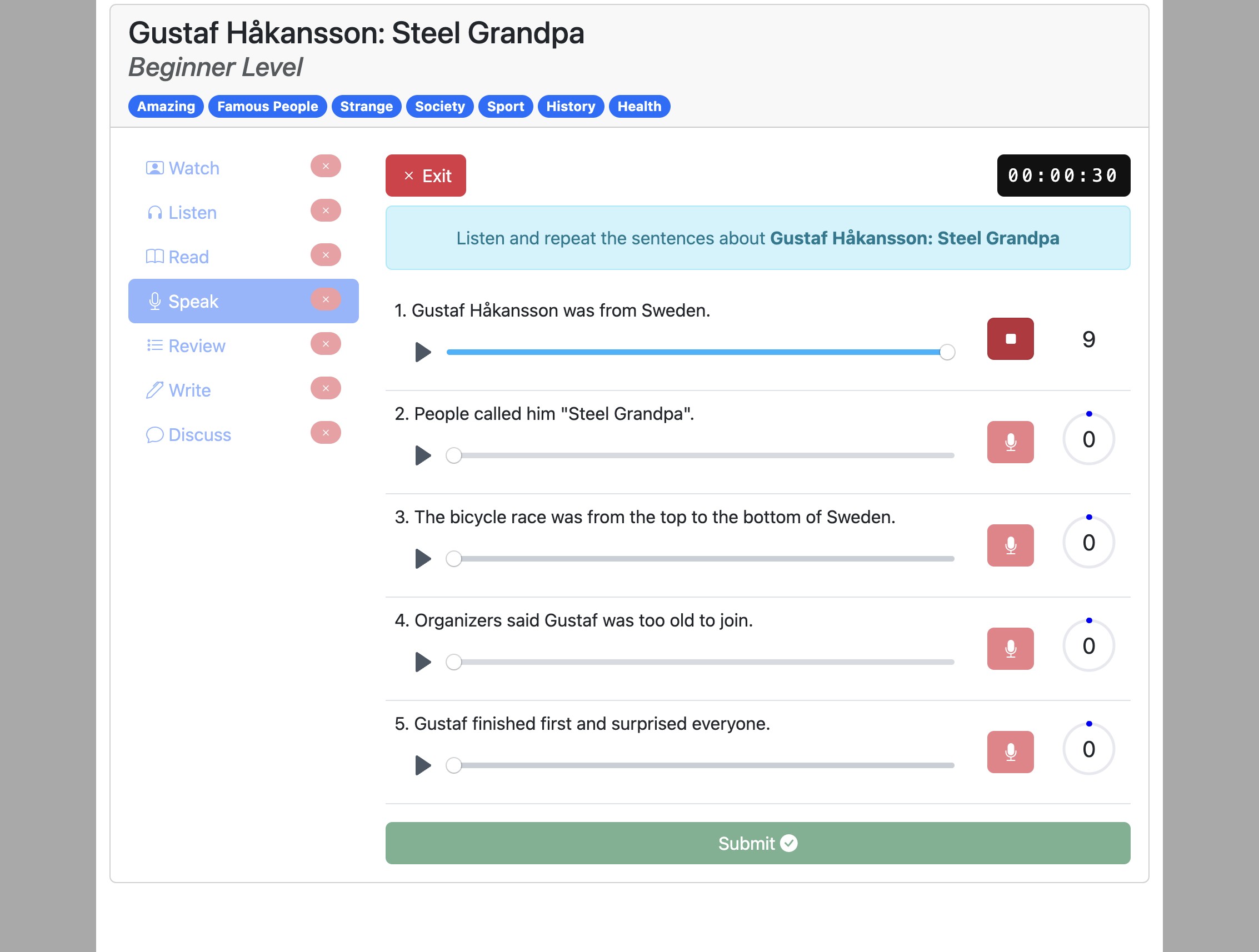
After recording your voice click the “Stop” button. If you do not click the "Stop" button the recording will automatically end after 15 seconds.
You will then receive word-level feedback showing how closely the recognized words match the target sentence.
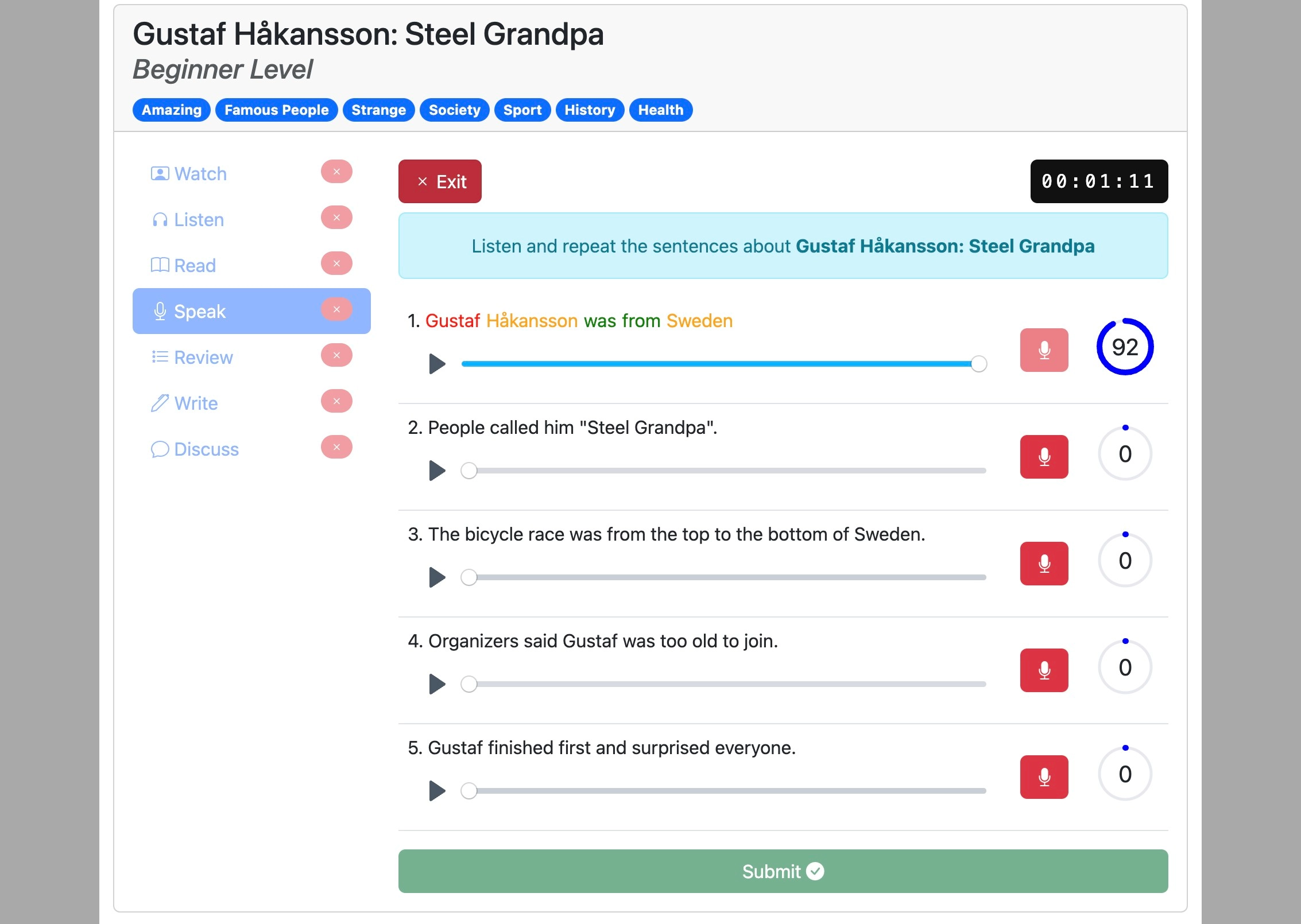
Green means a target word was recognized. Red means it was not recognized as a match. A red word can result from a missed word, background noise or a speech recognition error, so it does not automatically mean your pronunciation is wrong.
After repeating all the sentences, click "Submit" to get your total score.
After submitting, you can click "Redo" to attempt the activity again if you wish to do so.
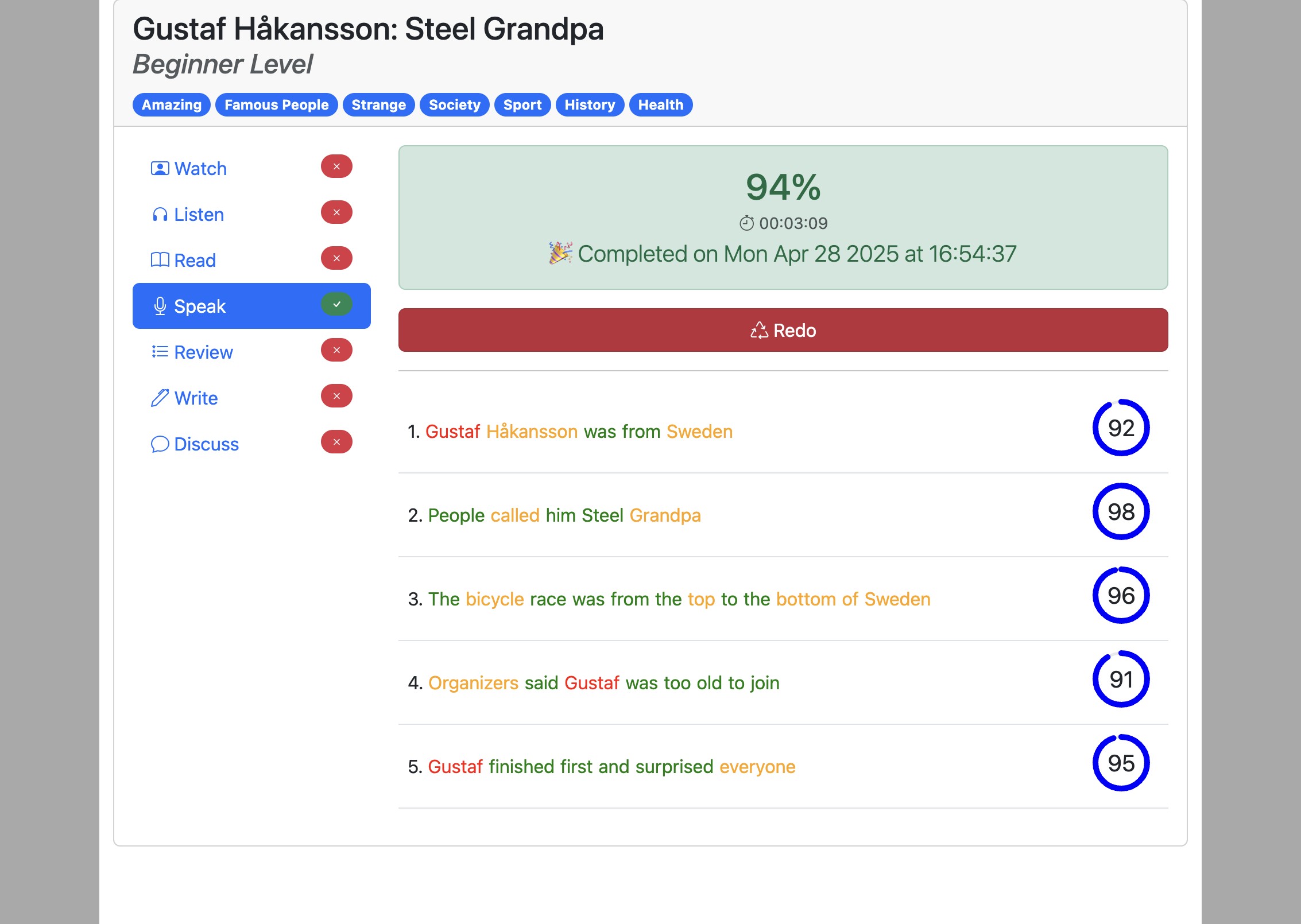
If your teacher has disabled resubmissions the "redo" button might not be shown.
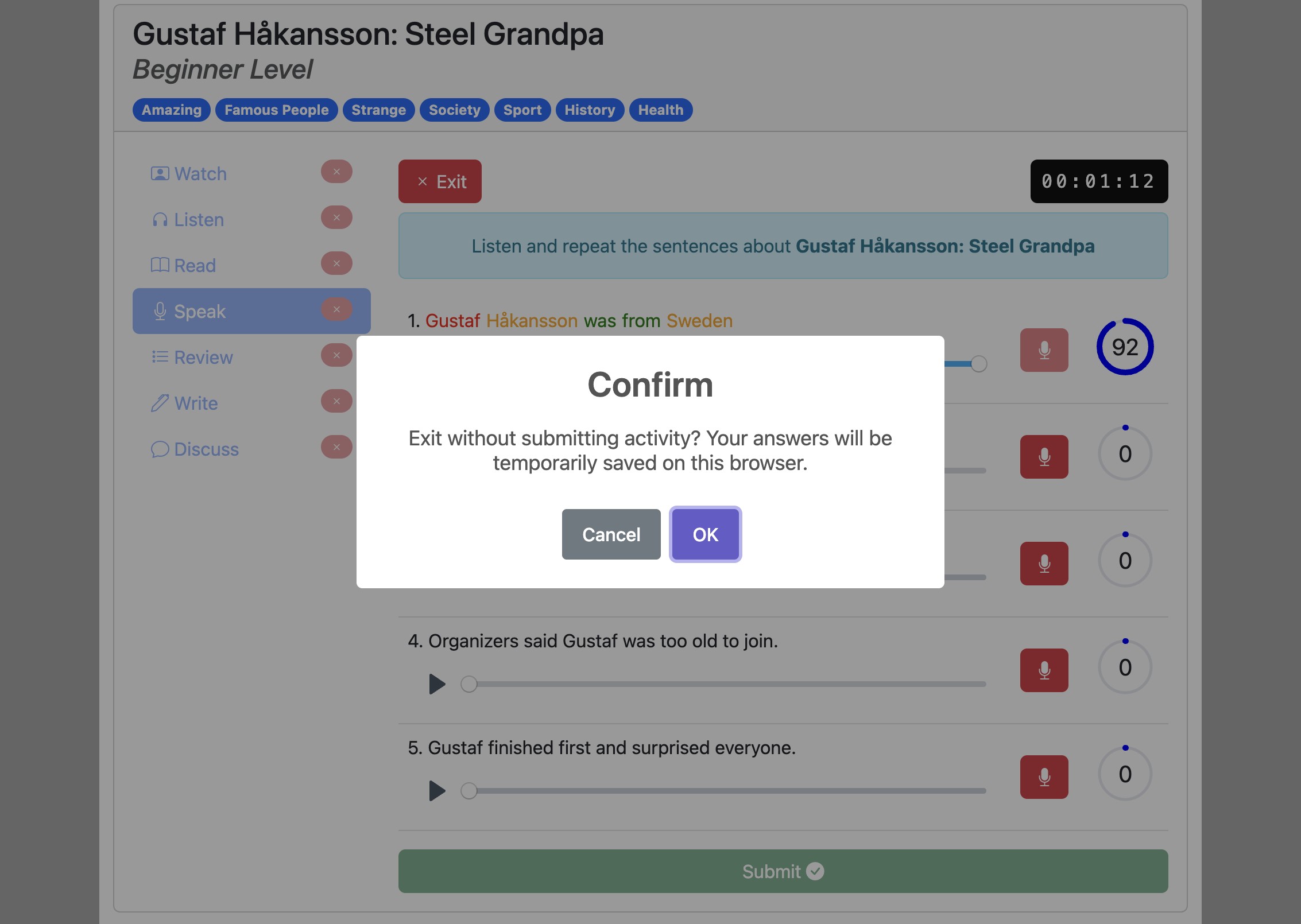
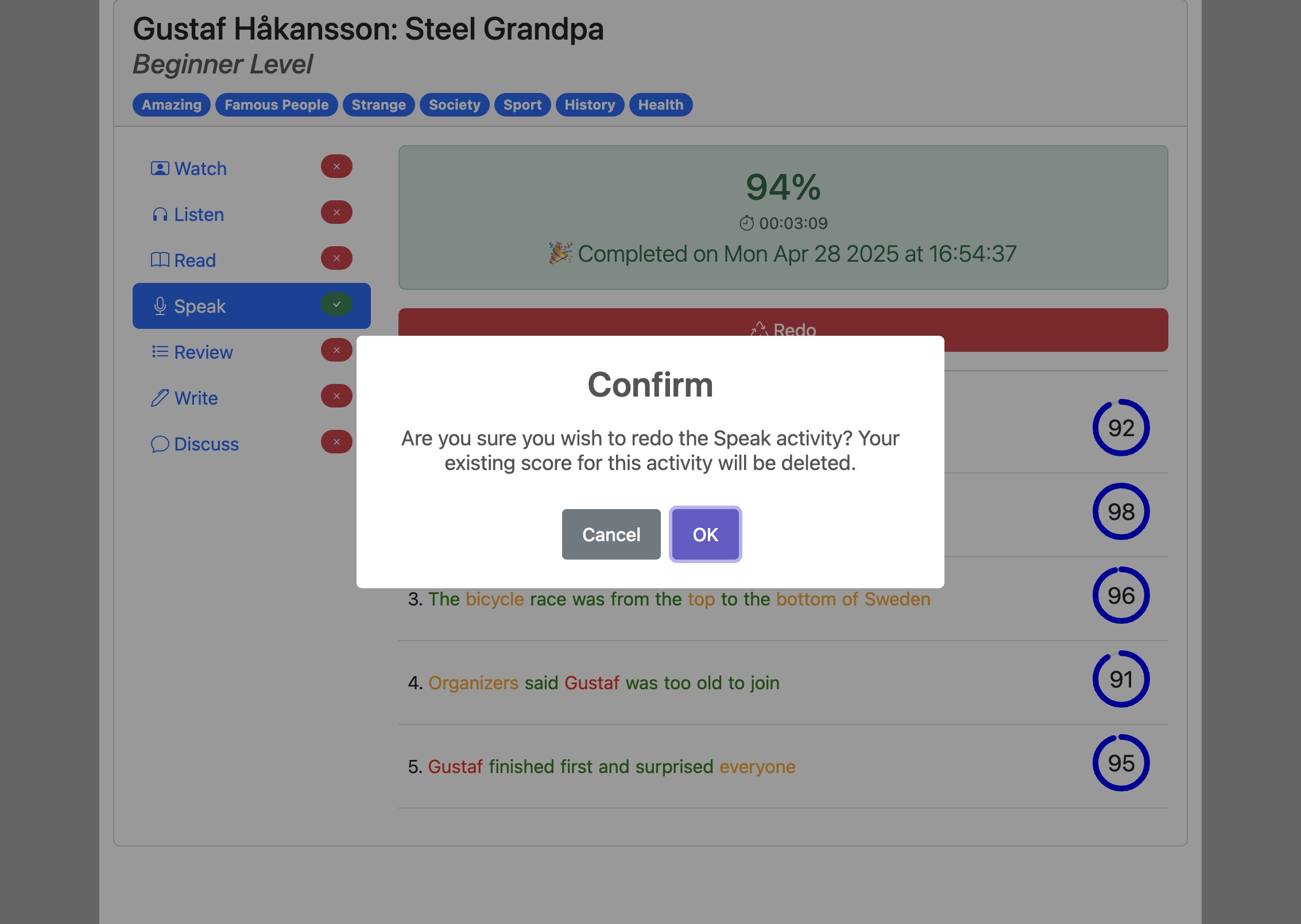
Click "OK" to confirm.
If you need to leave the ‘Speak’ activity before submitting it, click the "Exit" button. Your progress will be temporarily saved on your current browser and you can return to the activity later.
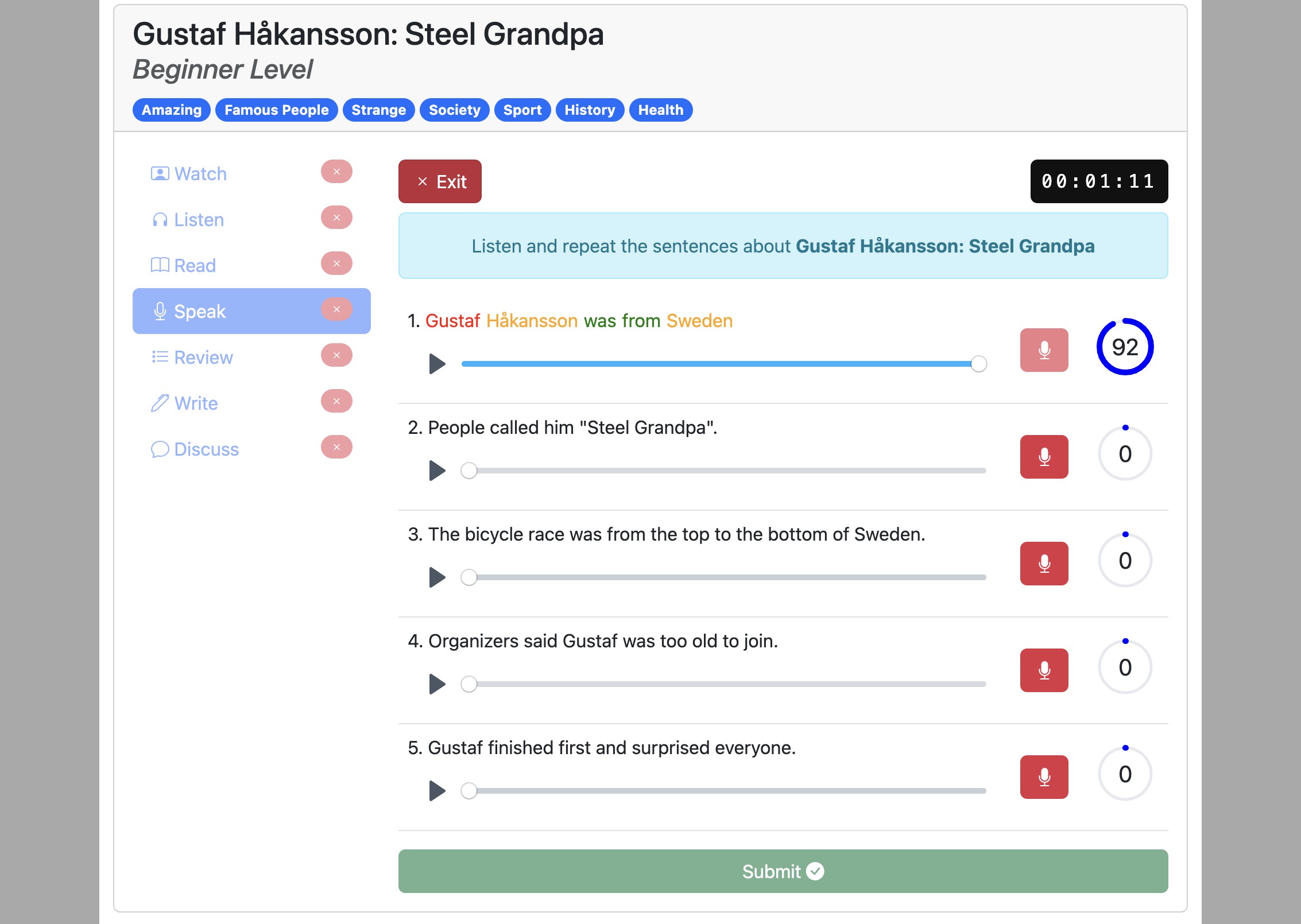
Click "OK" to confirm.