1
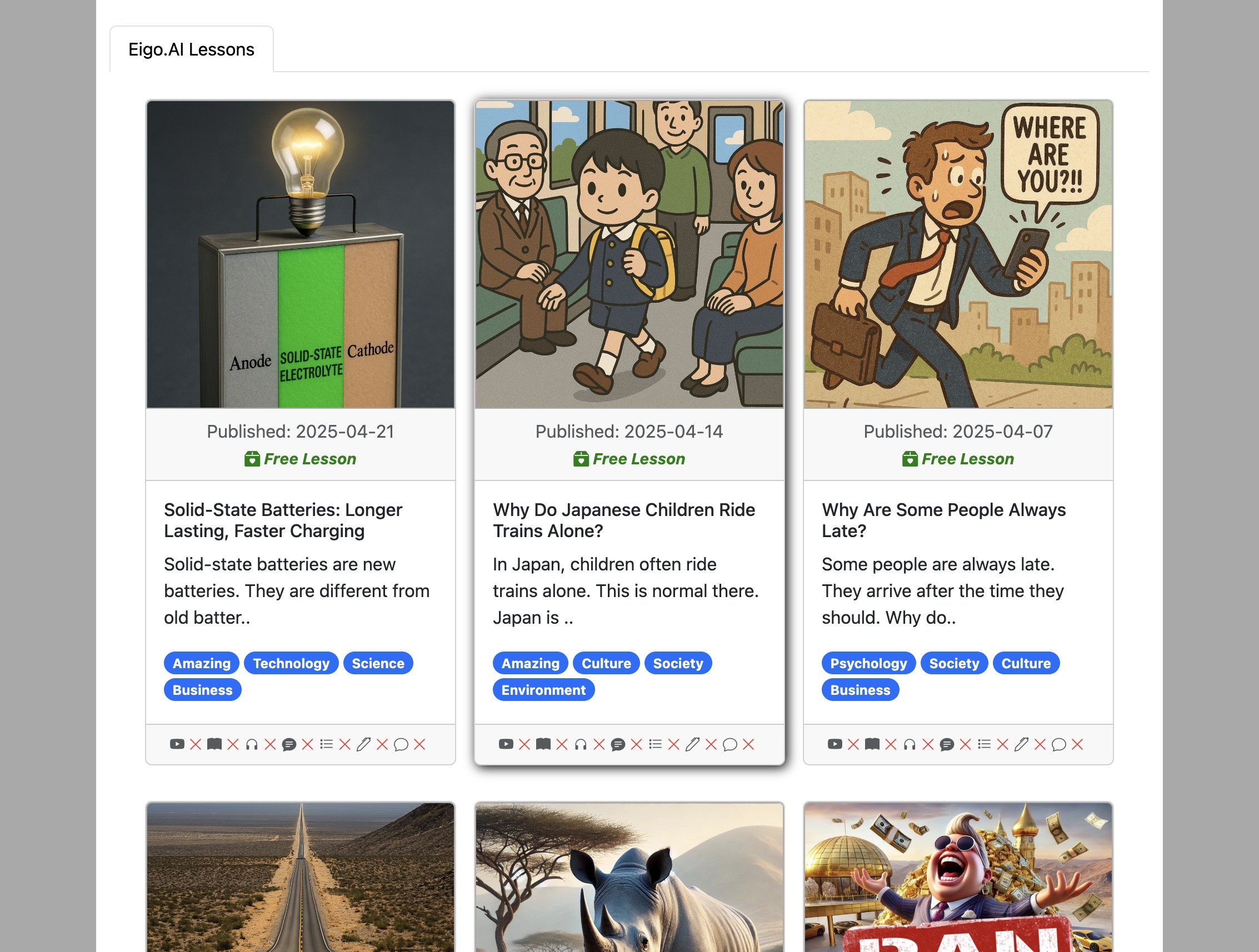
Navigate to https://eigo.ai/lessons/
2
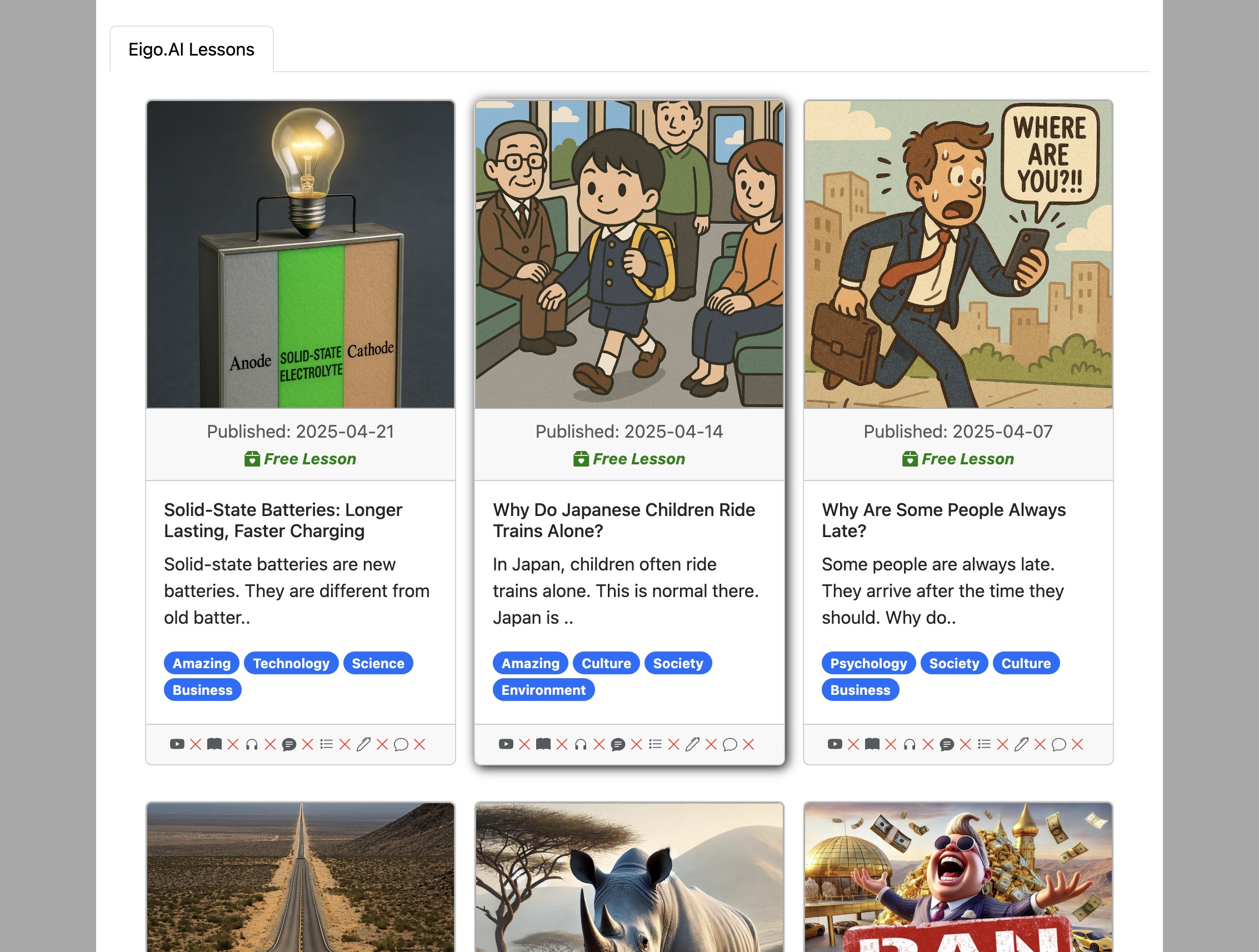
Select a lesson you would like to study.
3
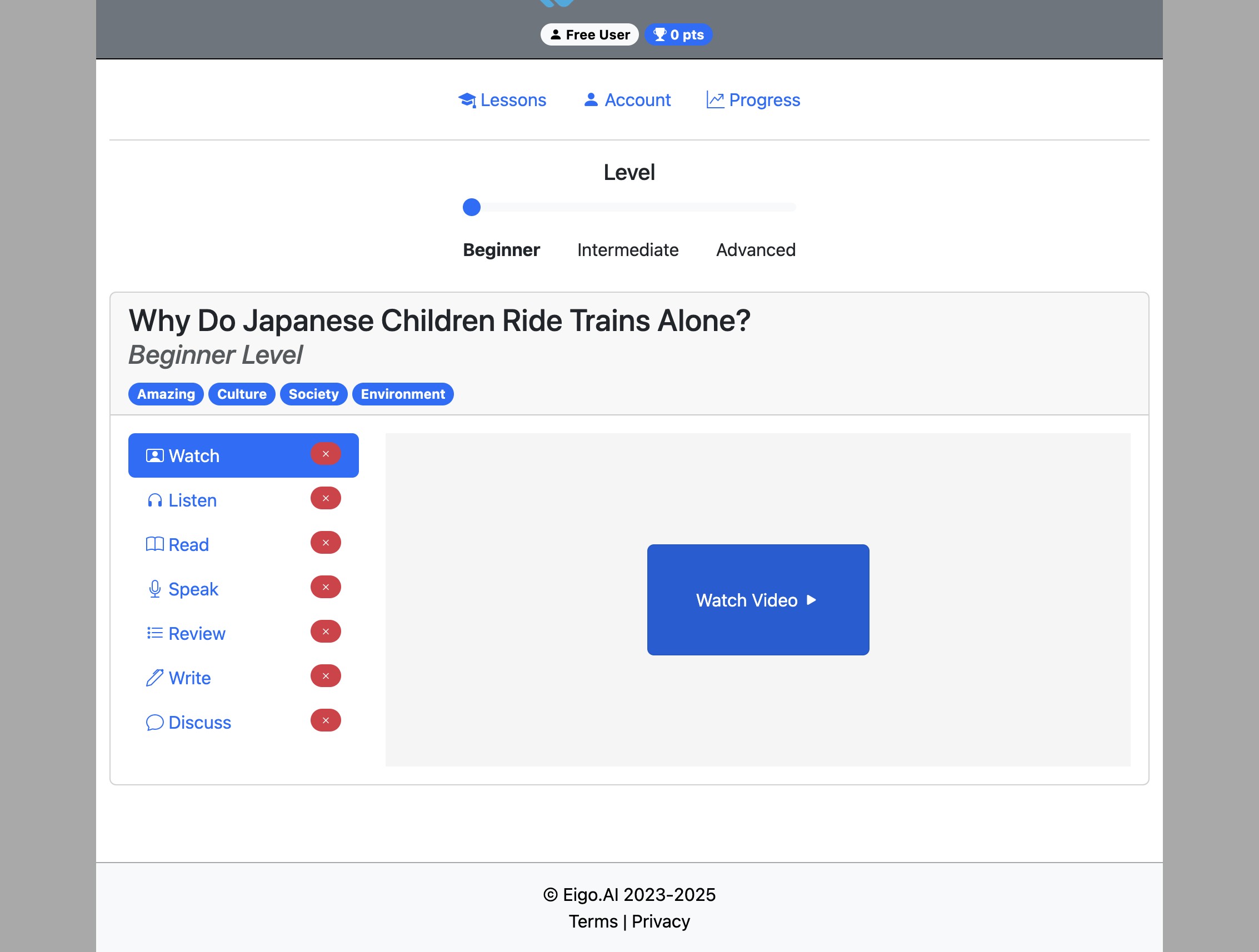
Click "Watch Video".
4
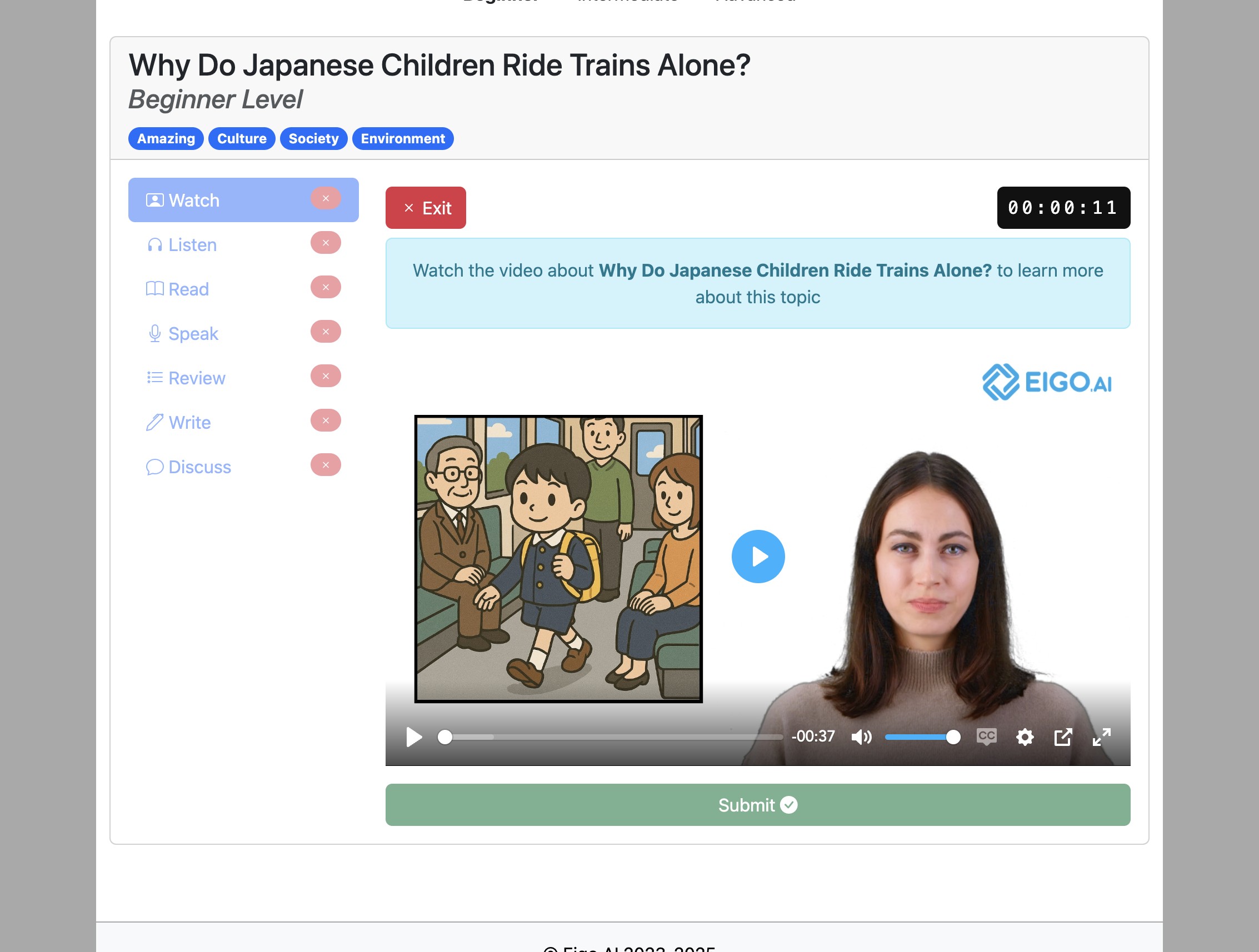
Click the "Play" button to start the video.
5
Turn the captions on and off by clicking "CC" button.
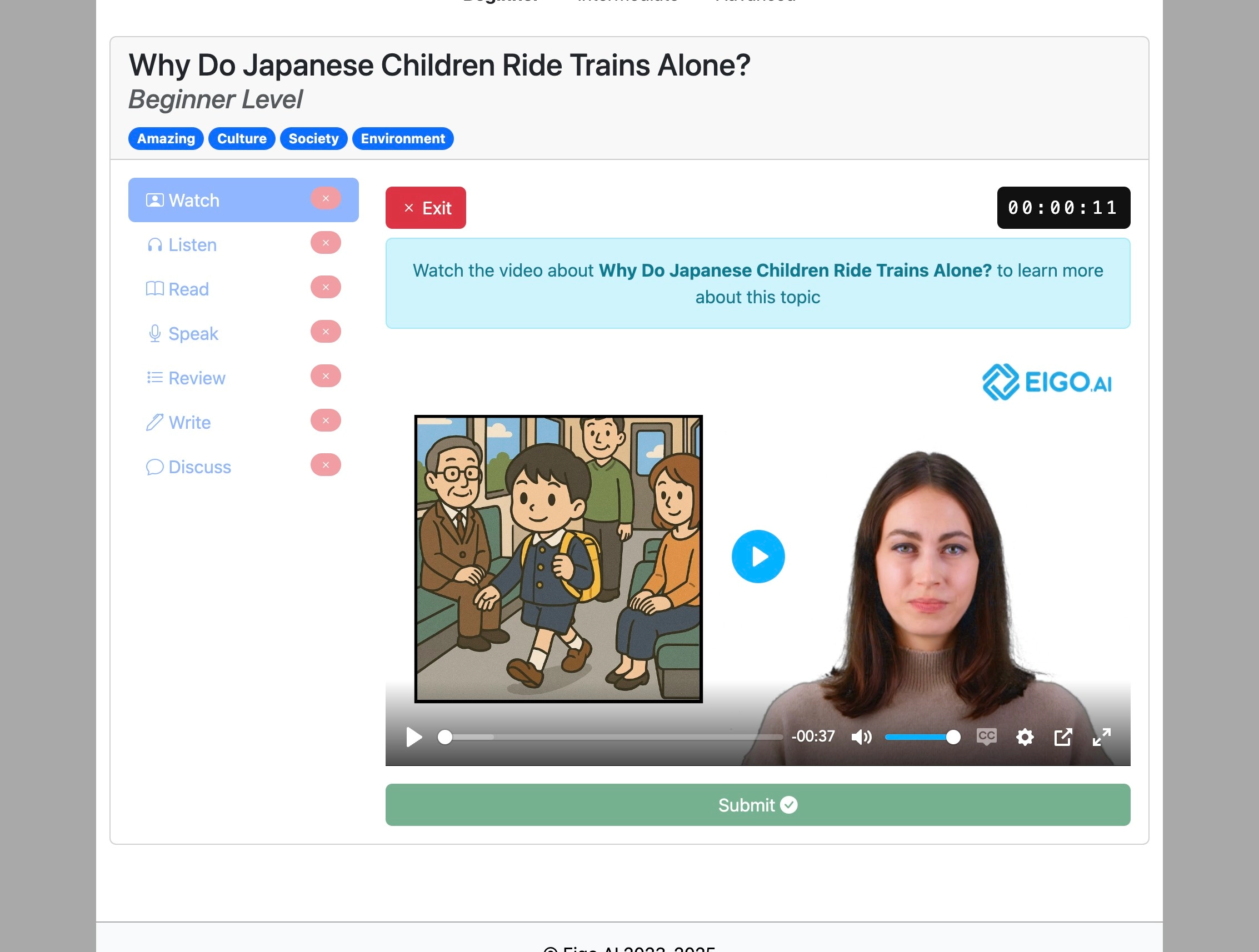
If your teacher has disabled captions, the "CC" button might not be shown.
6
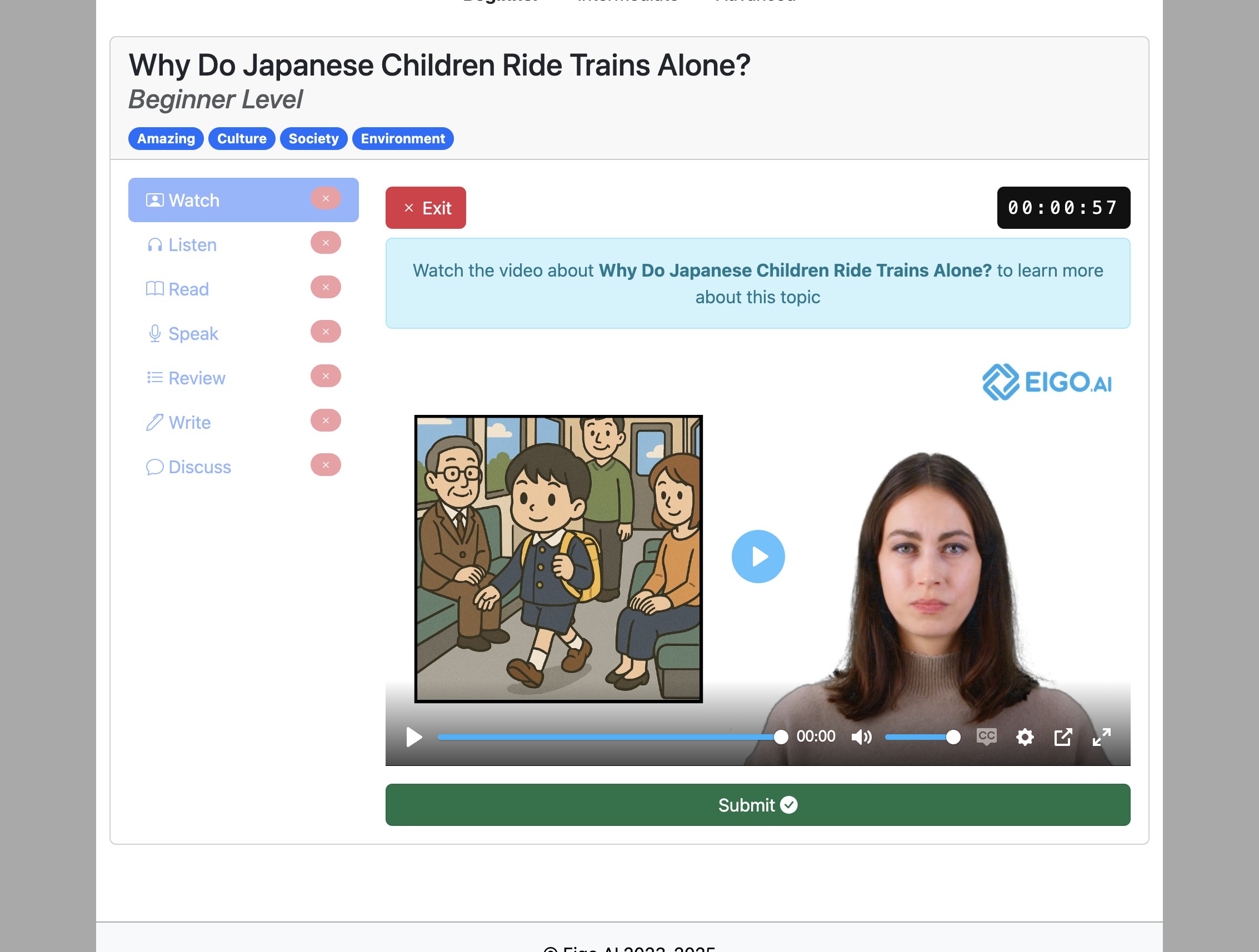
After watching the complete video, click "Submit".
7
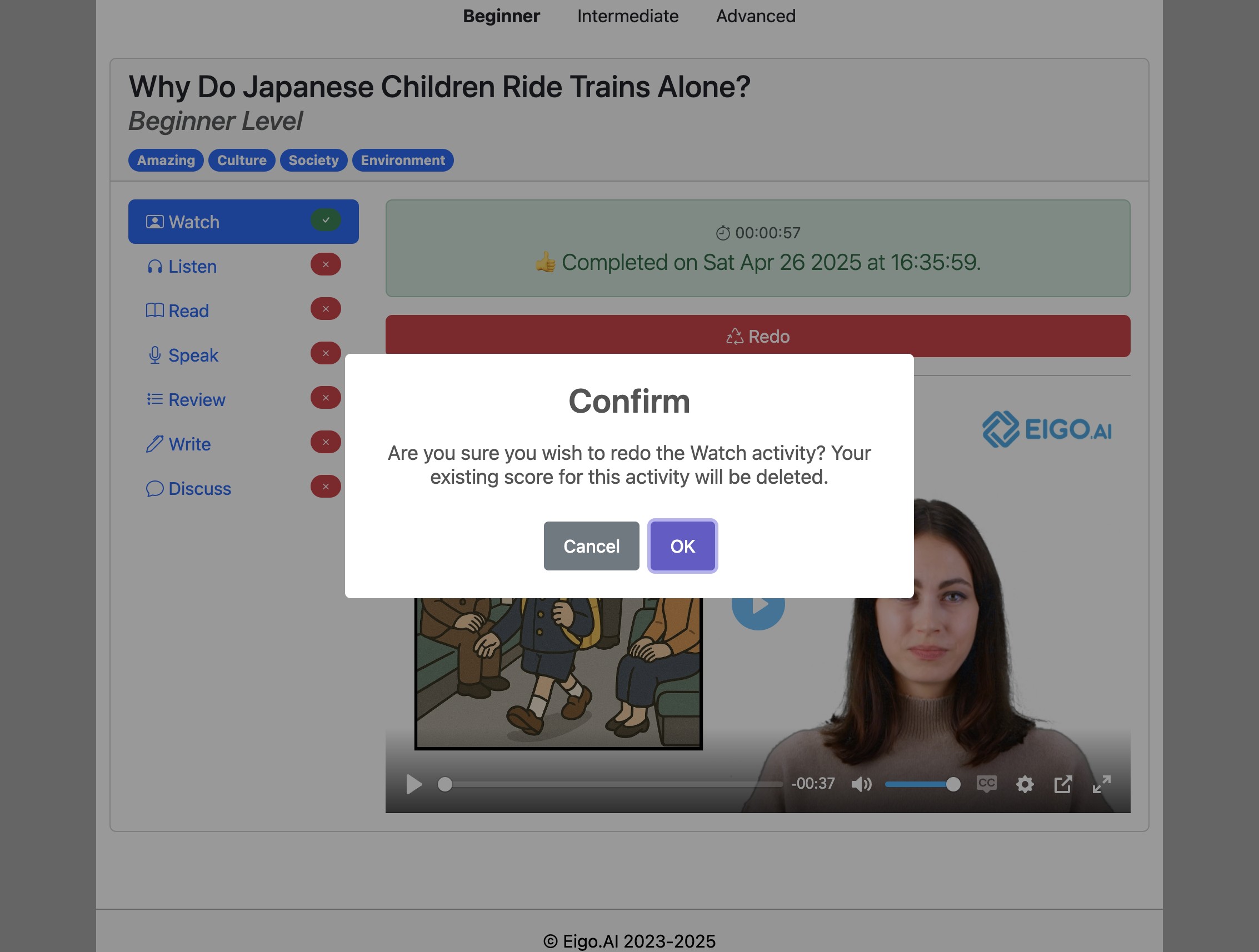
After submitting, you can click "Redo" to attempt the activity again if you wish to do so.
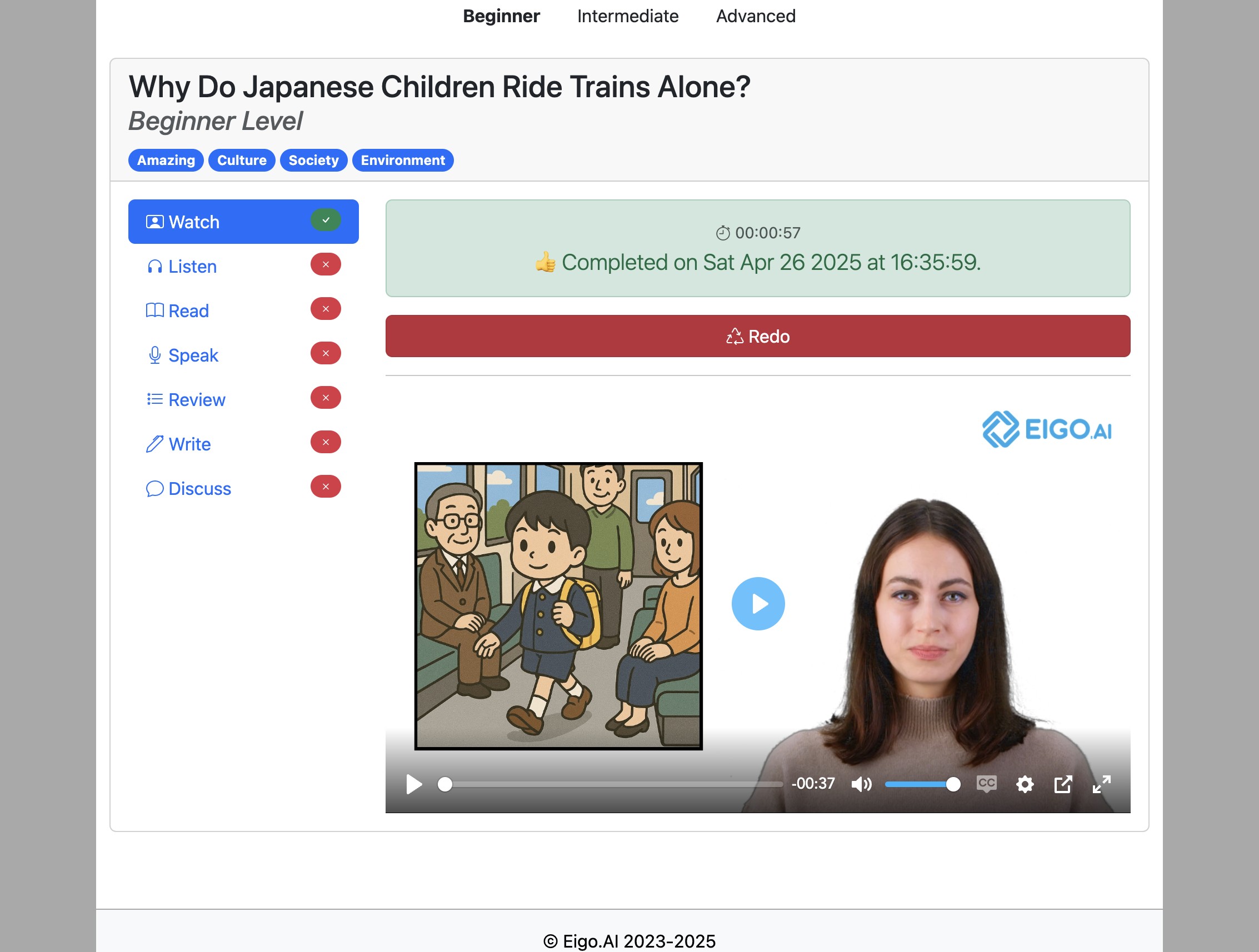
If your teacher has disabled resubmissions the "redo" button might not be shown.
8
Click "OK" to confirm.
9
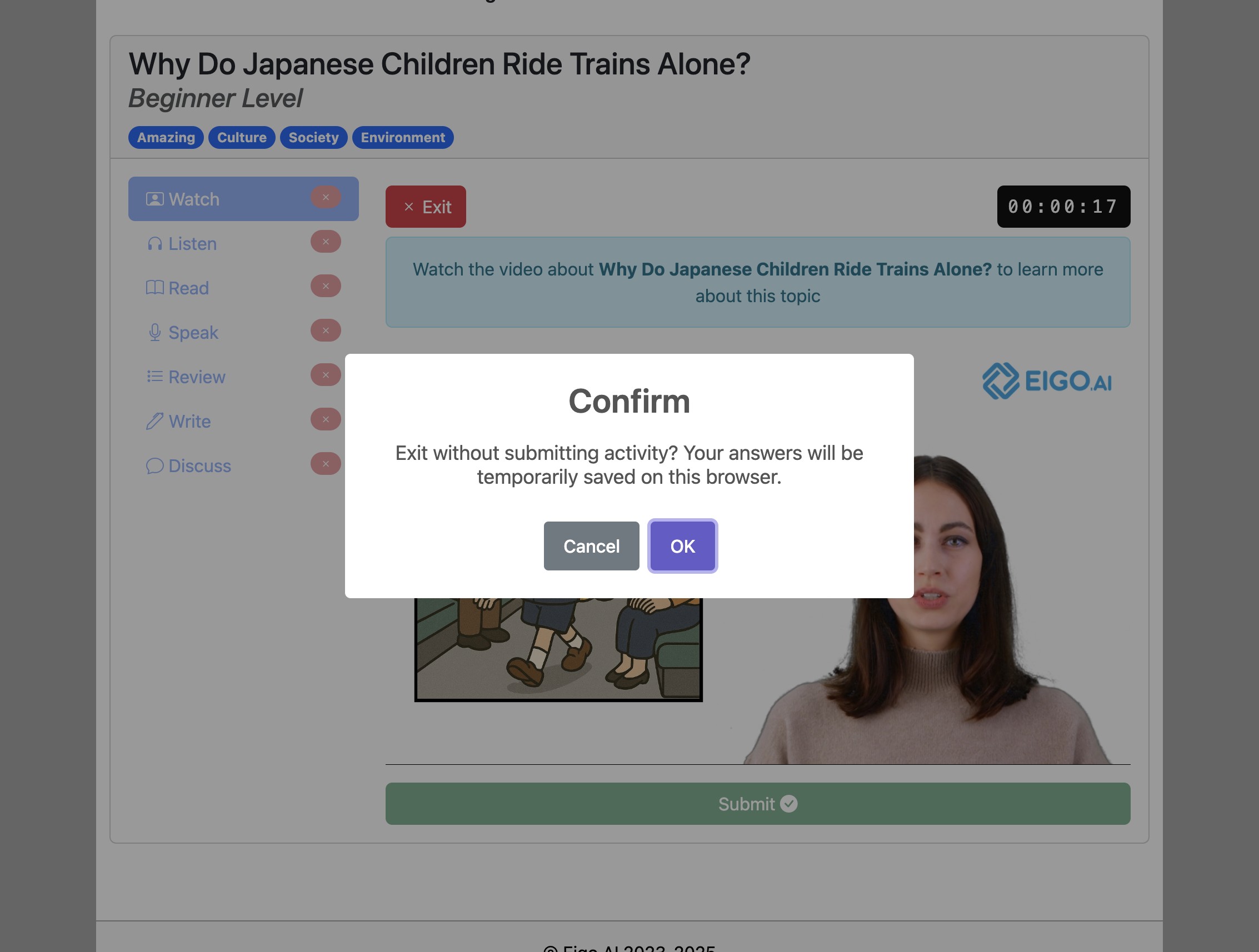
If you need to leave the ‘Watch’ activity before submitting it, click the "Exit" button. Your progress will be temporarily saved on your current browser and you can return to the activity later.
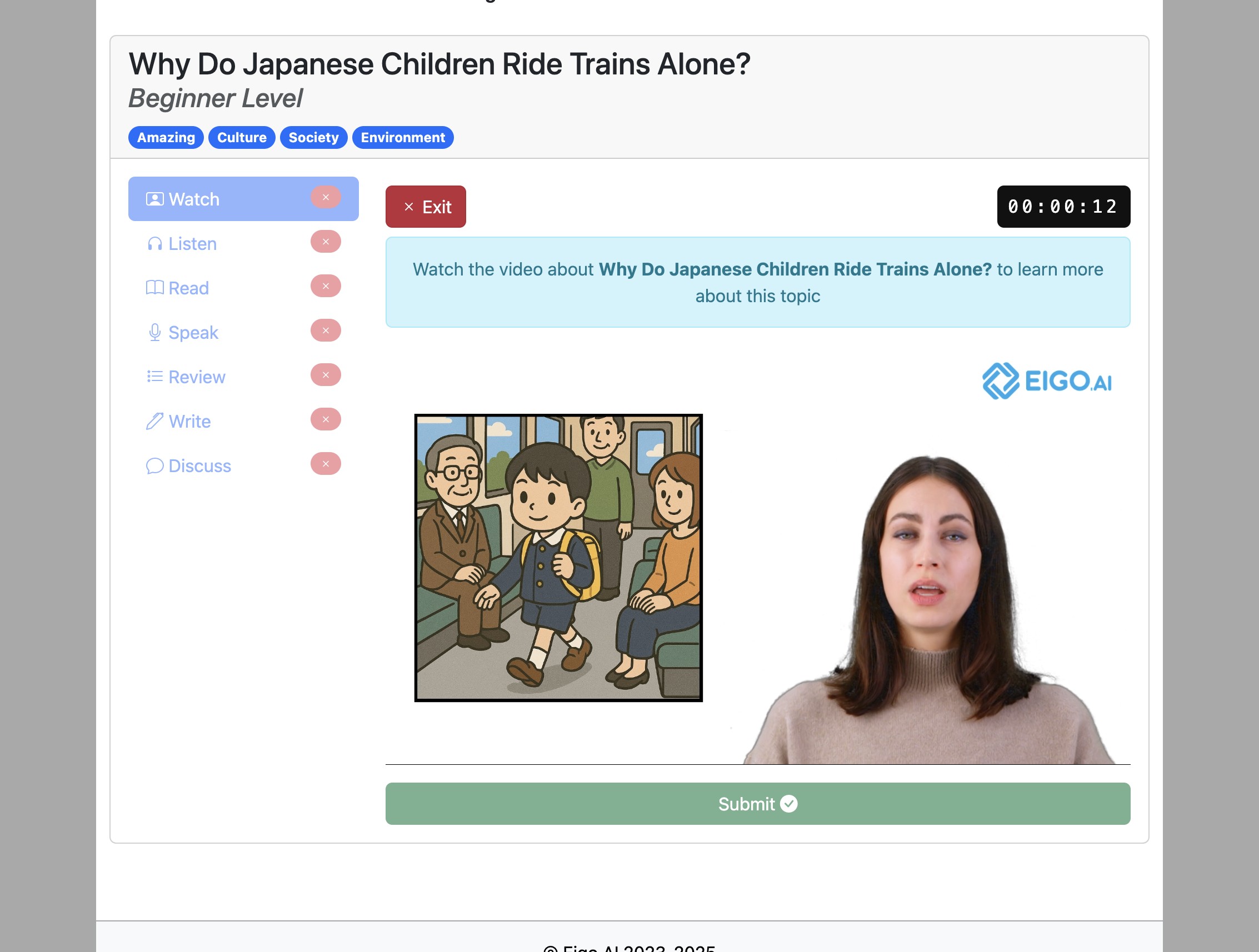
10
Click "OK" to confirm.