1
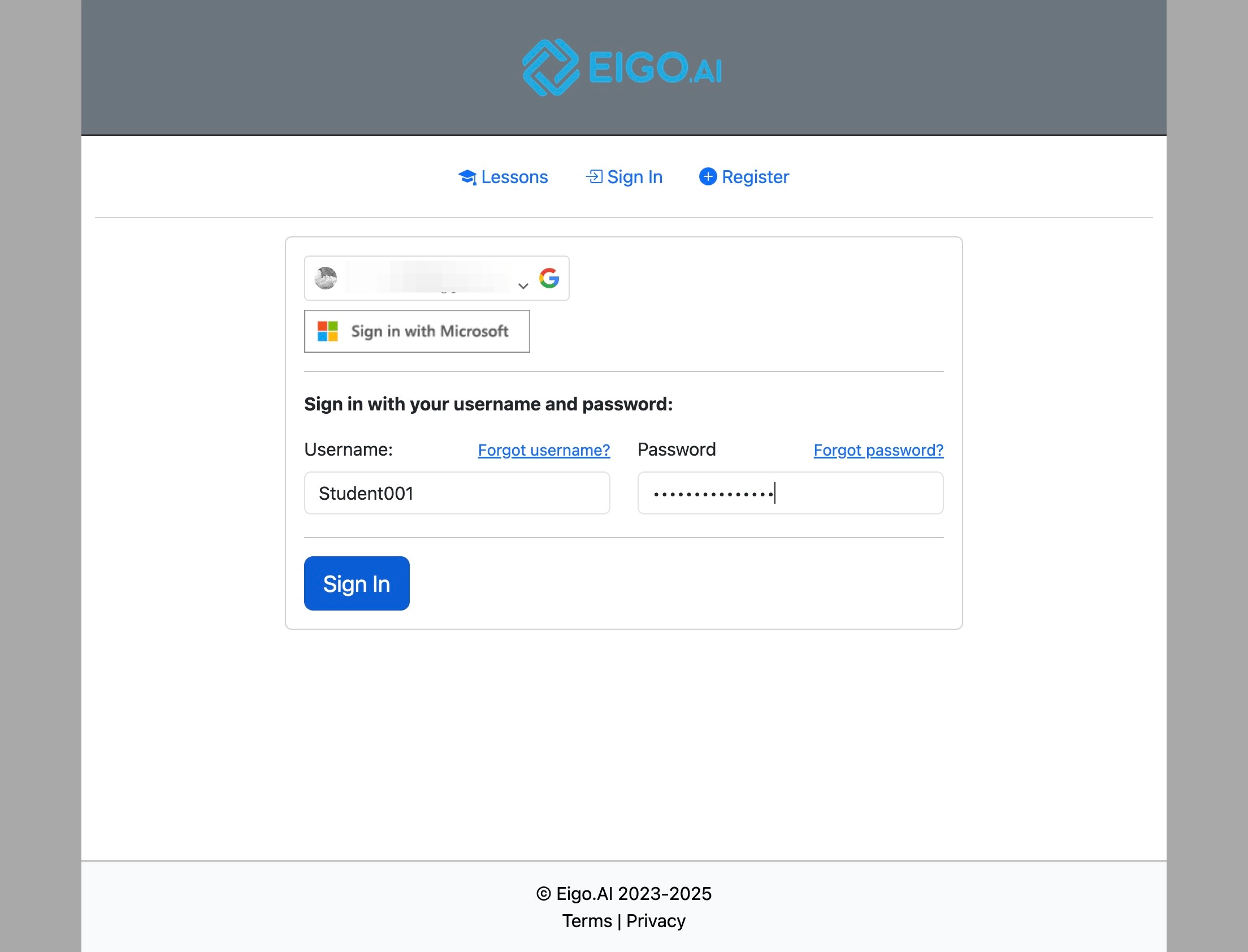
Navigate to https://eigo.ai/account/?screen=sign_in
2
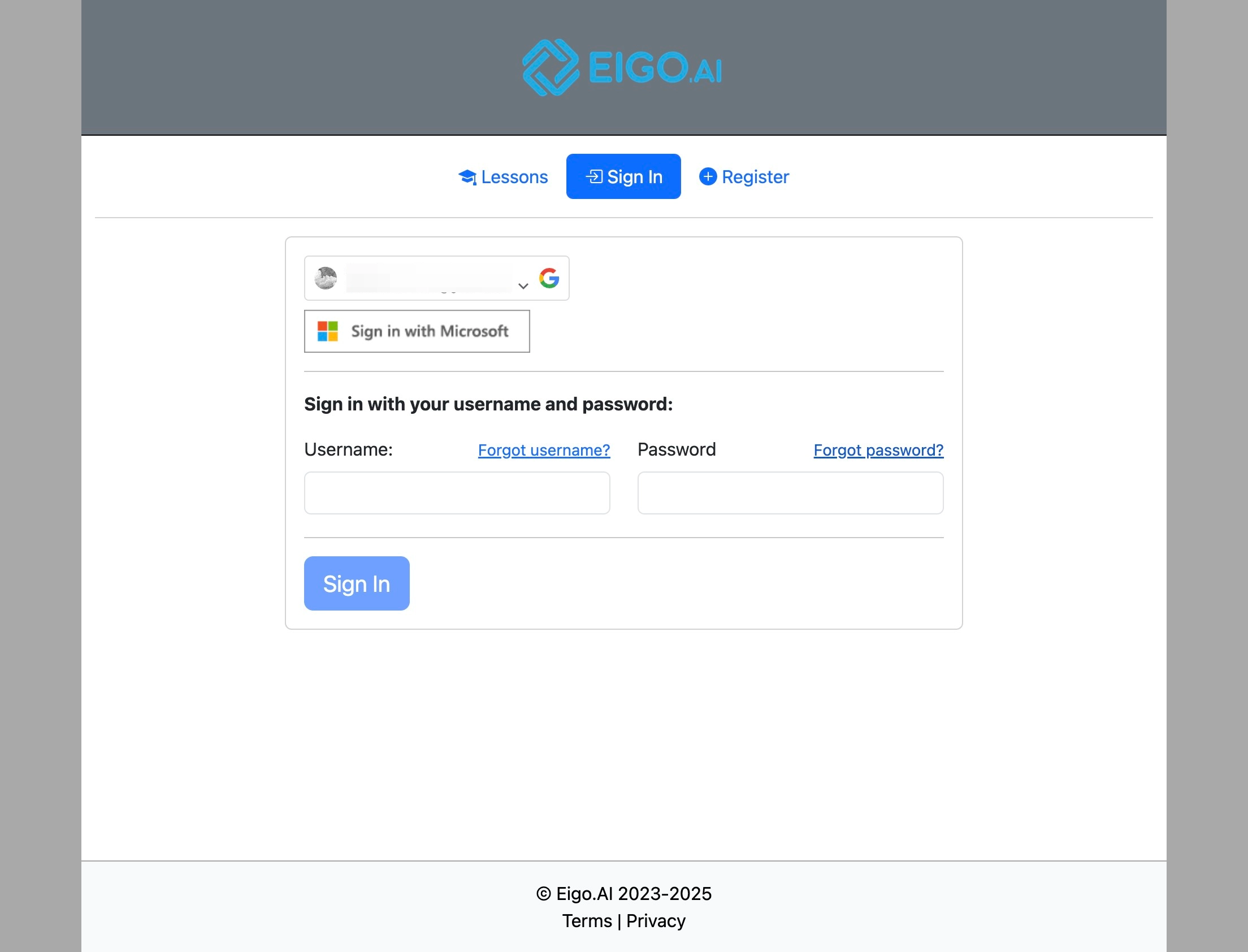
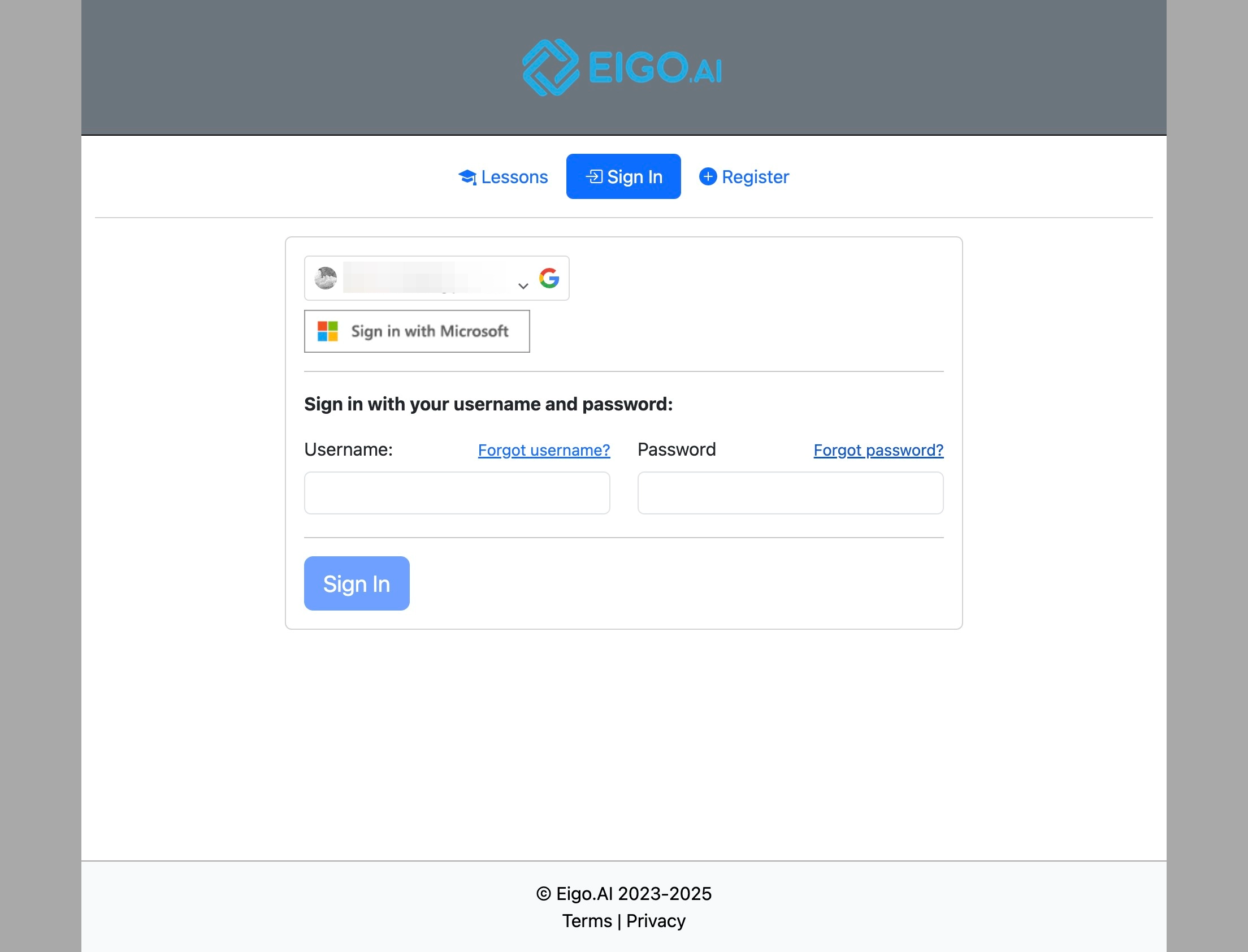
Click "Forgot password?"
3
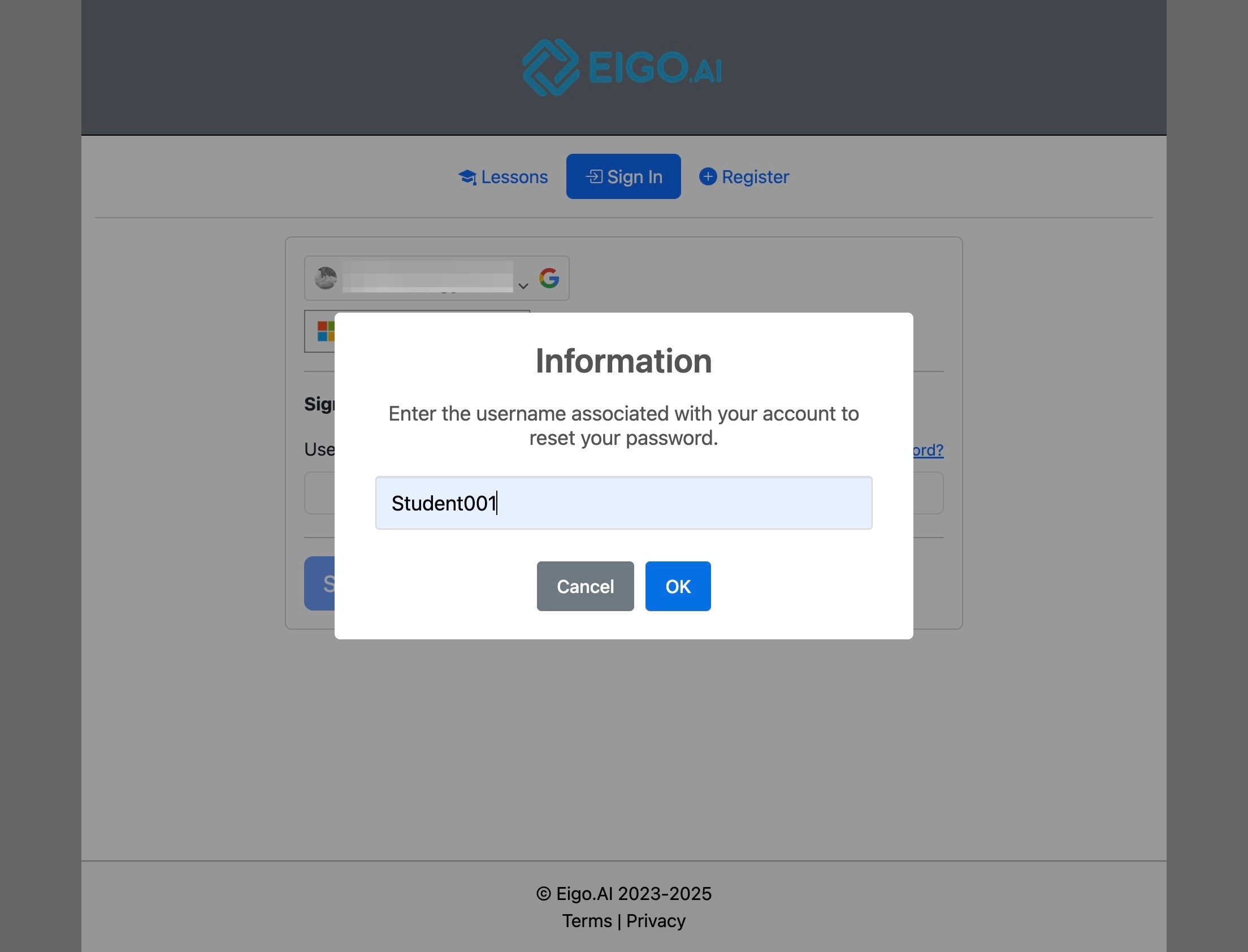
Enter your username, and click "OK".
4
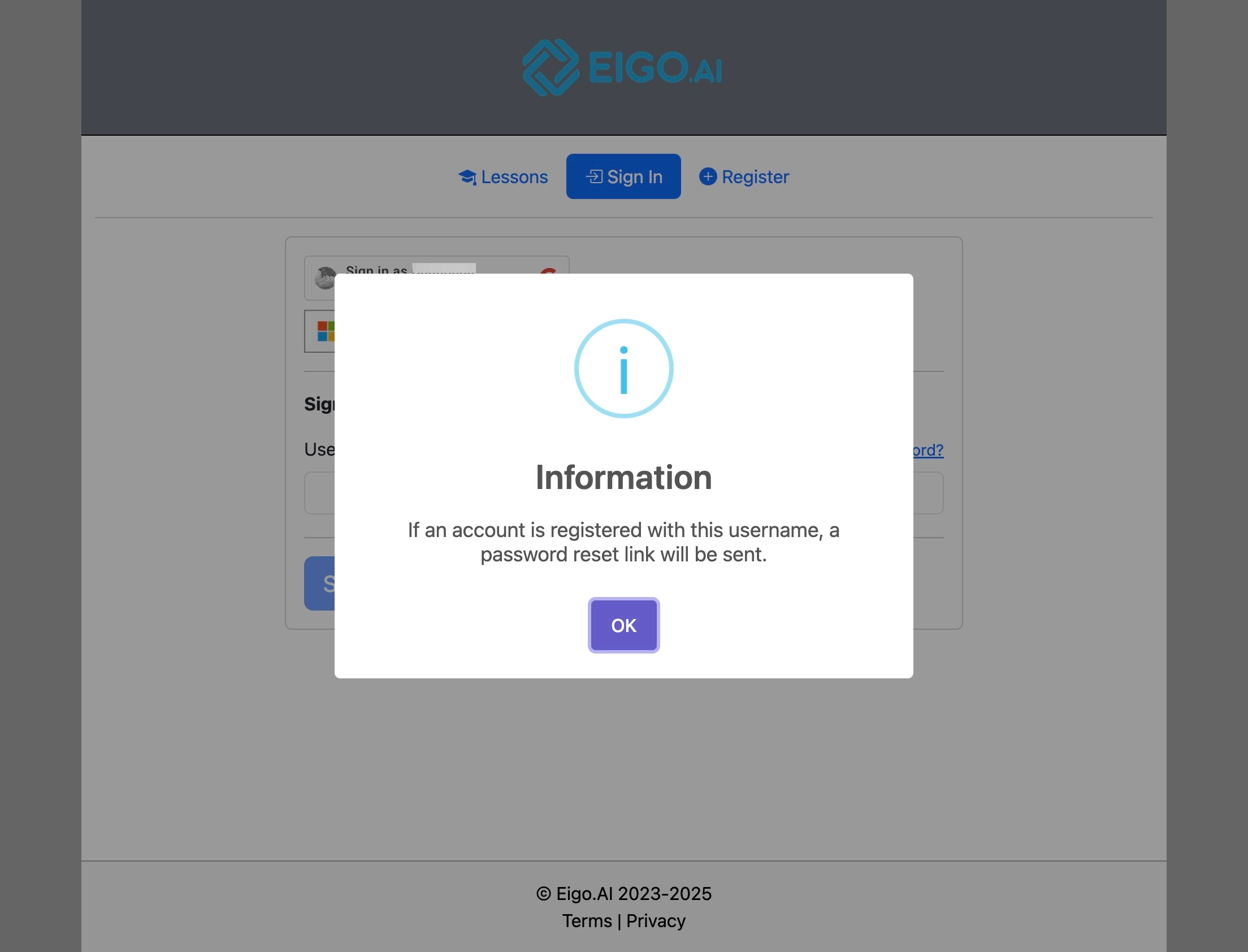
Click "OK" to confirm.
5
Navigate to the inbox of your registered email address.
6
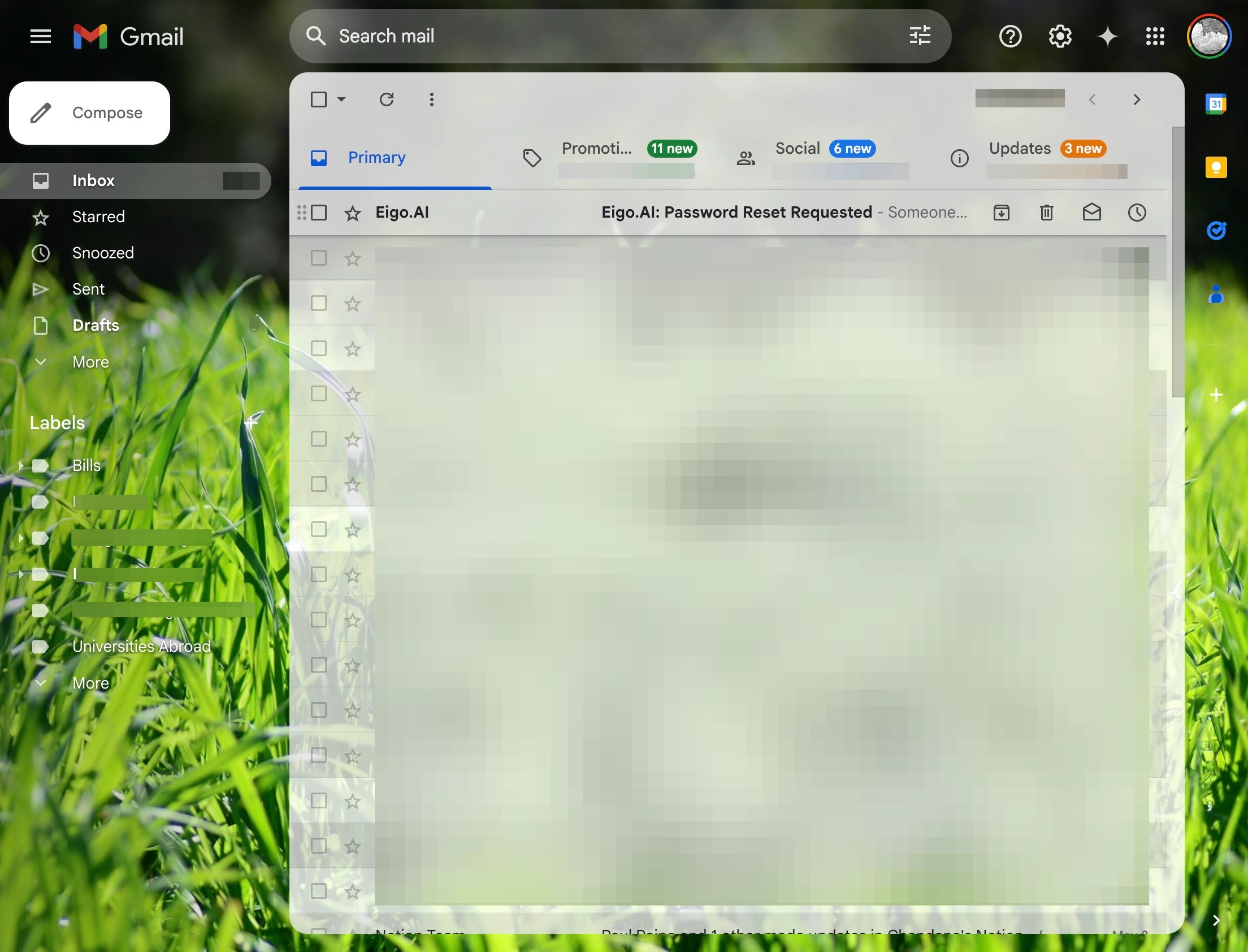
Click on the email "Eigo.AI: Password Reset Requested".
7
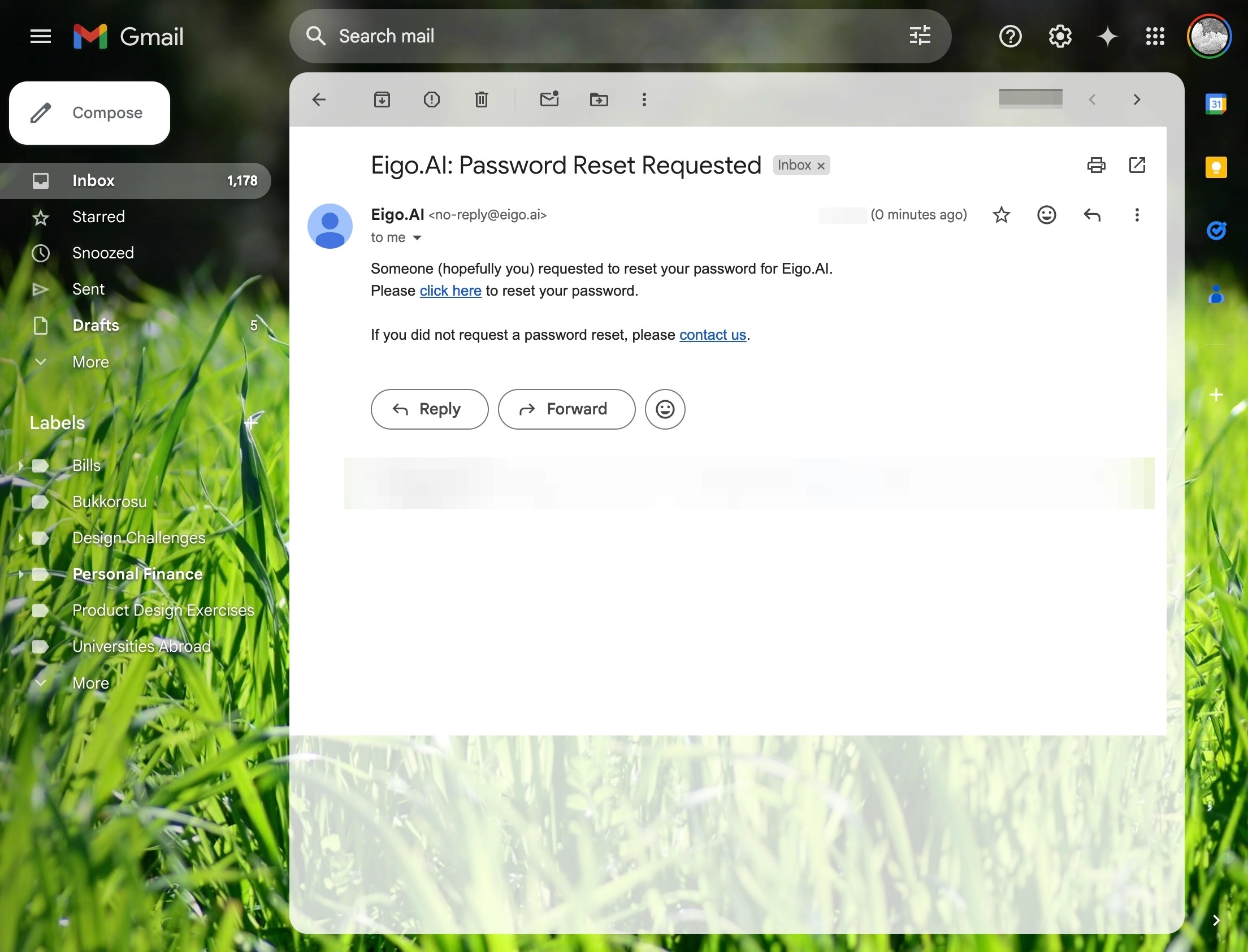
Click "click here".
8
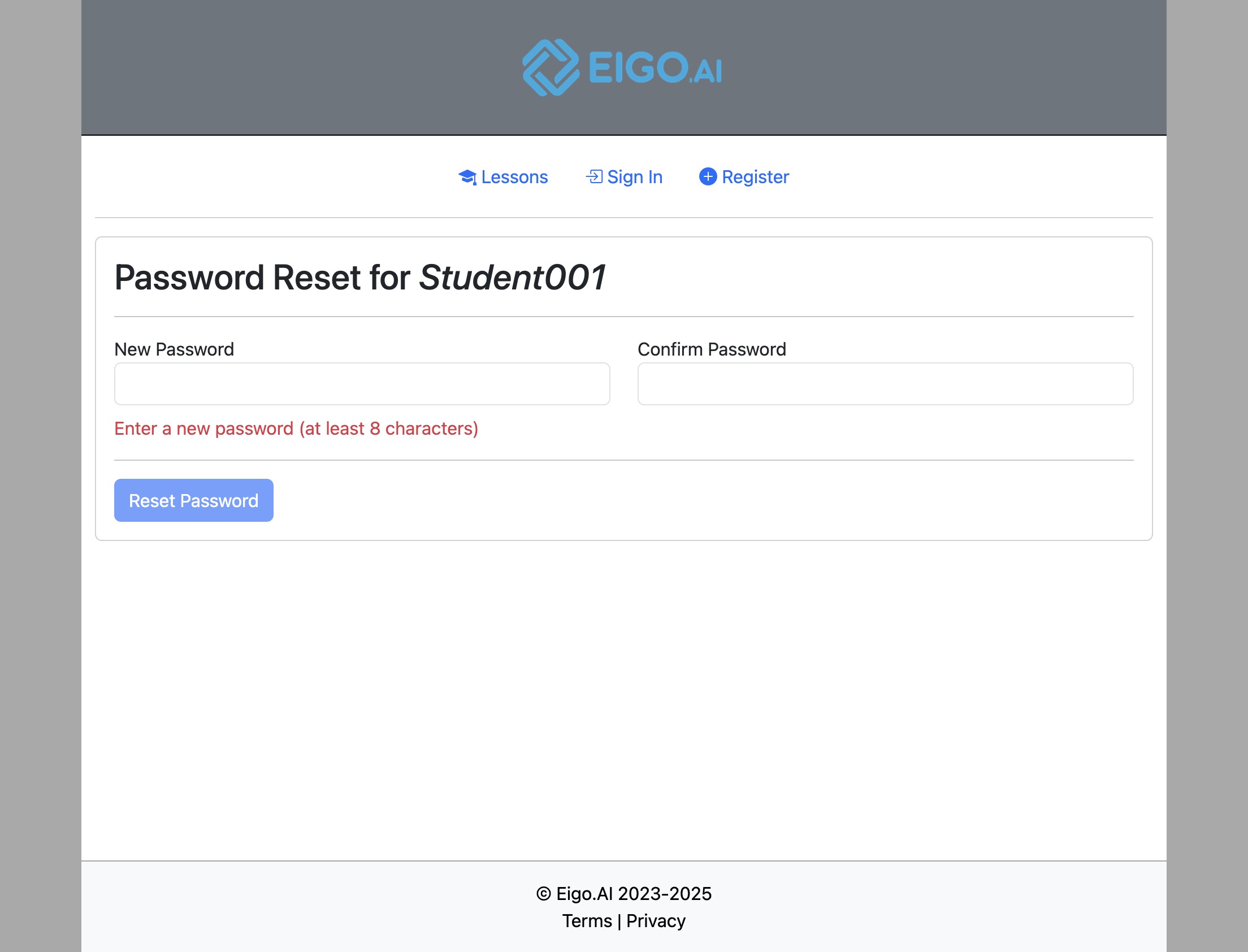
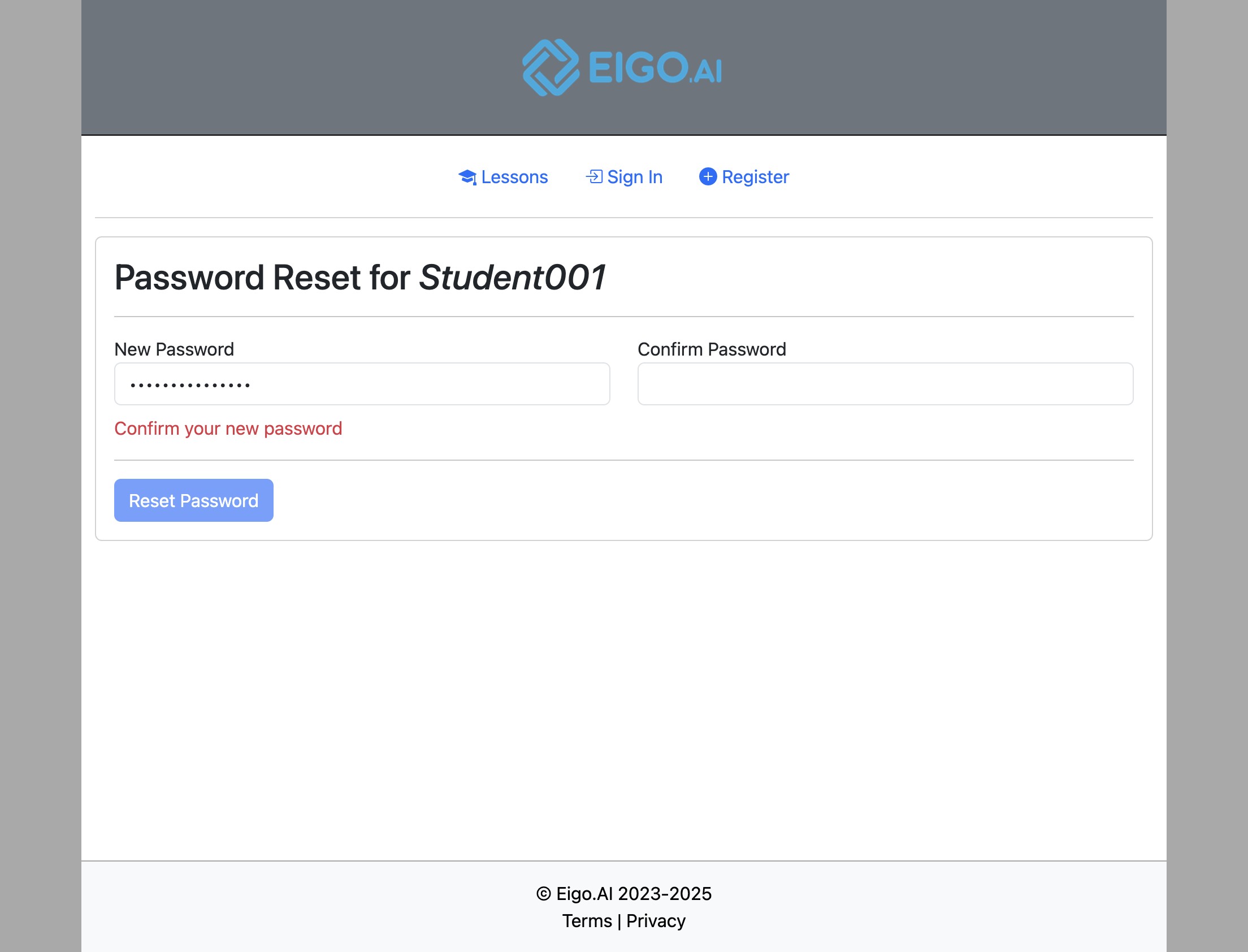
Click the "New Password" field to enter your new password.
9
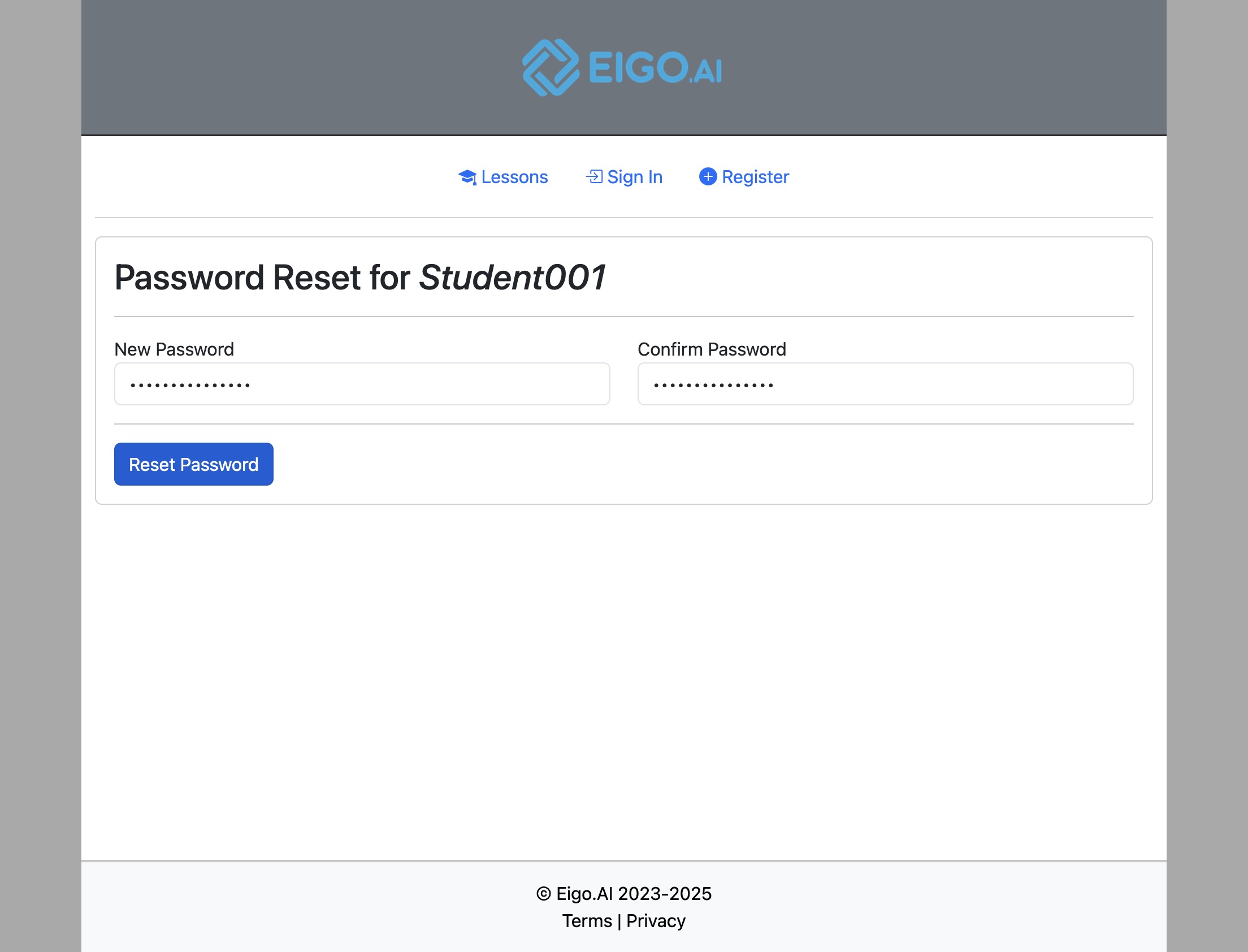
Click the "Confirm Password" field to re-enter your new password for confirmation.
10
Click "Reset Password"
11
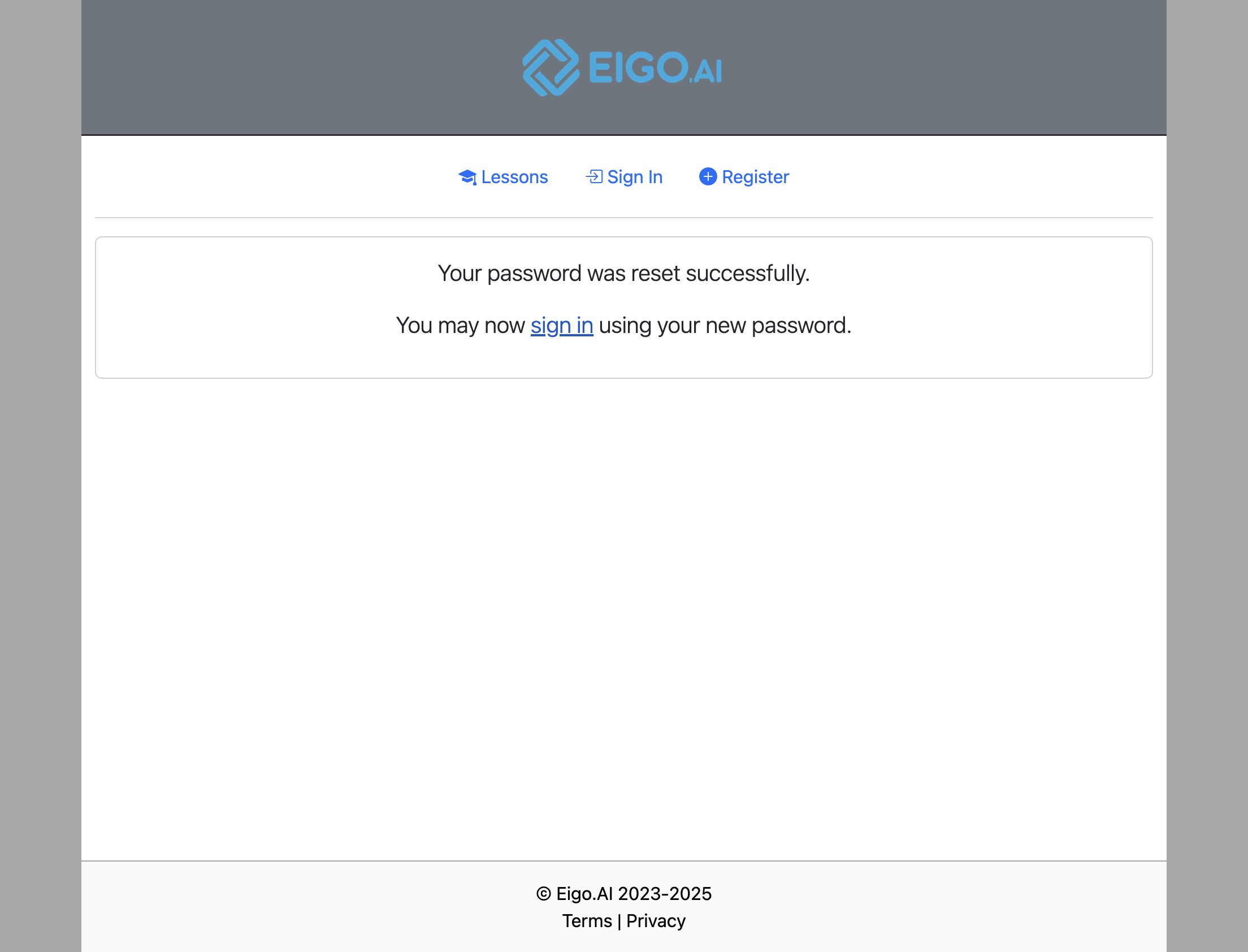
After successful password reset, click "sign in".
12
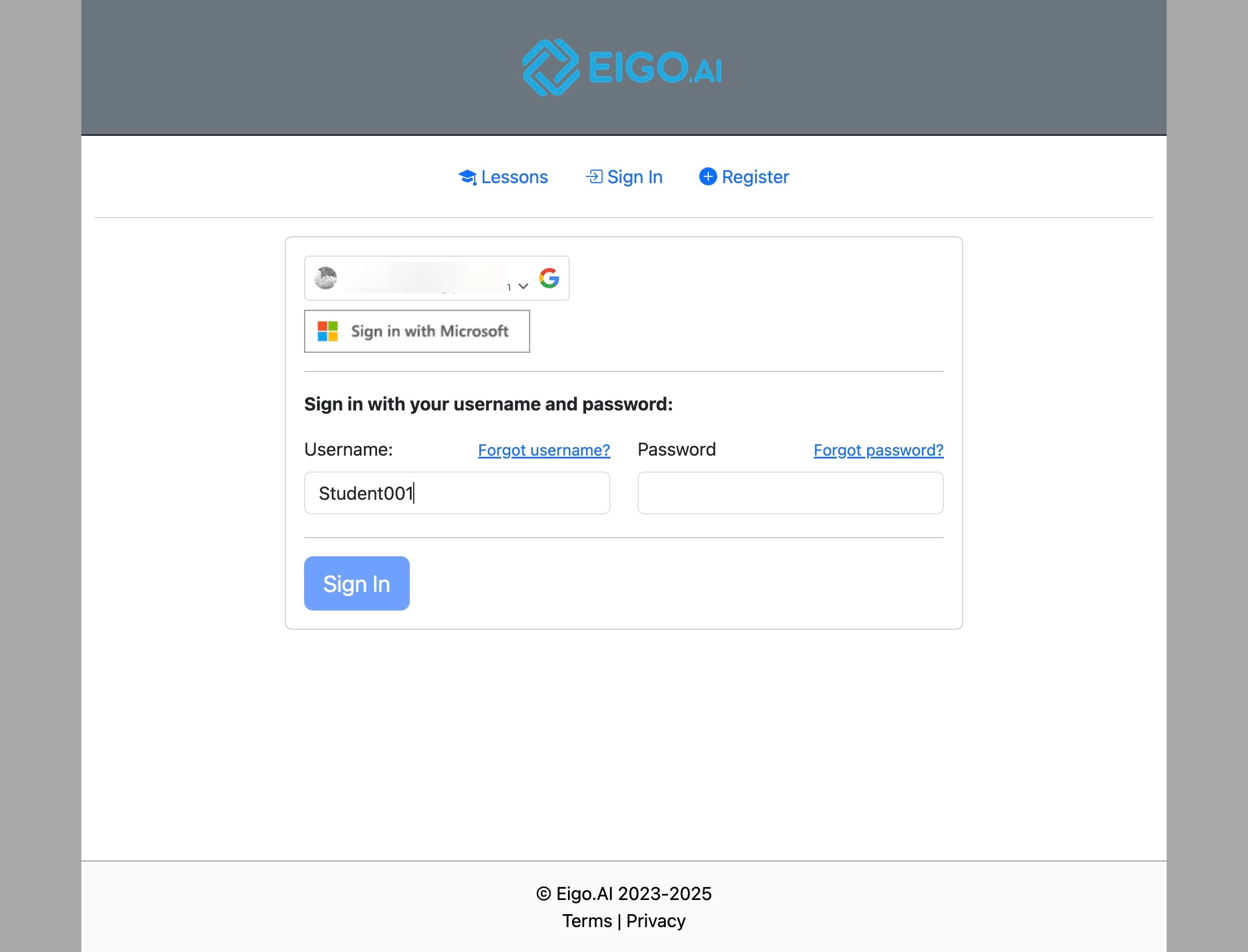
After entering 'Username', enter your new password in the 'Password' field.
13
Click "Sign In" to access your account.