Teacher Manual

How to add a new class

8 step guide for Eigo.AI teacher users.

Note that the process described in this guide is applicable only to Teachers. If you would like to create a teacher account on Eigo.AI please contact us.

1

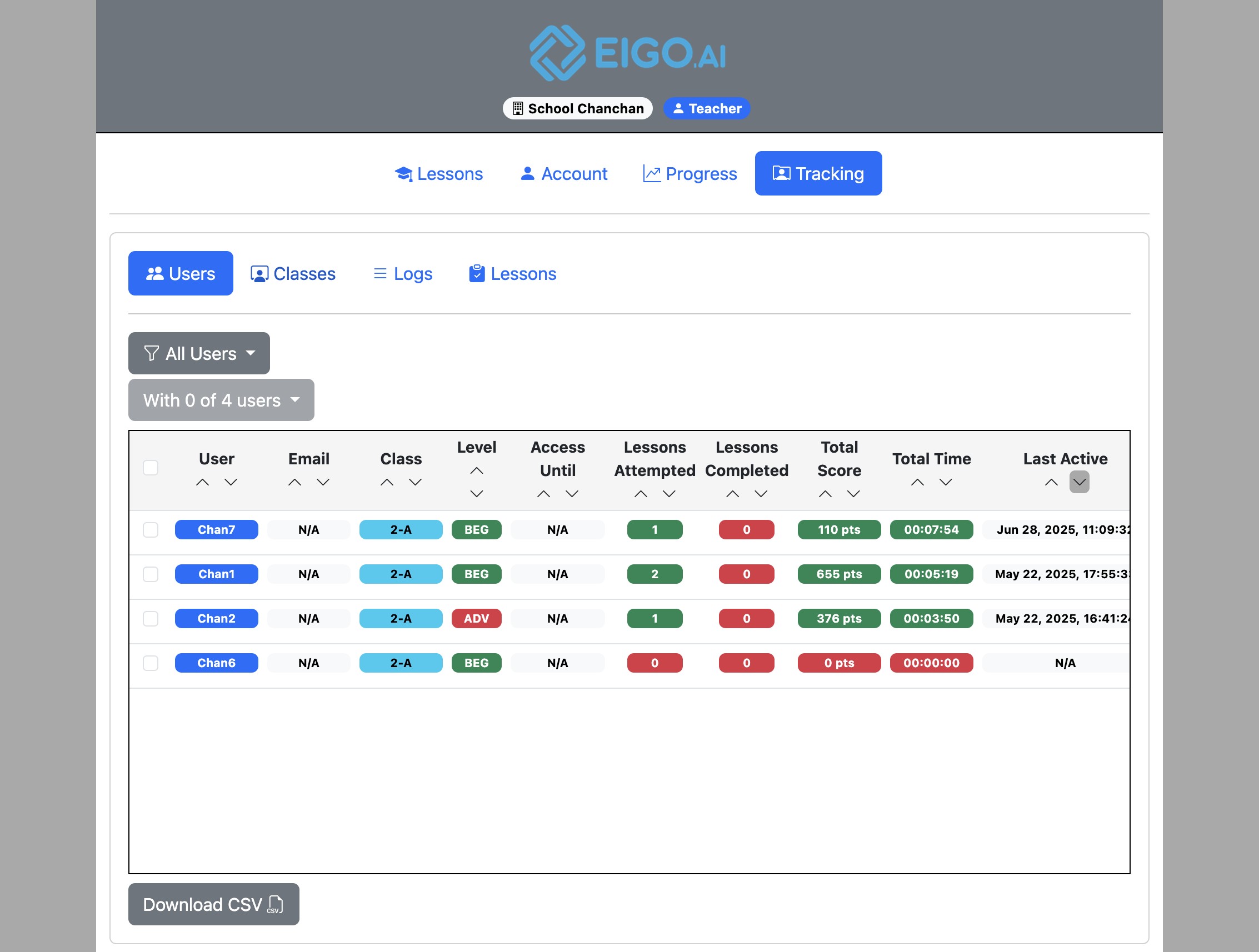
Sign in to Eigo.AI and click "Tracking".
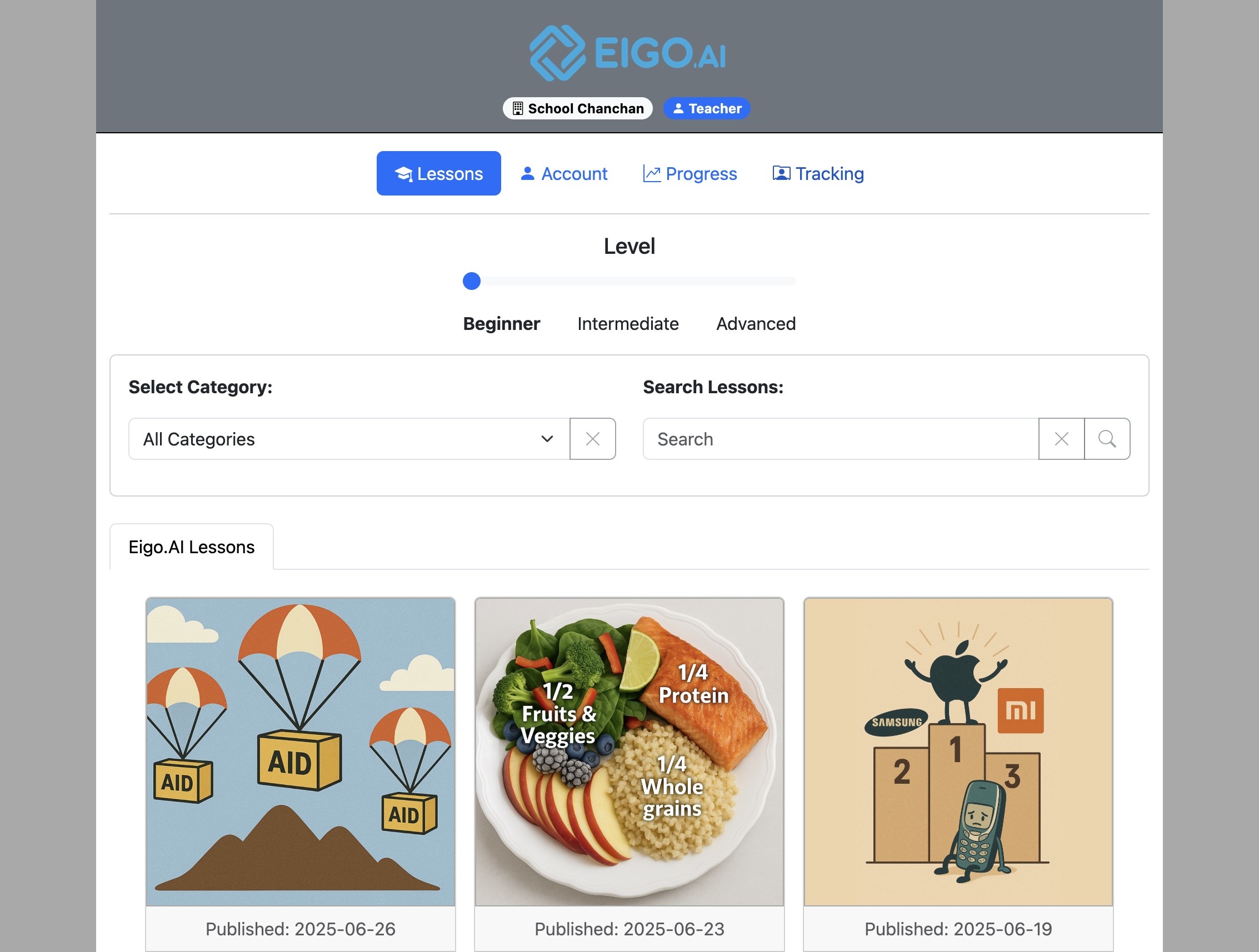
Screenshot for How to add a new class, step 1
2

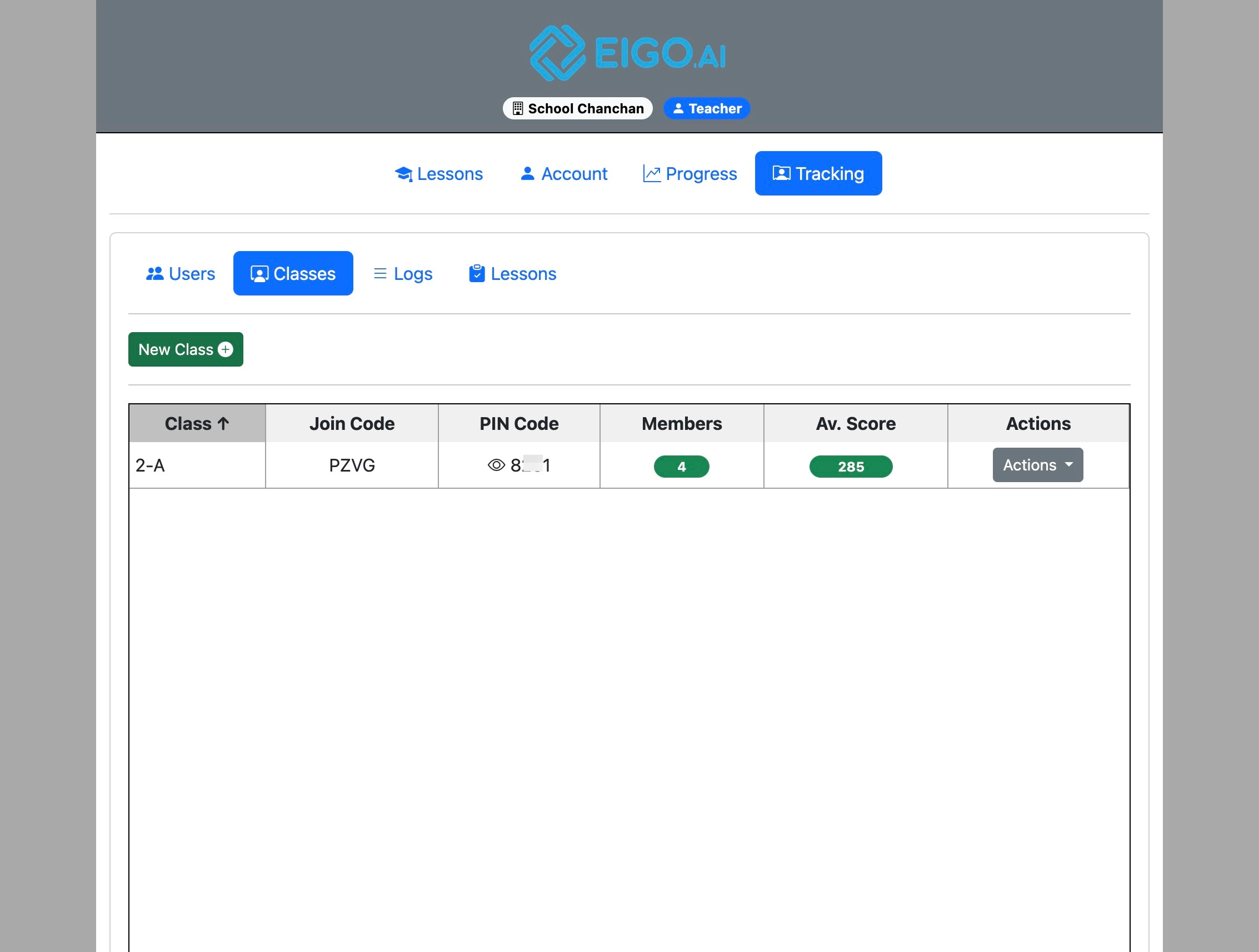
Click "Classes".

Screenshot for How to add a new class, step 2
3

Click "New Class".

Screenshot for How to add a new class, step 3
4

Enter the class name and click "OK".
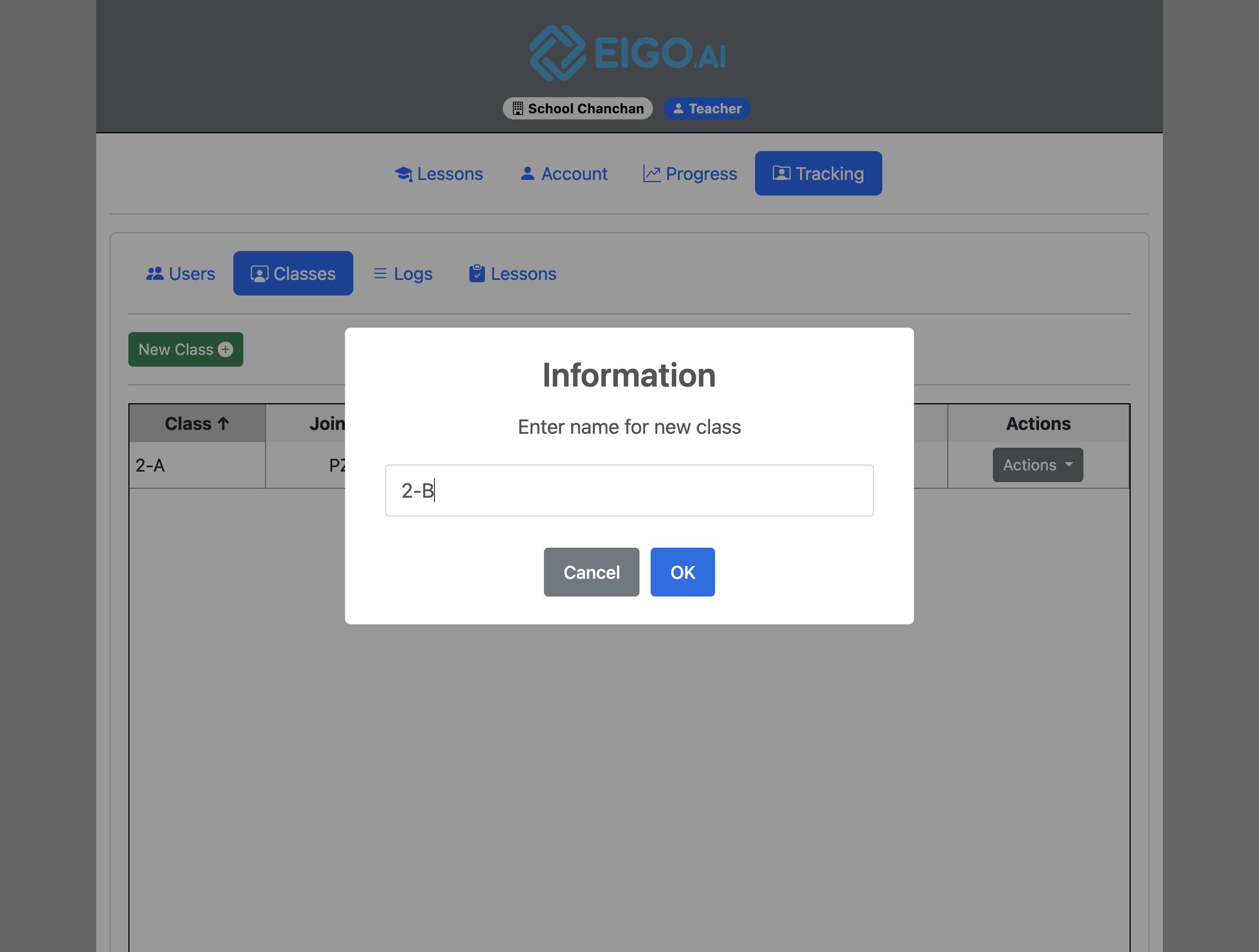
Screenshot for How to add a new class, step 4
5

The details of the new class are displayed.
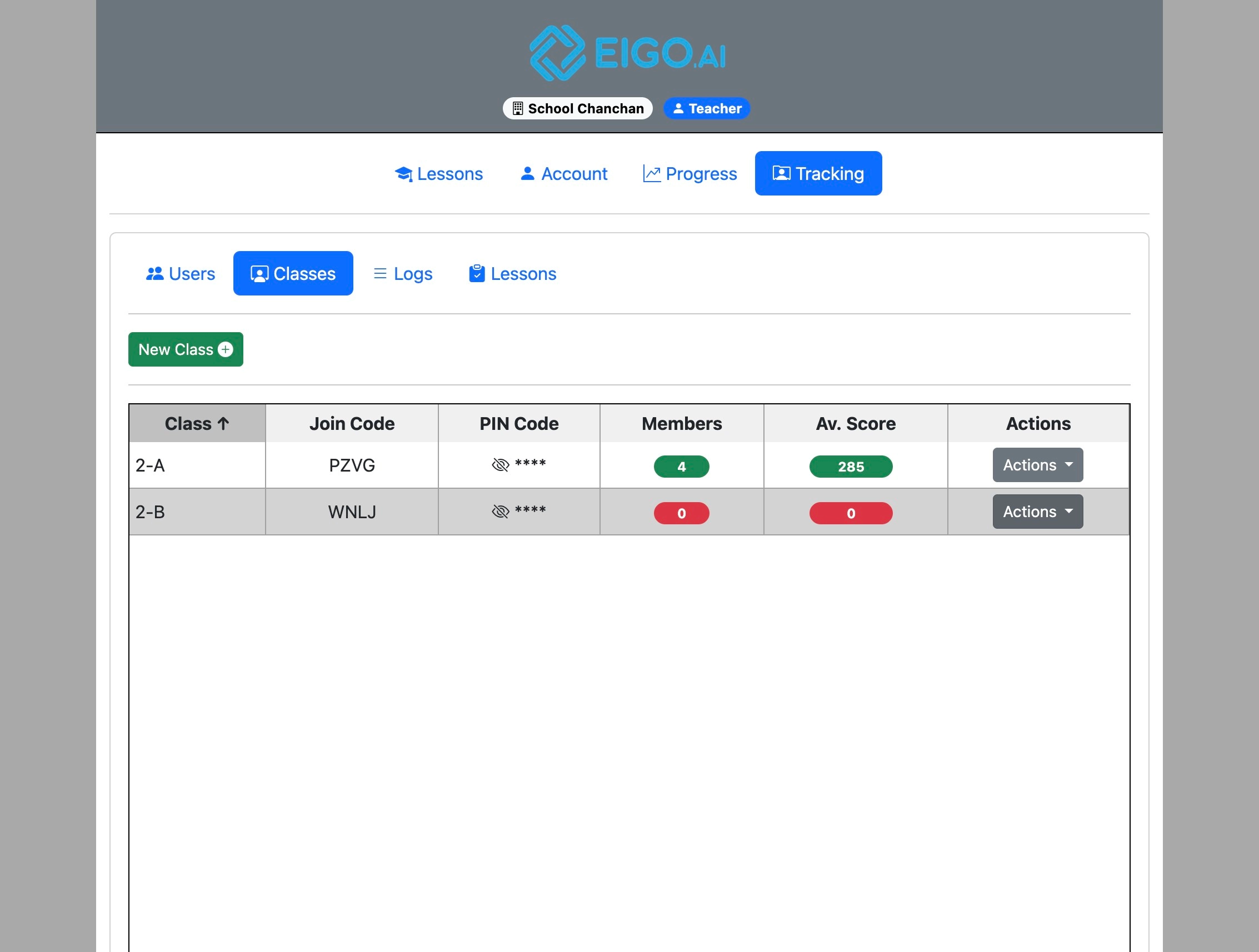
Screenshot for How to add a new class, step 5

Provide the 'PIN code' and 'Join Code' to students you would like to join the class. The 'PIN code' can be revealed by clicking on the eye icon.

6

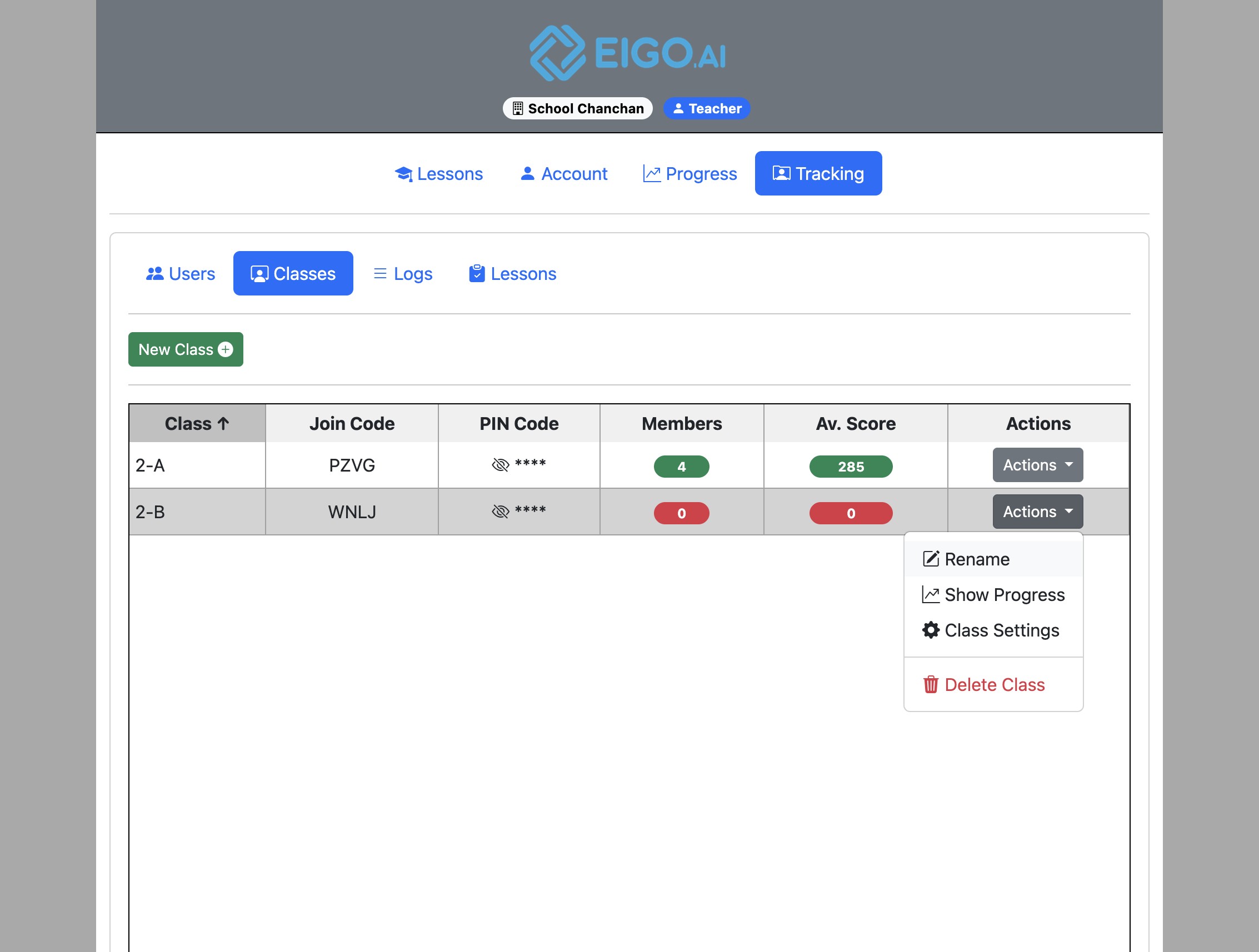
To rename a class, in the same row click on "Actions" .
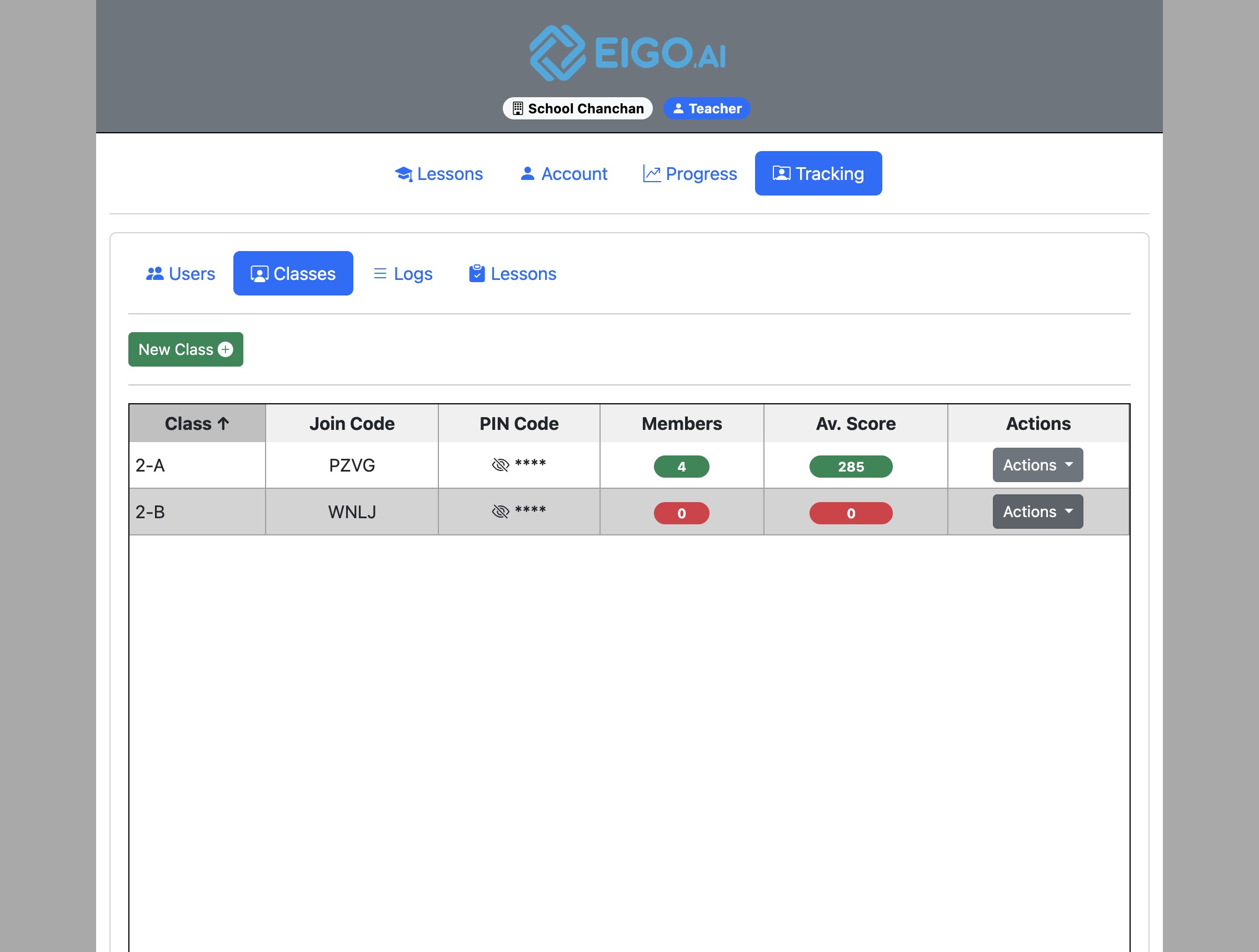
Screenshot for How to add a new class, step 6
7

Click "Rename".

Screenshot for How to add a new class, step 7
8

Enter the new name and click "OK" to confirm changes.
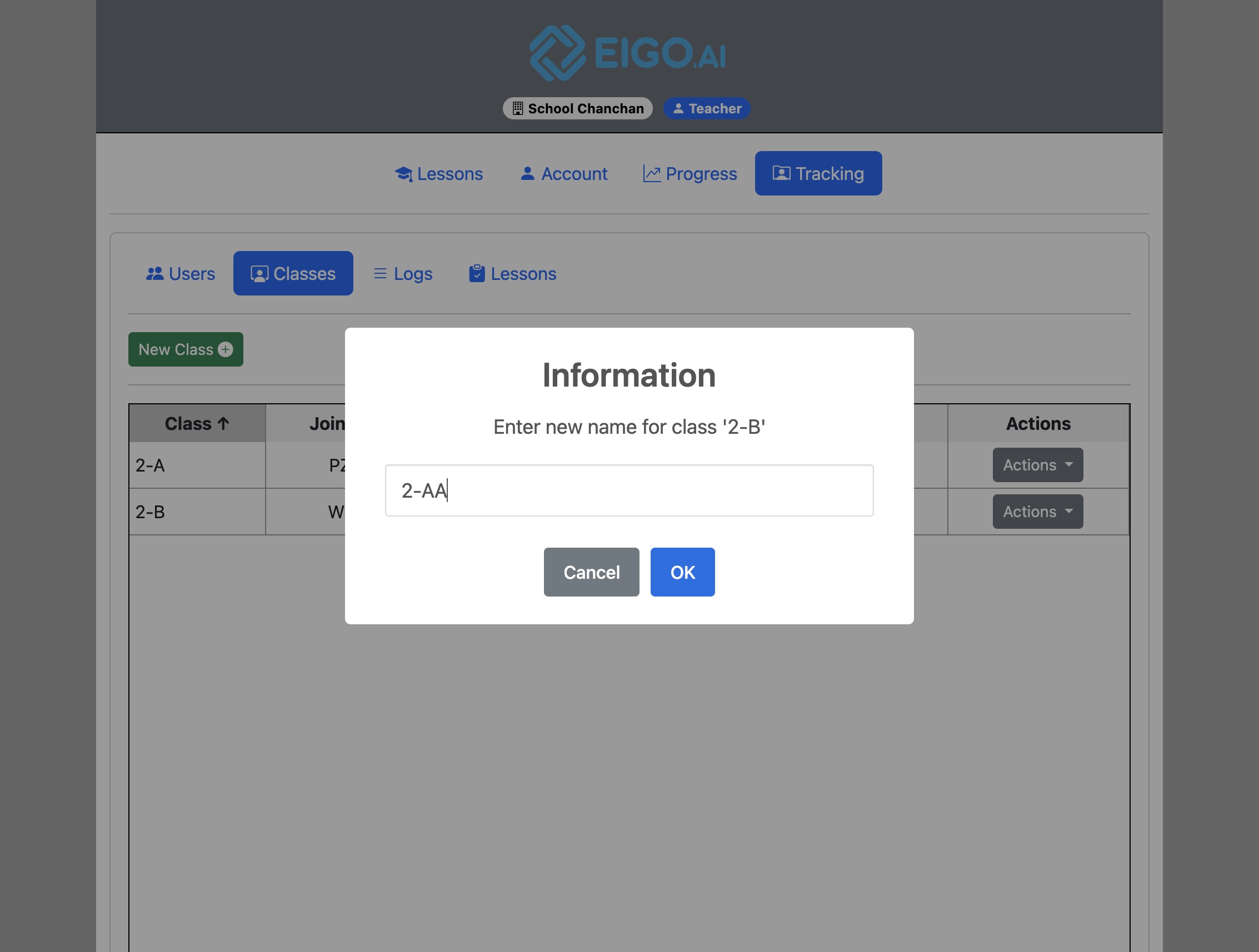
Screenshot for How to add a new class, step 8