Teacher Manual

How to add students to or remove them from a class

6 step guide for Eigo.AI teacher users.

1

Sign in to Eigo.AI, click "Tracking", then click "Users" to open the Users page.

2

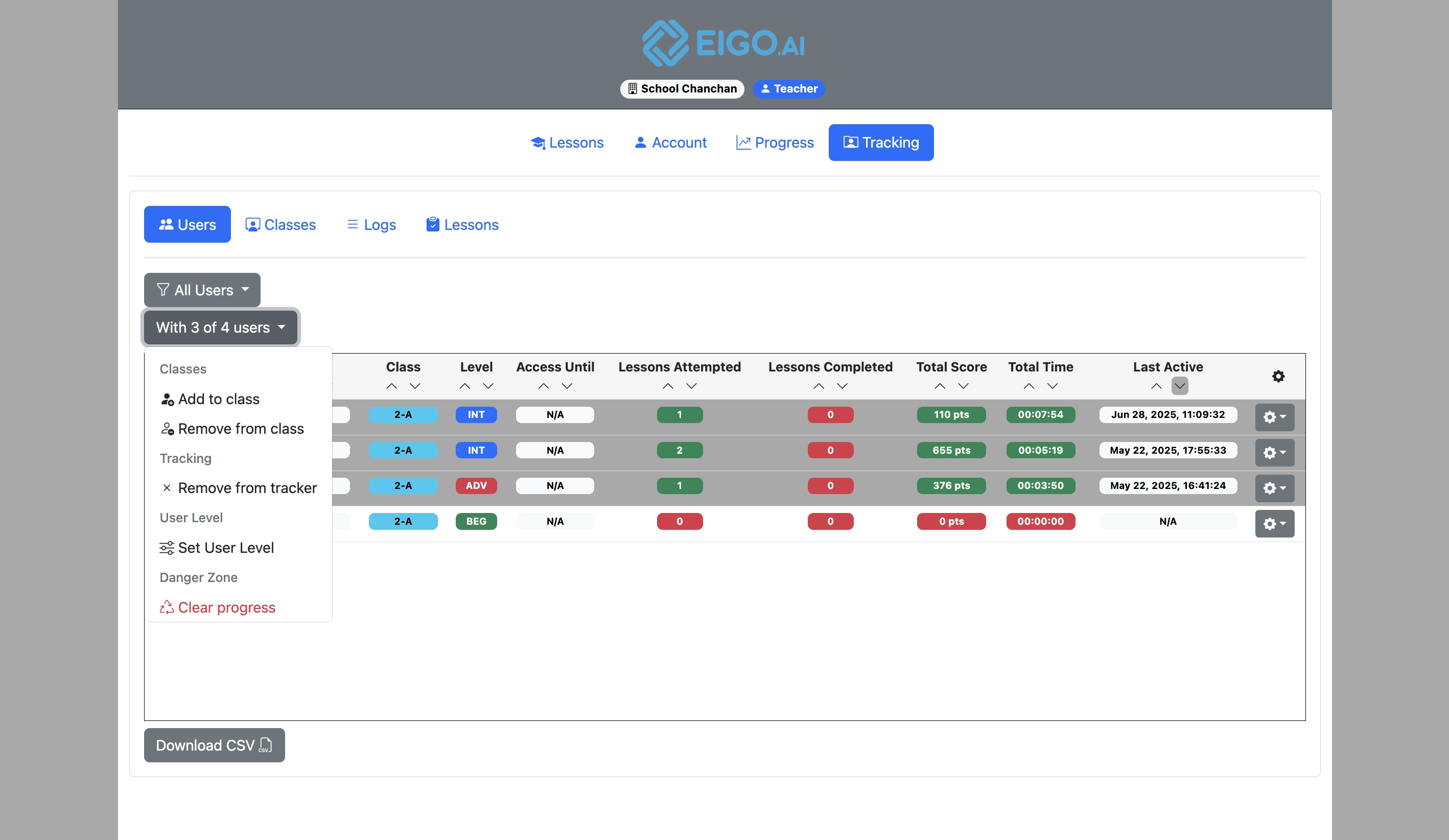
Select the users with the checkboxes on the left and click the "With x of n users" dropdown button.
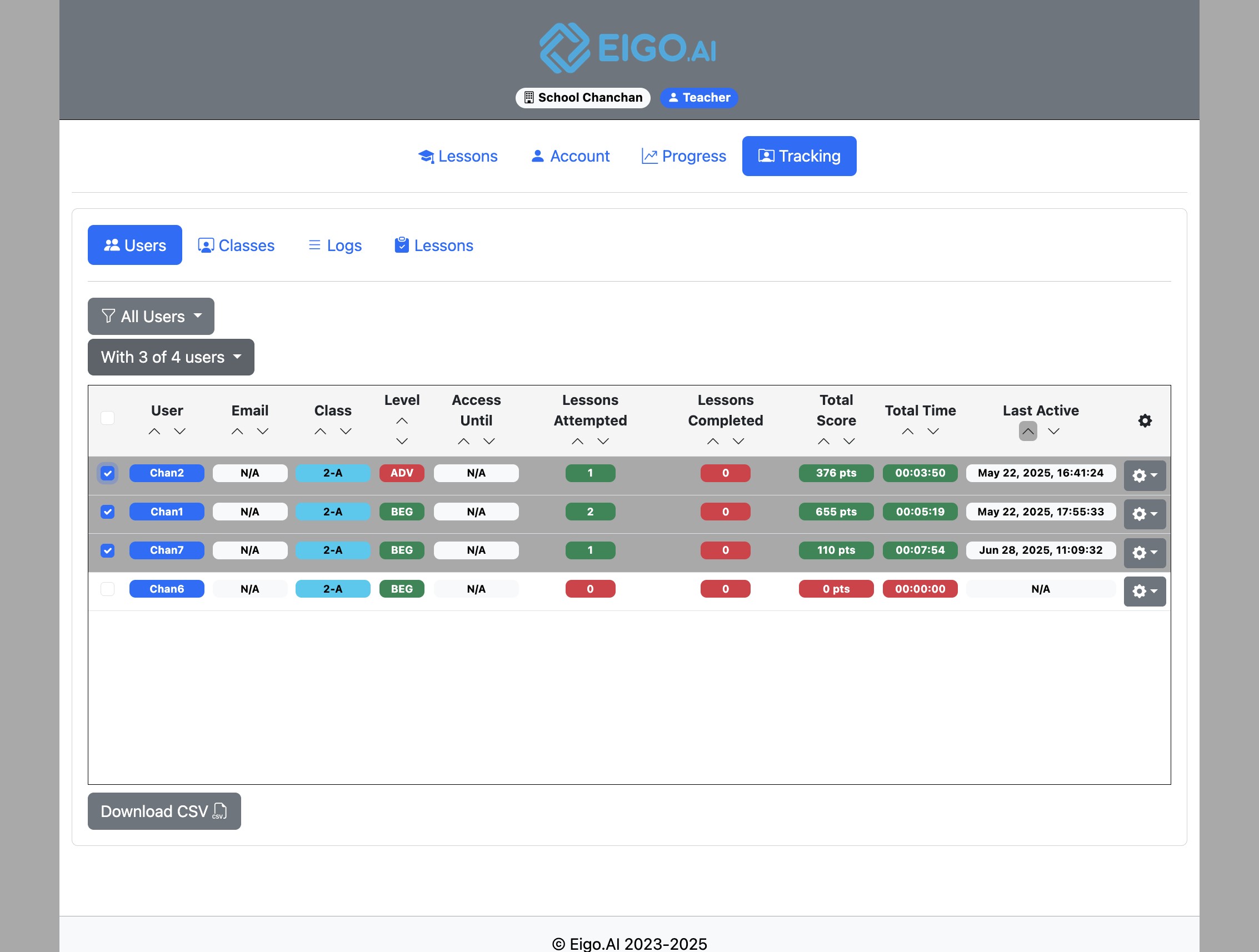
Screenshot for How to add students to or remove them from a class, step 2
3

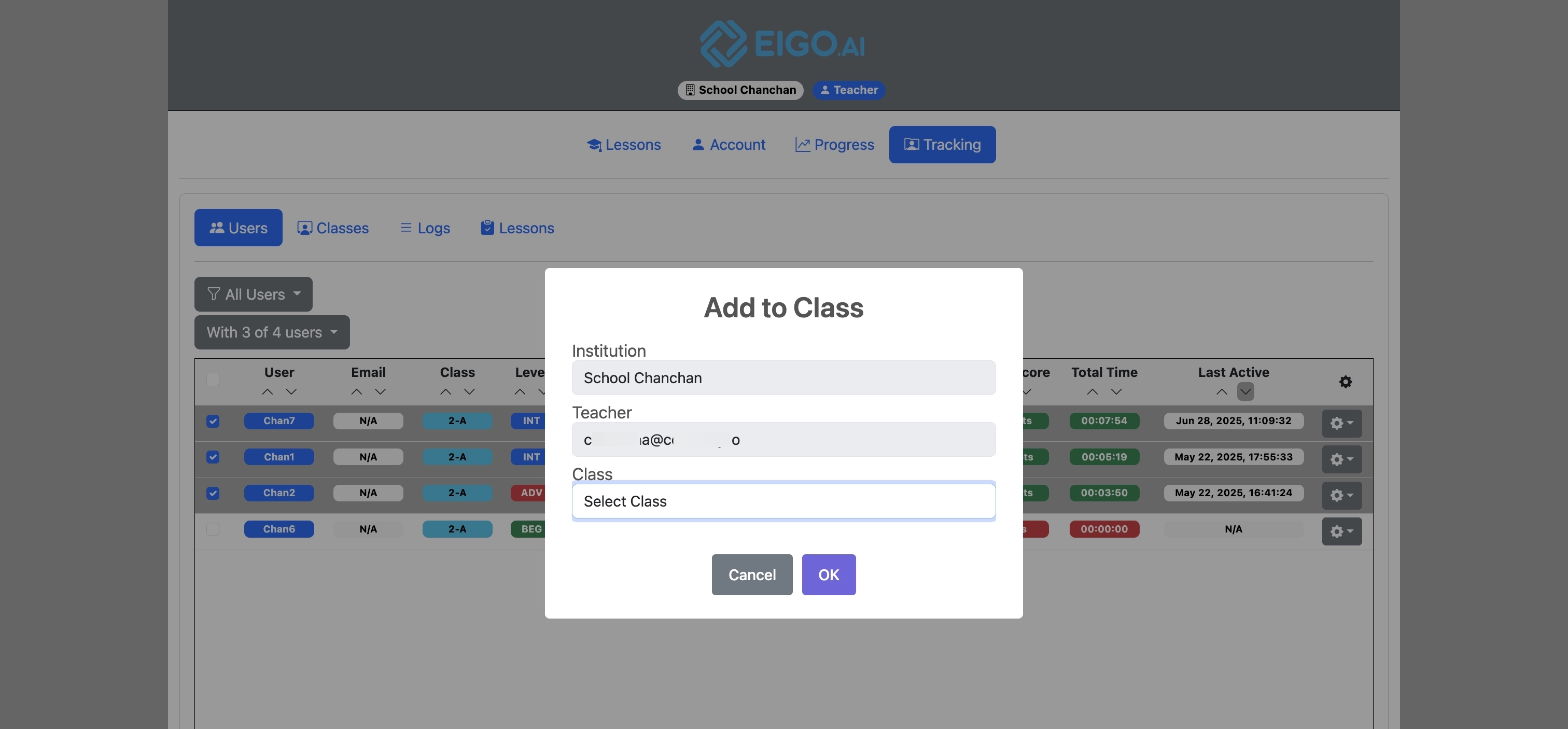
To add users to a class, click "Add to Class".

Screenshot for How to add students to or remove them from a class, step 3
4

Select the class you want to add the student/s to and click "OK" to confirm.

Screenshot for How to add students to or remove them from a class, step 4

If a selected student is joining the institution for the first time through this class assignment and does not already have an access period, Eigo.AI grants a two-week institutional trial automatically. Existing institutional access and access-code dates are not overwritten.

5

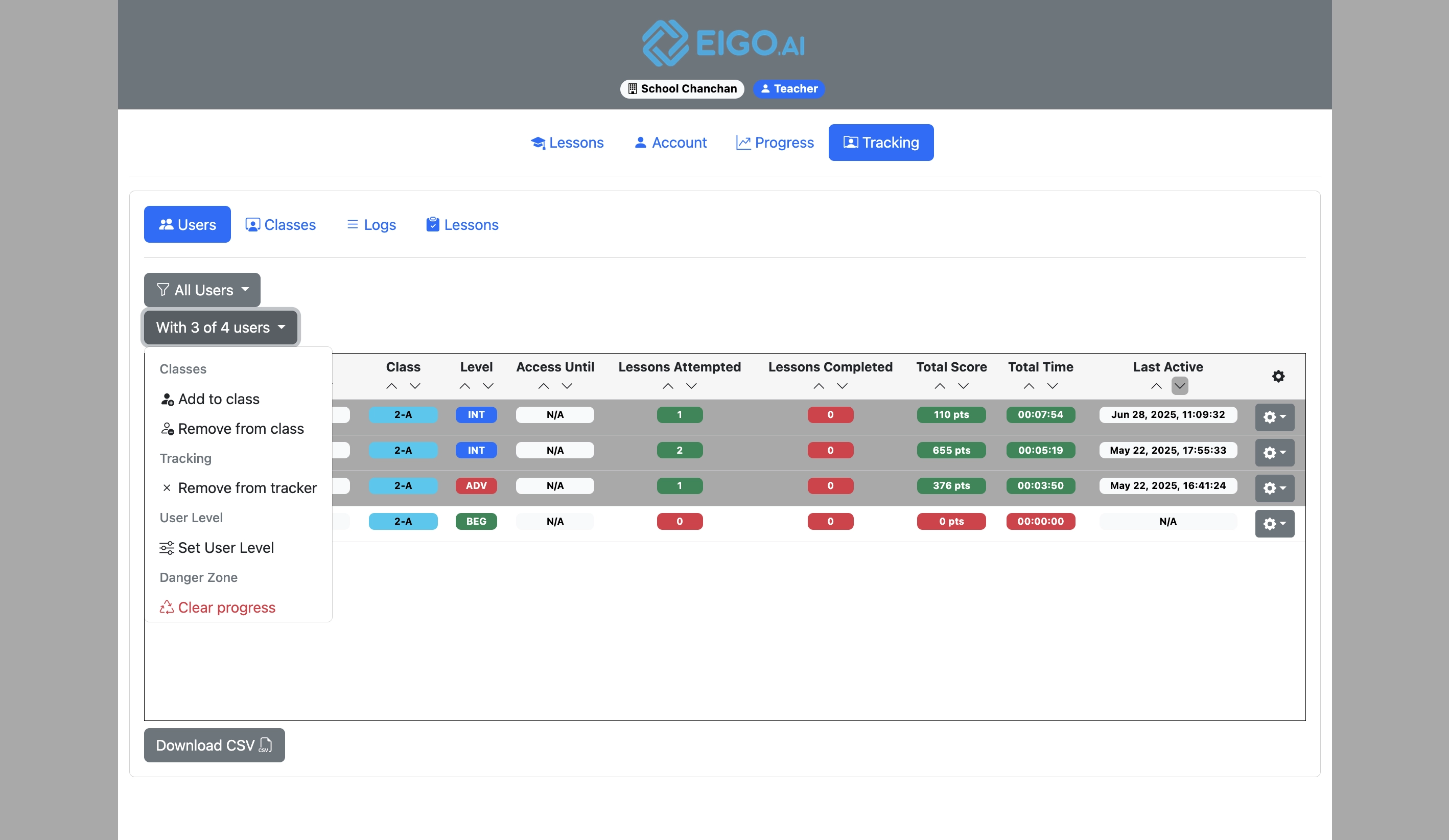
To remove students from the class they are currently assigned to, click "Remove from class".

Screenshot for How to add students to or remove them from a class, step 5
6

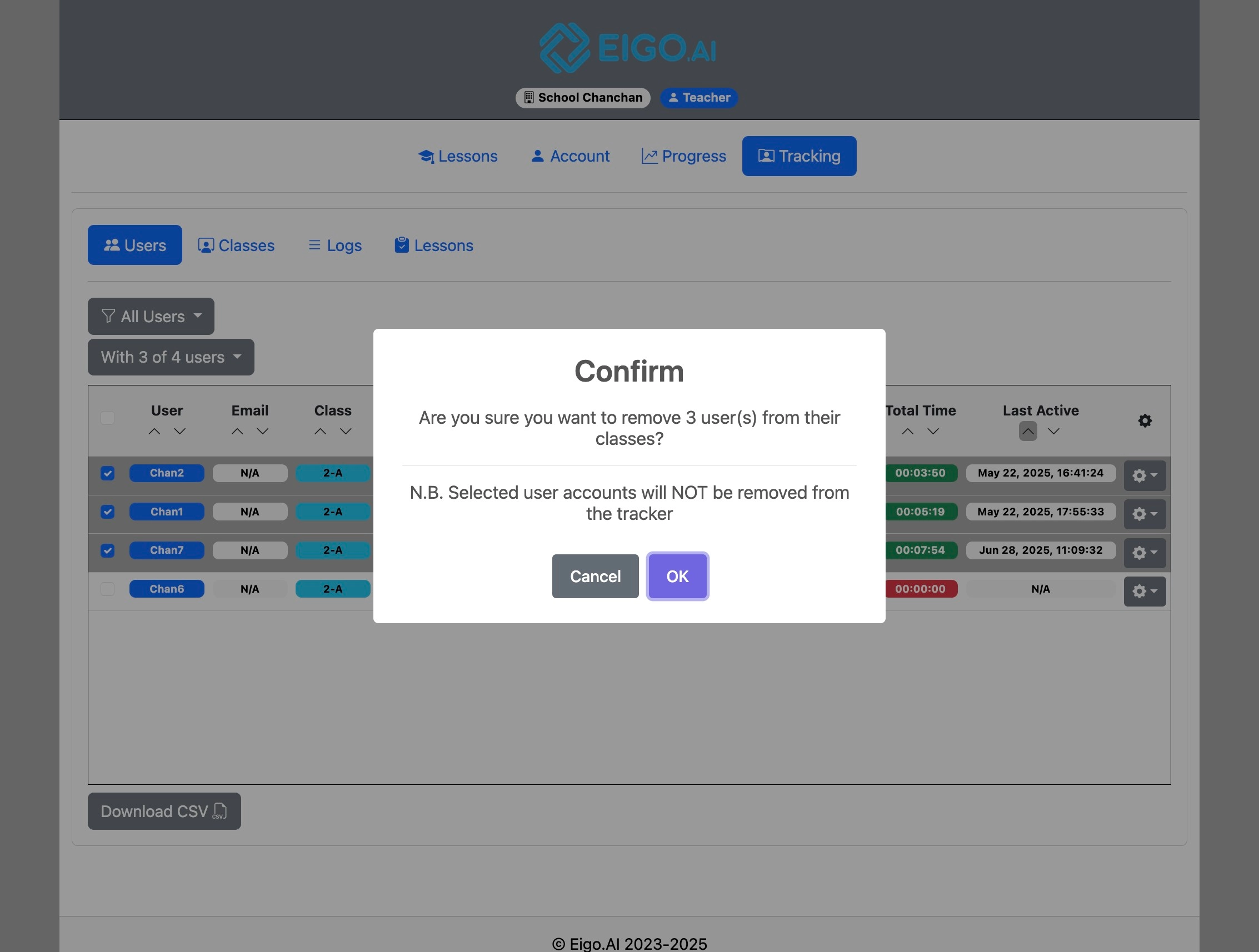
Click "OK" to confirm.

Screenshot for How to add students to or remove them from a class, step 6