Use “Show users as” to select Usernames, Full names, or Anonymized. Full names falls back to the username when no full name is recorded. Anonymized shows ********** for names and email fields, including CSV exports, and suppresses identifying tooltips. Detail dialogs inherit the view’s selection. Each reporting view remembers its own choice for your signed-in account in this browser; changing one view does not change the others. This display setting masks account labels, not names or personal information written inside student responses.
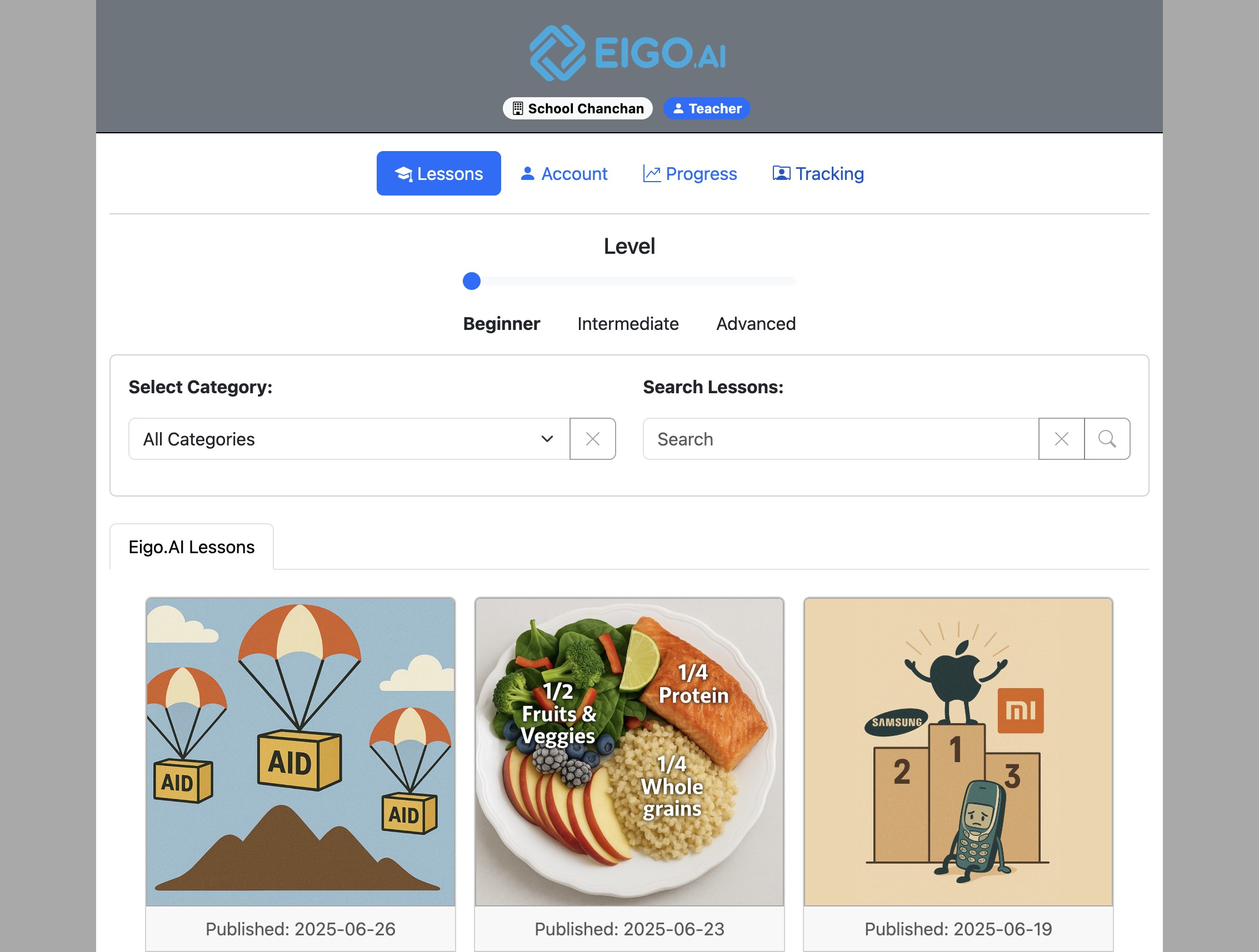
Sign in to Eigo.AI and click "Tracking".
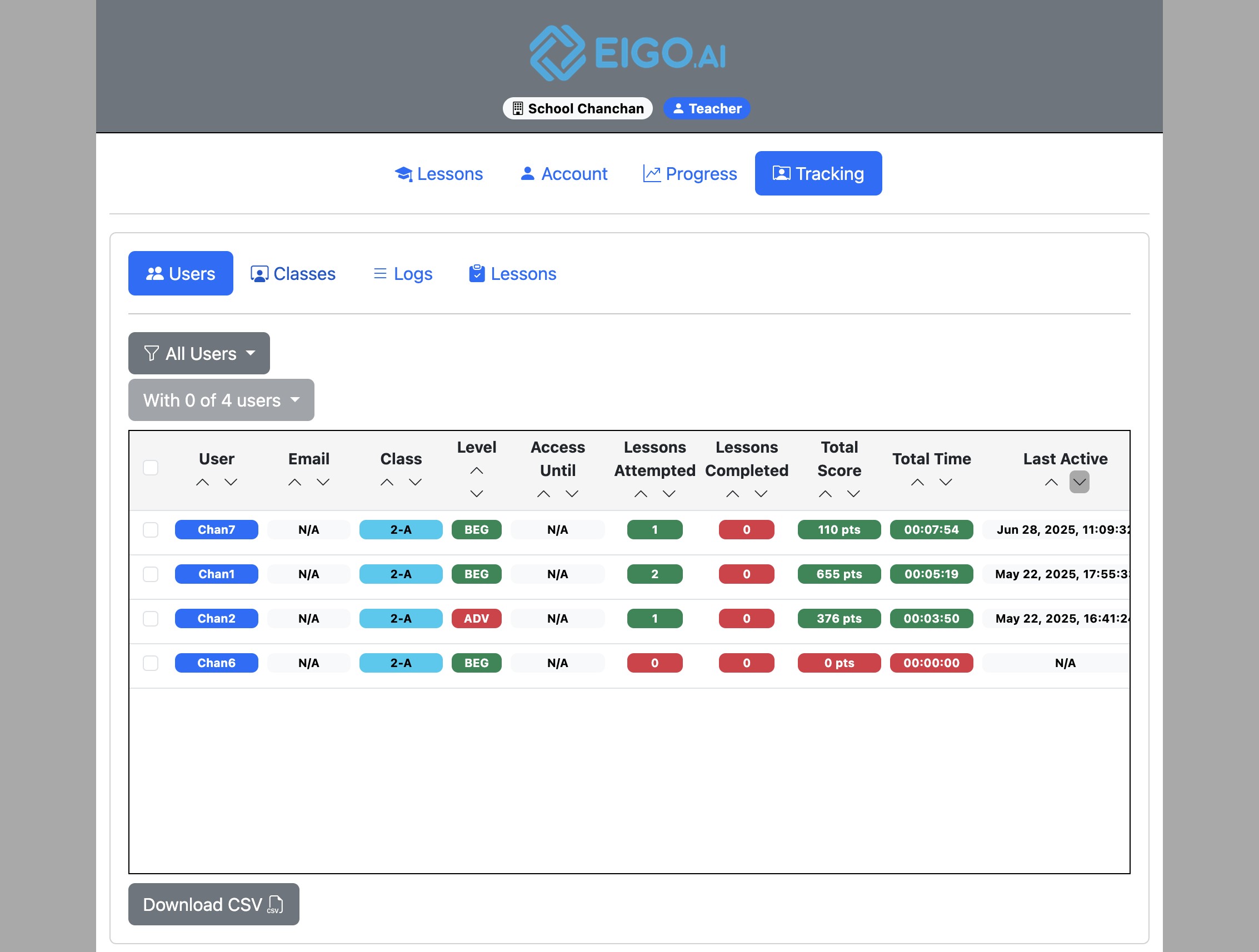
Click "Classes".
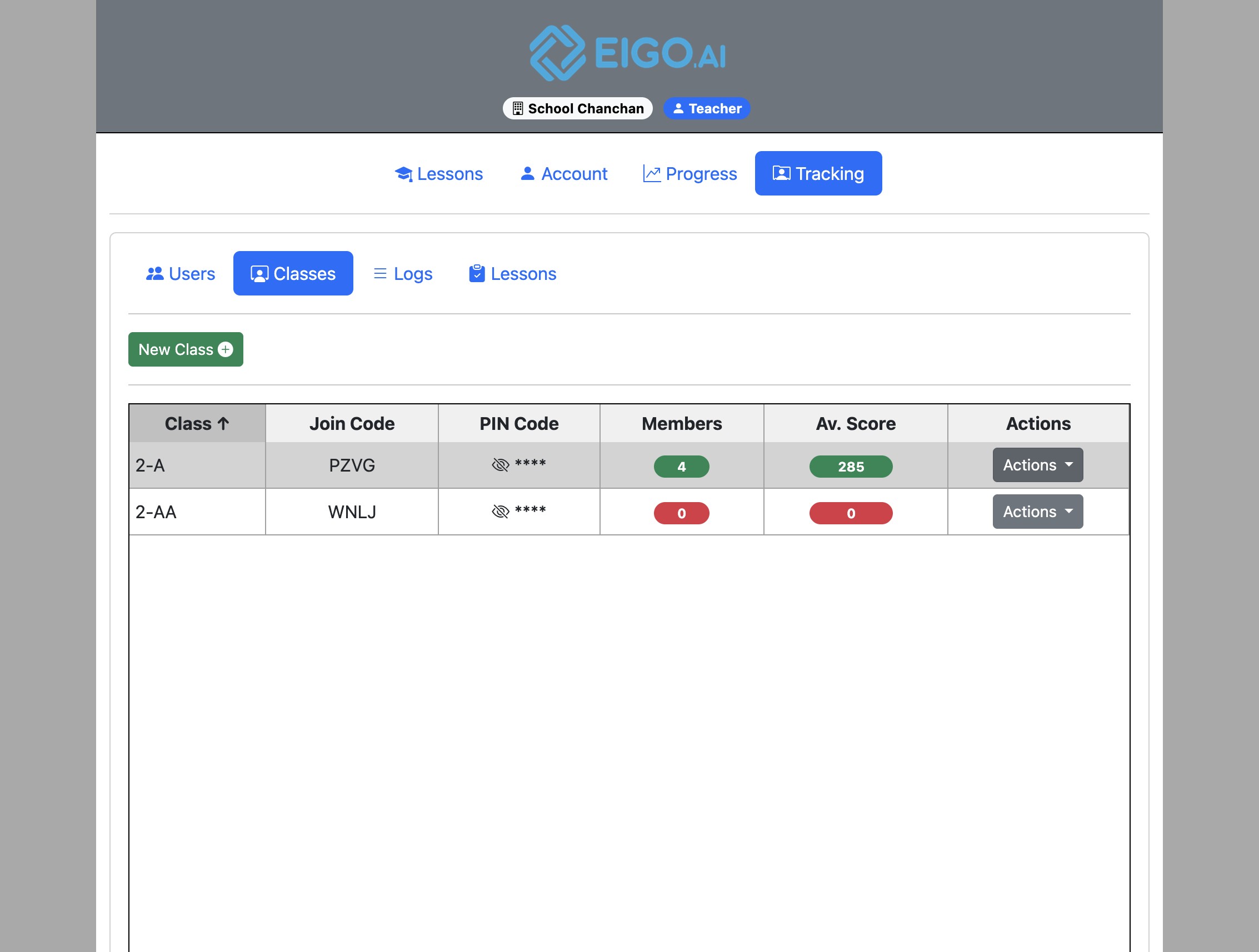
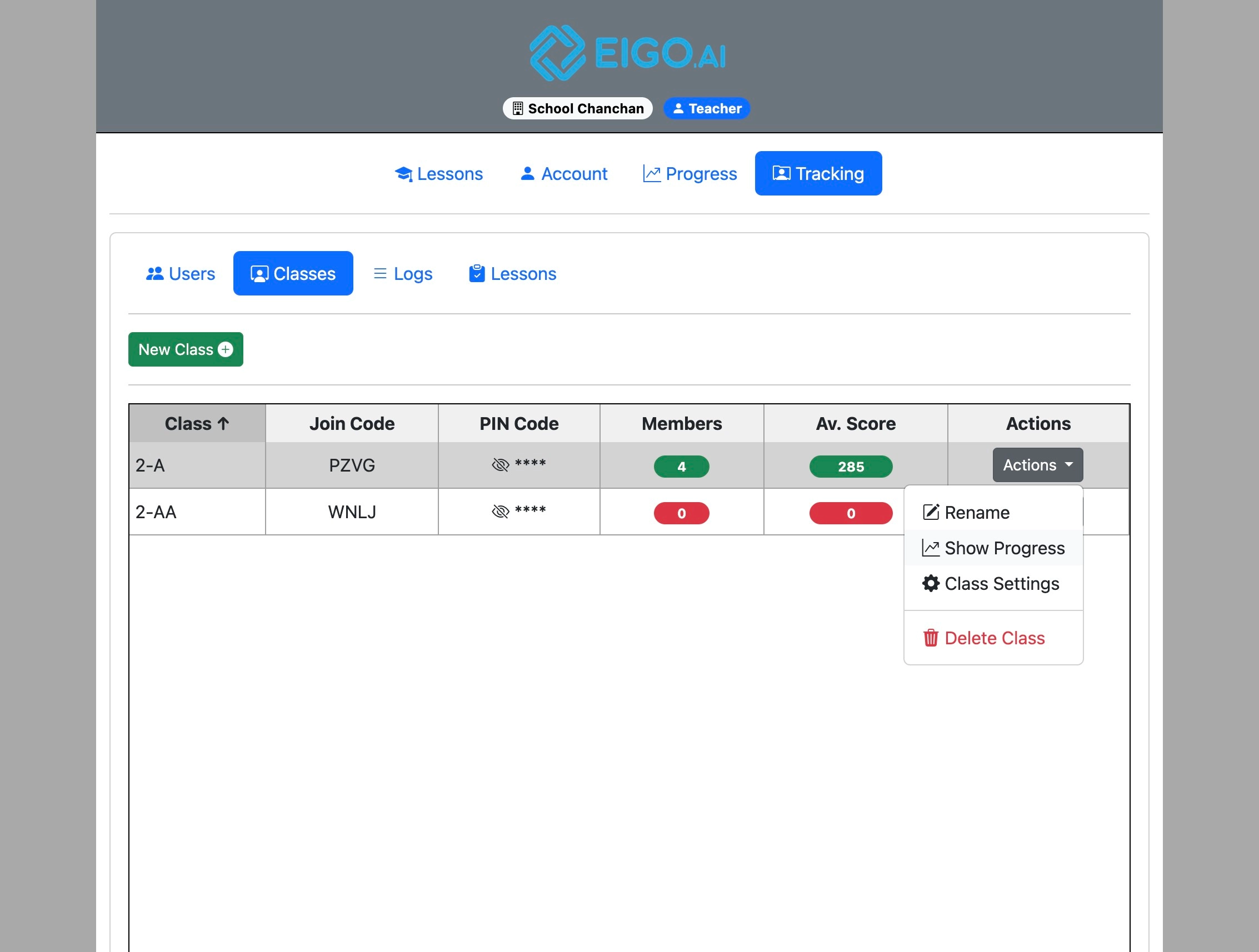
Click "Actions"
Click "Show Progress"
Use "Show users as" to choose "Usernames", "Full names", or "Anonymized". Full names falls back to the username when a student has no recorded full name. Anonymized replaces names with asterisks and replaces email addresses with asterisks. Your choice is remembered separately for this view and signed-in account in this browser, and applies to graphs, tables, detail dialogs, and CSV downloads.
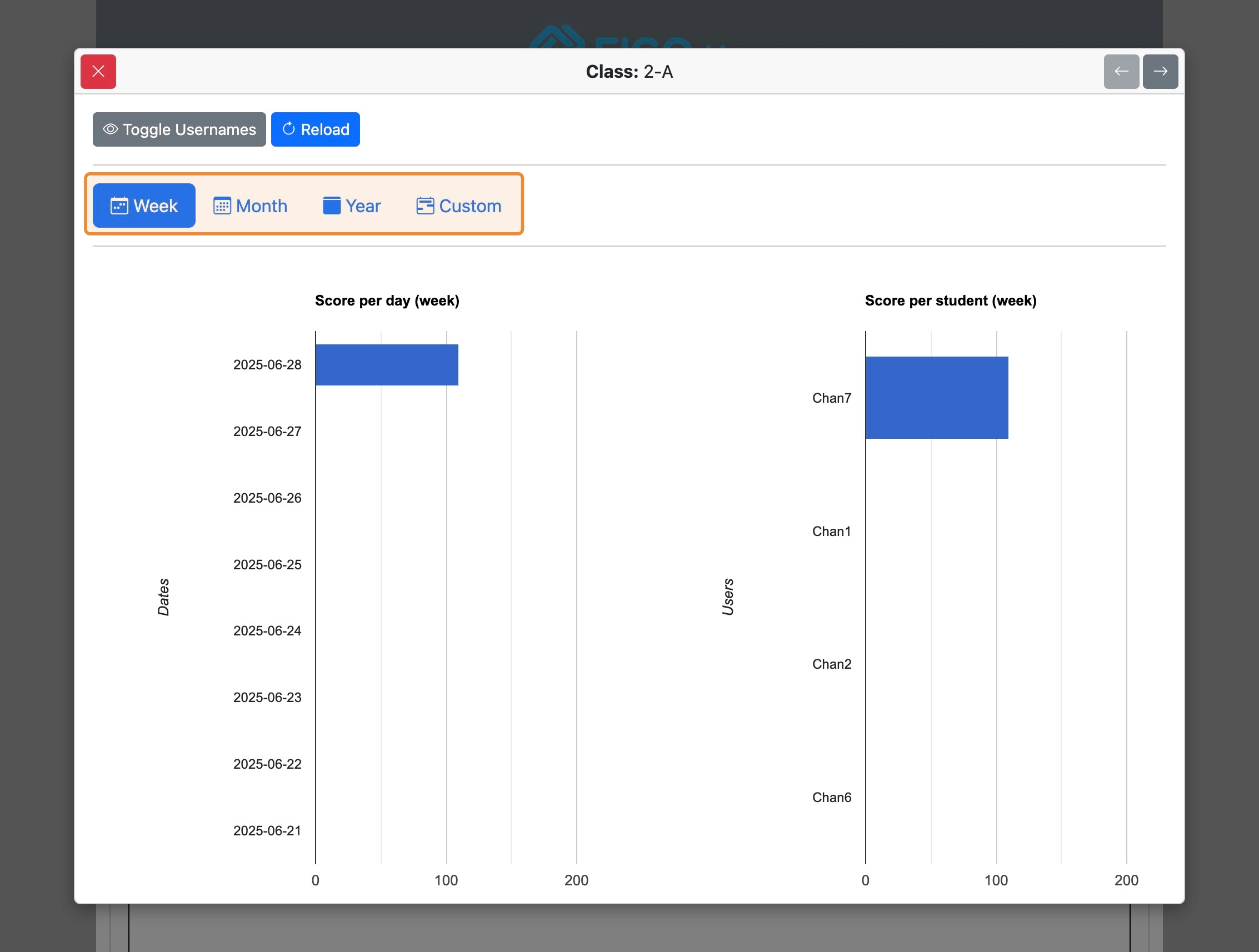
Class progress can be viewed by Week, Month, Year, or Custom range.
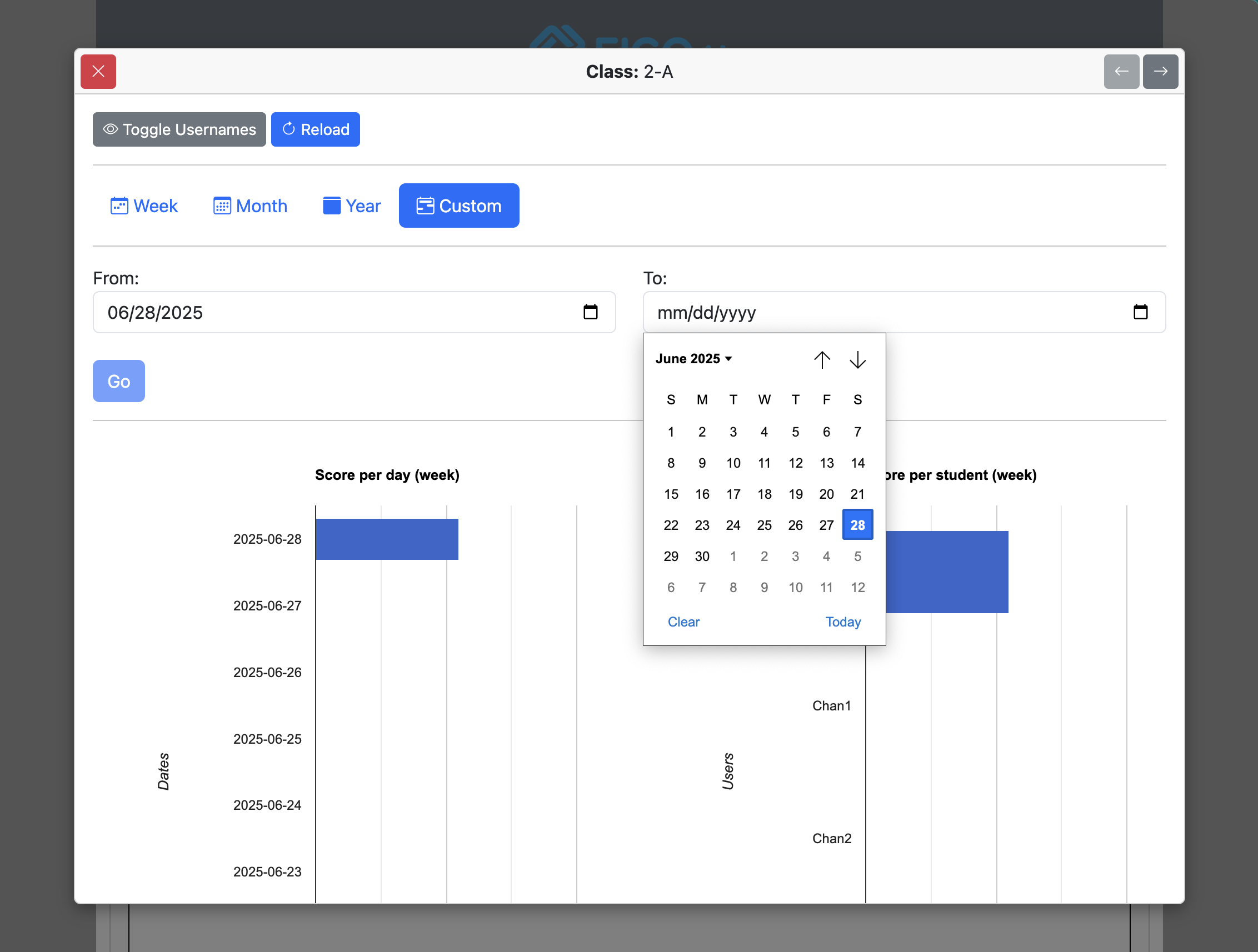
For Custom class progress stats, select the From and To dates using the date fields.
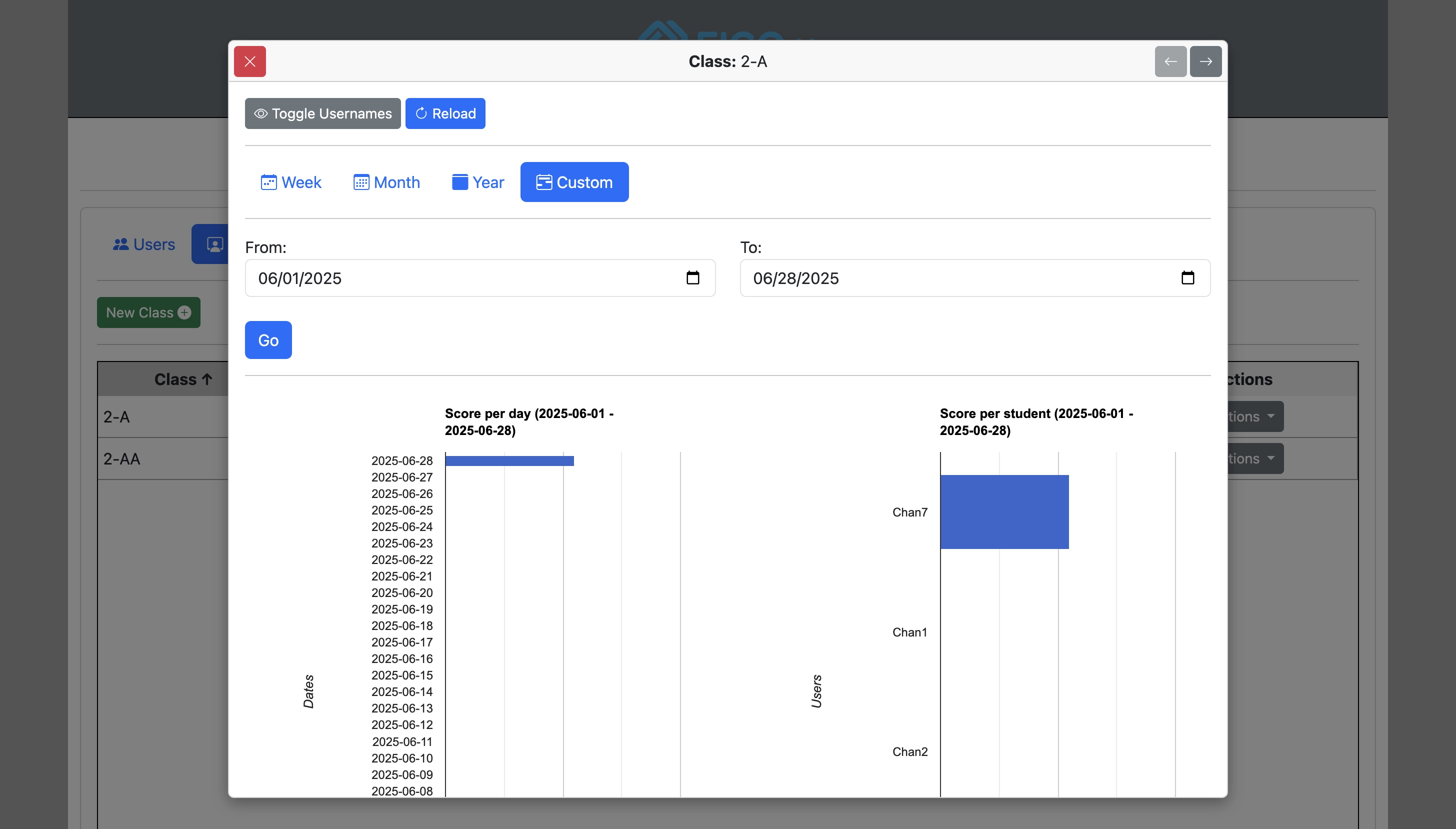
Click 'Go' to view class progress for the selected custom date range.
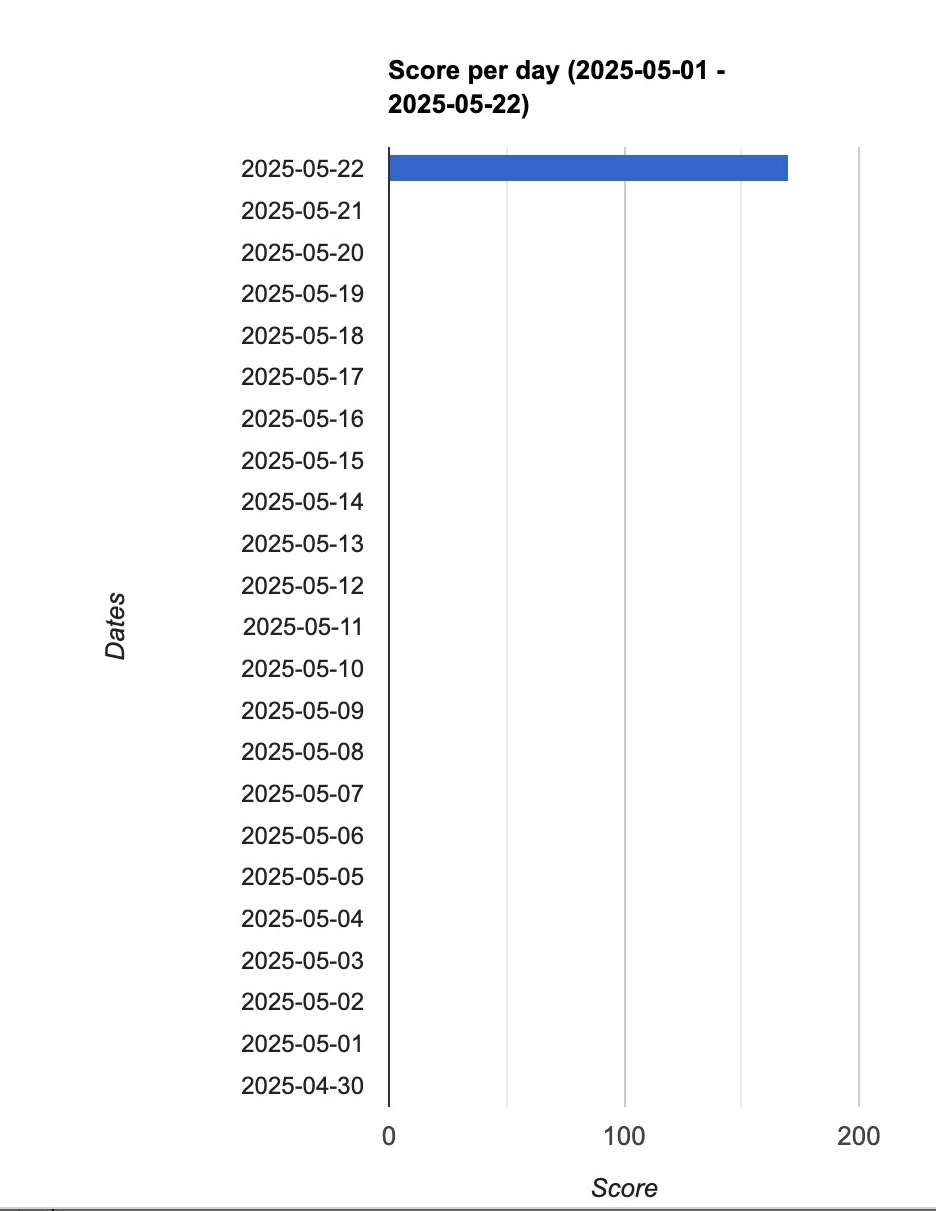
The 'Score per day' chart shows the combined total score achieved per day by the entire class, whether in a week, month, year or custom range.
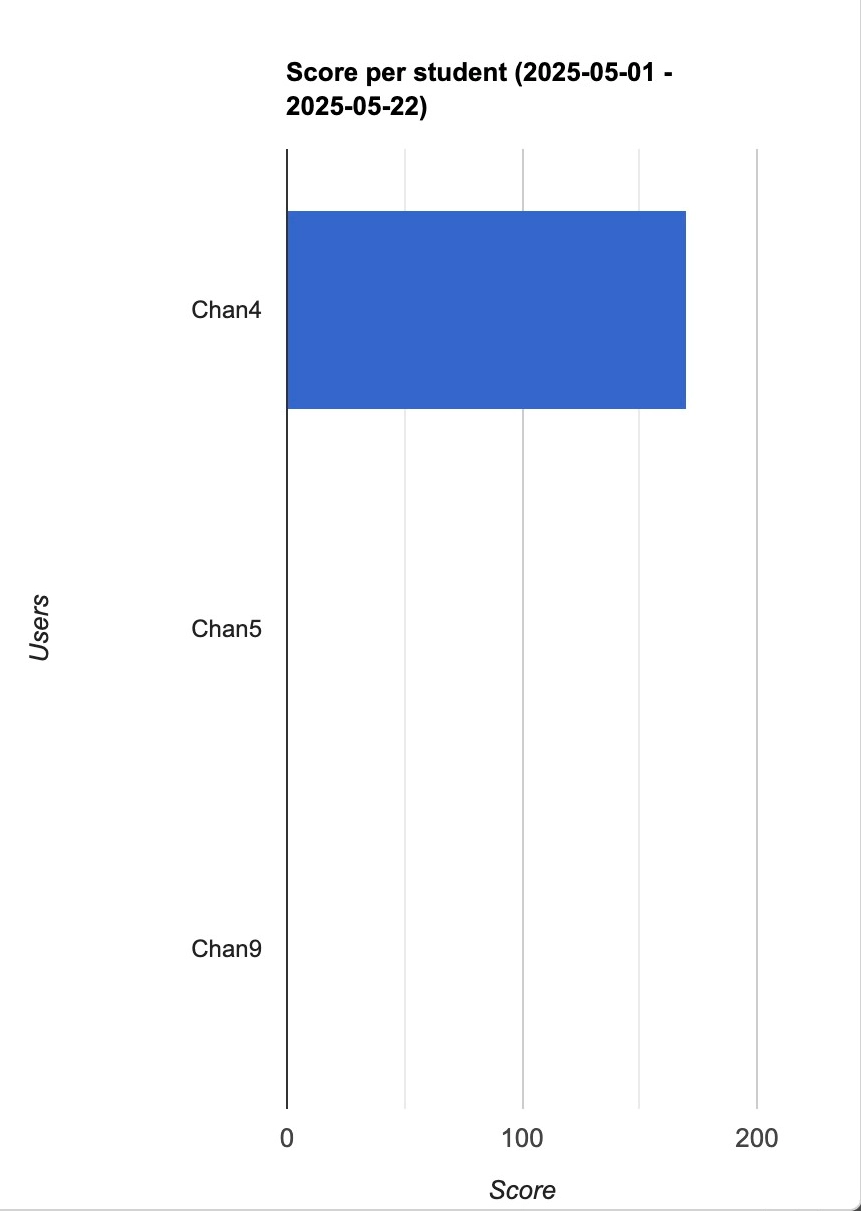
The "Score per student" chart shows scores achieved per student, whether in a week, month, year or custom range.
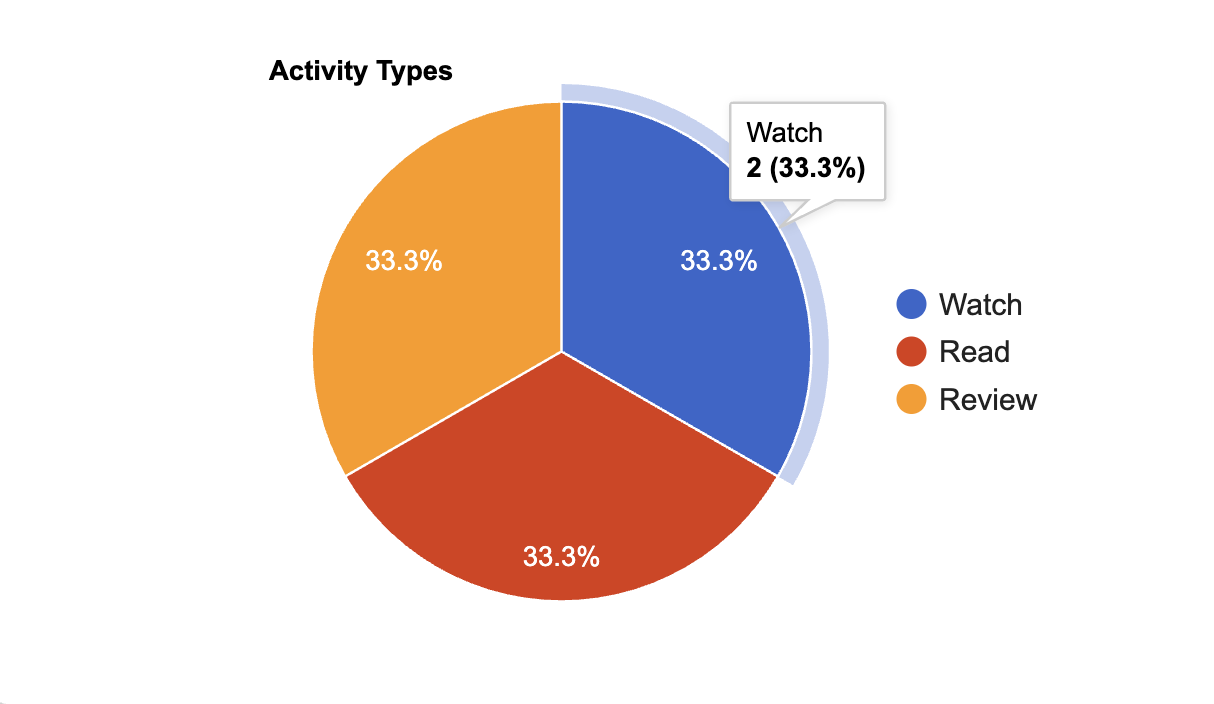
The "Activity Types" chart shows total activity types that have been submitted by the class.
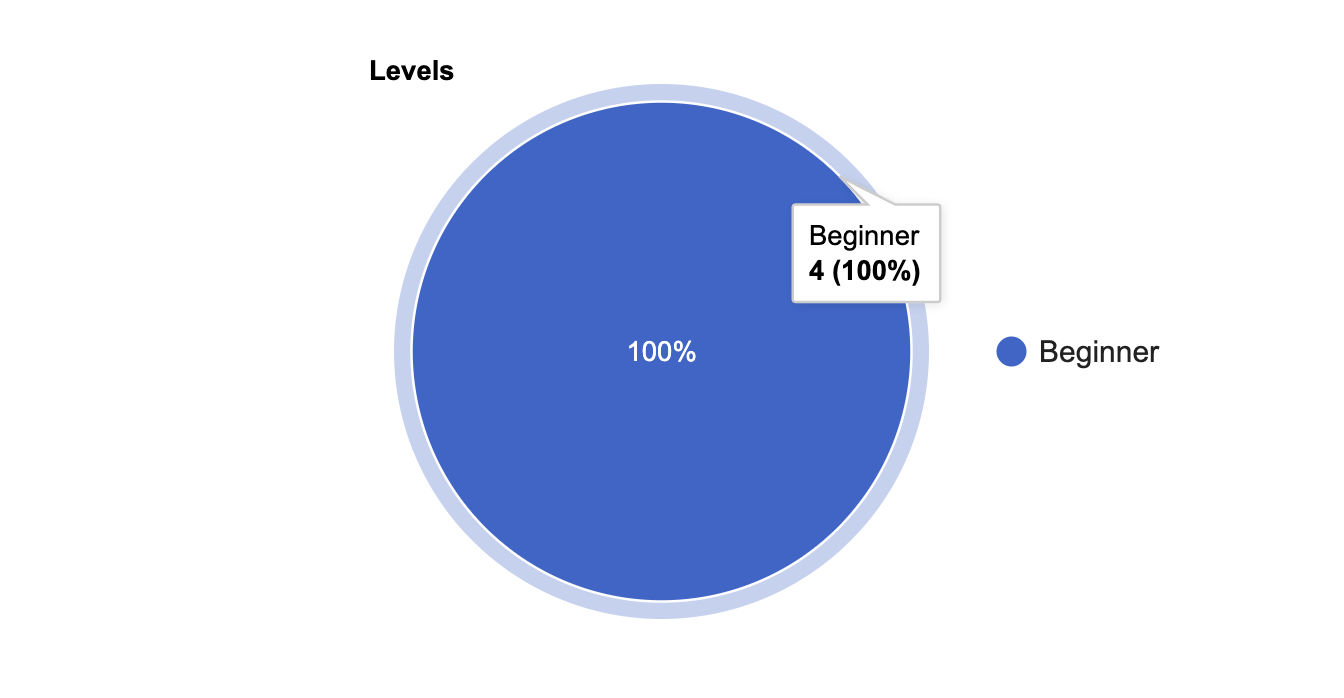
The "Levels" chart shows the total activities submitted per level by the entire class.
The Completed lessons per student graph shows completions recorded during the selected period, including students with zero completions. It combines all levels and counts each completed level of a lesson separately. Click a student bar to open their progress. Use the Graphs and Tables tabs to switch views; the table and Download CSV include Period Completed Lessons. When a lesson limit is configured, the table and score-per-student chart indicate students who have reached the limit.