Teacher Manual

How to view student AI token and speaking usage

5 step guide for Eigo.AI teacher users.

Note that the process described in this guide is applicable only to Teachers. If you would like to create a teacher account on Eigo.AI please contact us.

1

Sign in to Eigo.AI and click "Tracking".
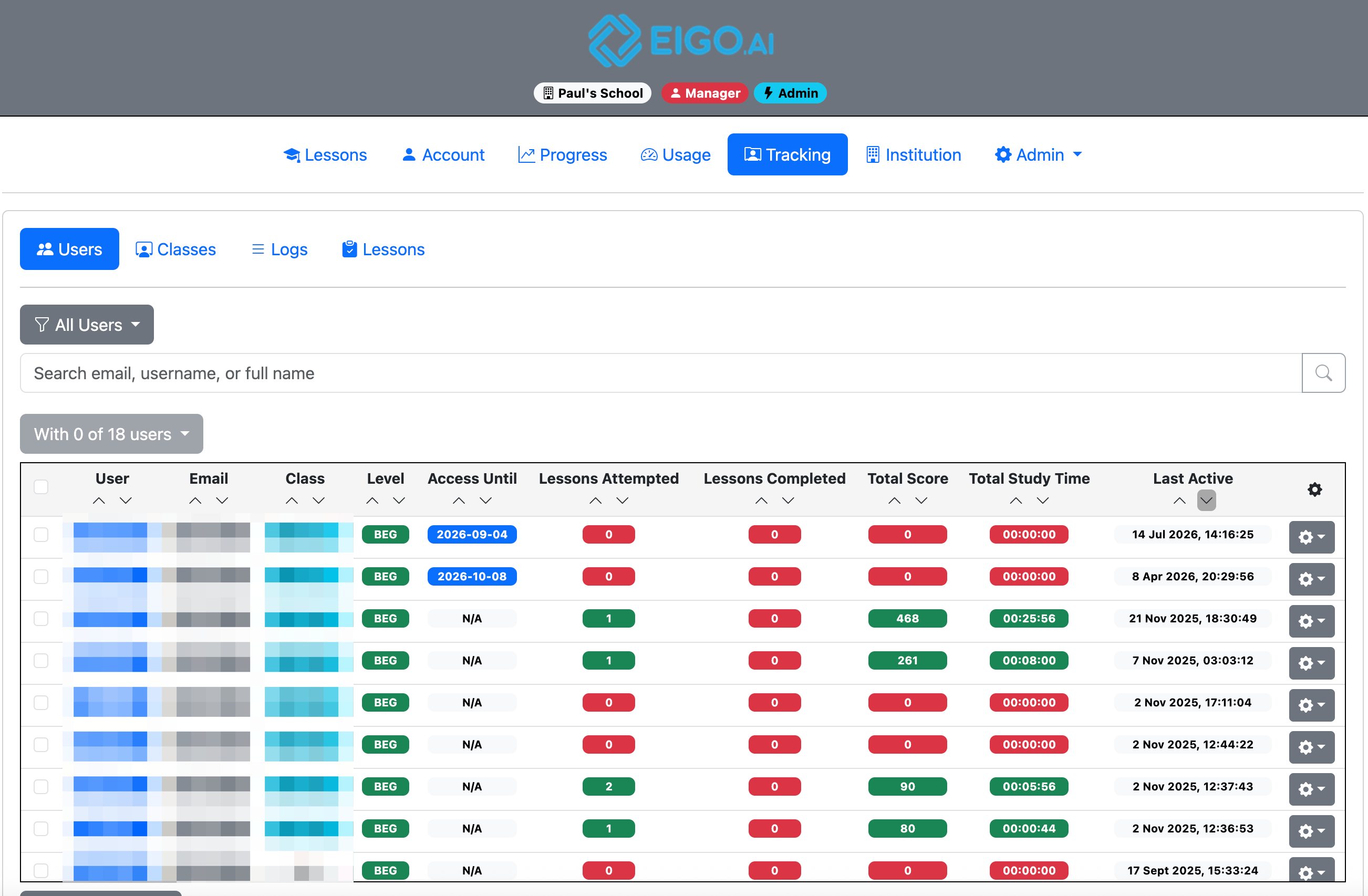
Screenshot for How to view student AI token and speaking usage, step 1
2

Click the gear button to open a dropdown menu for the selected student.
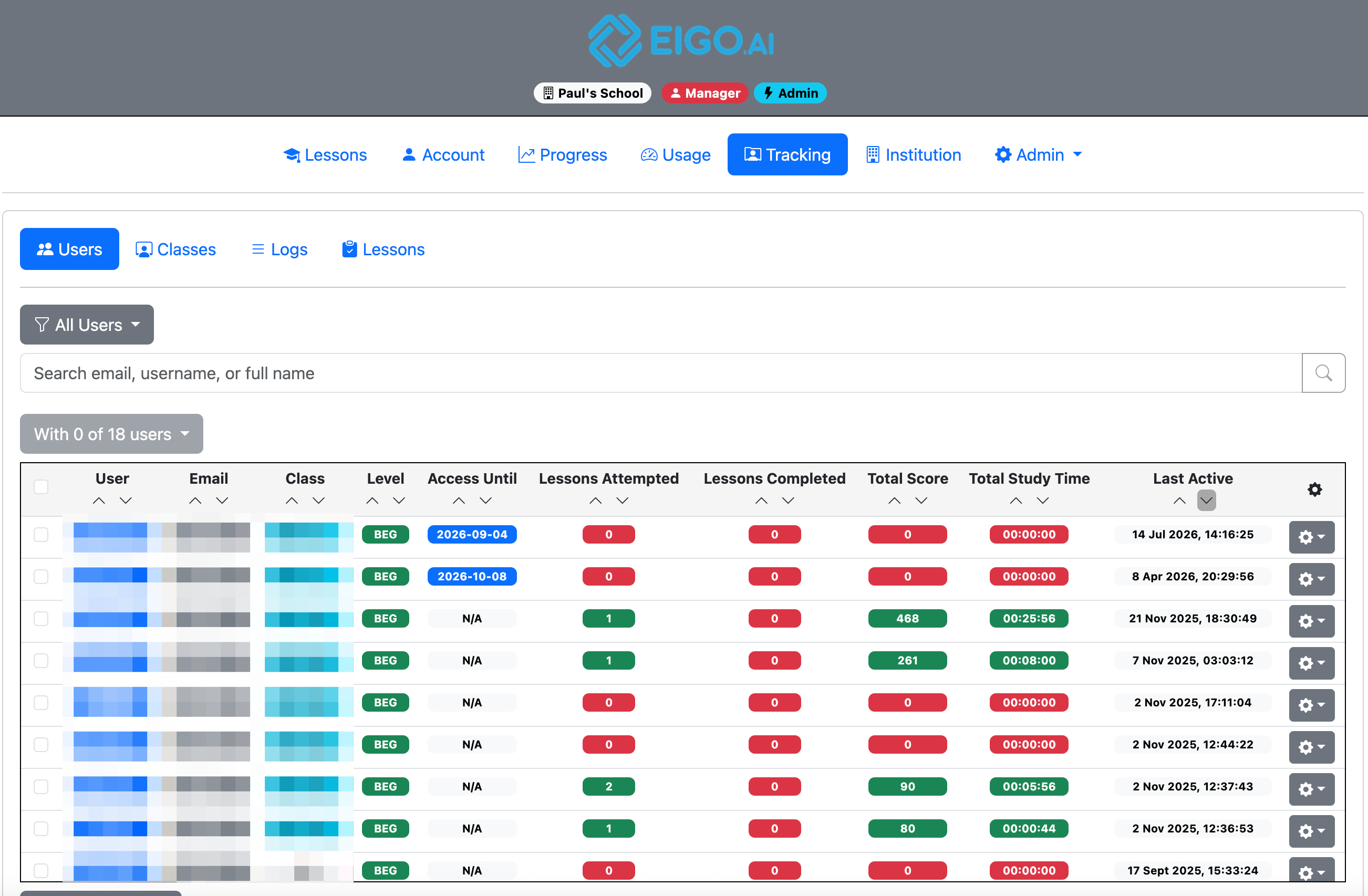
Screenshot for How to view student AI token and speaking usage, step 2
3

Click "View Usage". The student AI token and speaking usage report opens in a modal.
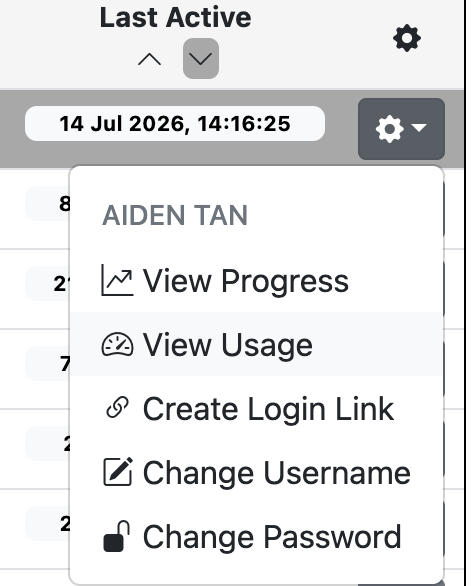
Screenshot for How to view student AI token and speaking usage, step 3
4

Review the Current Usage Period. AI Tokens shows token usage for Write and Discuss, and optionally Read. Speaking Mins shows speaking usage for Speak, and optionally Discuss.
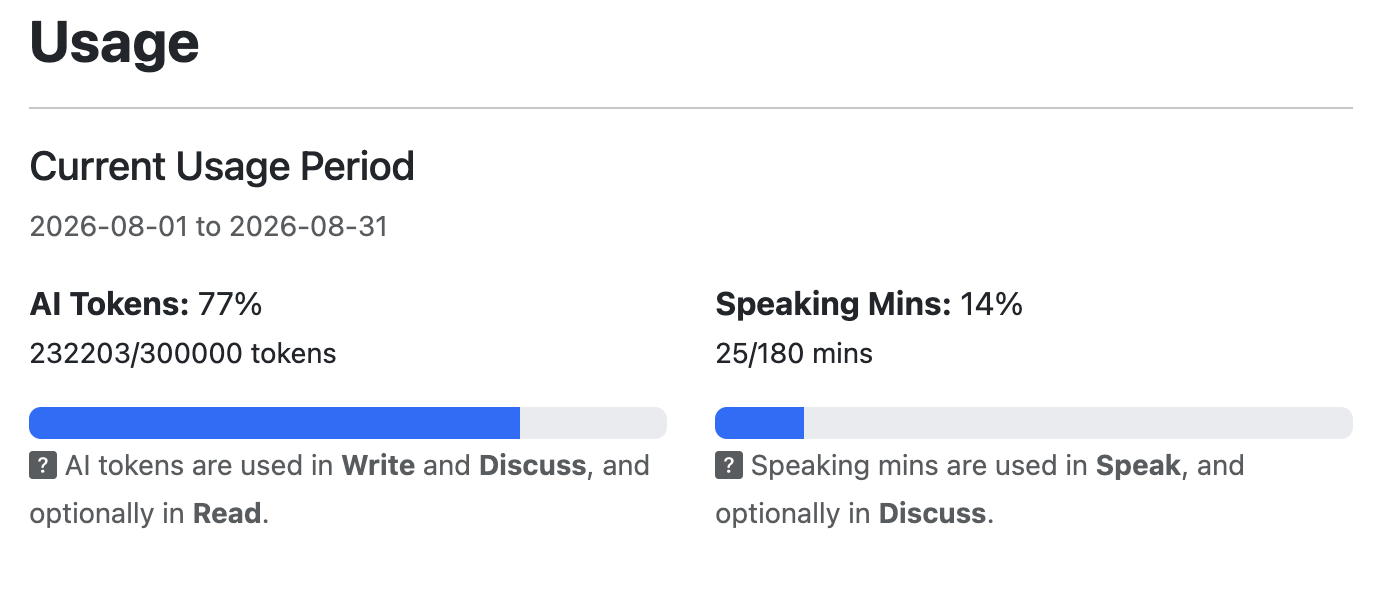
Screenshot for How to view student AI token and speaking usage, step 4
5

Under Historical Usage, select All Time or Custom. If you select Custom, choose the Year and Month to update the AI token and speaking usage charts.
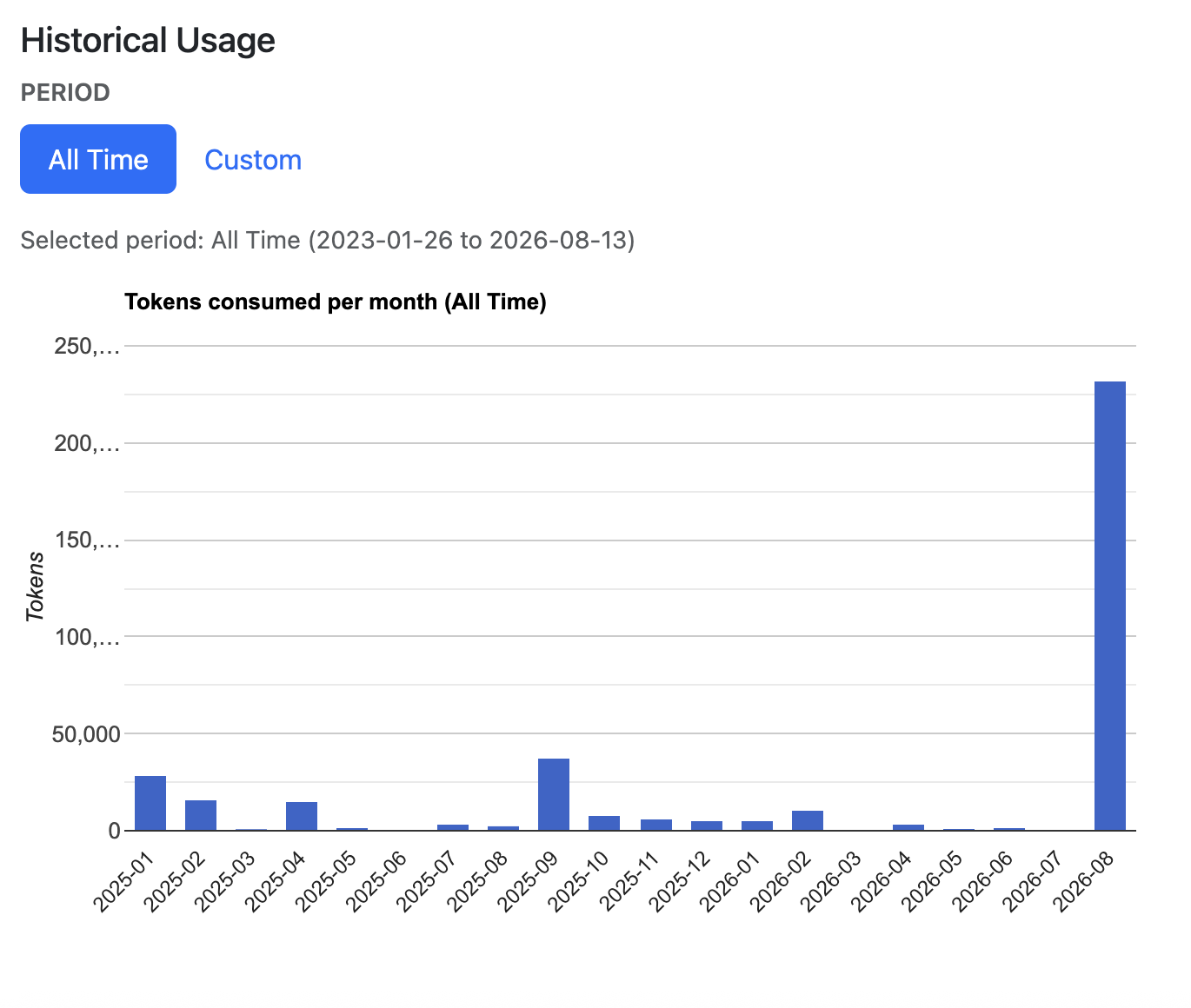
Screenshot for How to view student AI token and speaking usage, step 5