Share your ideas with your own accent
Spoken Discuss replies use a global-English speech recognition model designed to recognize a range of English accents. Our approach is informed by English as a Lingua Franca (ELF): using English to communicate with people from different language backgrounds. You do not need to copy a British or American accent.
Focus on explaining your ideas clearly in English at a comfortable pace. Your spoken replies are turned into text. Discuss evaluates your responses for grammar, vocabulary, coherence, relevance and supporting detail, rather than scoring your accent or individual sounds.
Speech recognition can sometimes miss or change a word. If the tutor misunderstands you, explain your idea again or type a clarification. After submitting, check the conversation transcript alongside your feedback and ask your teacher if something seems inaccurate.
Navigate to https://eigo.ai/lessons/
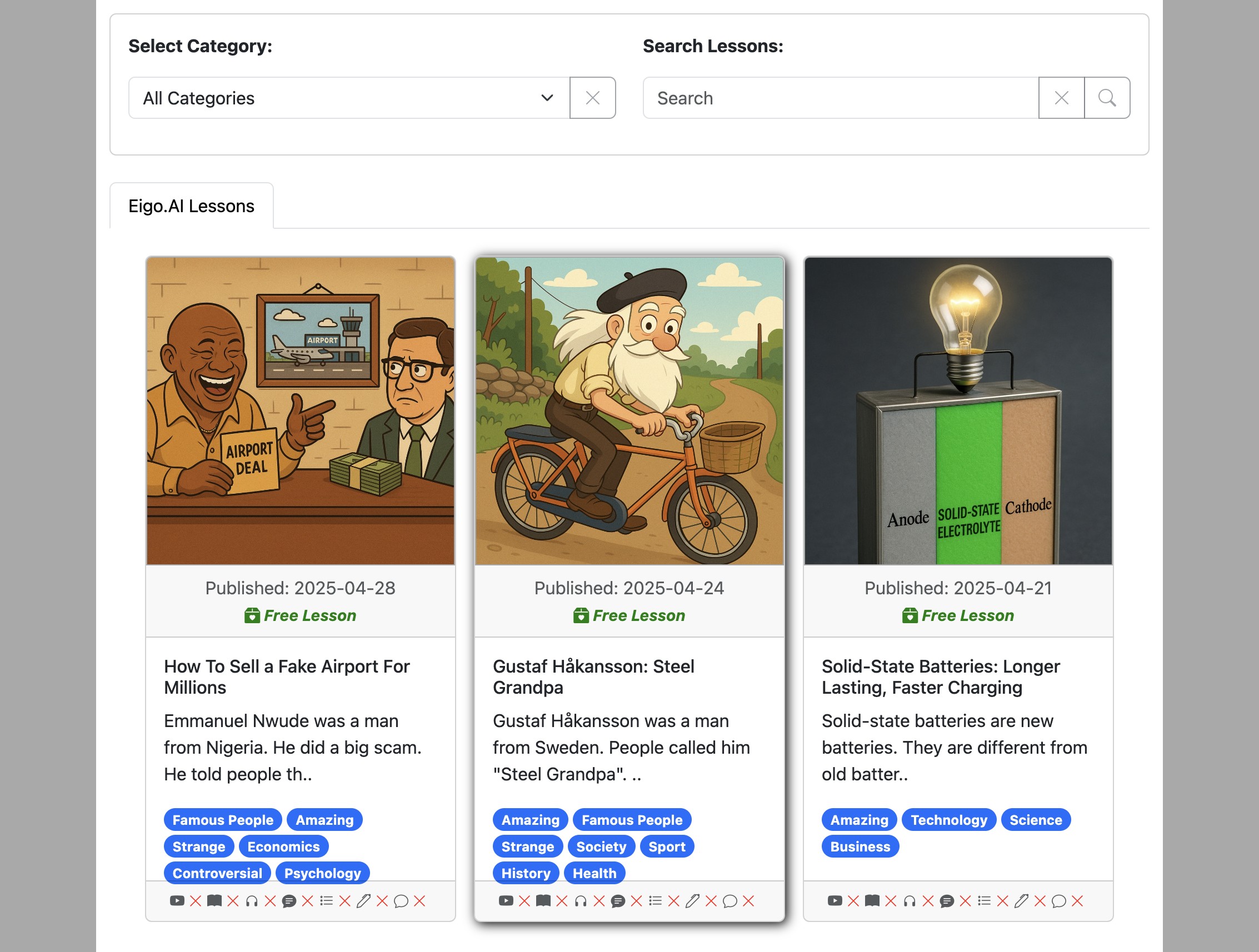
Select a lesson you would like to study.
Select the "Discuss" activity.
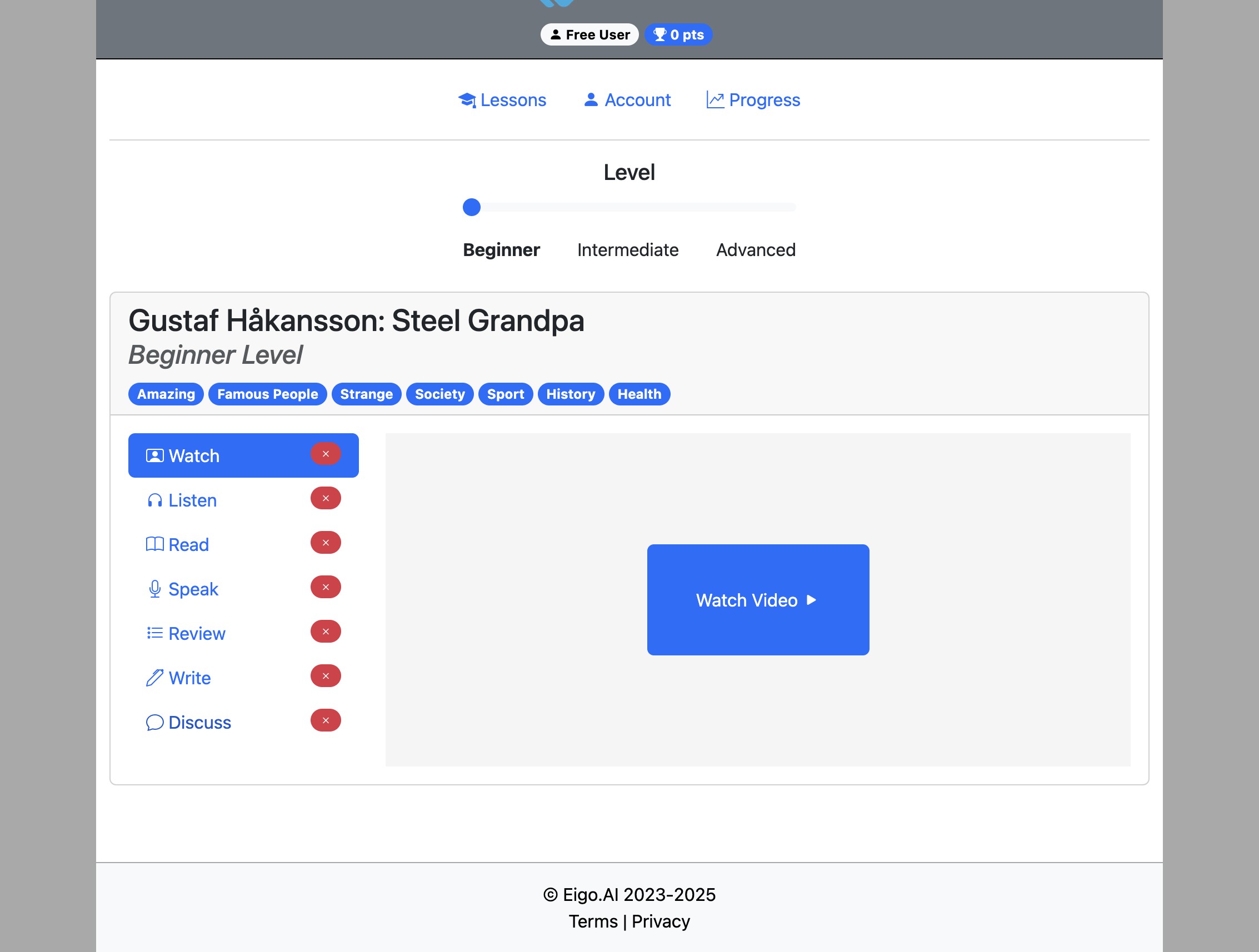
If your teacher has not locked the activity order, you can do the "Discuss" activity before completing the other activities.
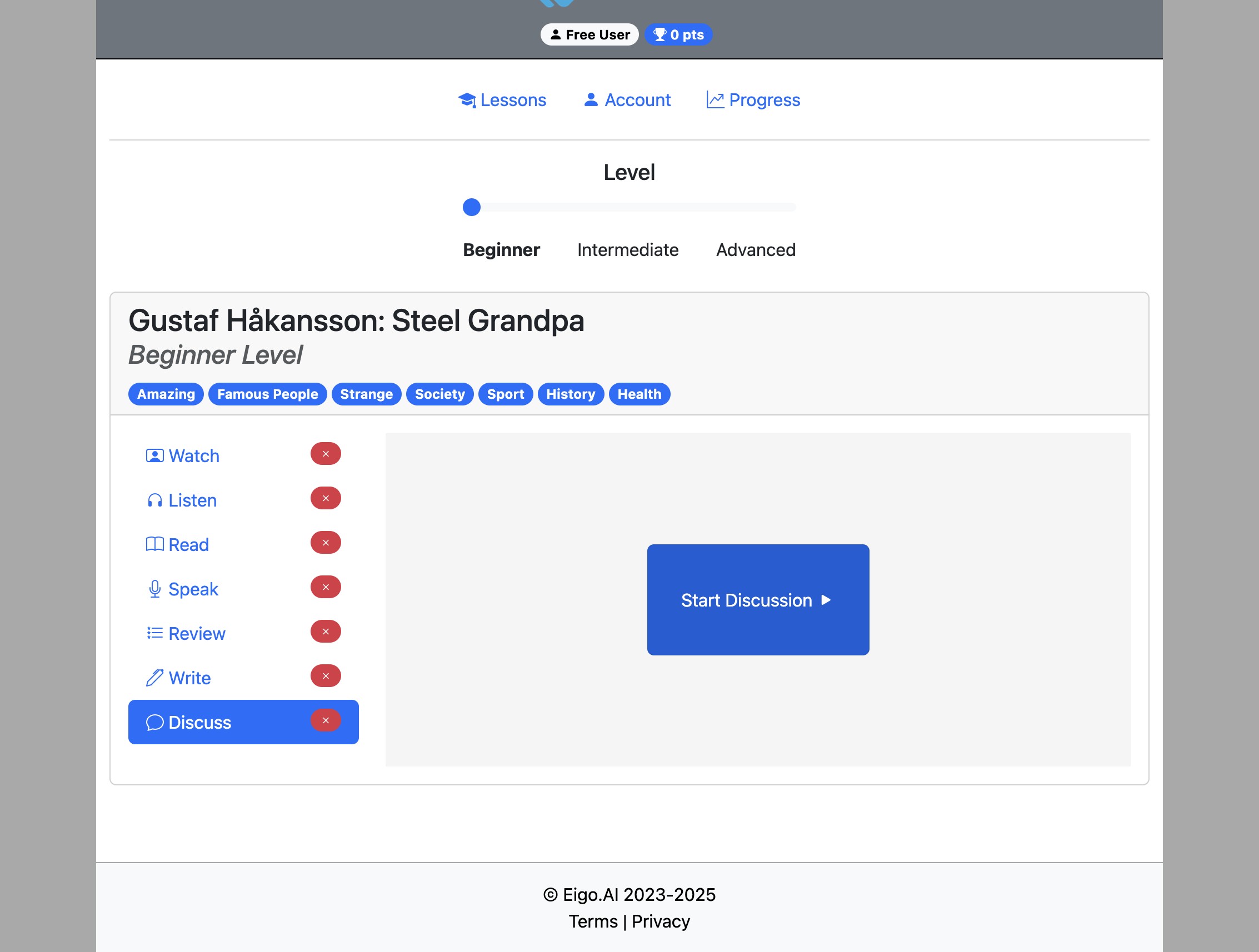
Click "Start Discussion"
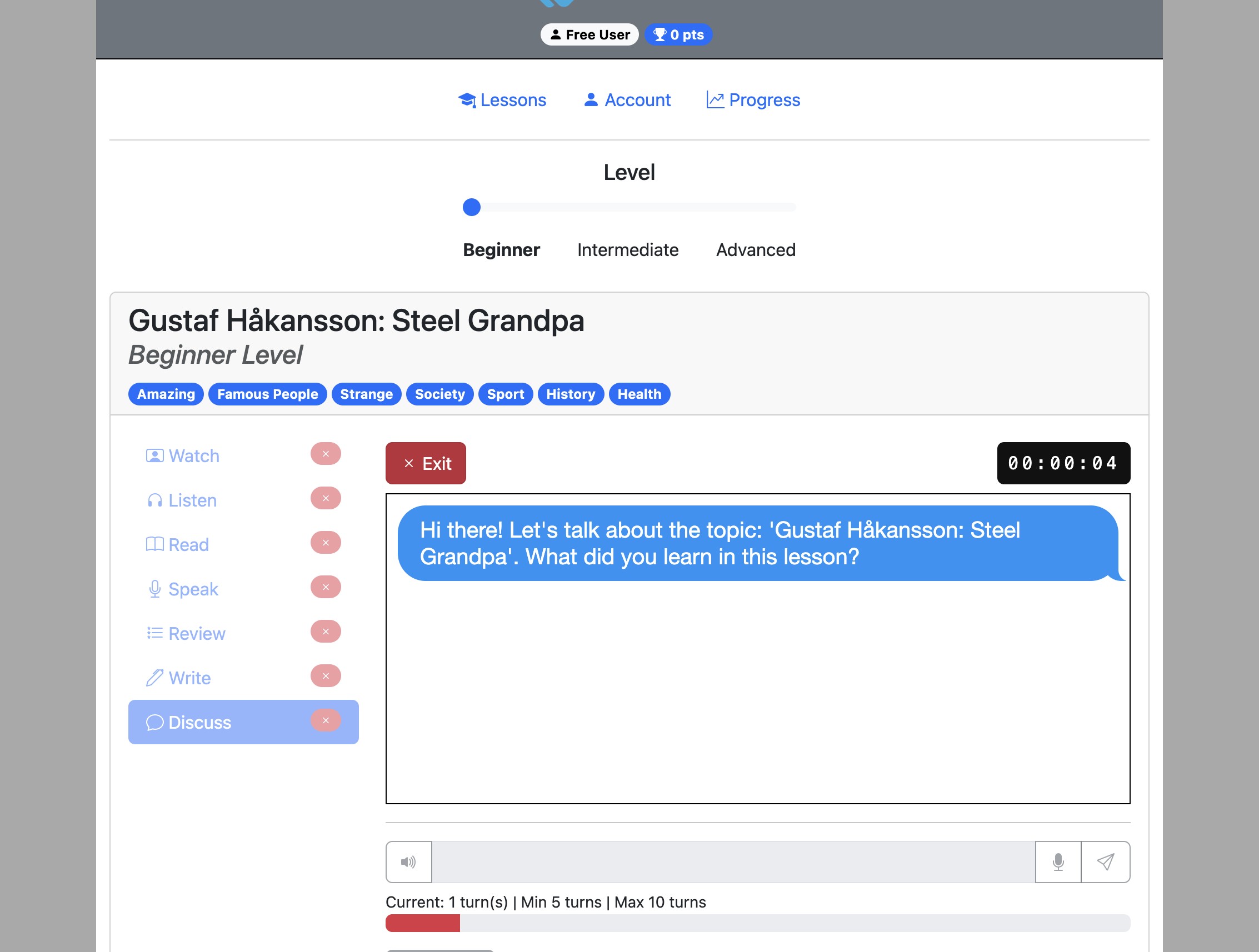
Respond to the Chatbot's questions by typing or speaking your answers.
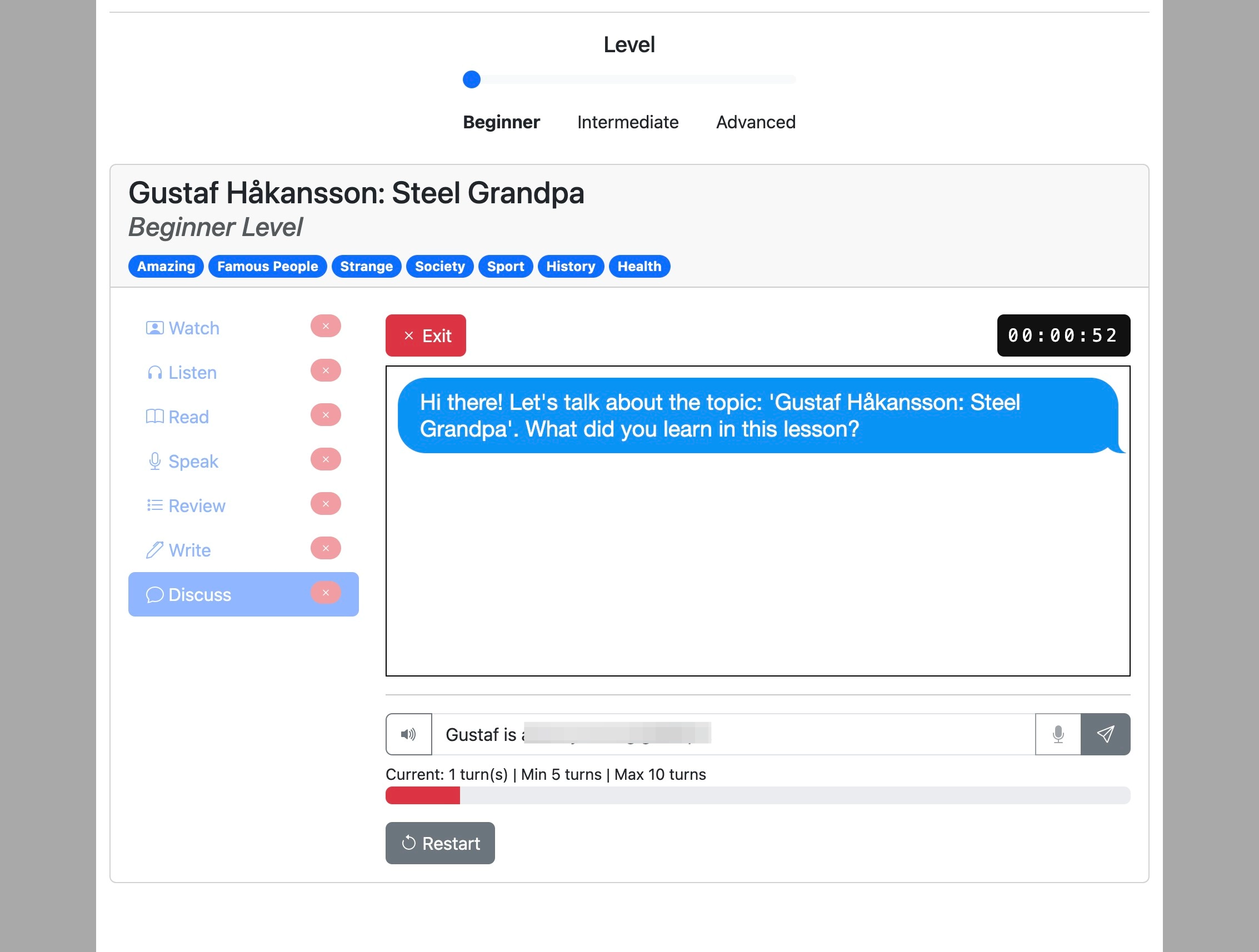
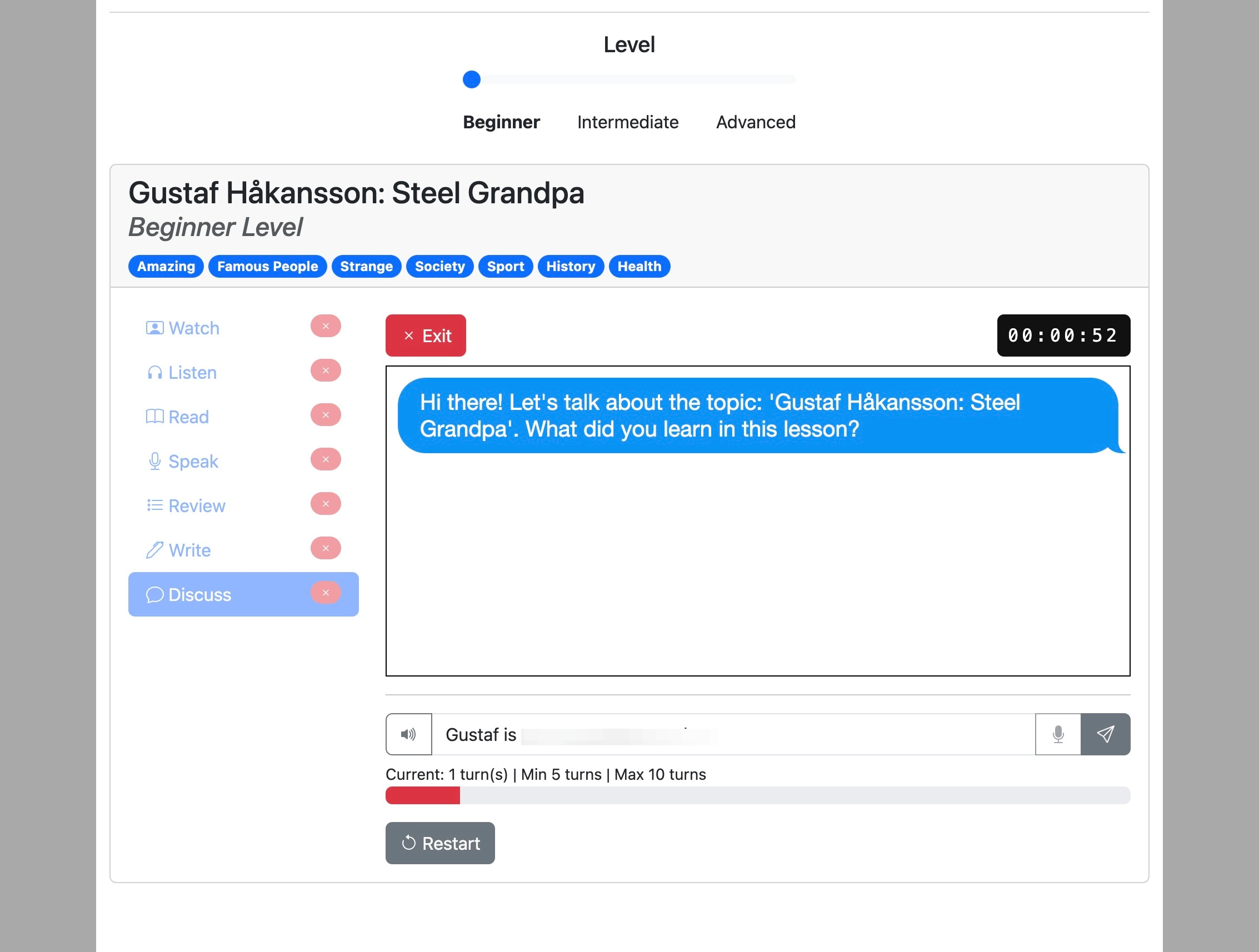
Click the "Send" button or press "Enter" after typing a response.
Click the microphone button to speak your response.
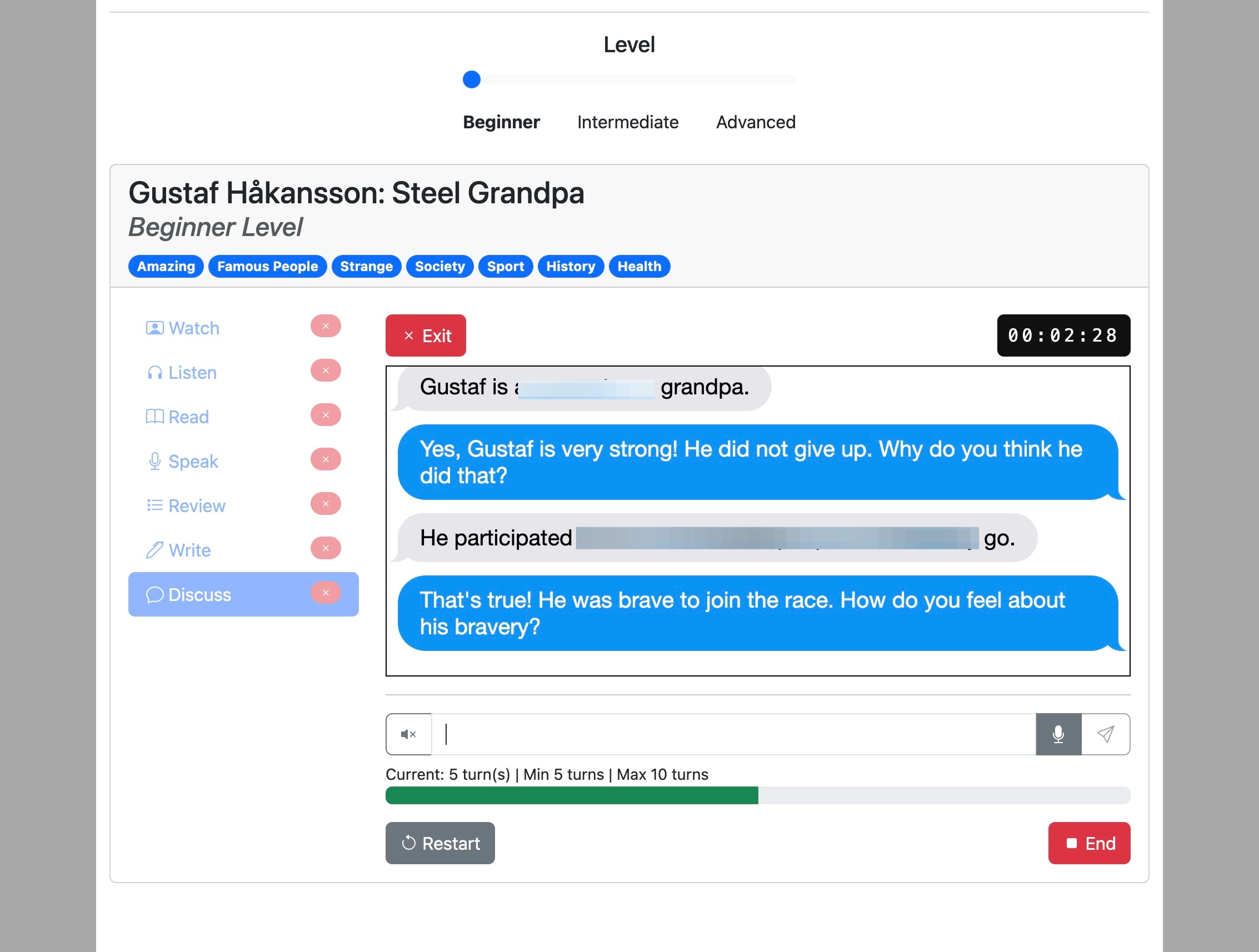
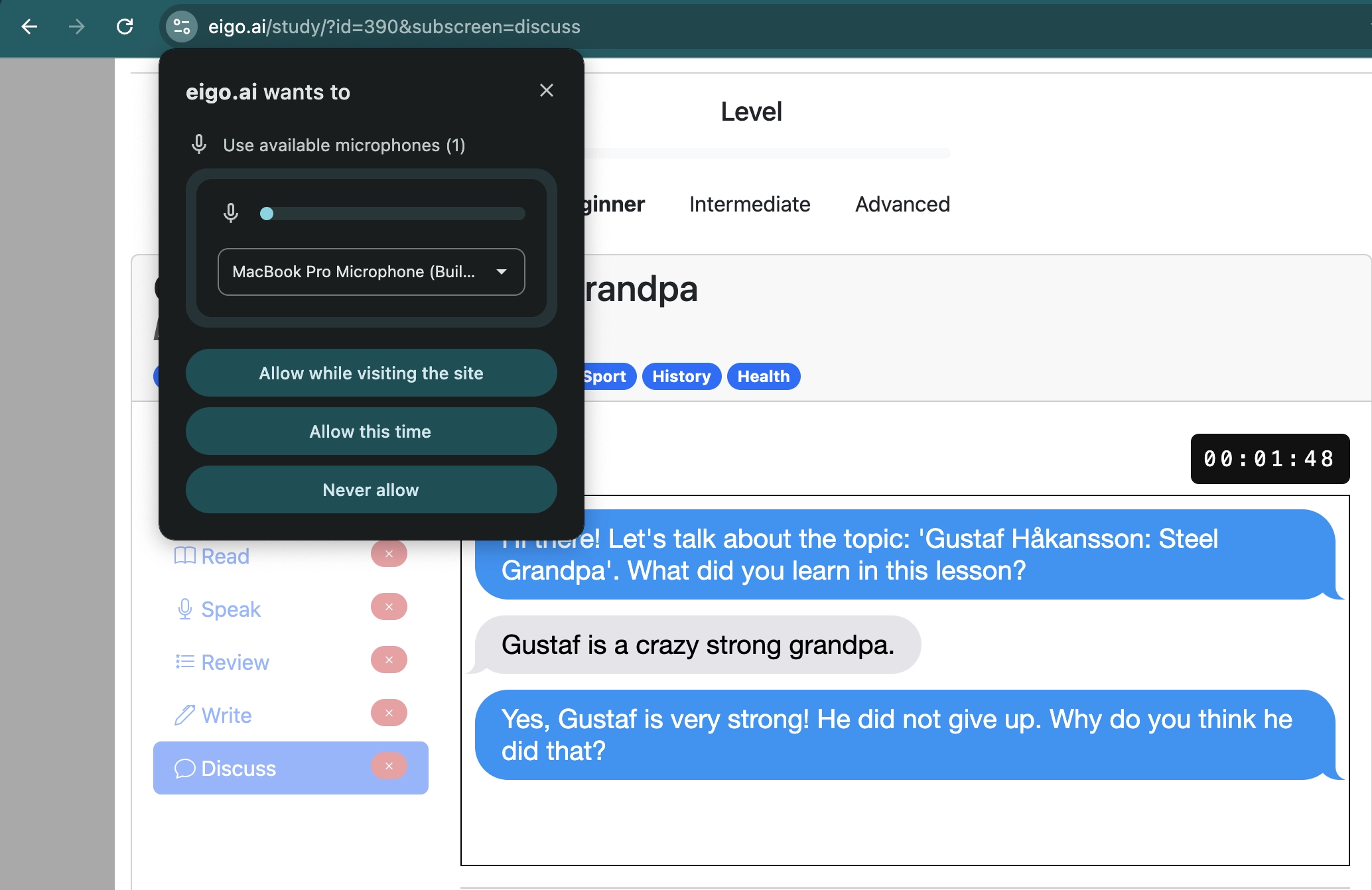
Don't forget to grant access to your microphone before recording your response.
Click the "Stop" button to finish speaking and send the recording.
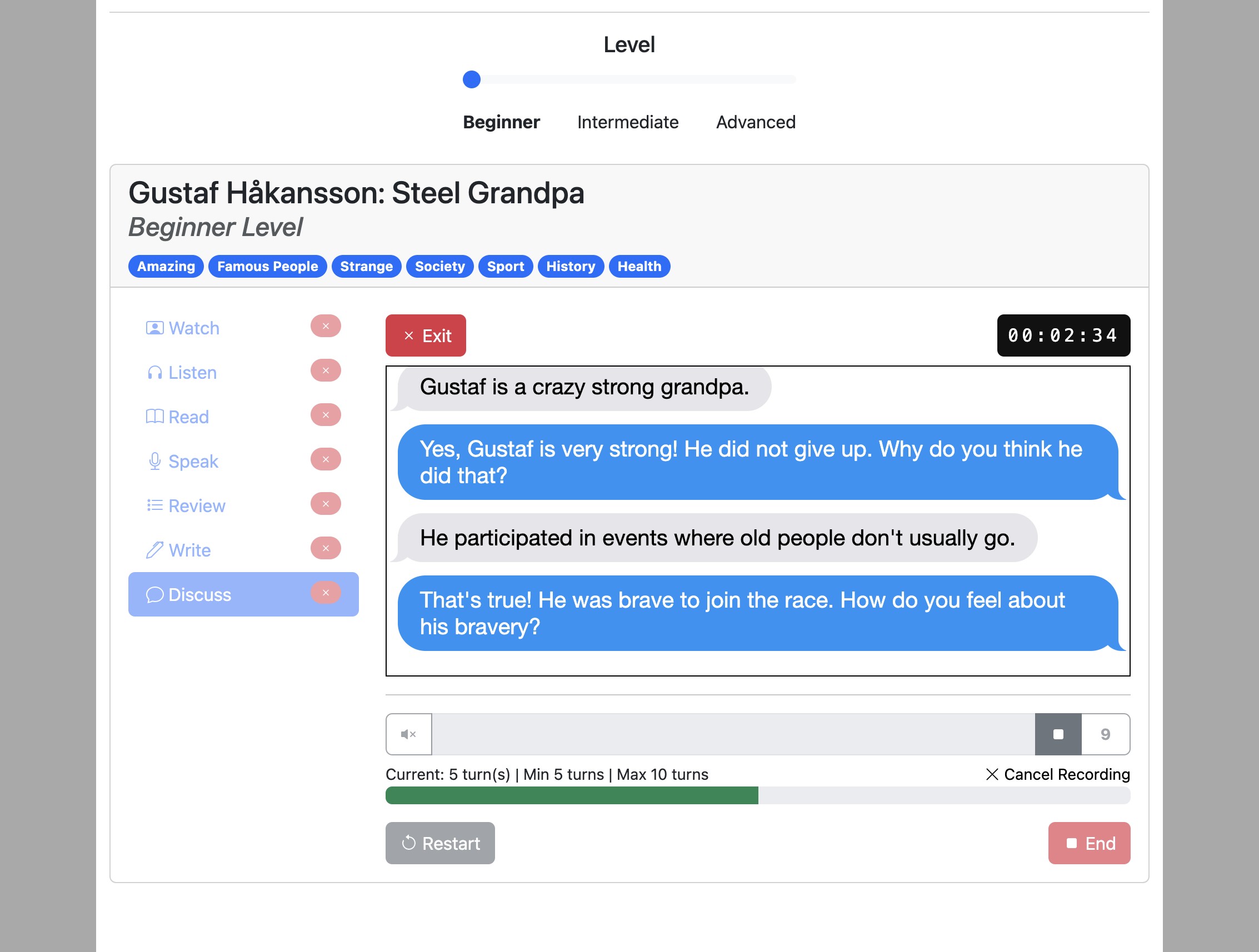
When you reach the maximum number of turns, the conversation will automatically end. To end before the turn limit is reached, click “End”. You cannot click “End” before reaching the minimum number of turns. Your teacher may change the minimum and maximum number of turns.
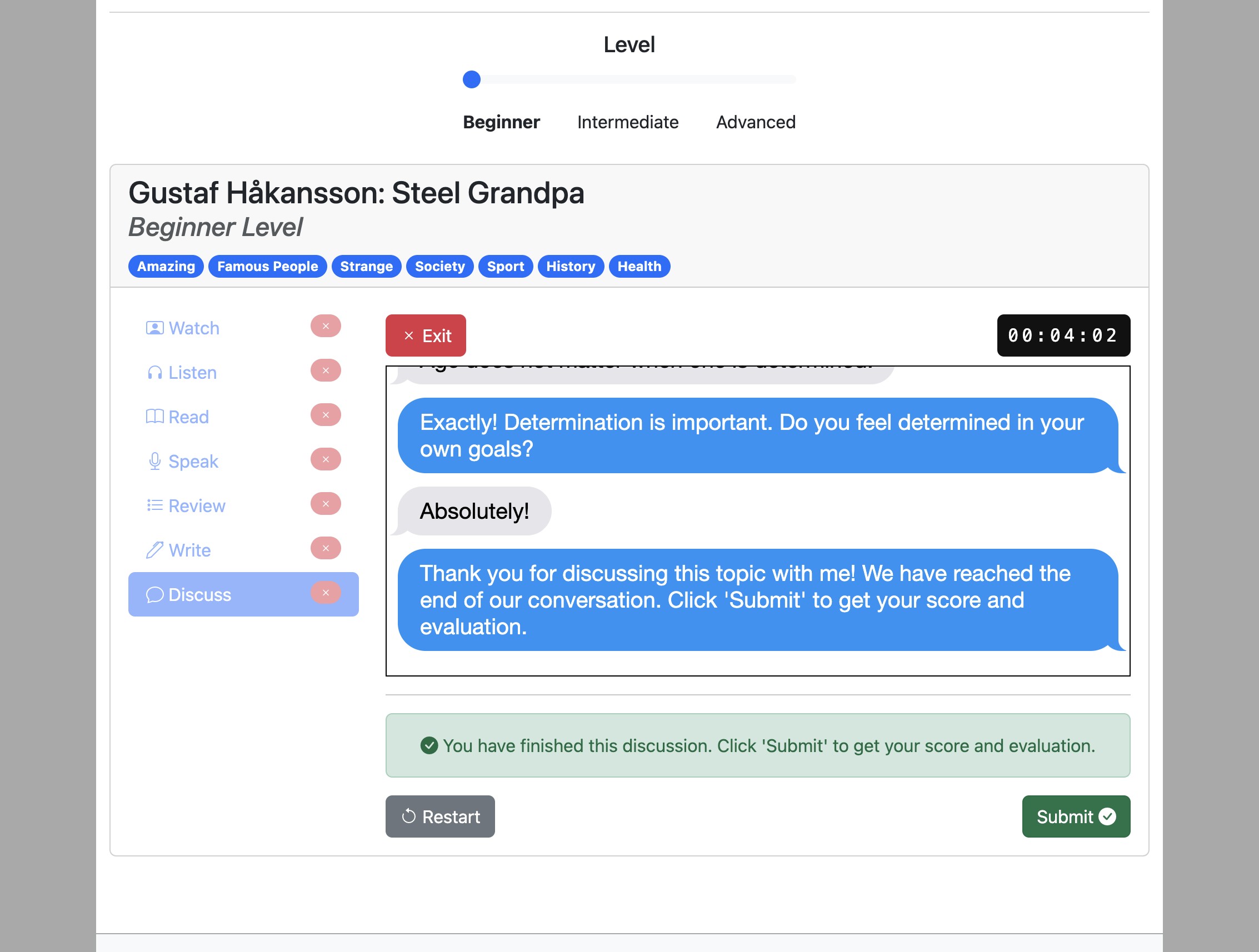
After the discussion ends, click ‘Submit’ to get your score and evaluation.
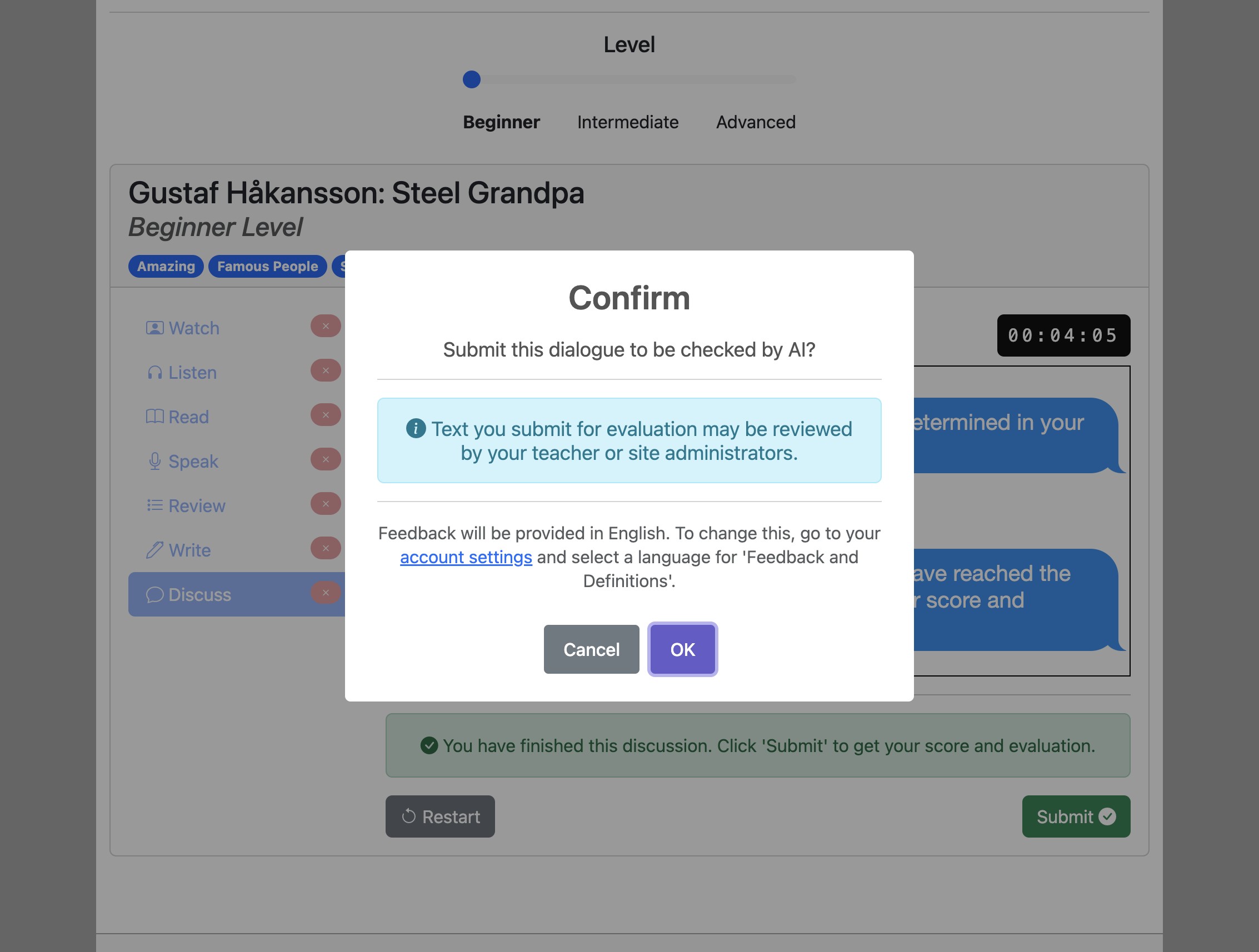
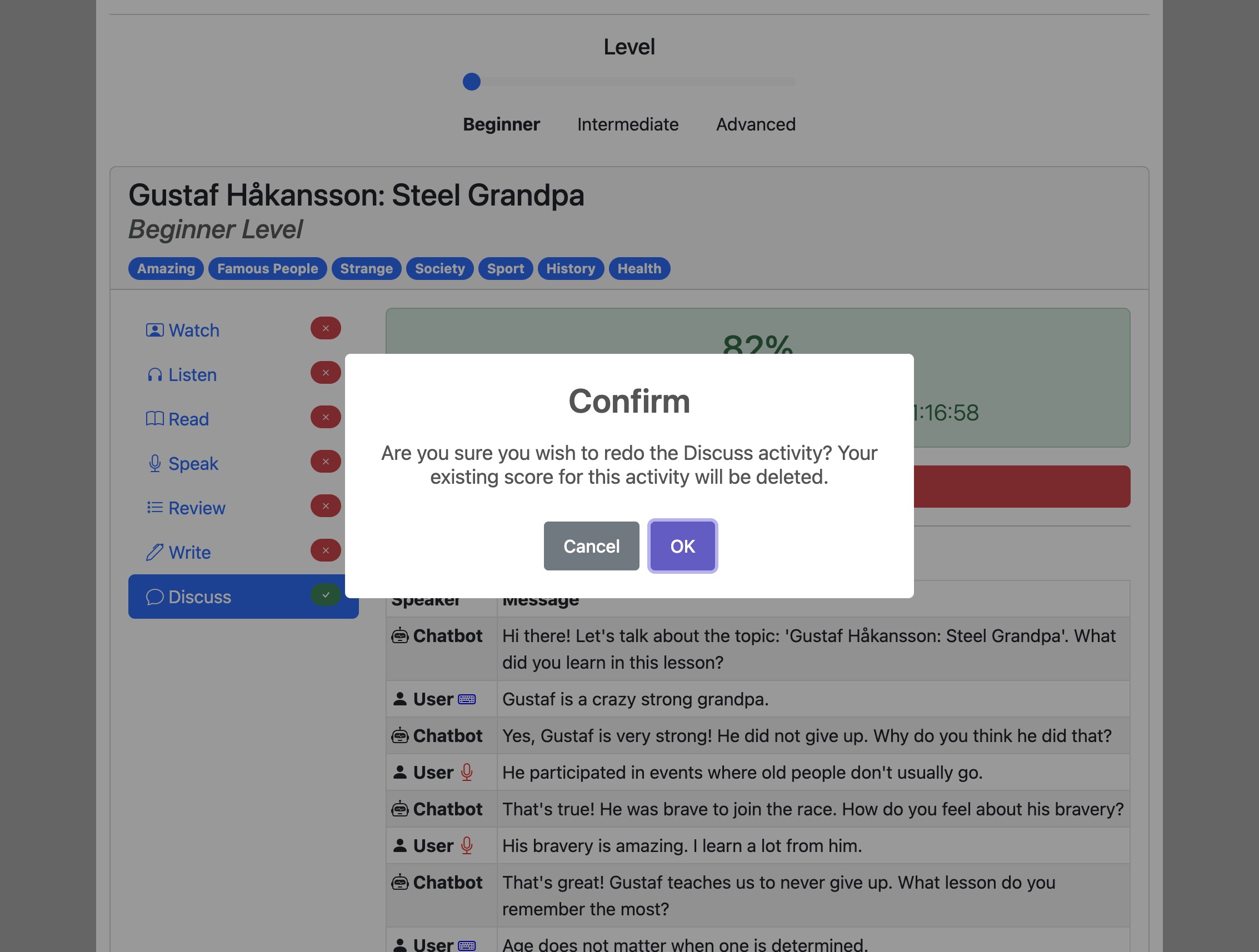
Click "OK" to confirm.
You will receive an overall percentage score along with the transcript of your conversation.
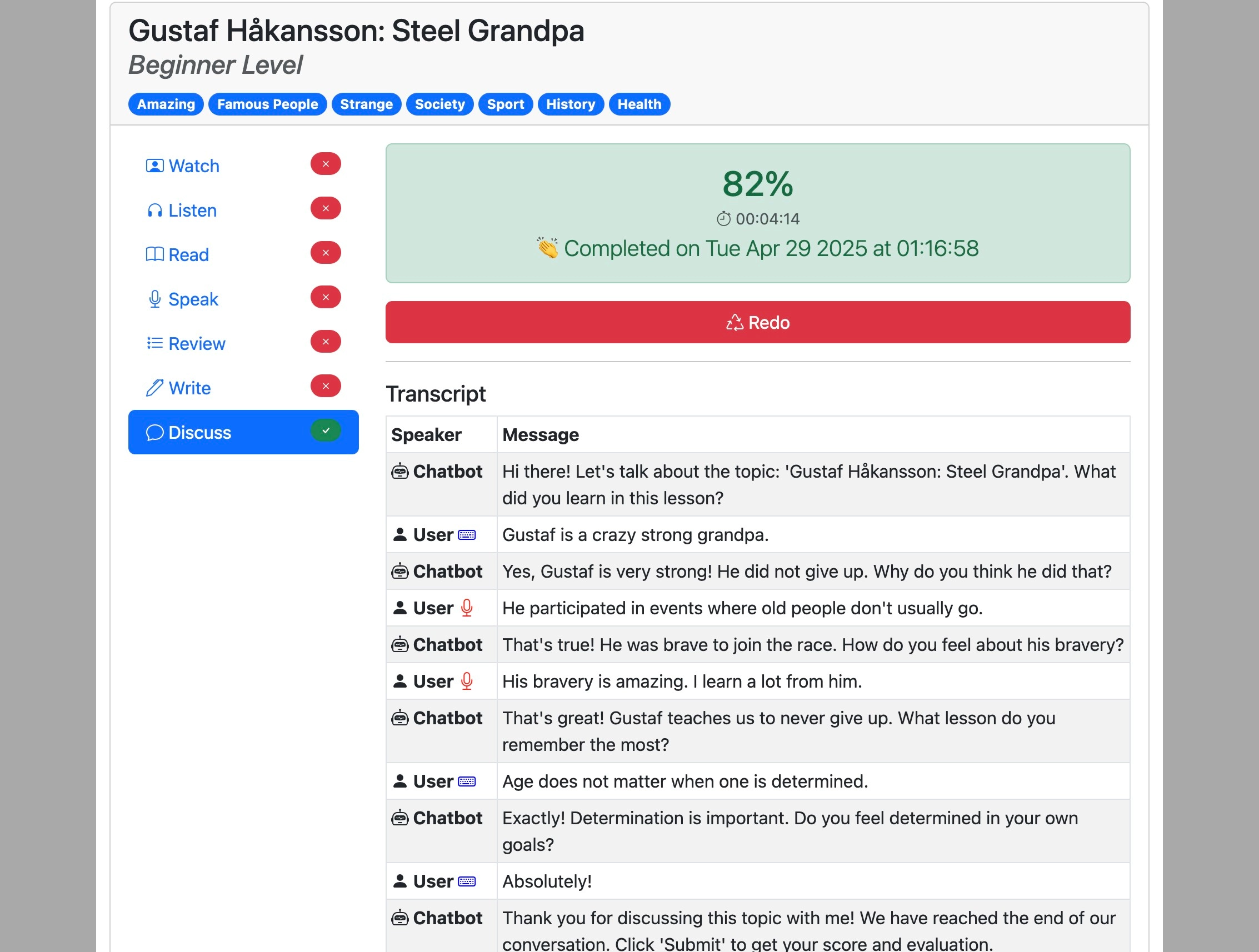
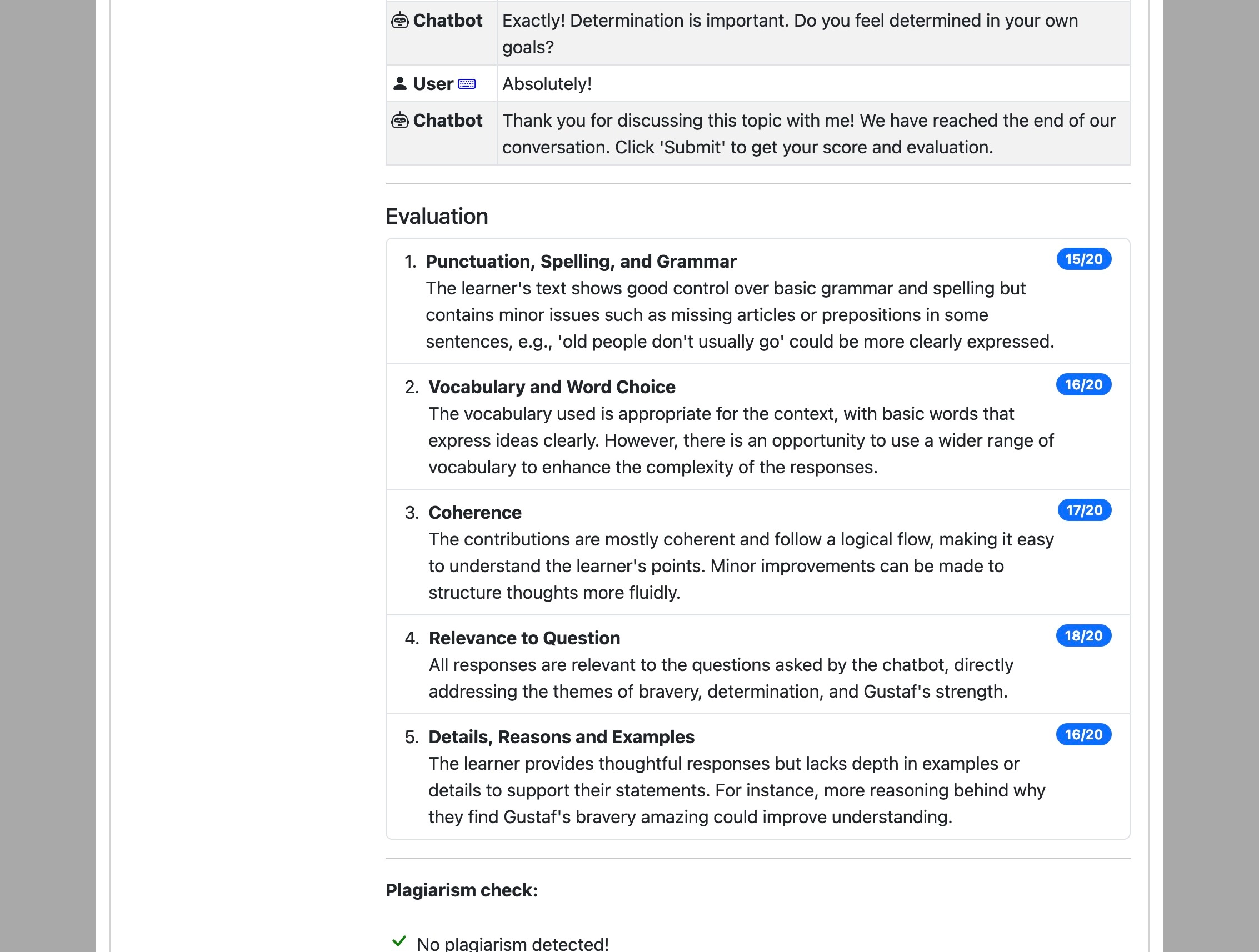
Scroll down the page to see a more detailed explanation of your score.
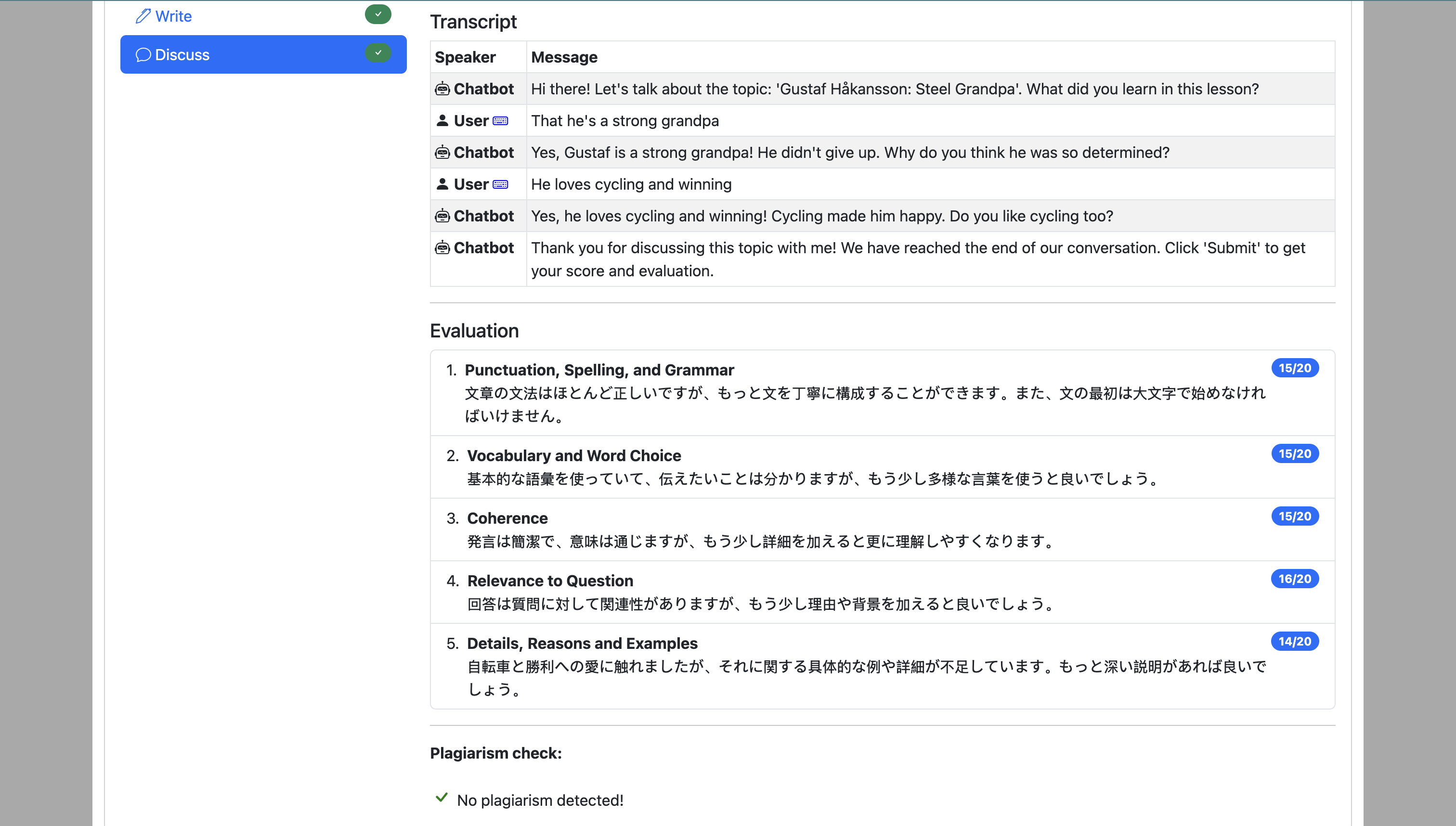
To show feedback in your first language, navigate to the settings page and change the Feedback and Definitions Language. Feedback will then be shown in the selected language.
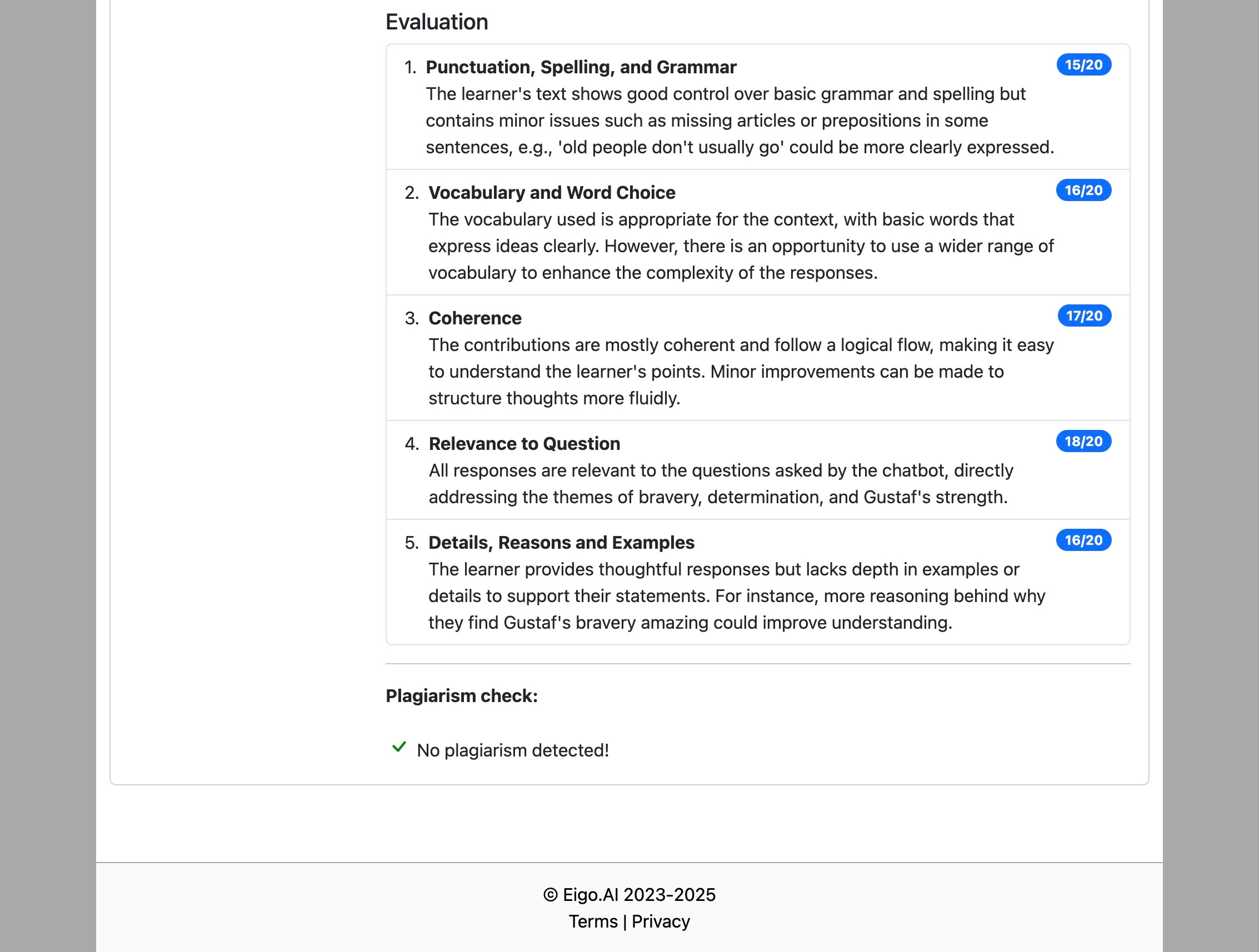
Be careful not to copy your answers directly from other sources as this will be detected and flagged as plagiarism.
After submitting, you can click "Redo" to attempt the activity again if you wish to do so.
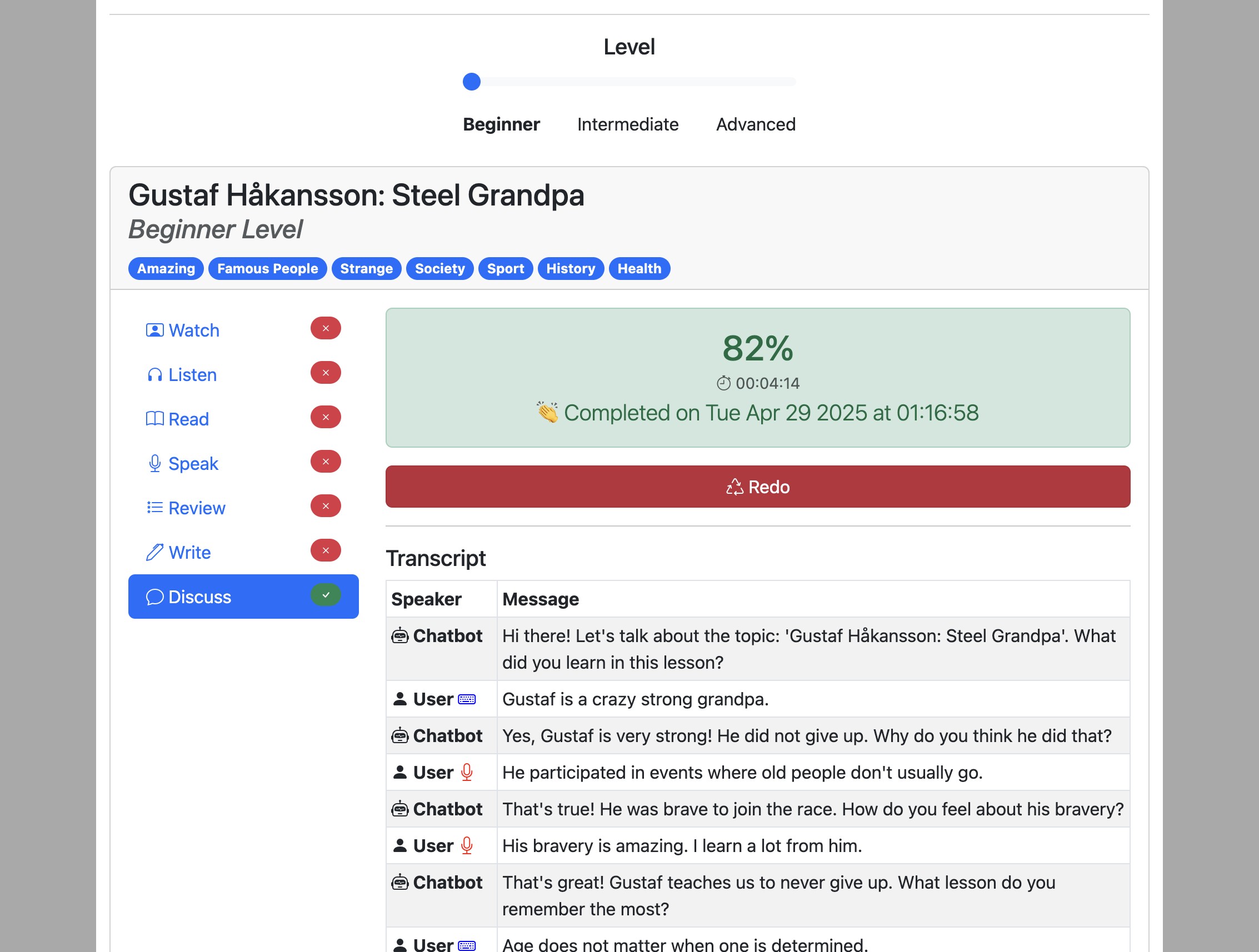
If your teacher has disabled resubmissions the "redo" button might not be shown.
Click "OK" to confirm.
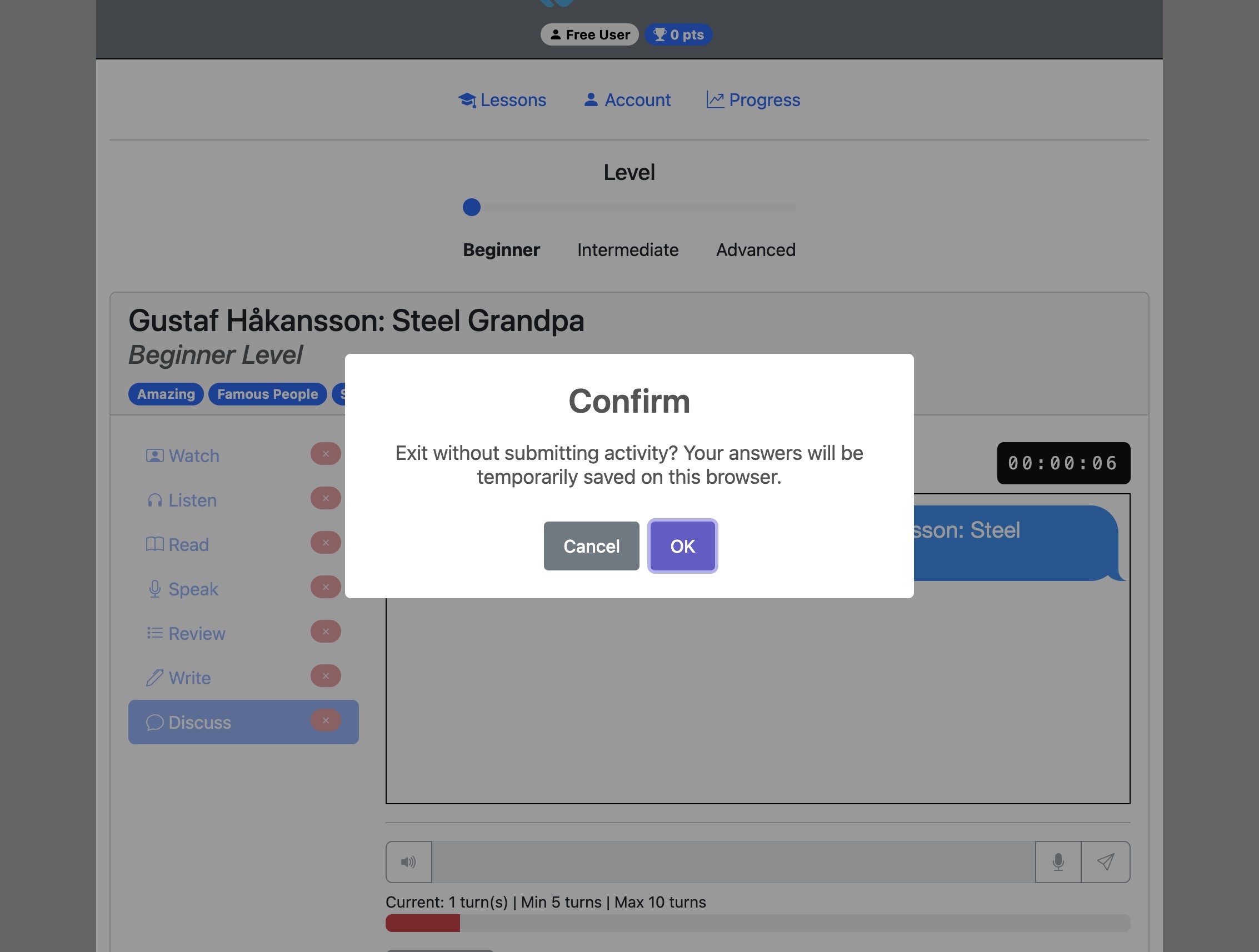
If you need to leave the ‘Discuss’ activity before submitting it, click the "Exit" button. Your progress will be temporarily saved on your current browser and you can return to the activity later.
Click "OK" to confirm.