Navigate to https://eigo.ai/lessons/
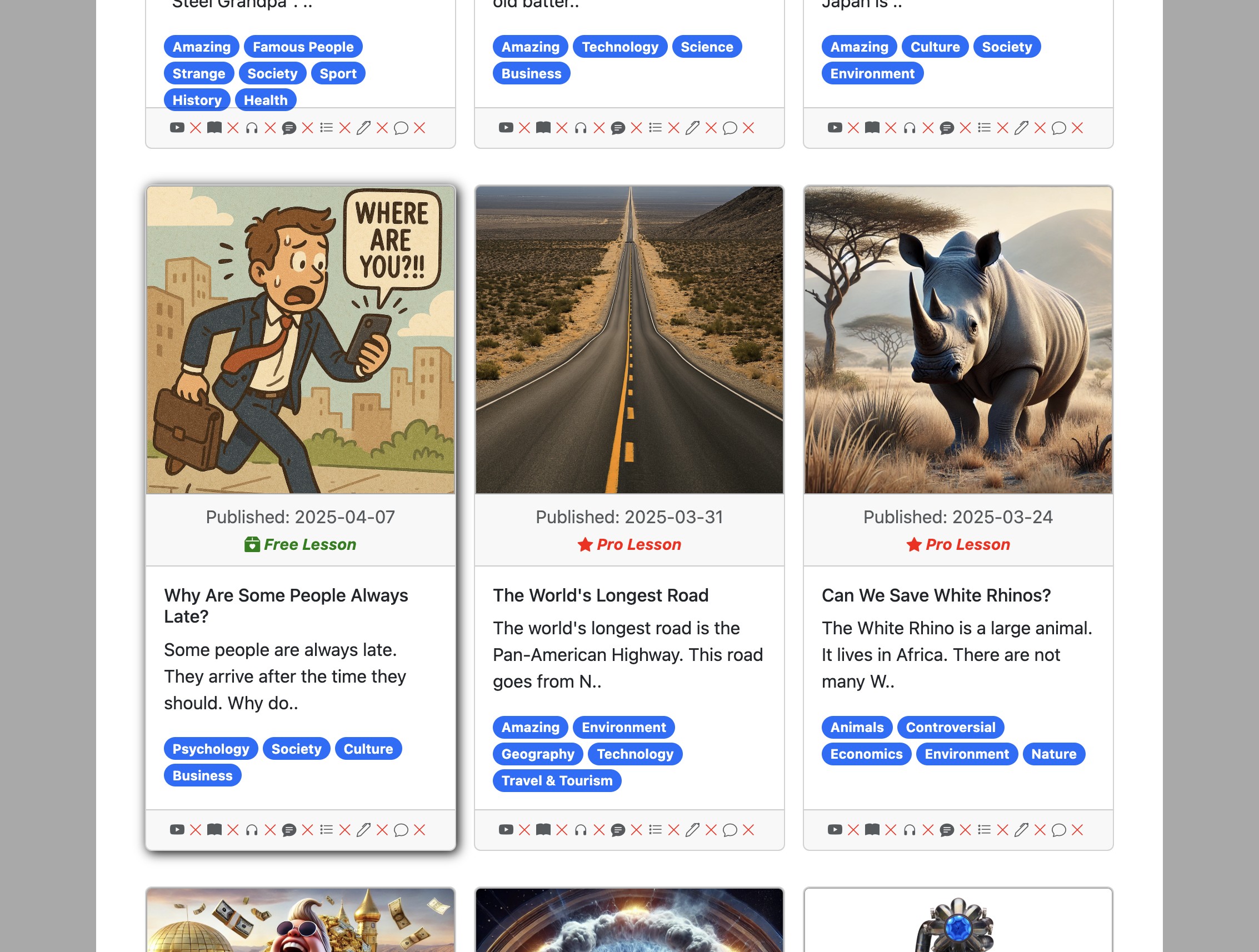
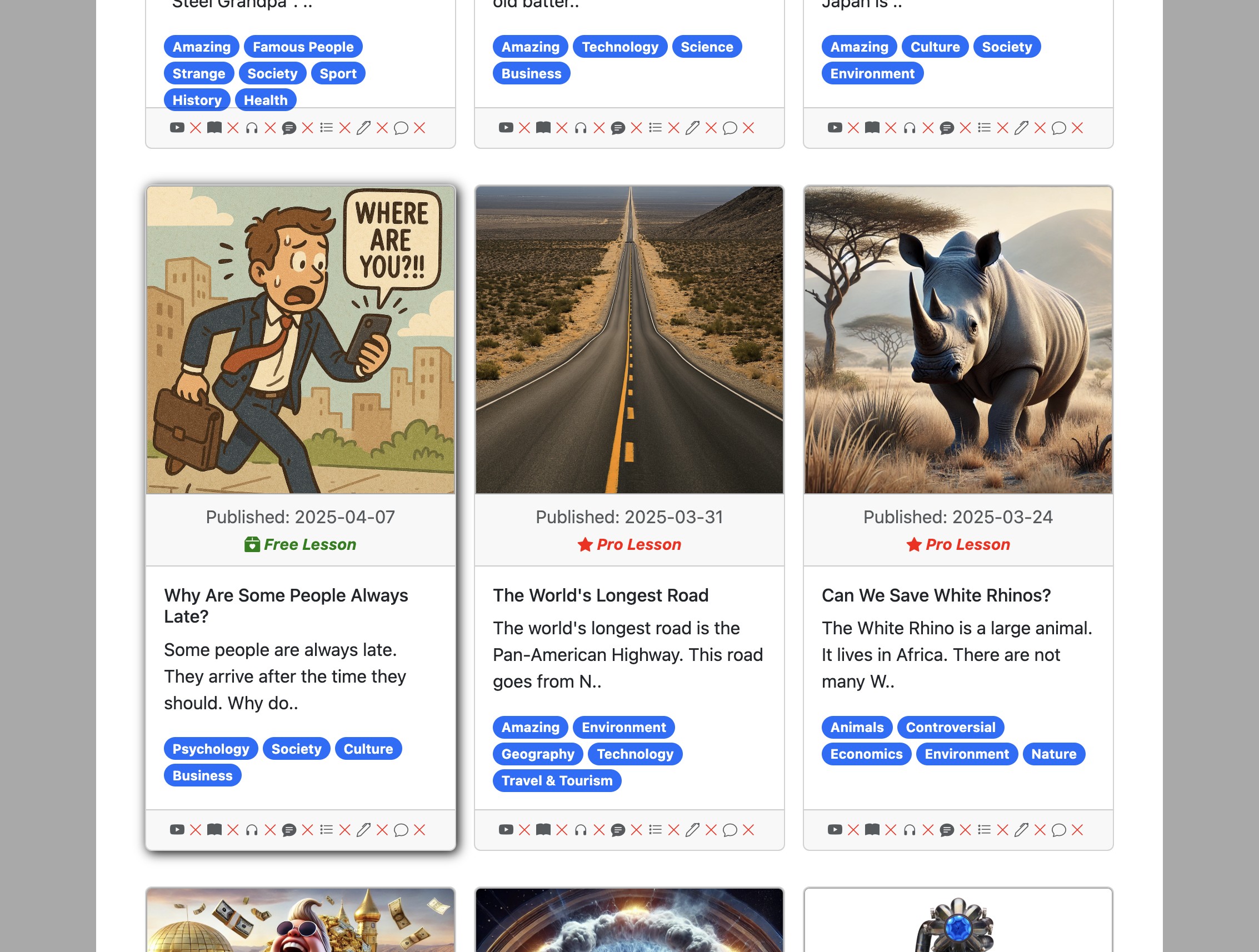
Select a lesson you would like to study.
Select the "Read" activity.
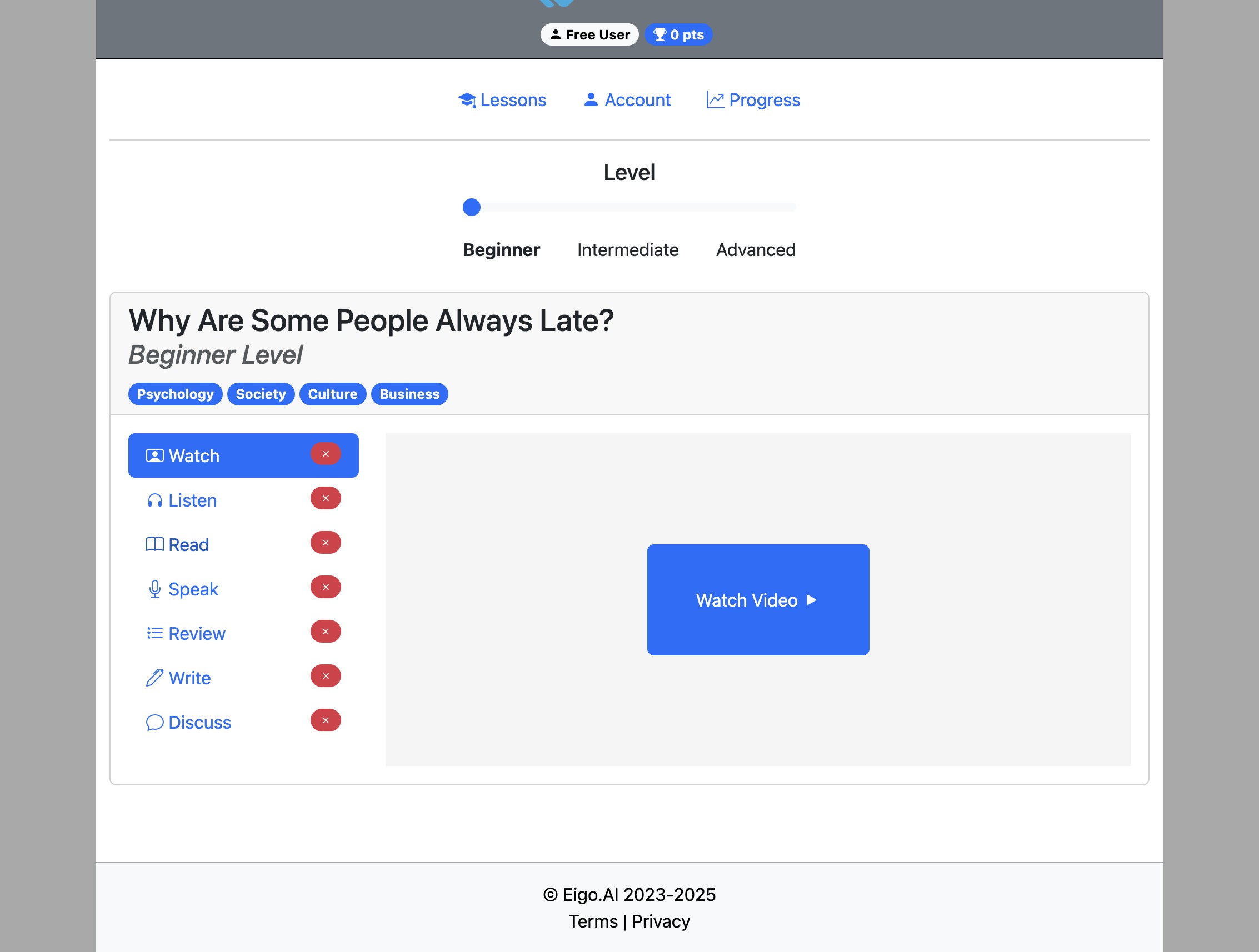
If your teacher has not locked the activity order, you can do the "Read" activity before completing the other activities.
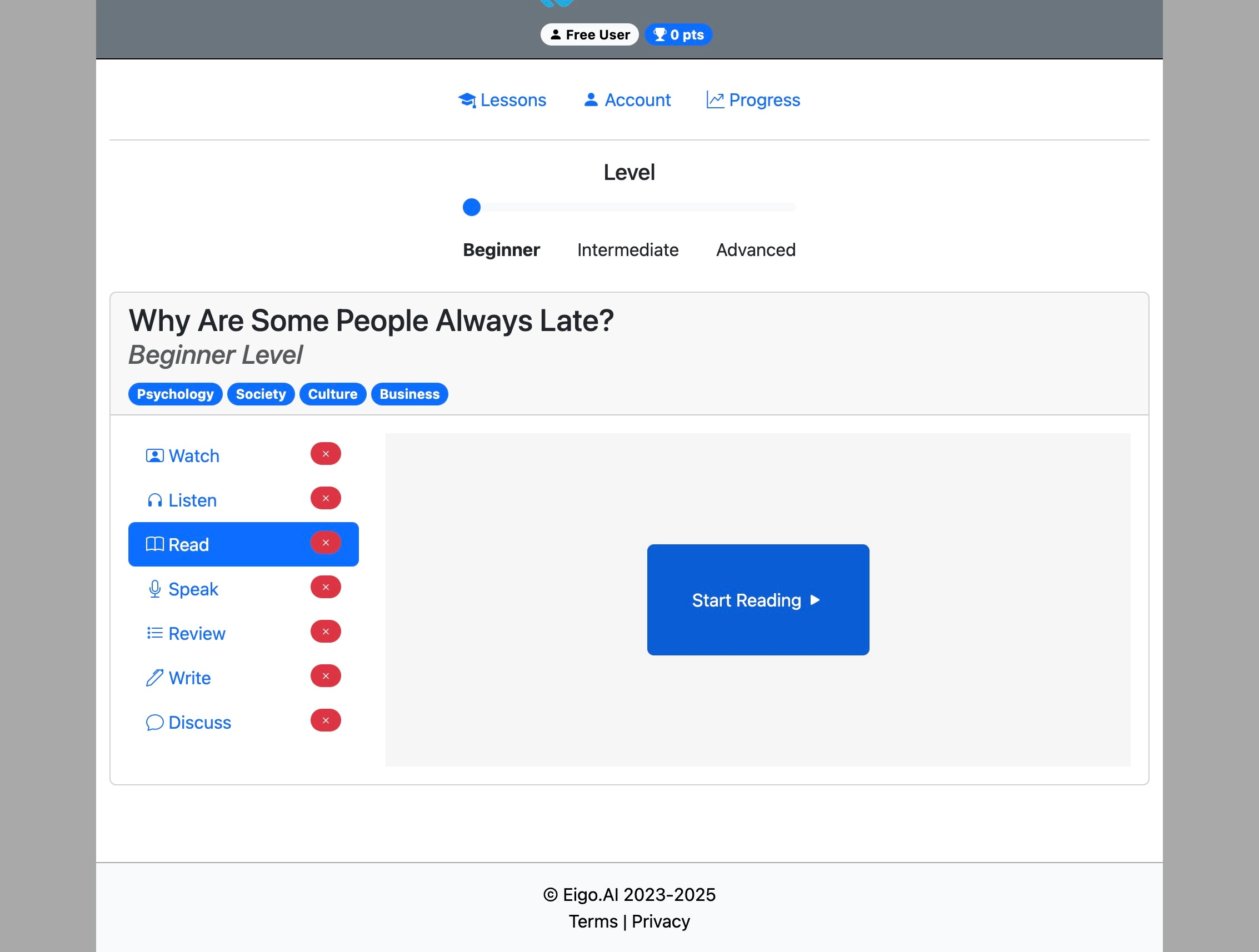
Click "Start Reading"
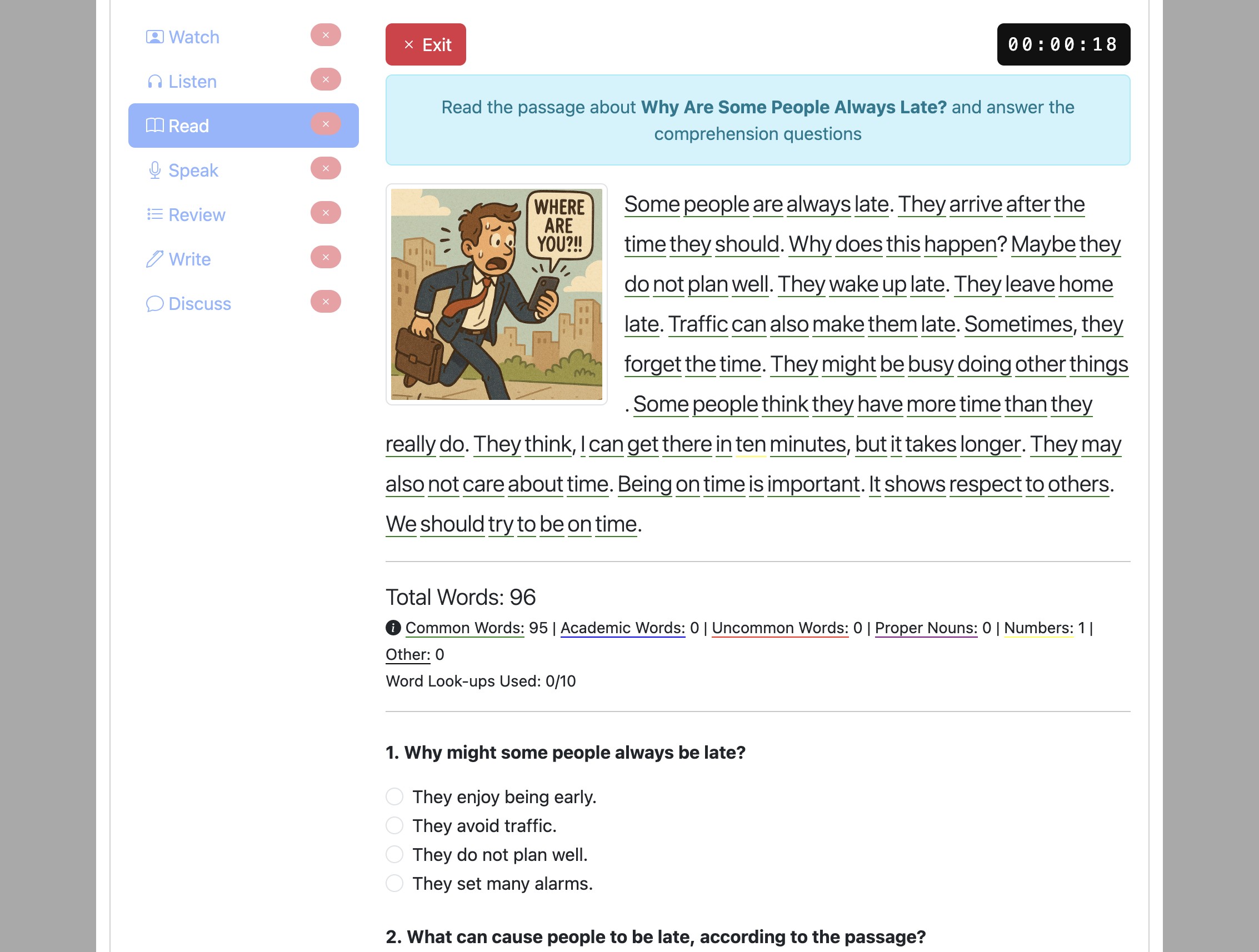
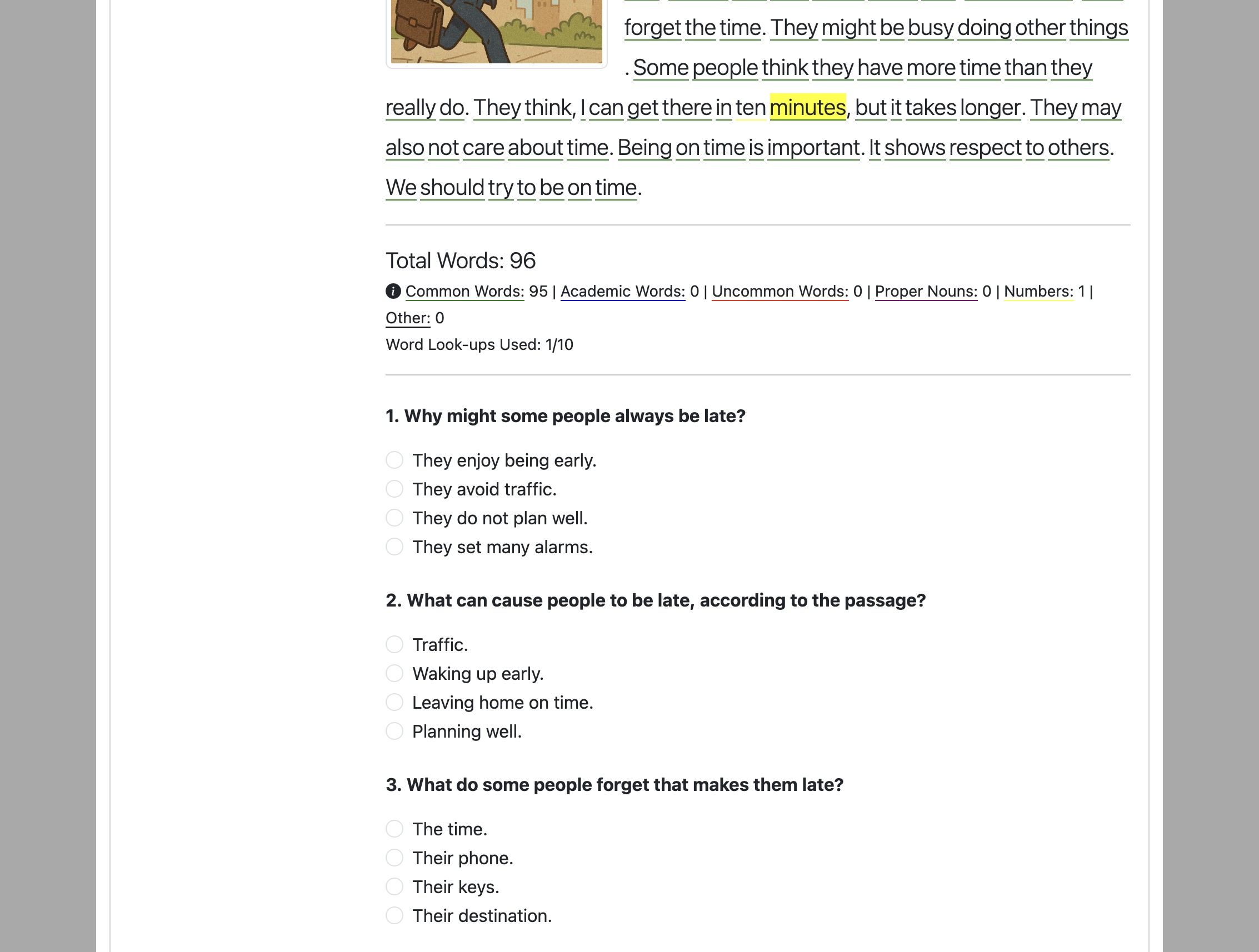
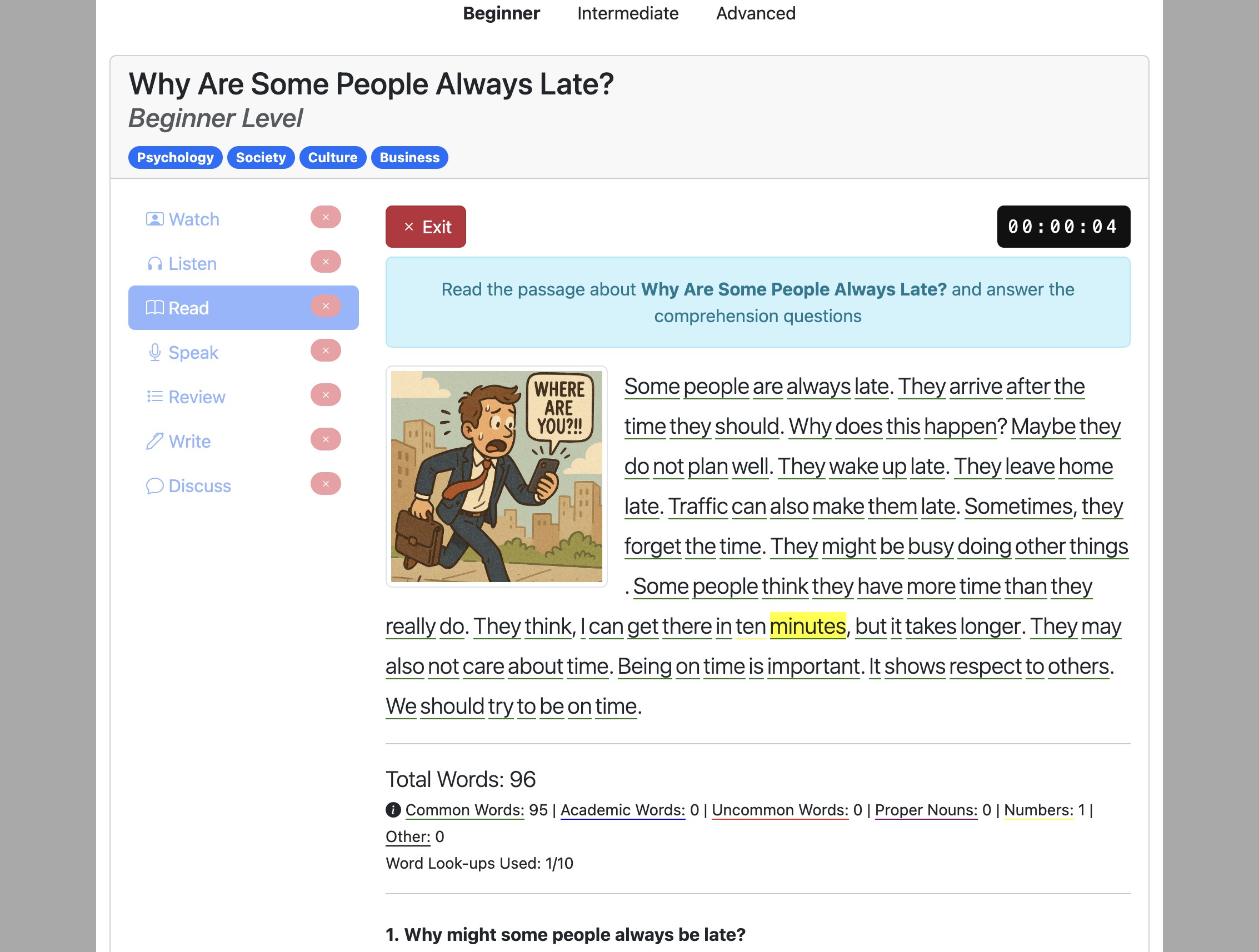
Read the passage. Click on any word in the passage to check its meaning and pronunciation.
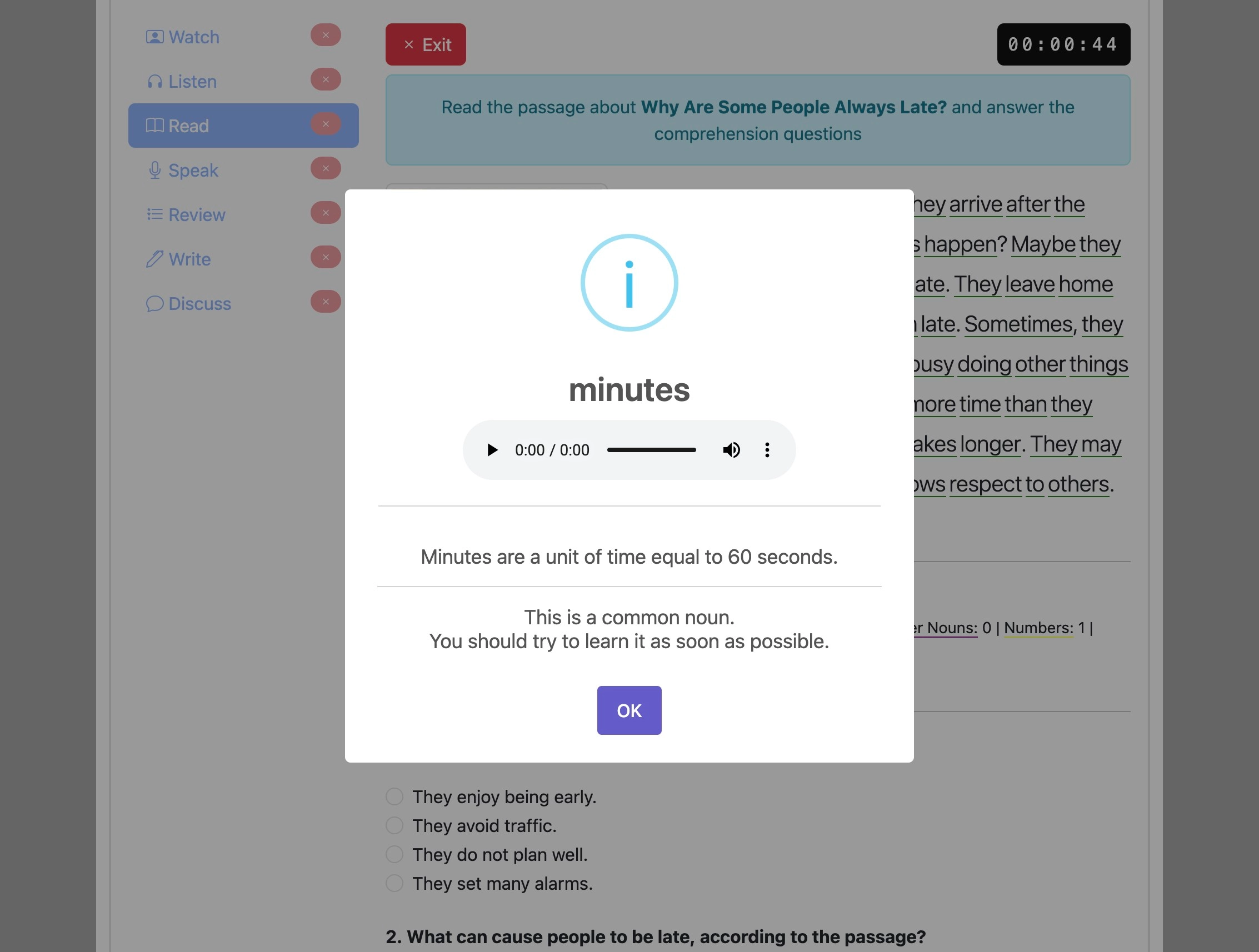
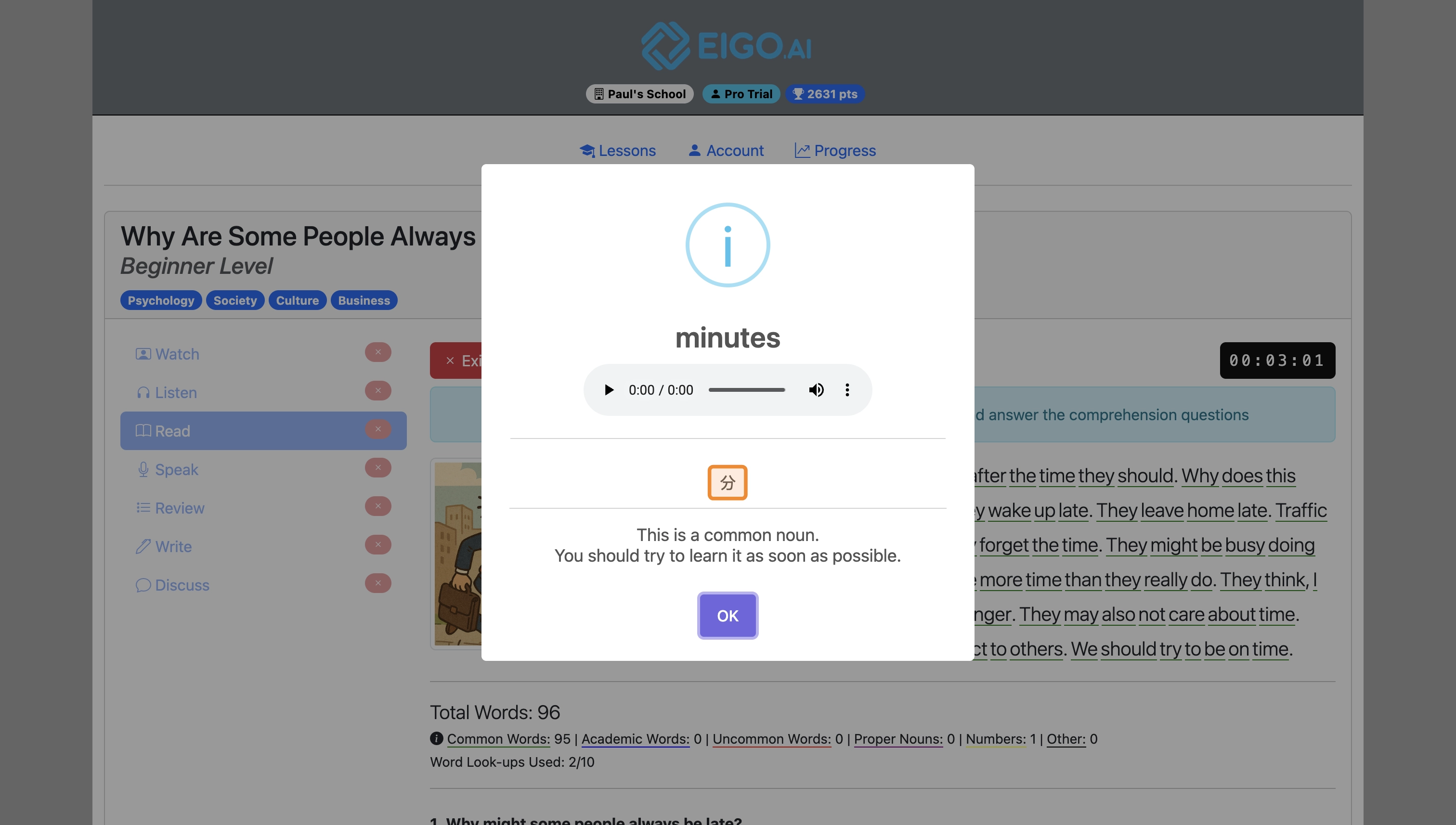
The word card shows the lesson, the selected word, the sentence context, the meaning, pronunciation buttons, and any available first-language translation or collocation.
To show translations and feedback in your first language, navigate to the settings page and change the Feedback and Definitions Language option. English meanings remain available, and the selected language is shown when supported.
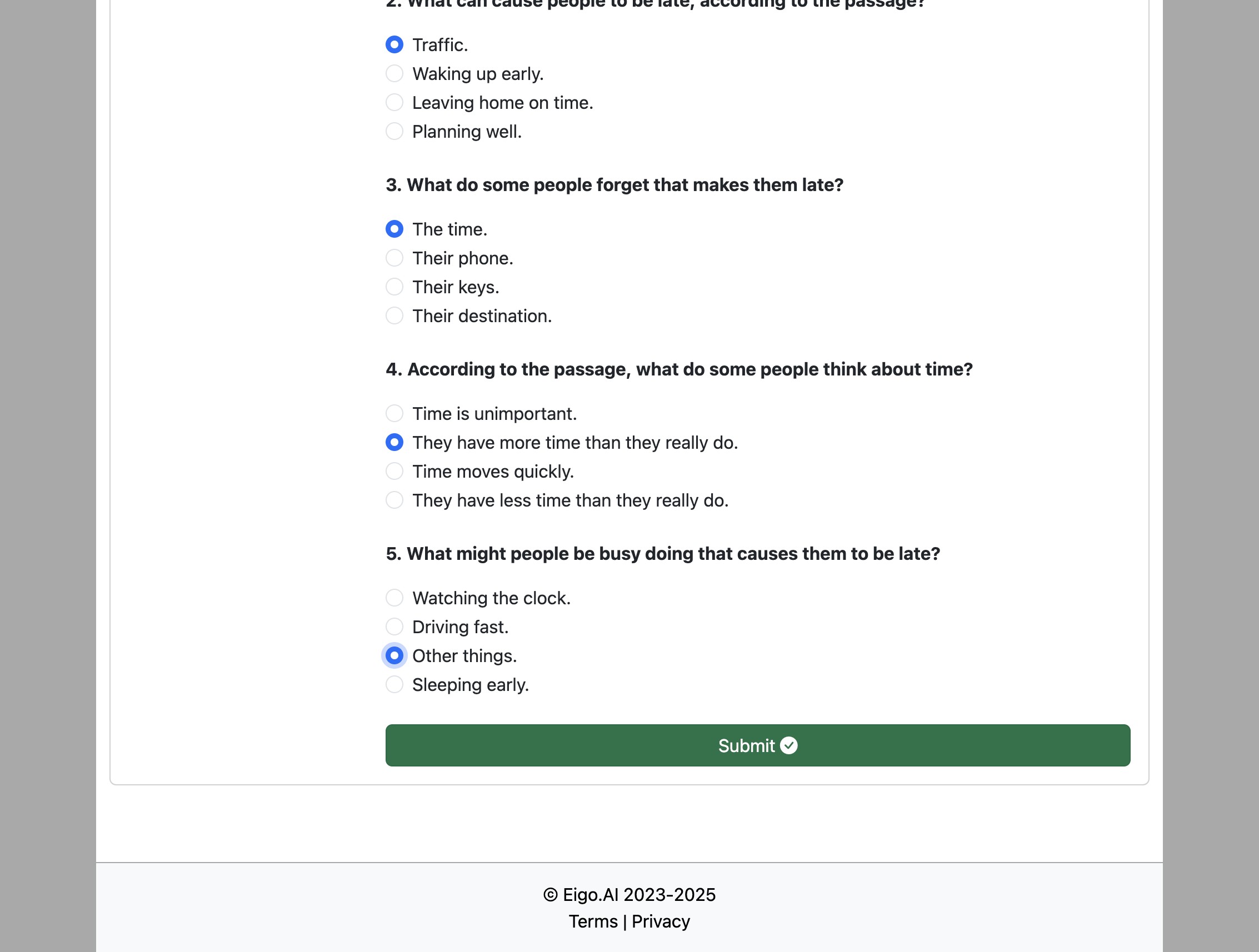
After reading the passage, answer the multiple choice comprehension questions.
Click "Submit" to check your answers.
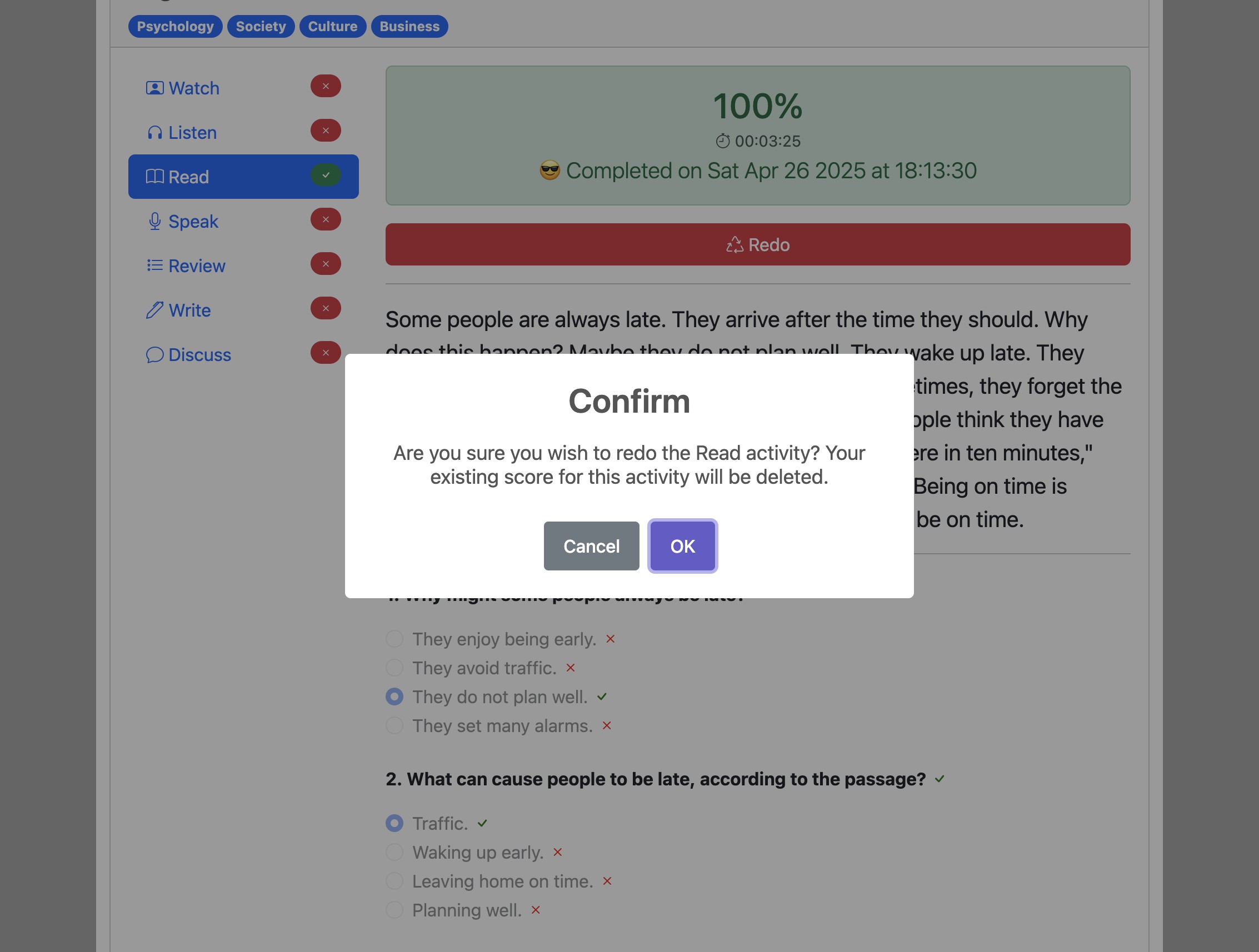
After submitting, you can click "Redo" to attempt the activity again if you wish to do so.
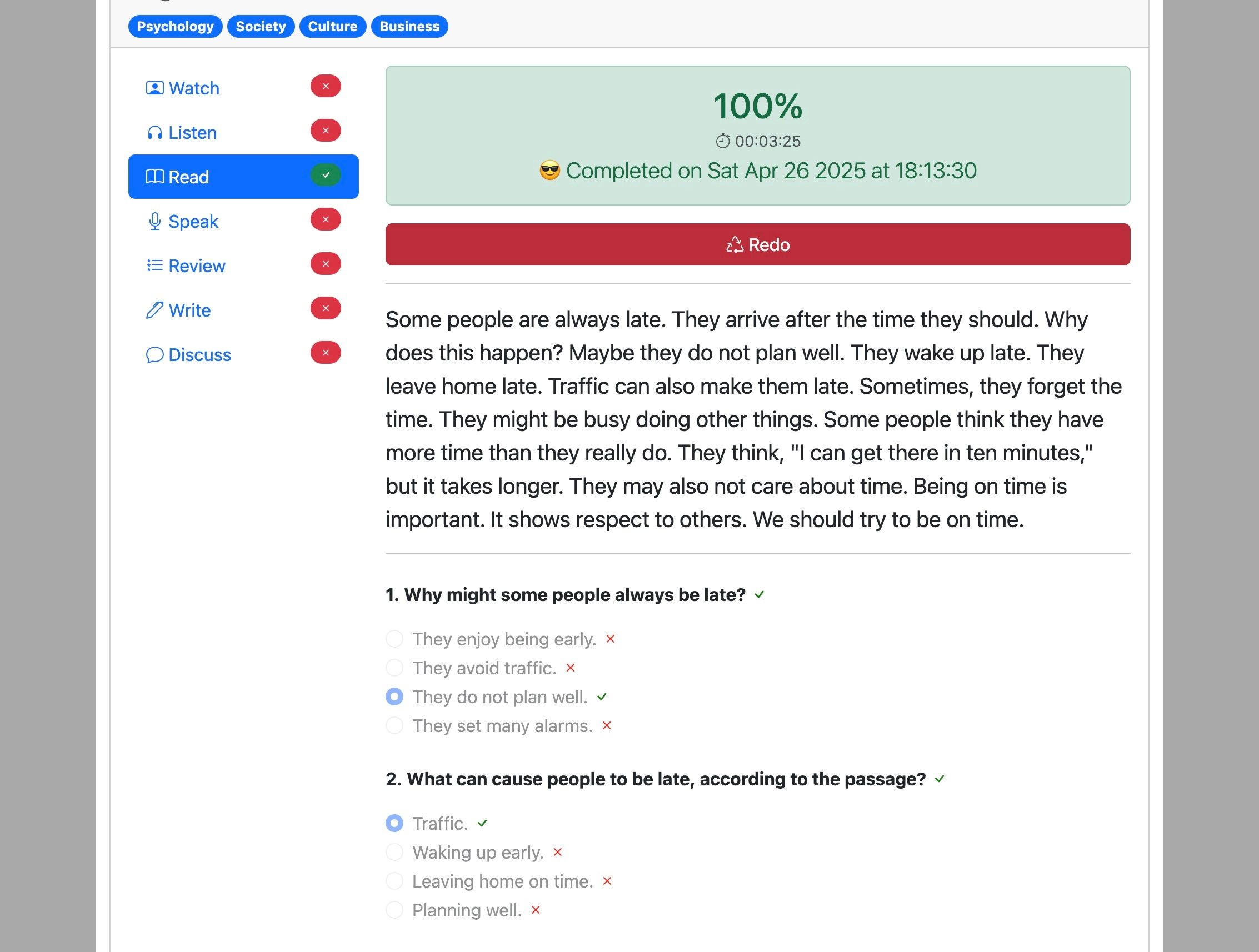
If your teacher has disabled resubmissions the "redo" button might not be shown. In addition, if the teacher has disabled the option to reveal correct answers, they will not be displayed.
Click "OK" to confirm.
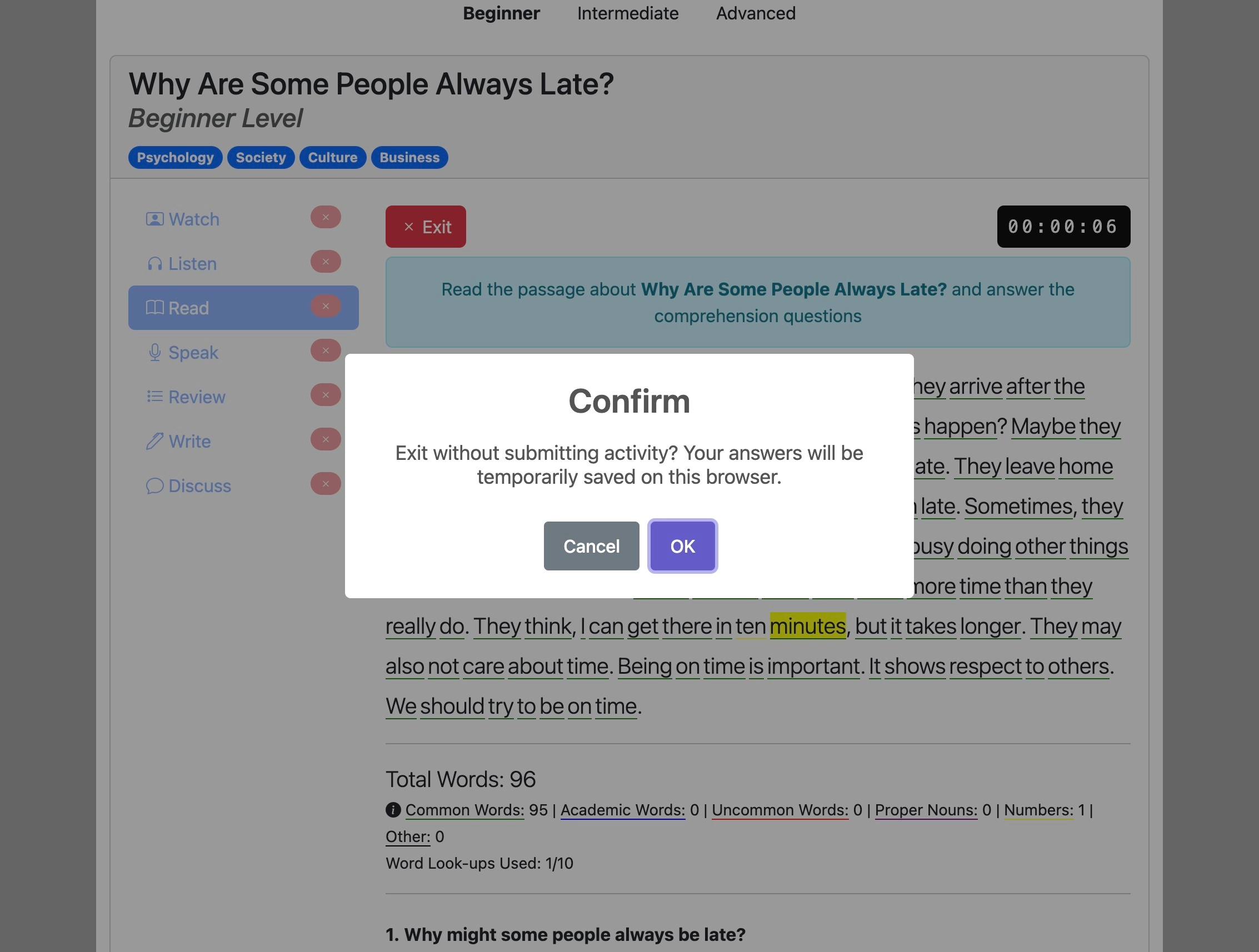
If you need to leave the ‘Read’ activity before submitting it, click the "Exit" button. Your progress will be temporarily saved on your current browser and you can return to the activity later.
Click "OK" to confirm.