Navigate to https://eigo.ai/lessons/
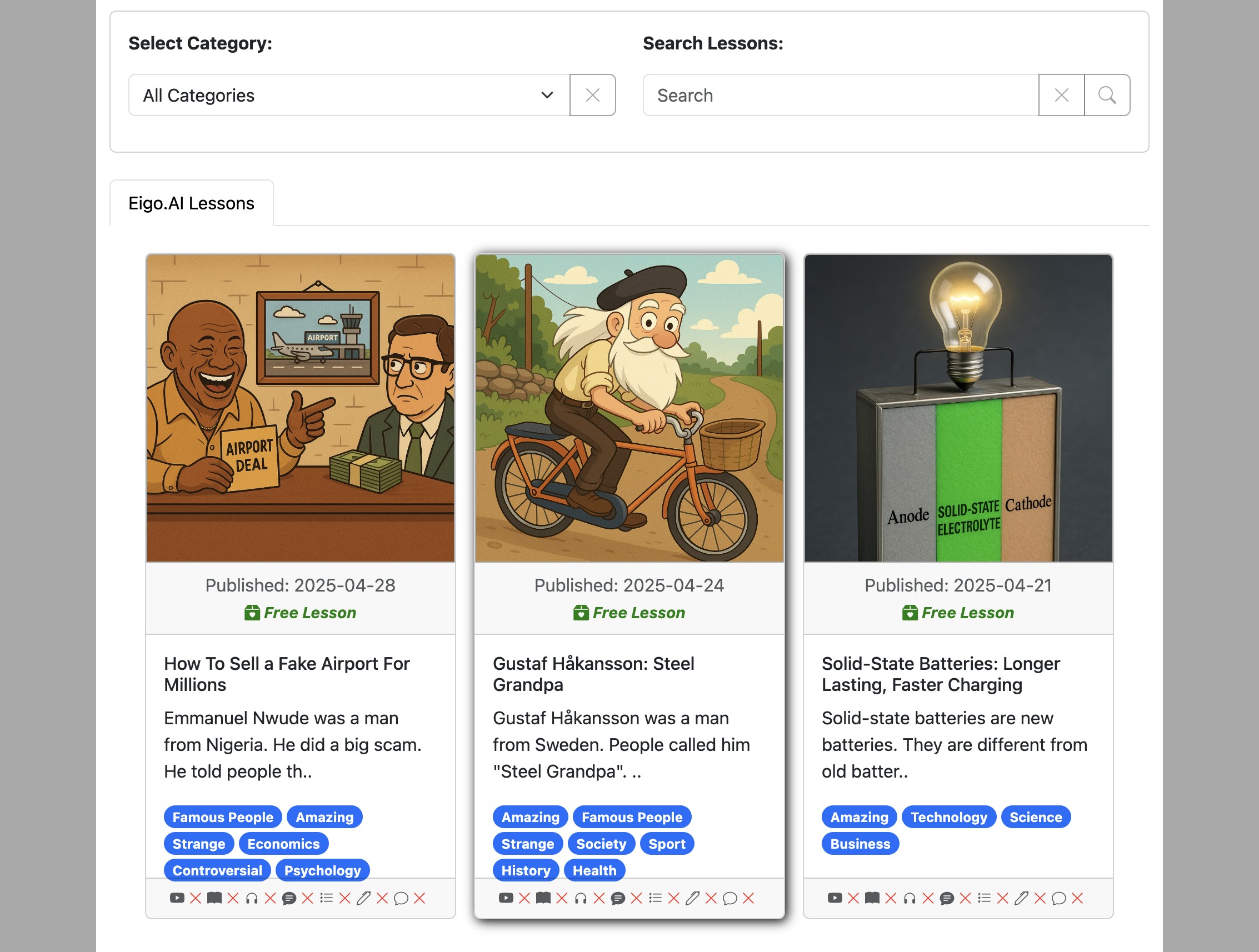
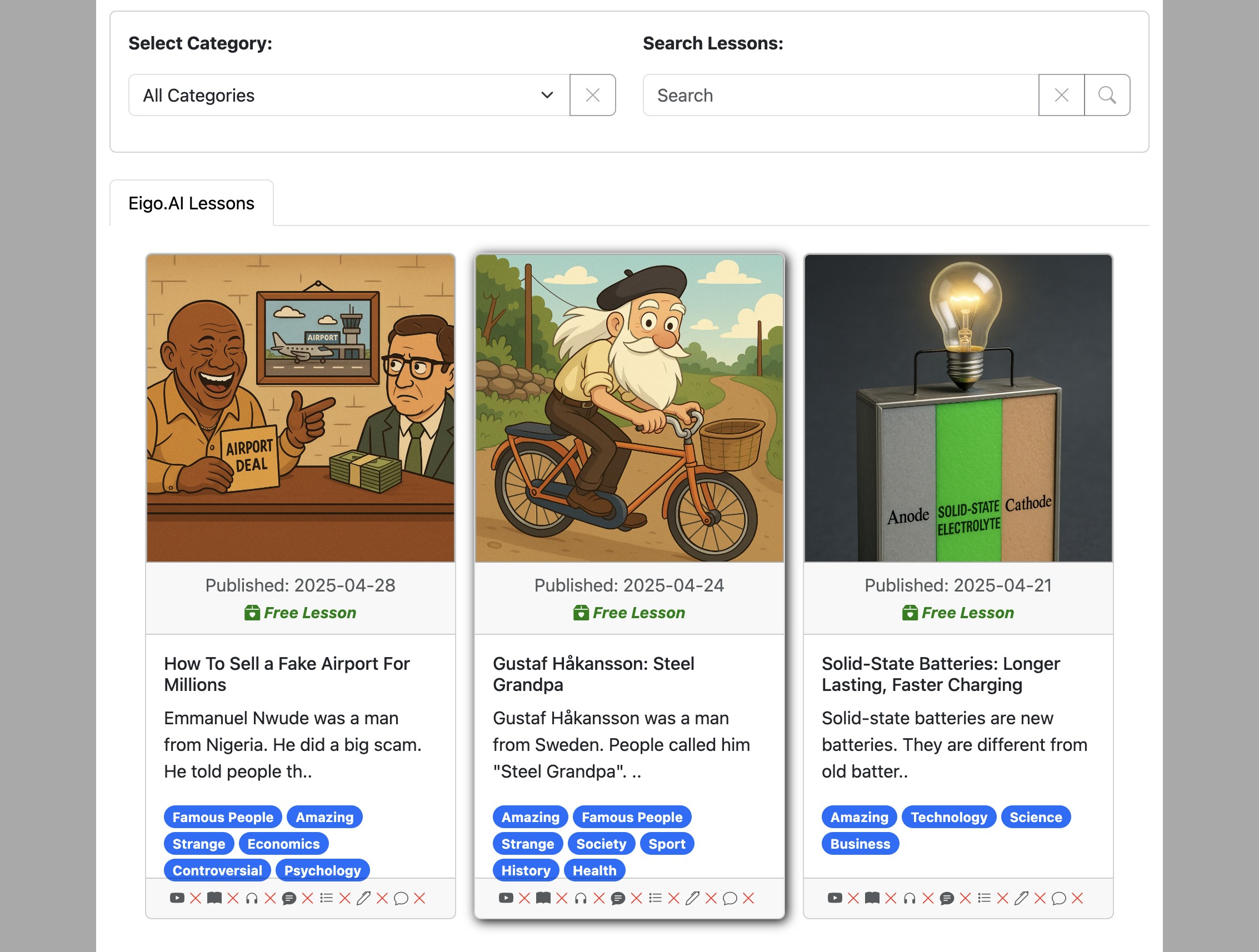
Select a lesson you would like to study.
Select the "Write" activity.
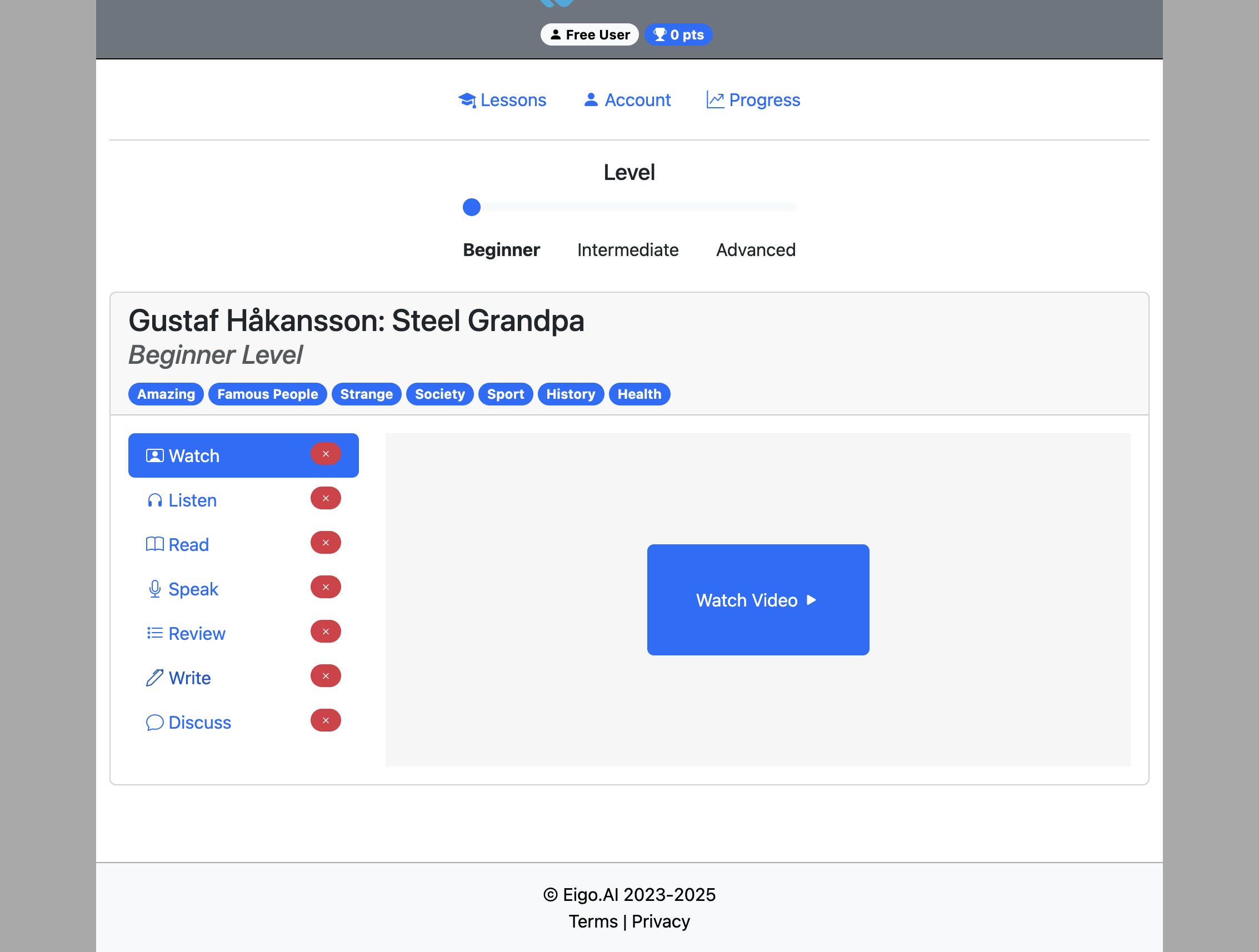
If your teacher has not locked the activity order, you can do the "Write" activity before completing the other activities.
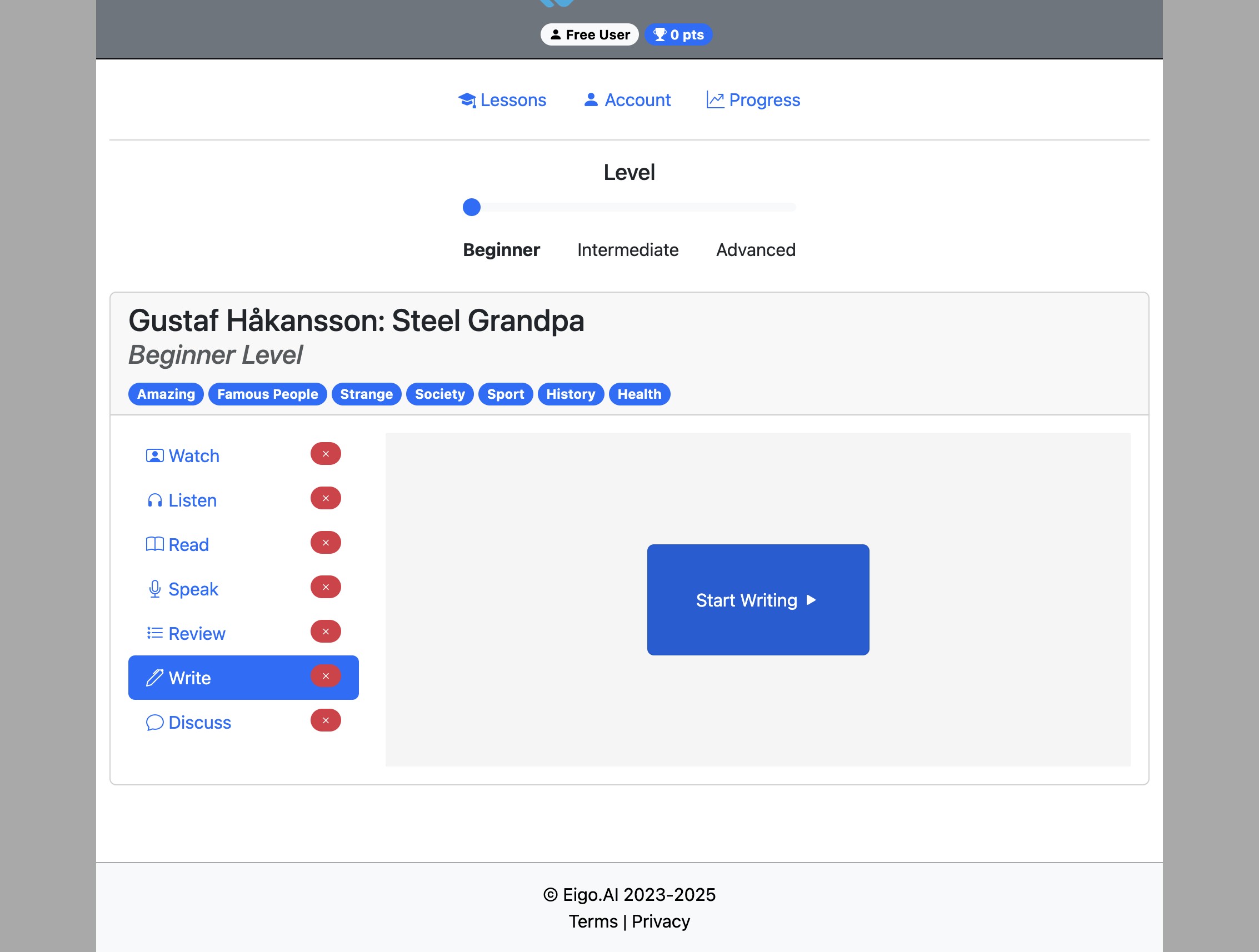
Click "Start Writing"
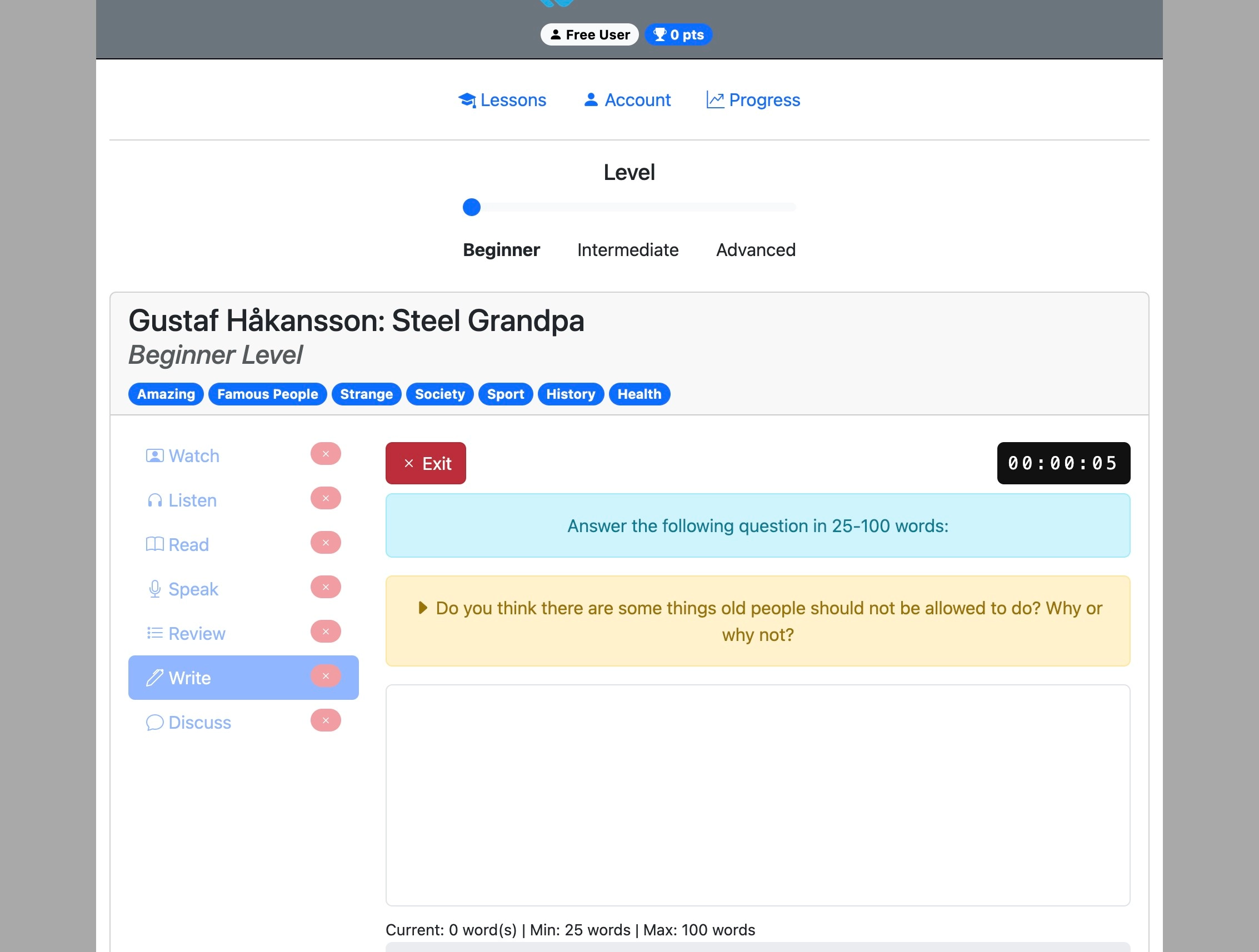
Read the question carefully and then type your answer in the text box.
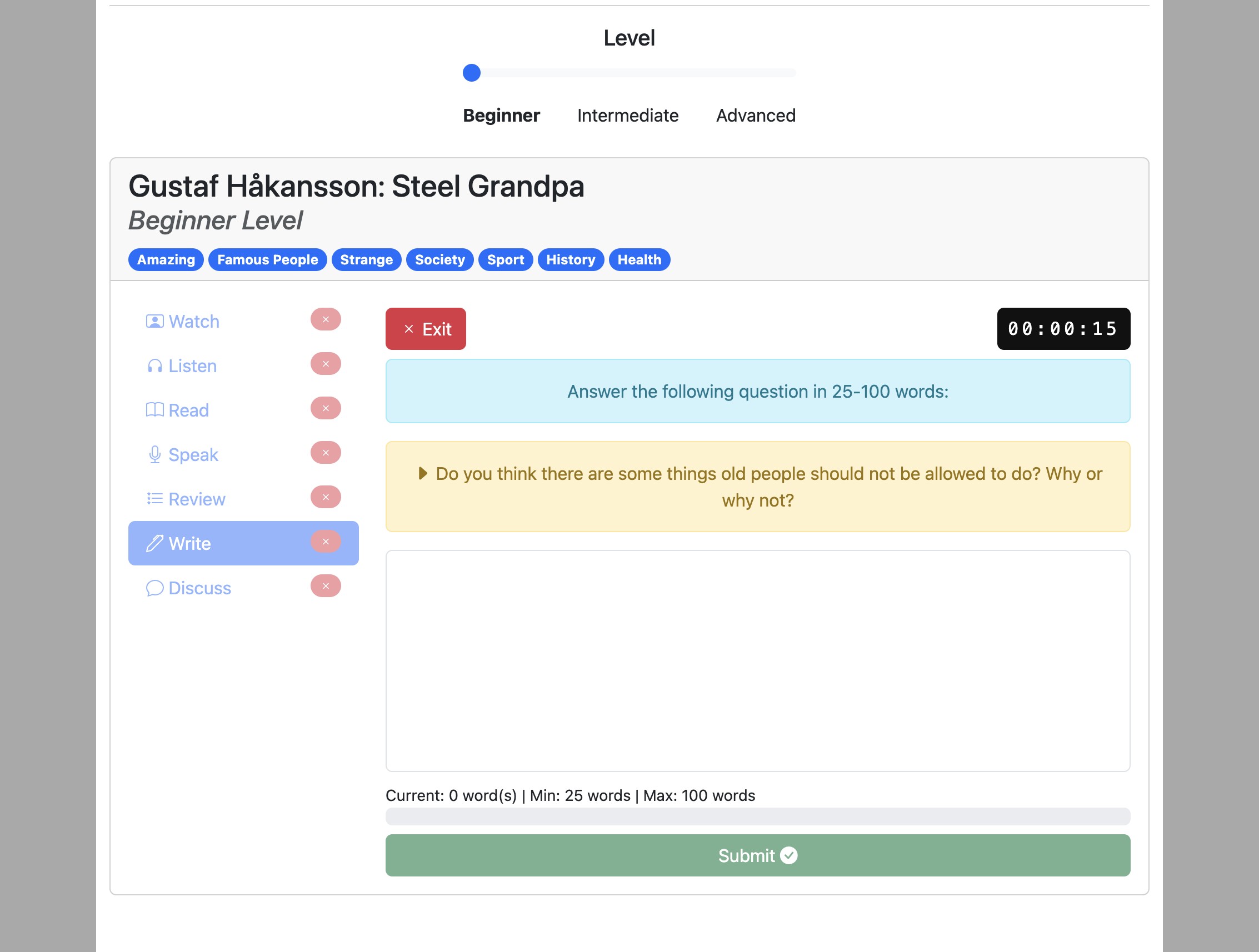
Your response must be between the minimum and maximum number of words. Your teacher may change the minimum and maximum word counts.
After typing your answer, click "Submit" to get your score and evaluation.
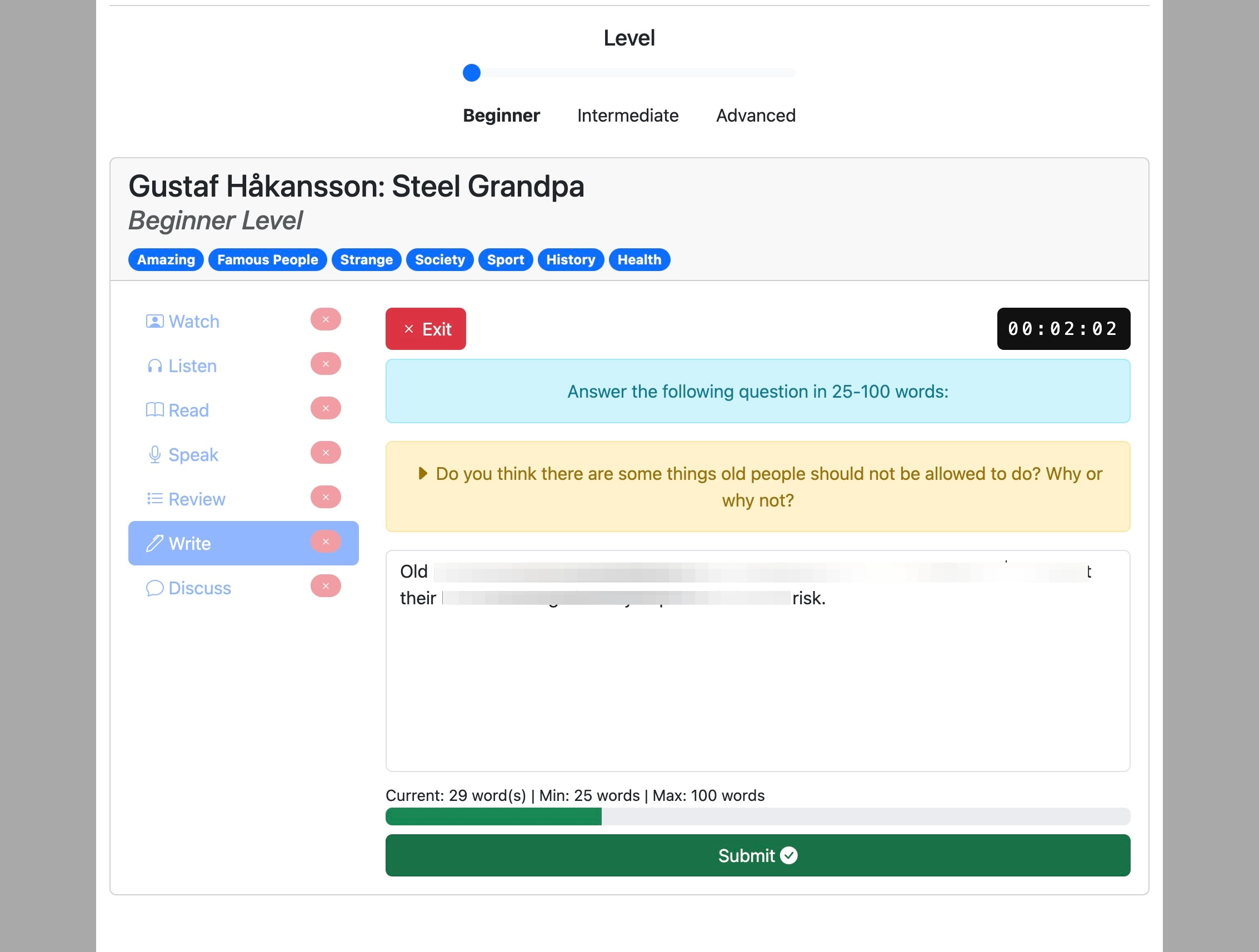
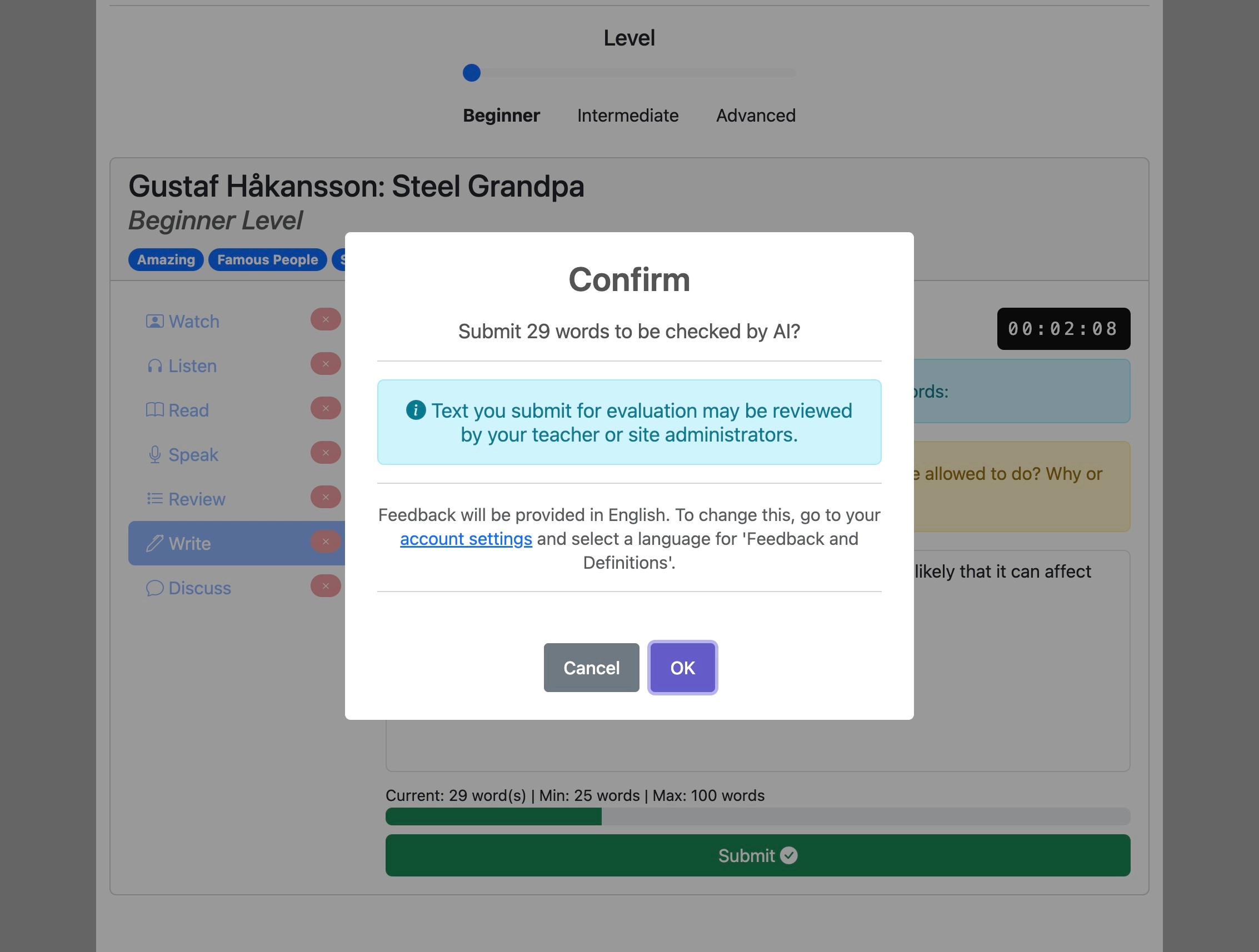
Click "OK" to confirm.
You will receive an overall percentage score along with the transcript of your response.
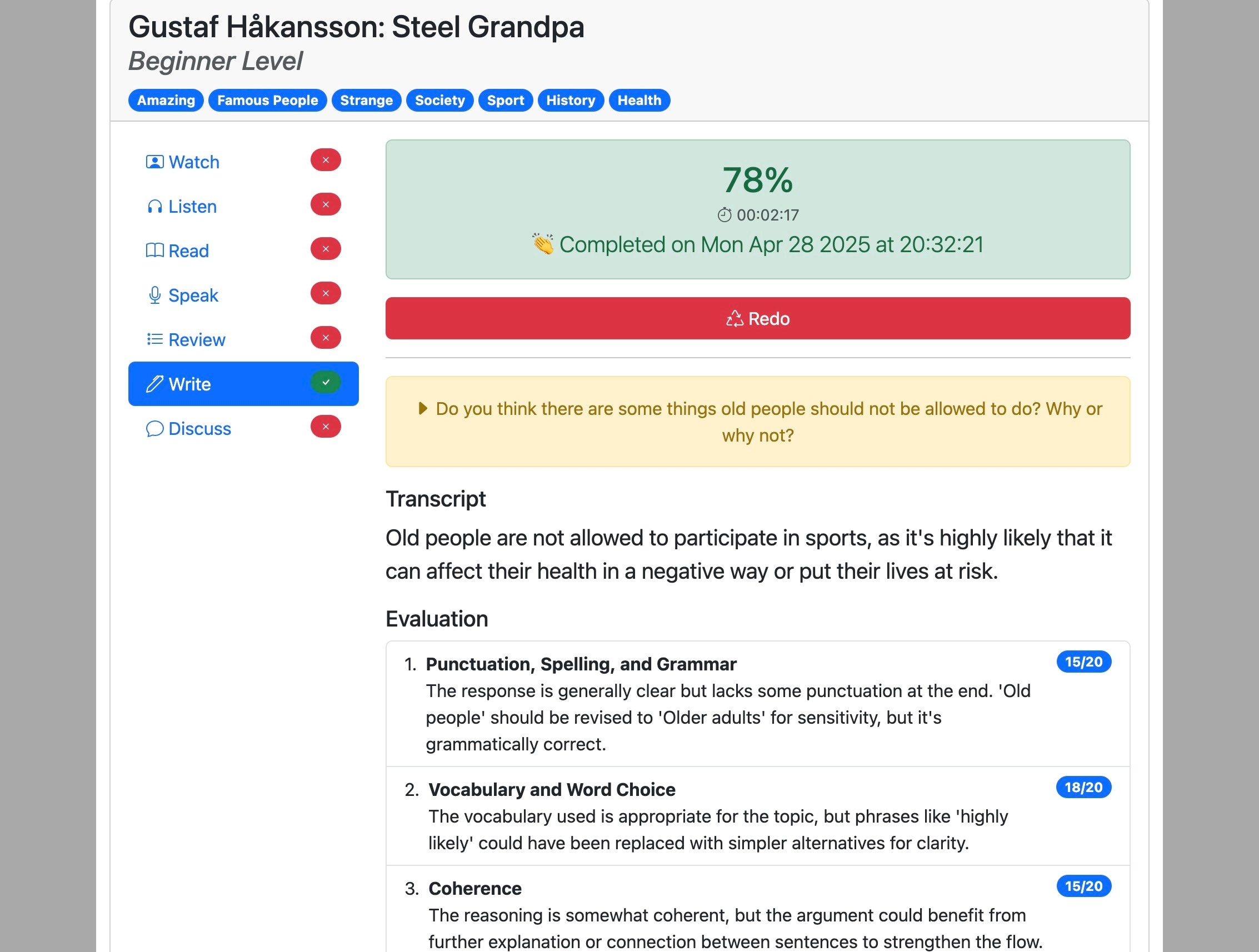
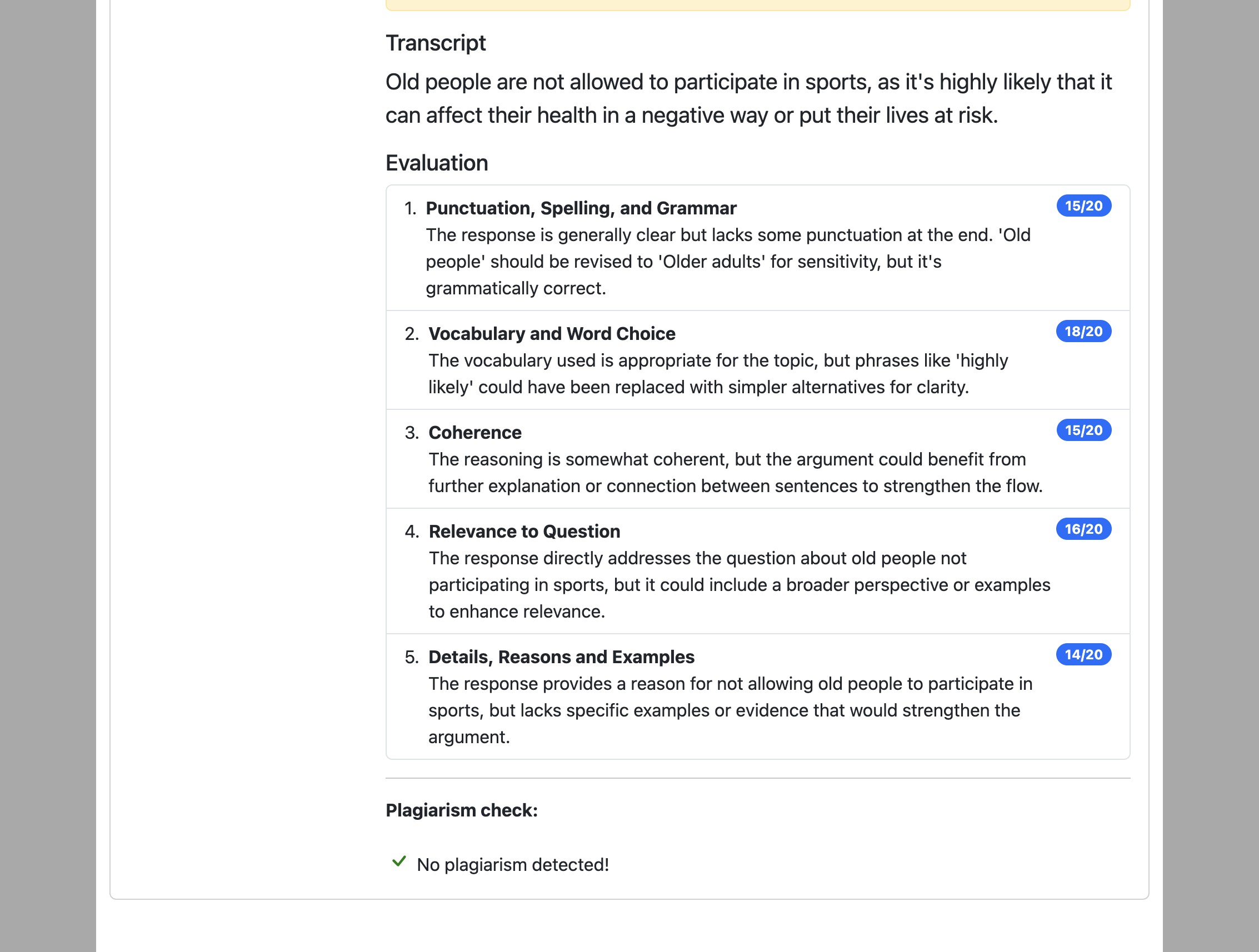
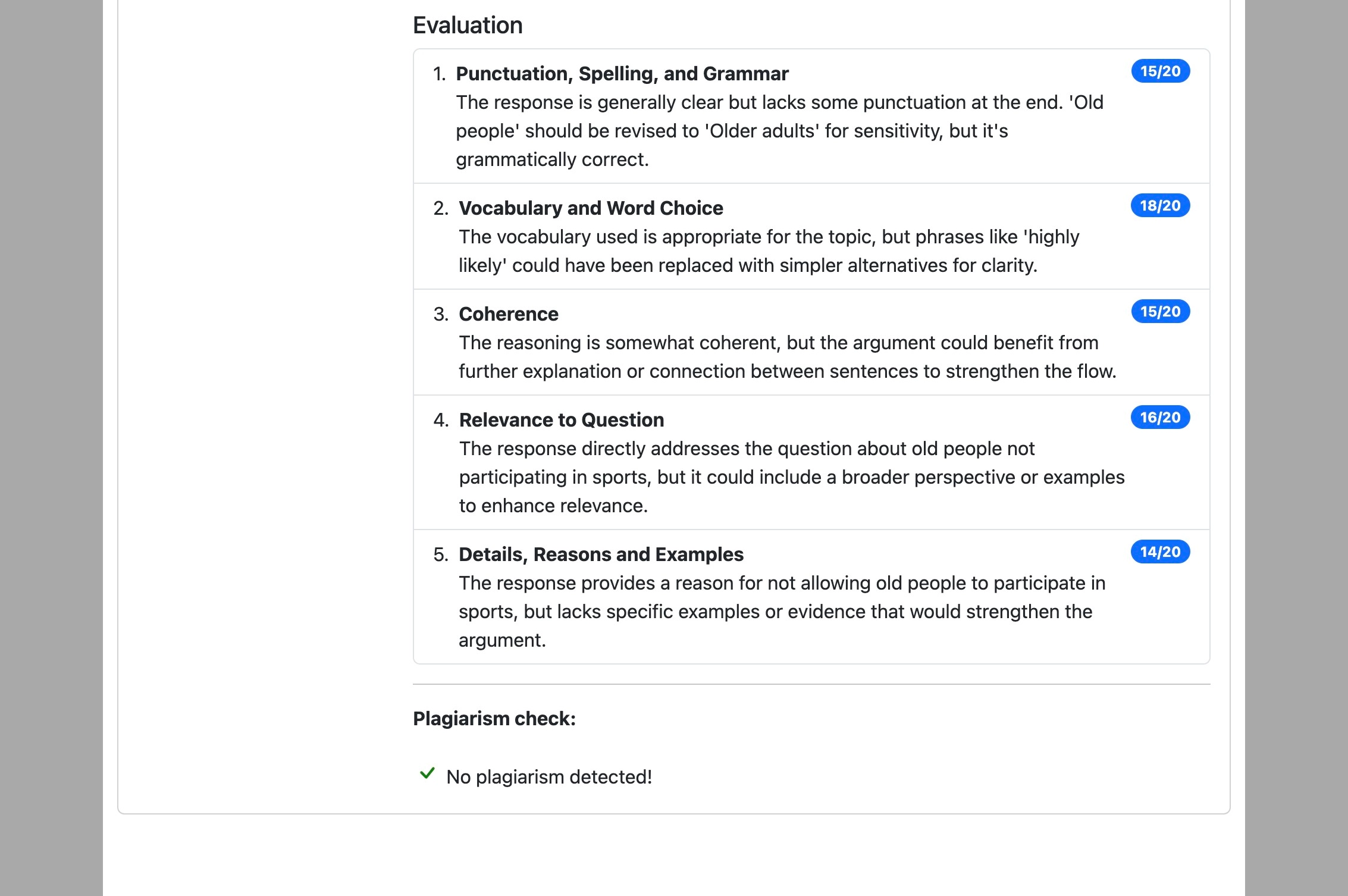
Scroll down the page to see a more detailed explanation of your score.
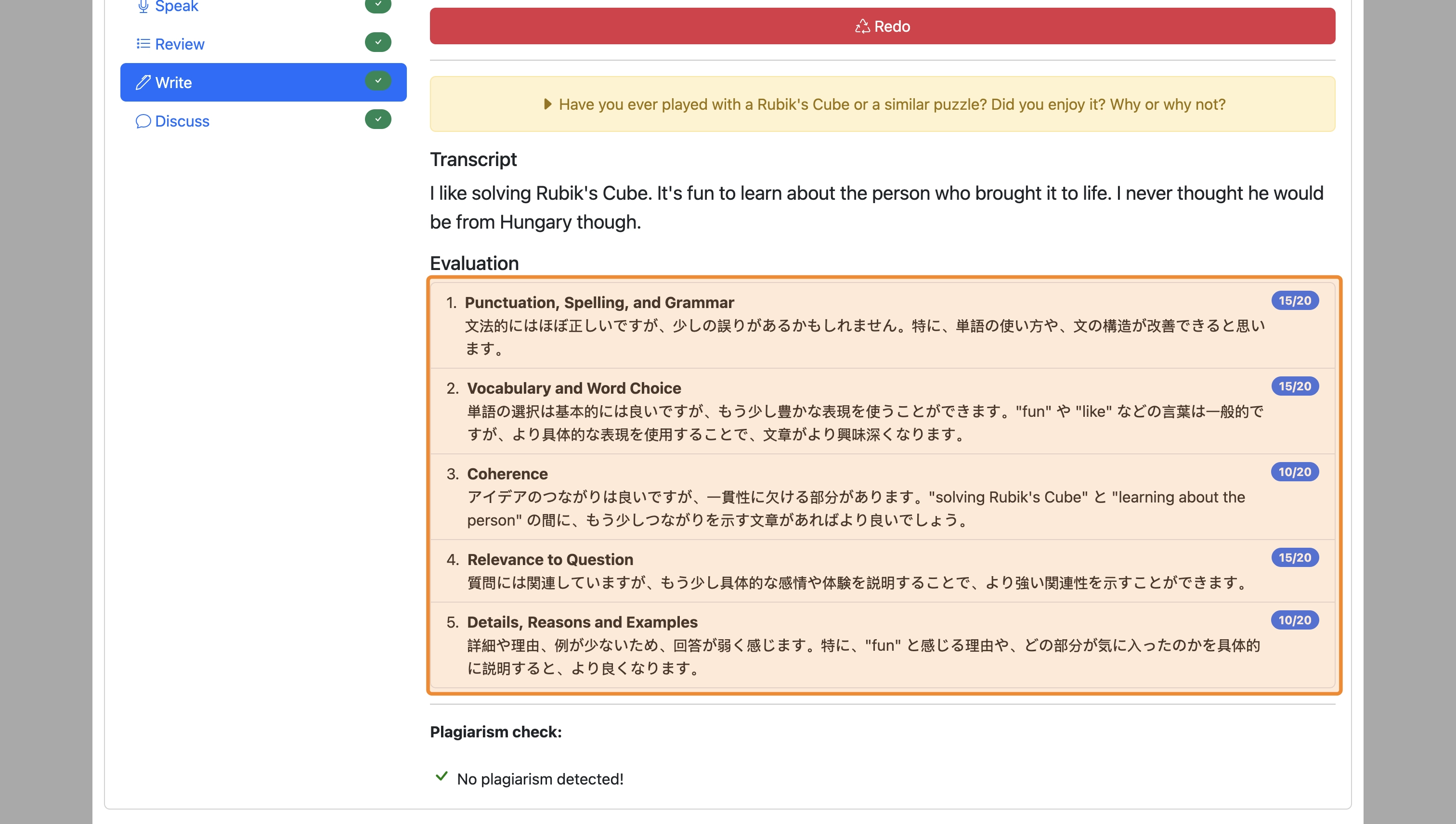
To show feedback in your first language, navigate to the settings page and change the Feedback and Definitions Language. Feedback will then be shown in the selected language.
Be careful not to copy your answers directly from other sources as this will be detected and flagged as plagiarism.
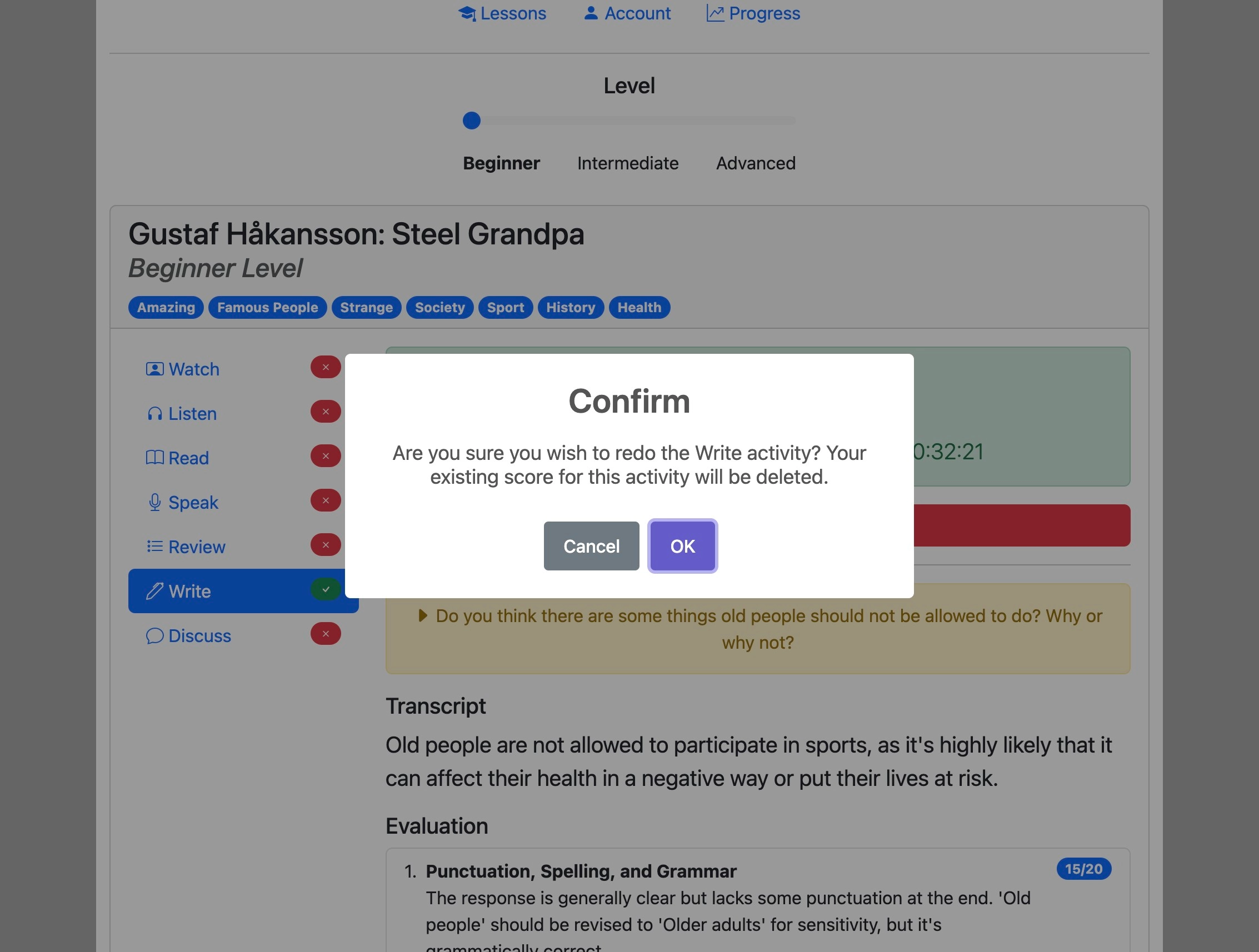
After submitting, you can click "Redo" to attempt the activity again if you wish to do so.
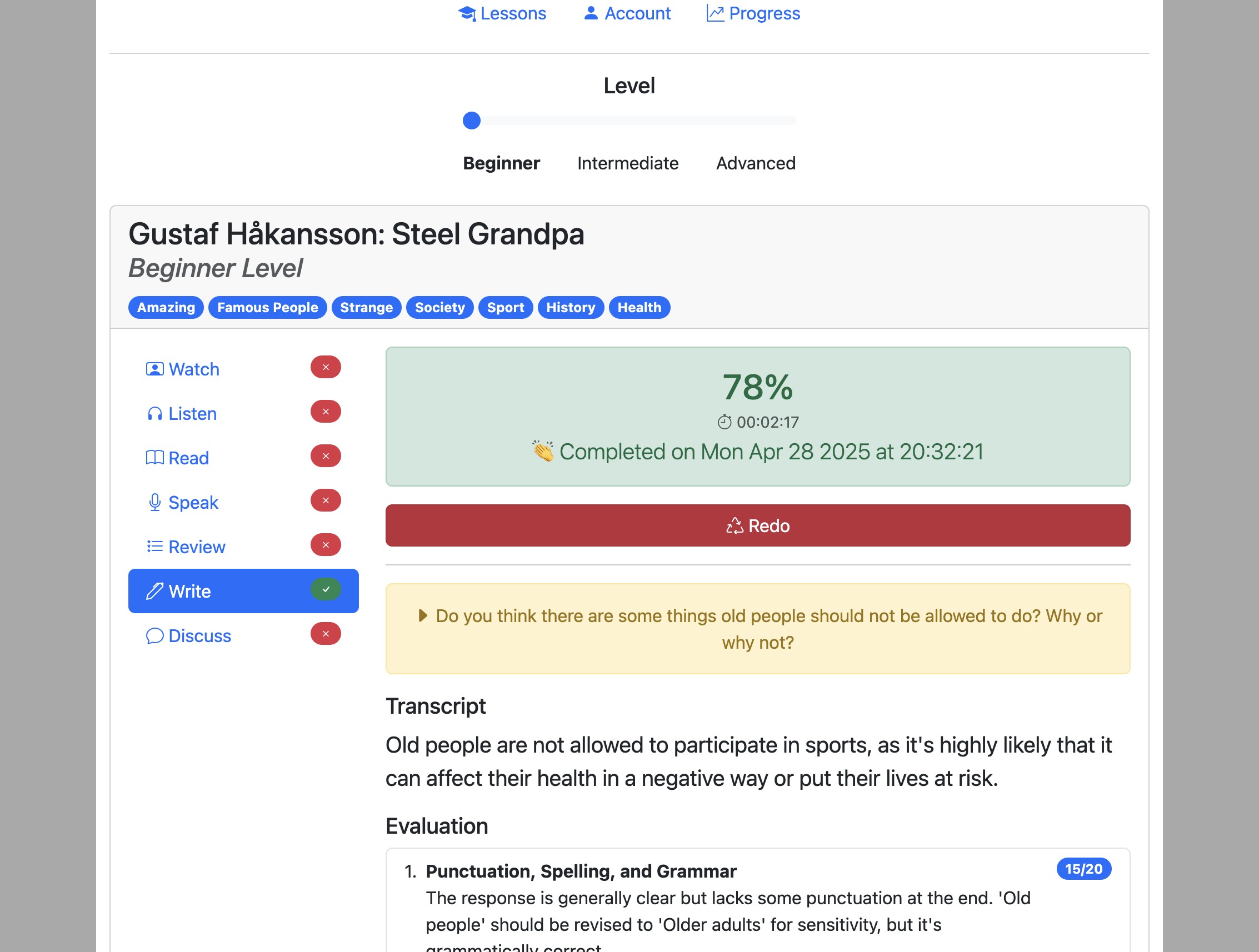
If your teacher has disabled resubmissions the "redo" button might not be shown.
Click "OK" to confirm.
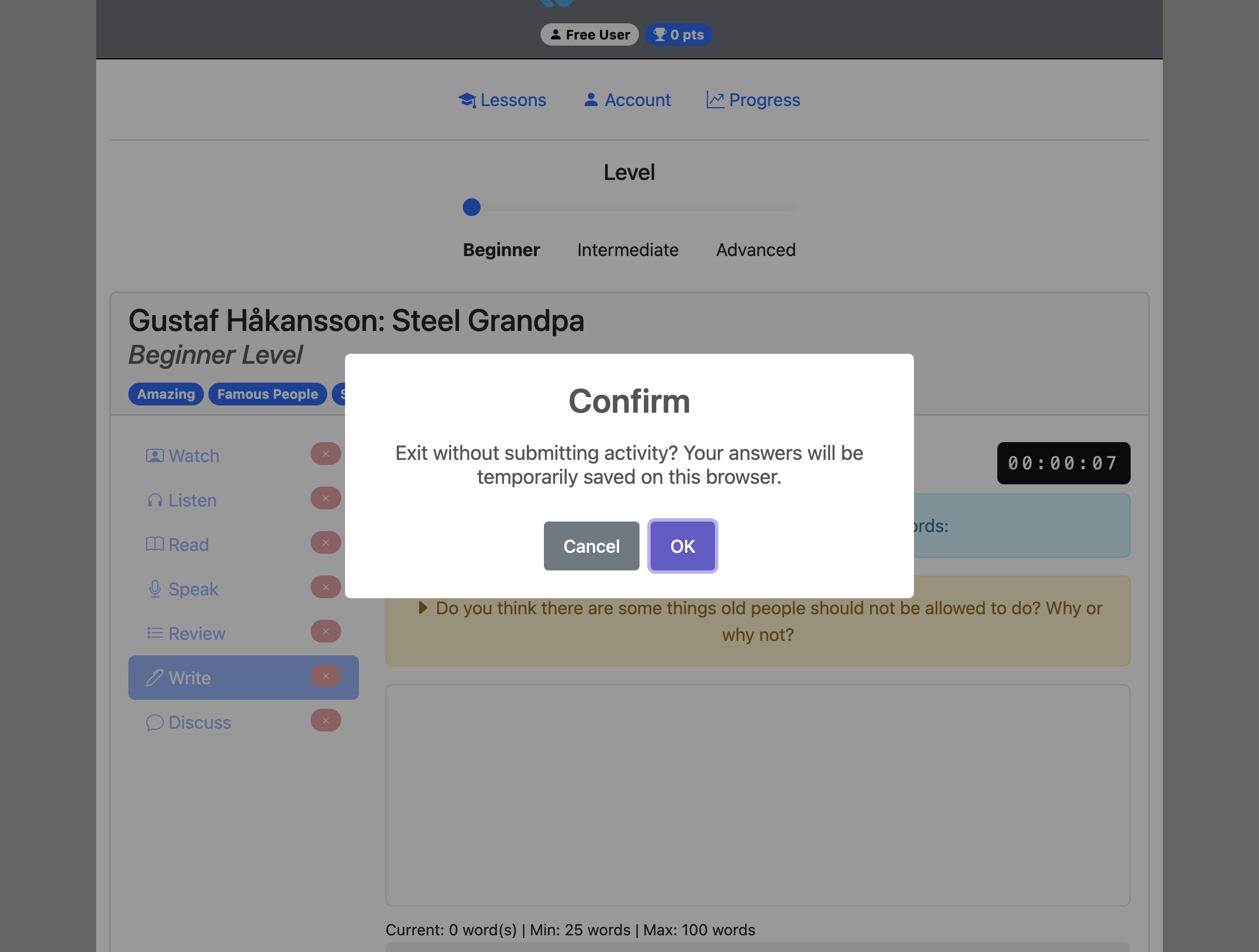
If you need to leave the ‘Write’ activity before submitting it, click the "Exit" button. Your progress will be temporarily saved on your current browser and you can return to the activity later.
Click "OK" to confirm.