Note that the process described in this guide is applicable only to Institutional Managers. If you would like to create an institutional account on Eigo.AI please contact us.
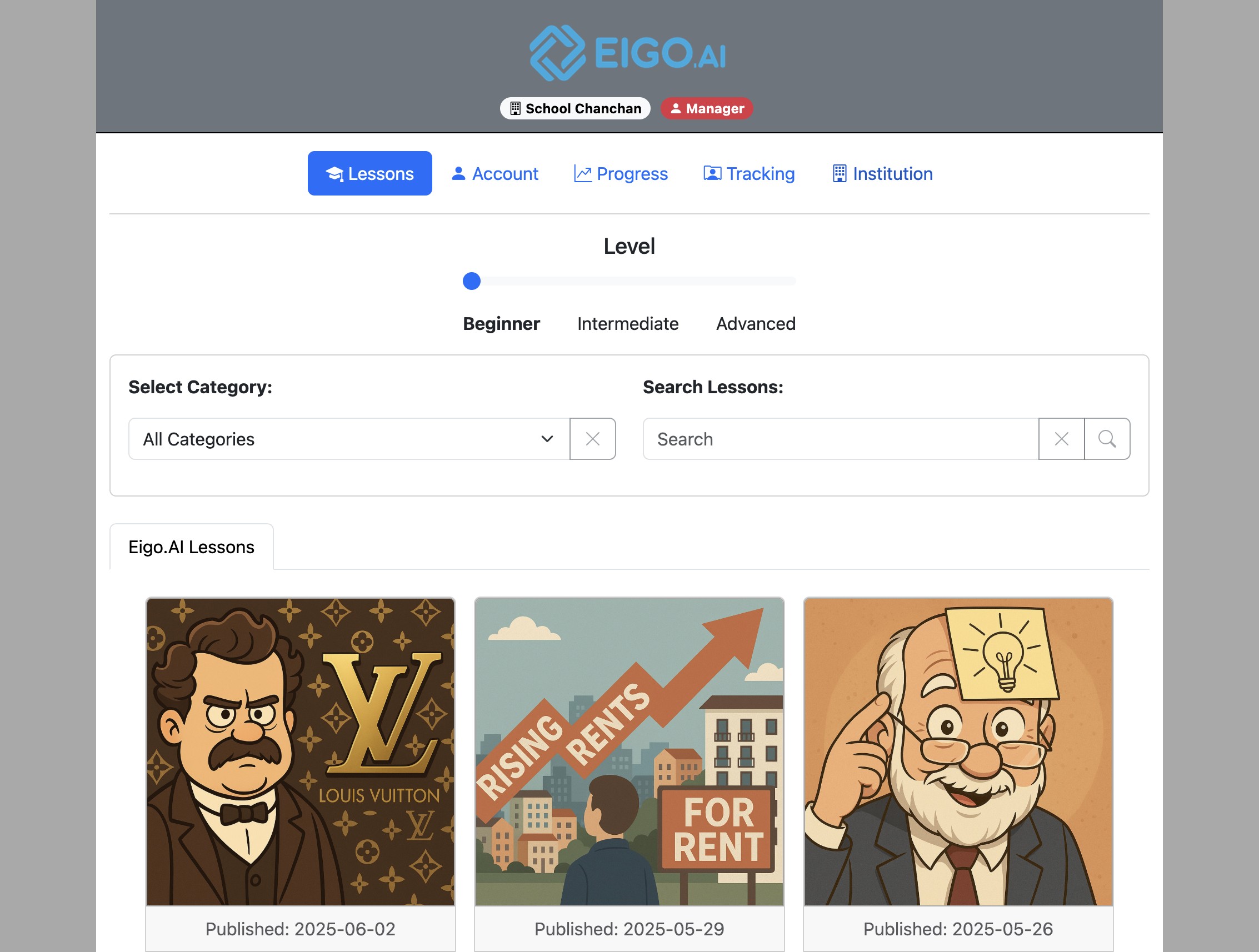
Navigate to https://eigo.ai/lessons/ and click "Institution".
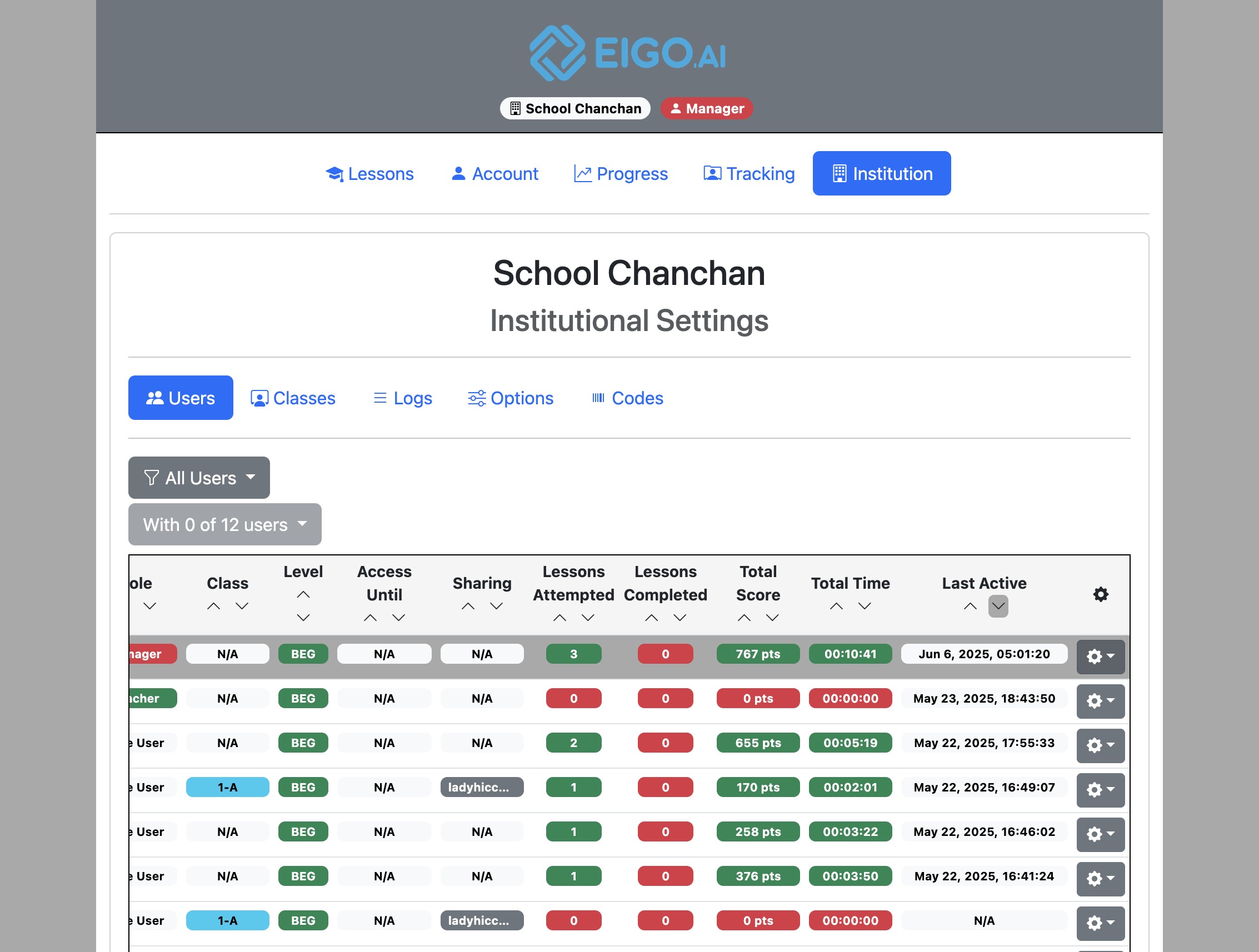
Click the gear button to open a dropdown menu for the selected user.
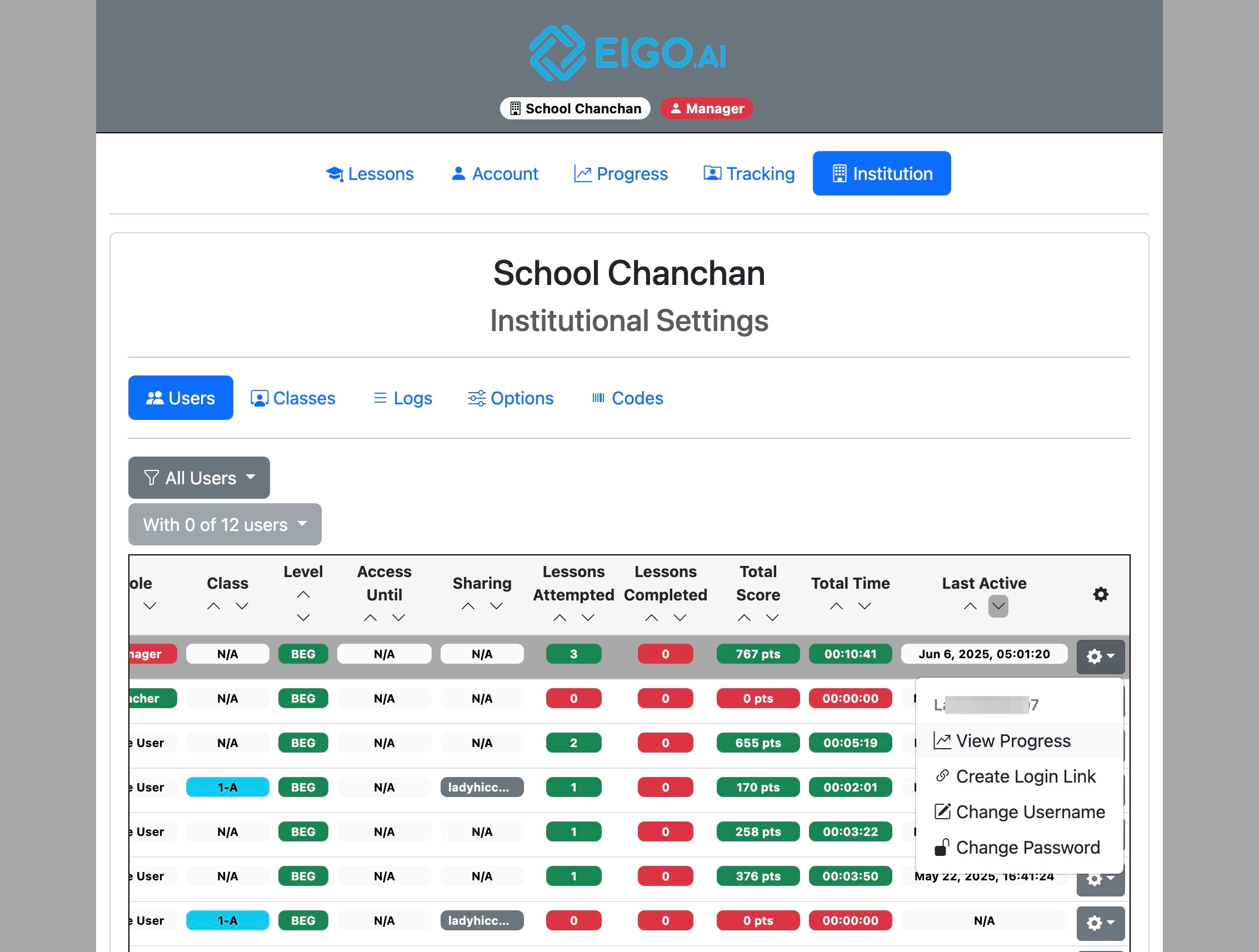
Click "View Progress".
Scores
Click "Scores".
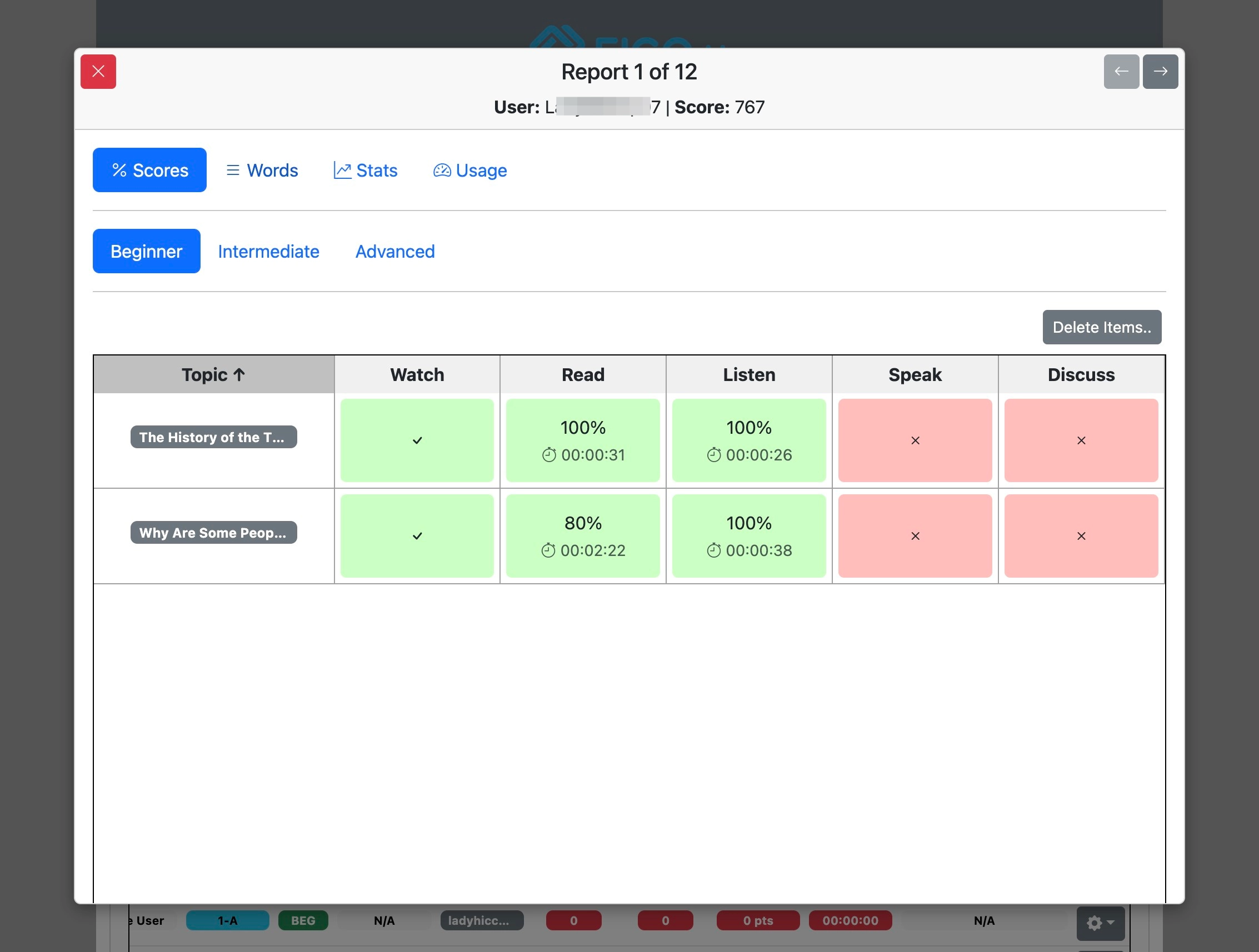
Scores of the user per level per activity are displayed.
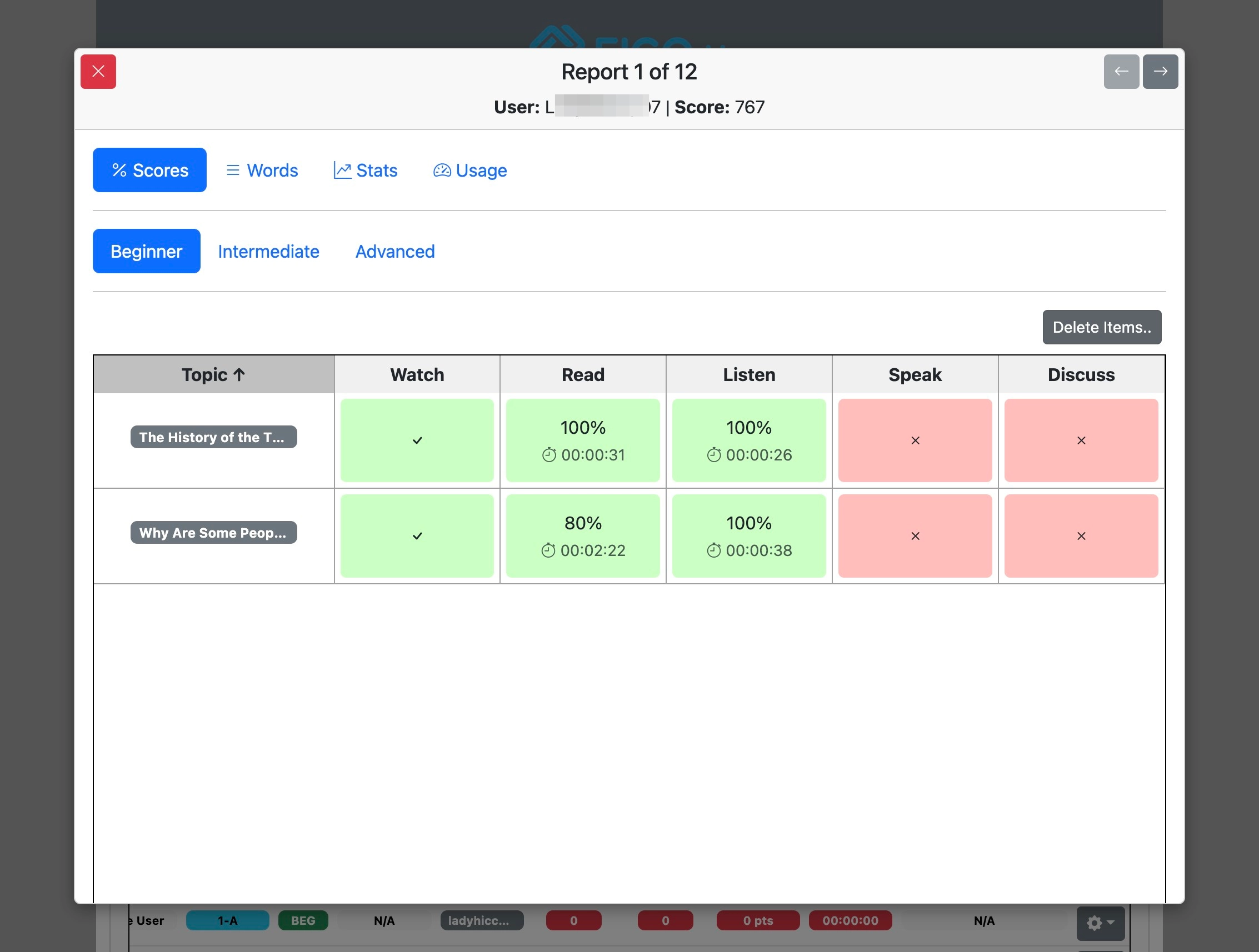
Red boxes indicate 'Not Submitted' and the green boxes indicate 'Submitted'.
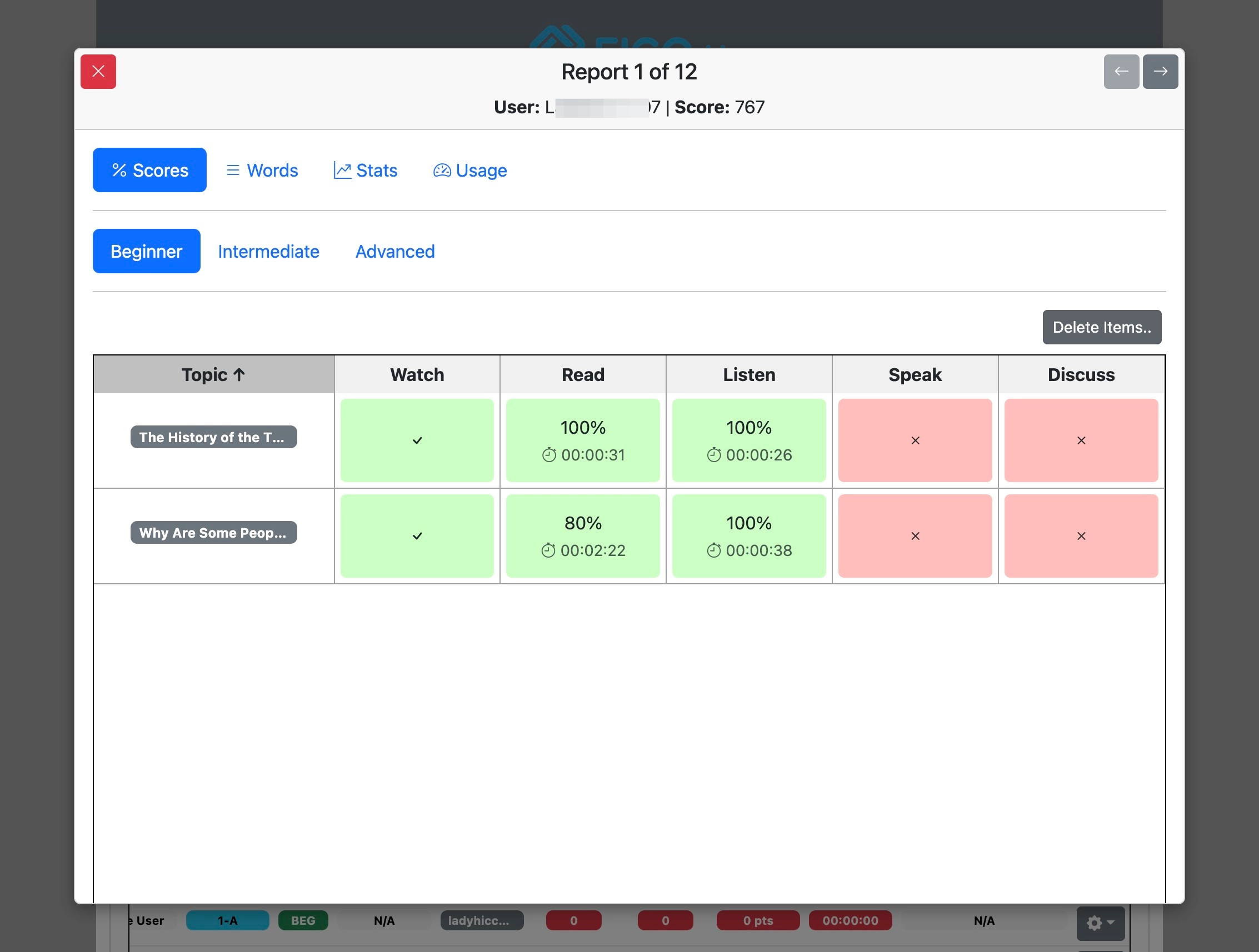
Switch between 'Beginner', 'Intermediate' and 'Advanced' to view scores under those levels.
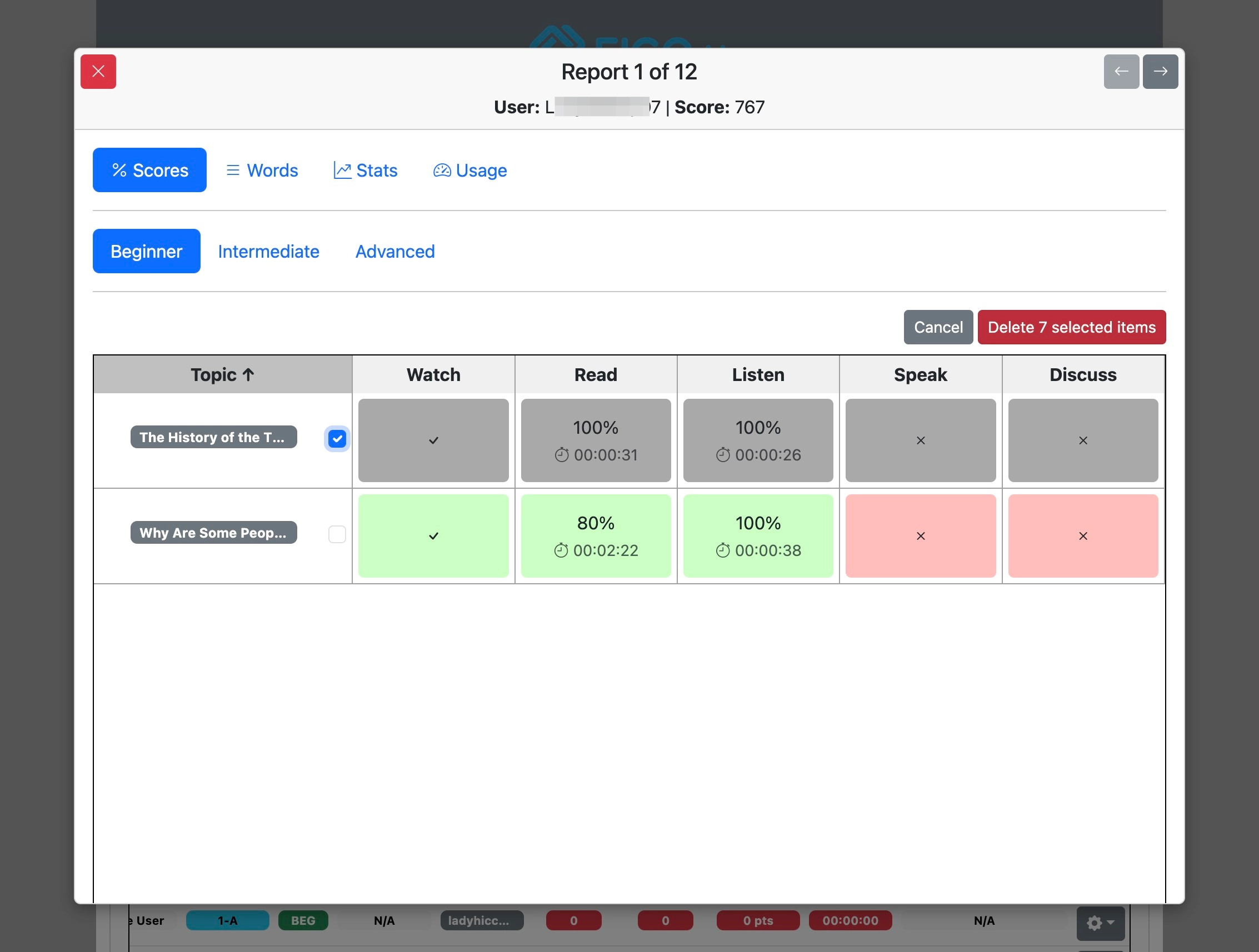
To delete a score click "Delete Items".
Click the checkbox to select lesson scores to delete.
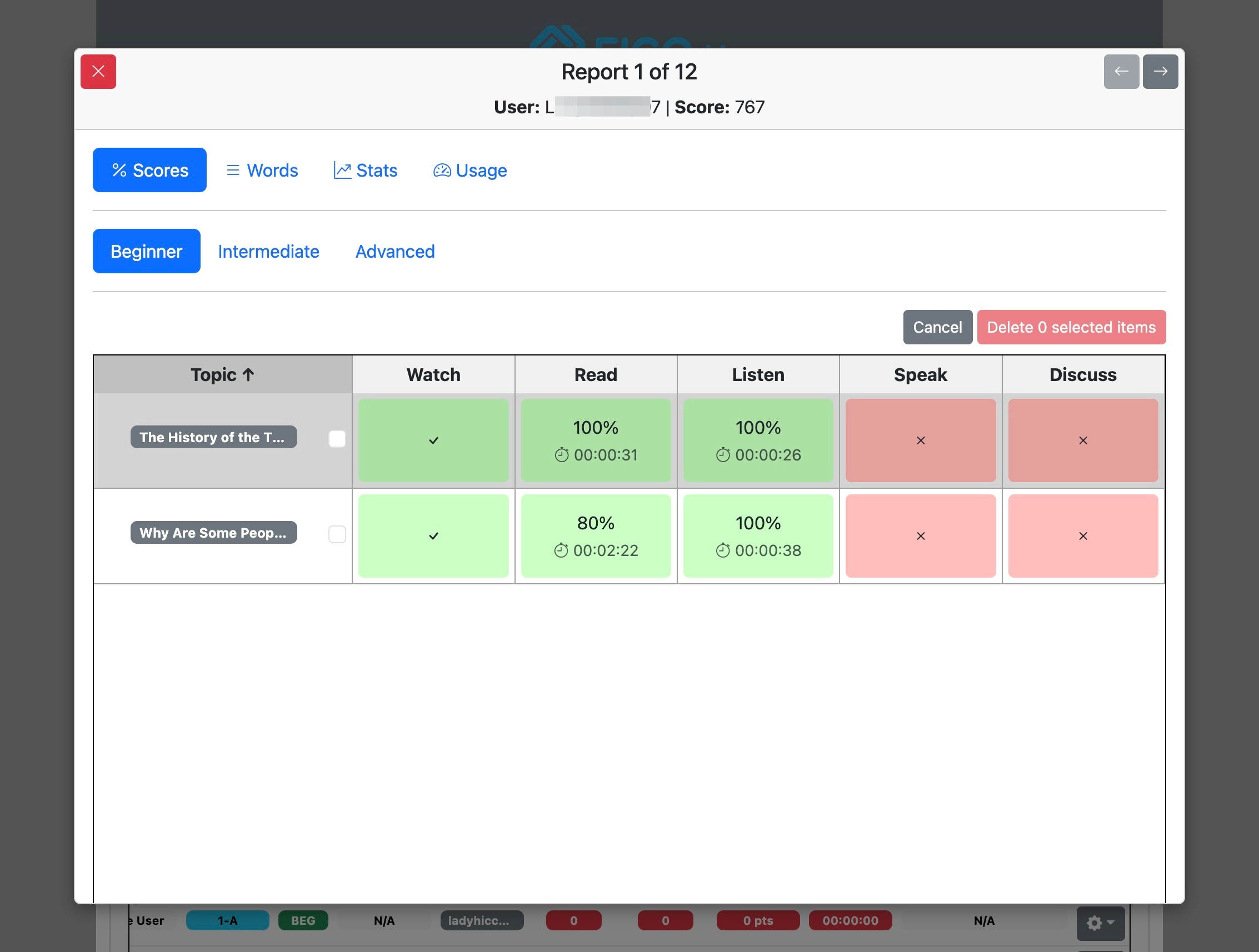
After selection click "Delete selected items" to remove recorded scores.
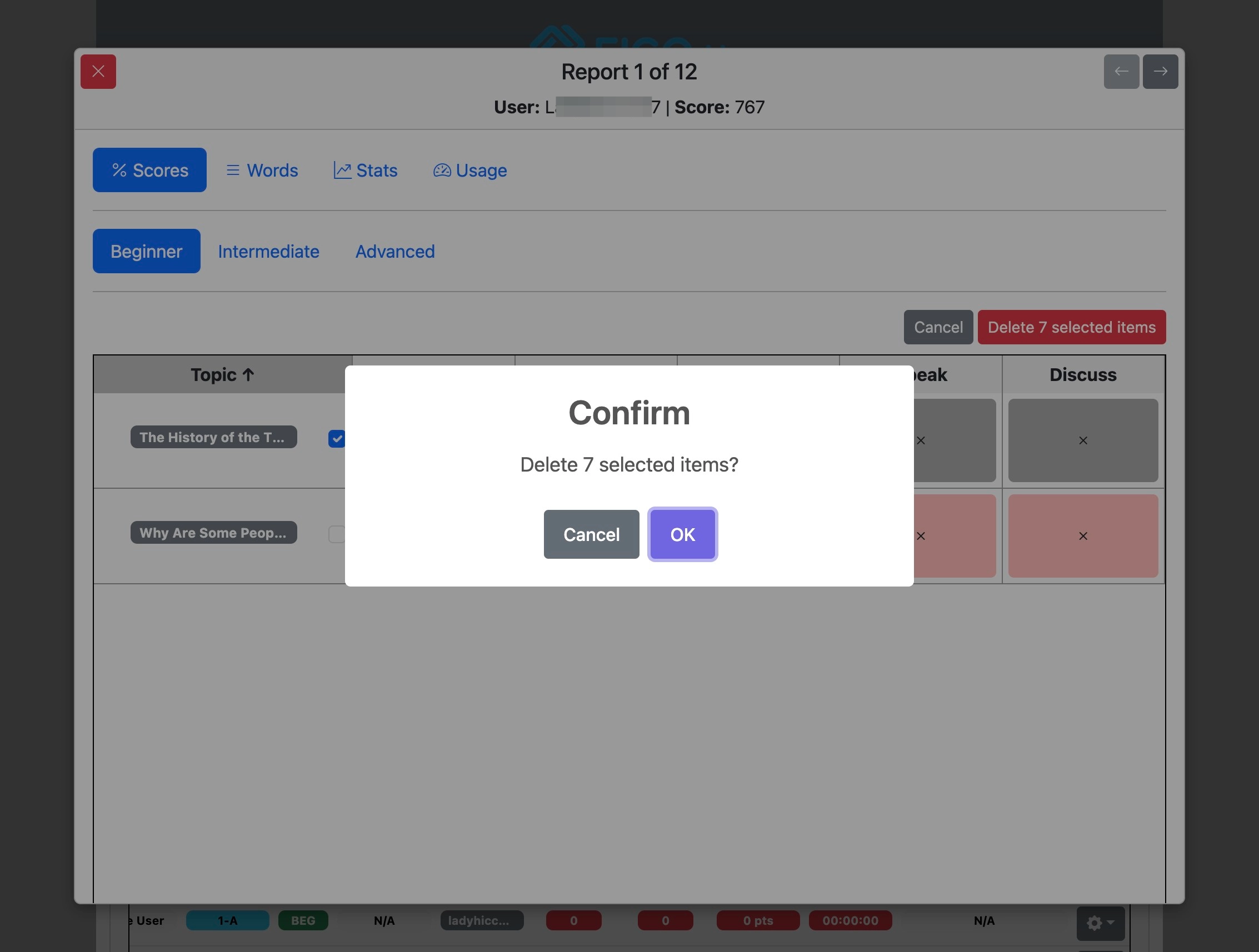
Click "OK" to confirm.
Words
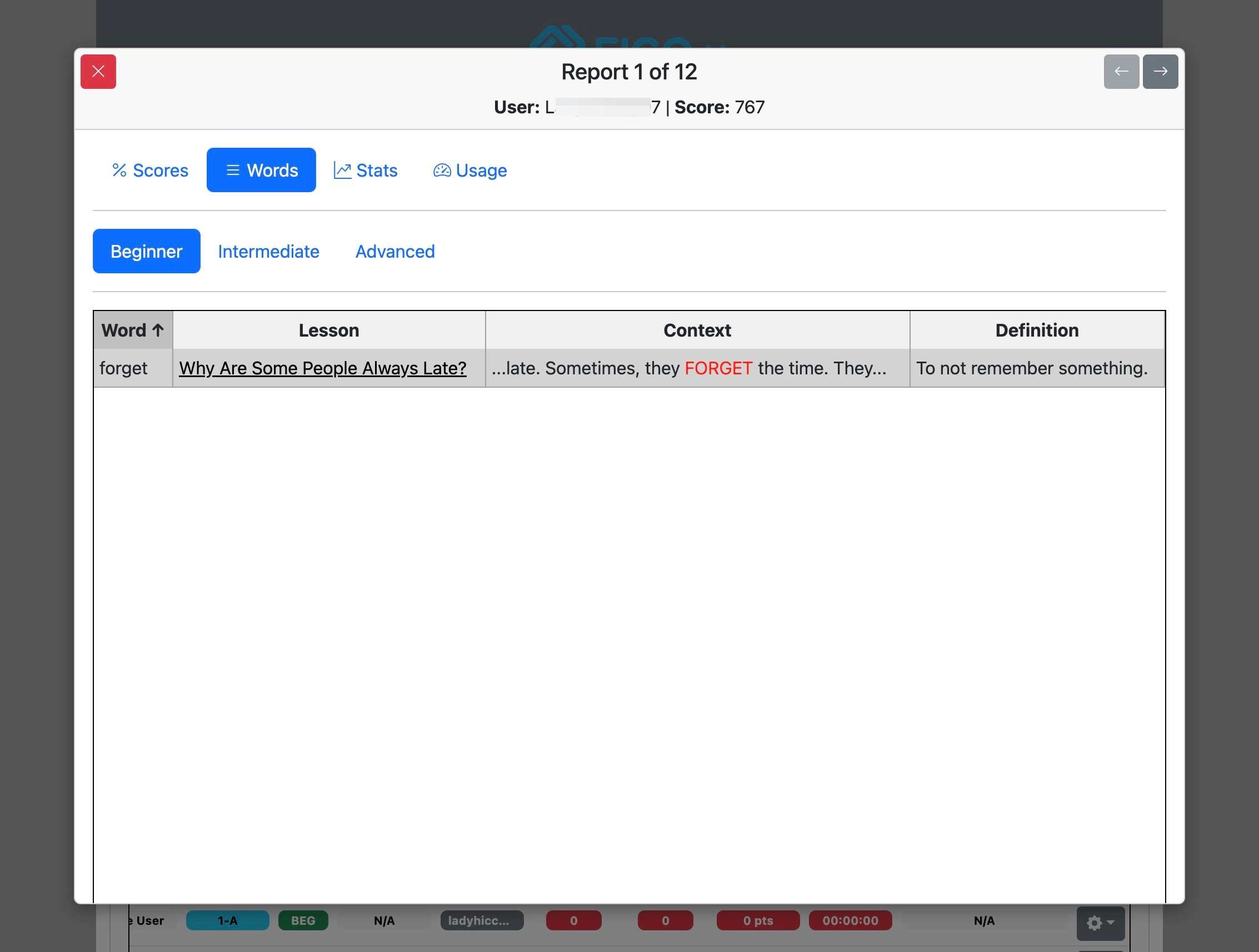
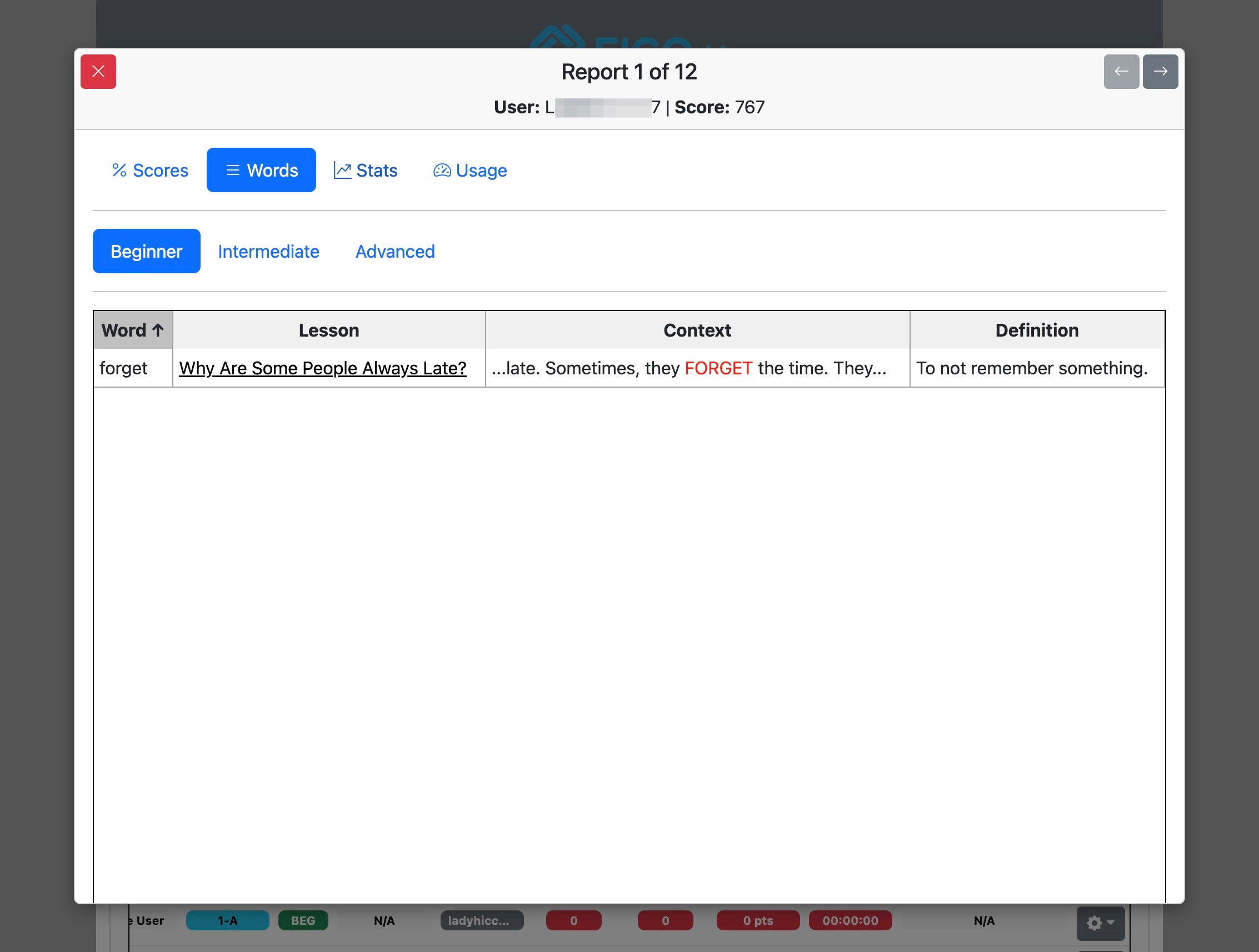
Click "Words"
Switch between 'Beginner', 'Intermediate' and 'Advanced' to view saved words under those levels.
View the Student Manual for a guide on how to review saved words.
Stats
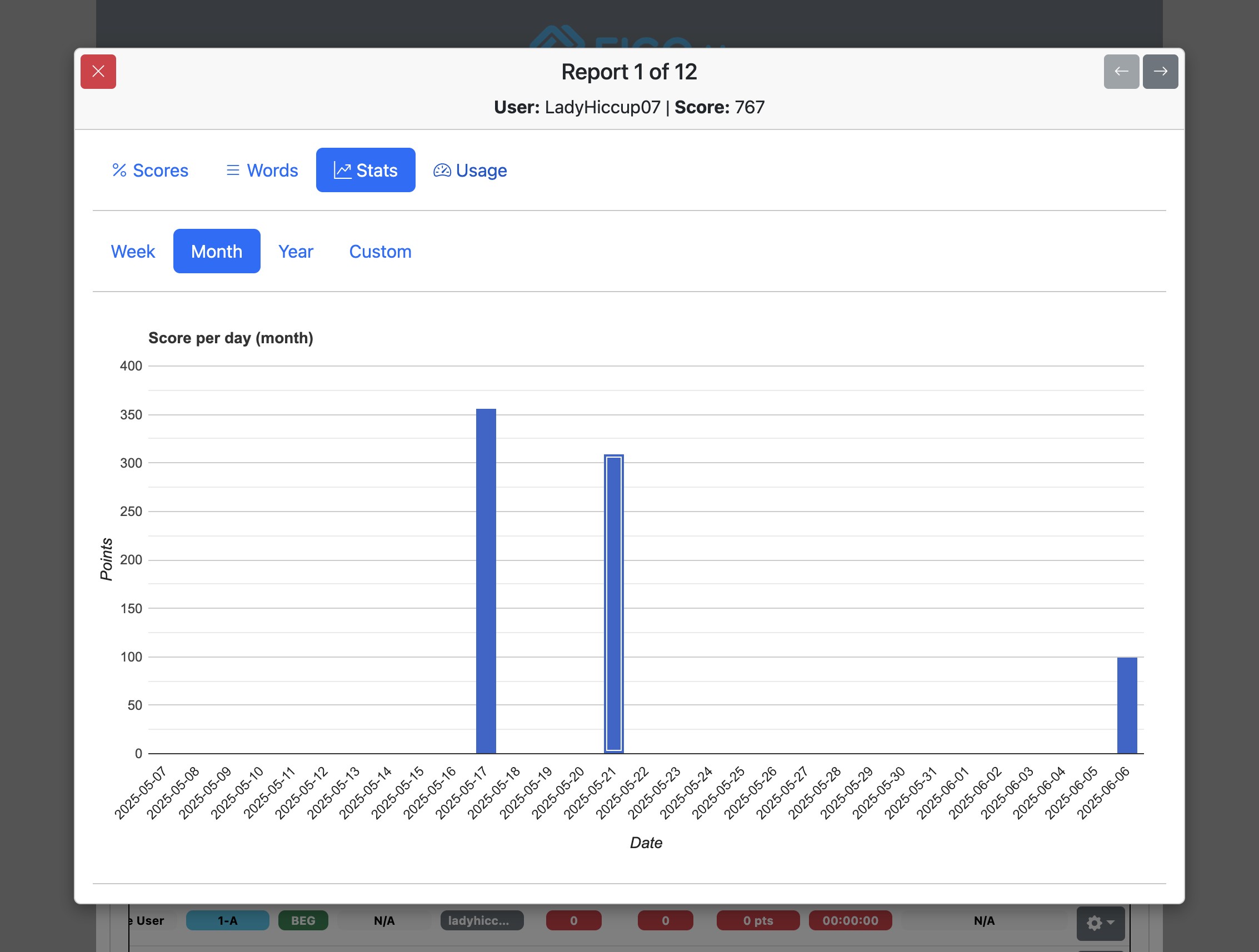
Click "Stats"
View our Student Manual for a guide on how to read stats.
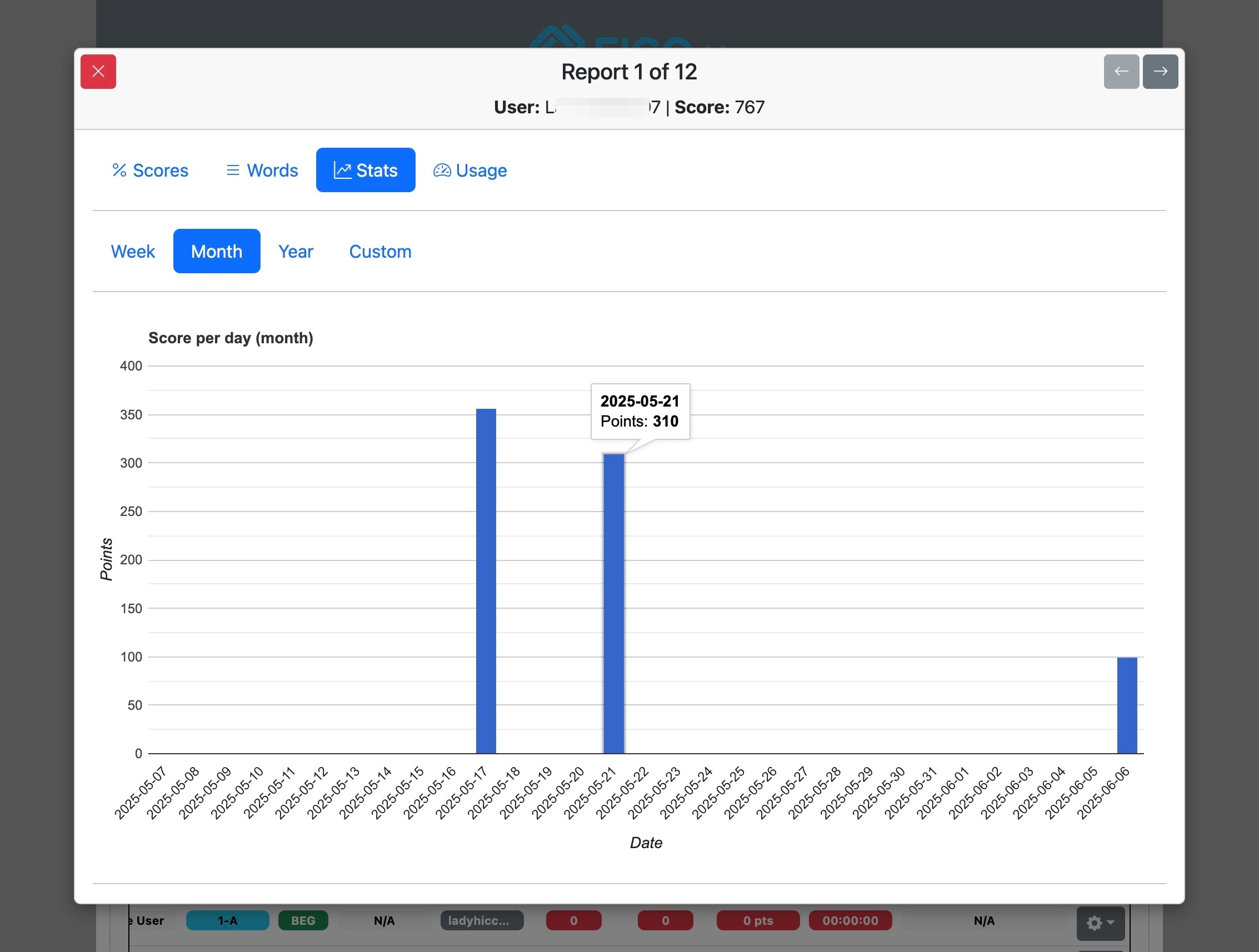
Stats can be viewed by week, month, year, or a custom range.
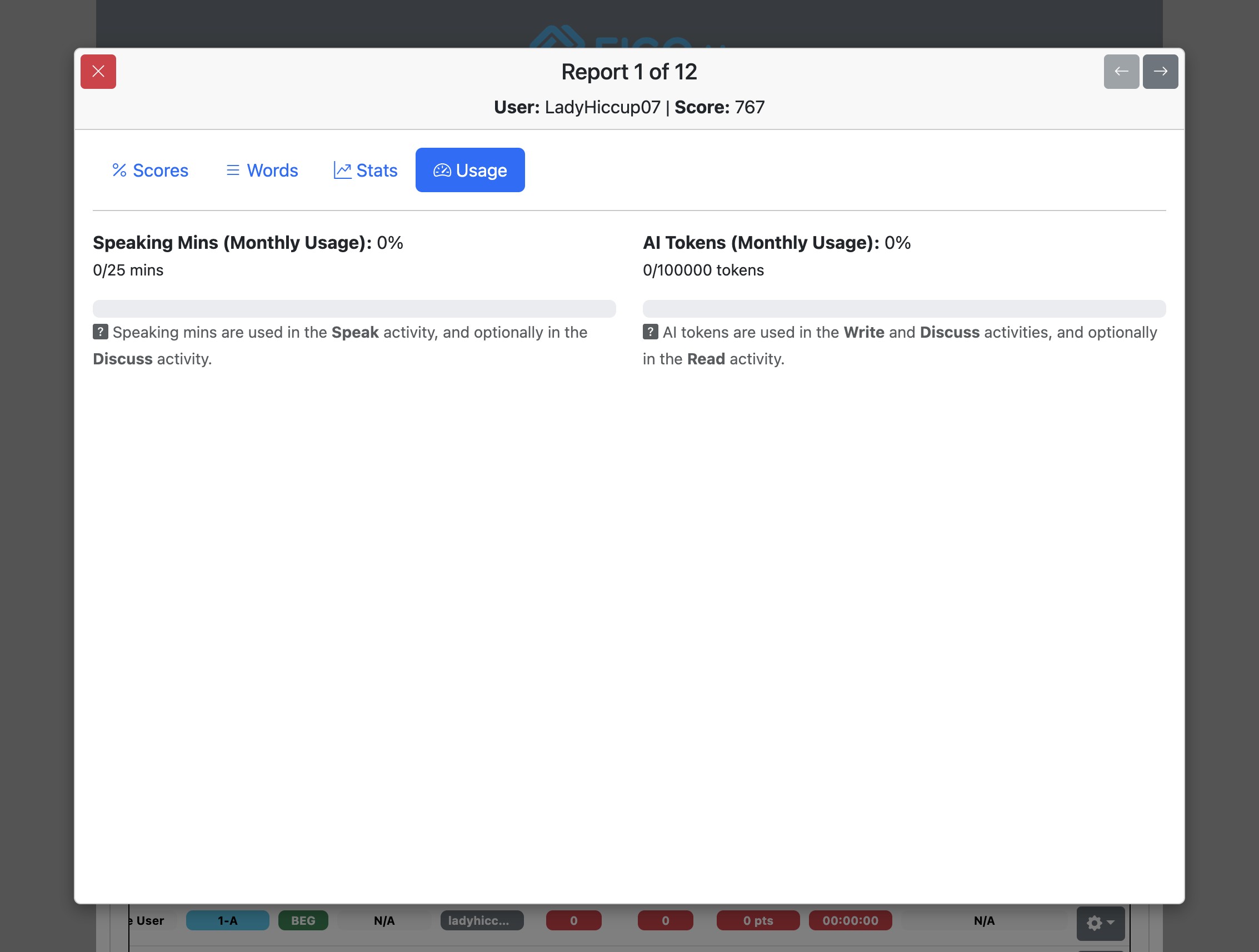
Usage
Click "Usage"
View our Student Manual for how to track the usage.