Sign in to Eigo.AI and click "Tracking".
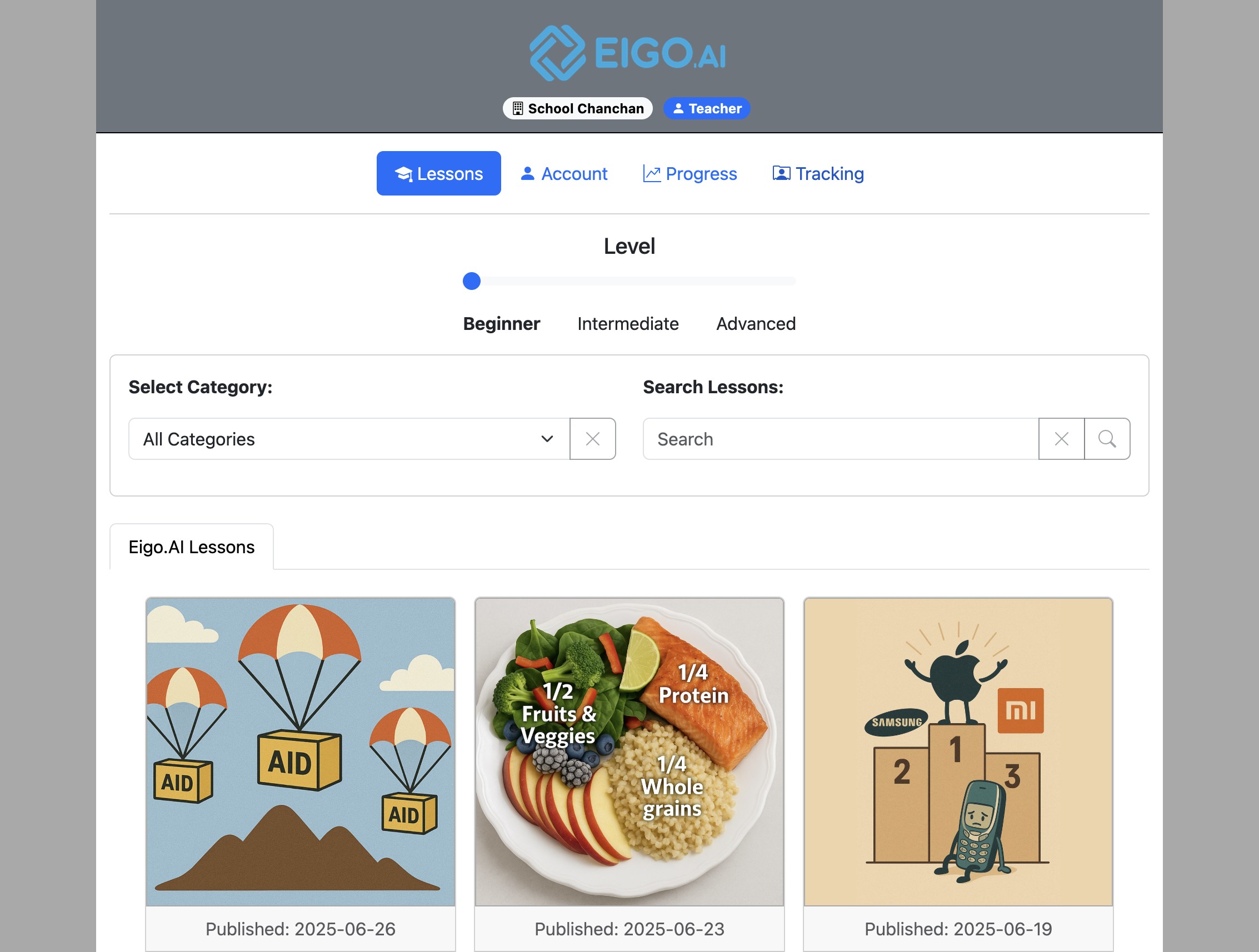
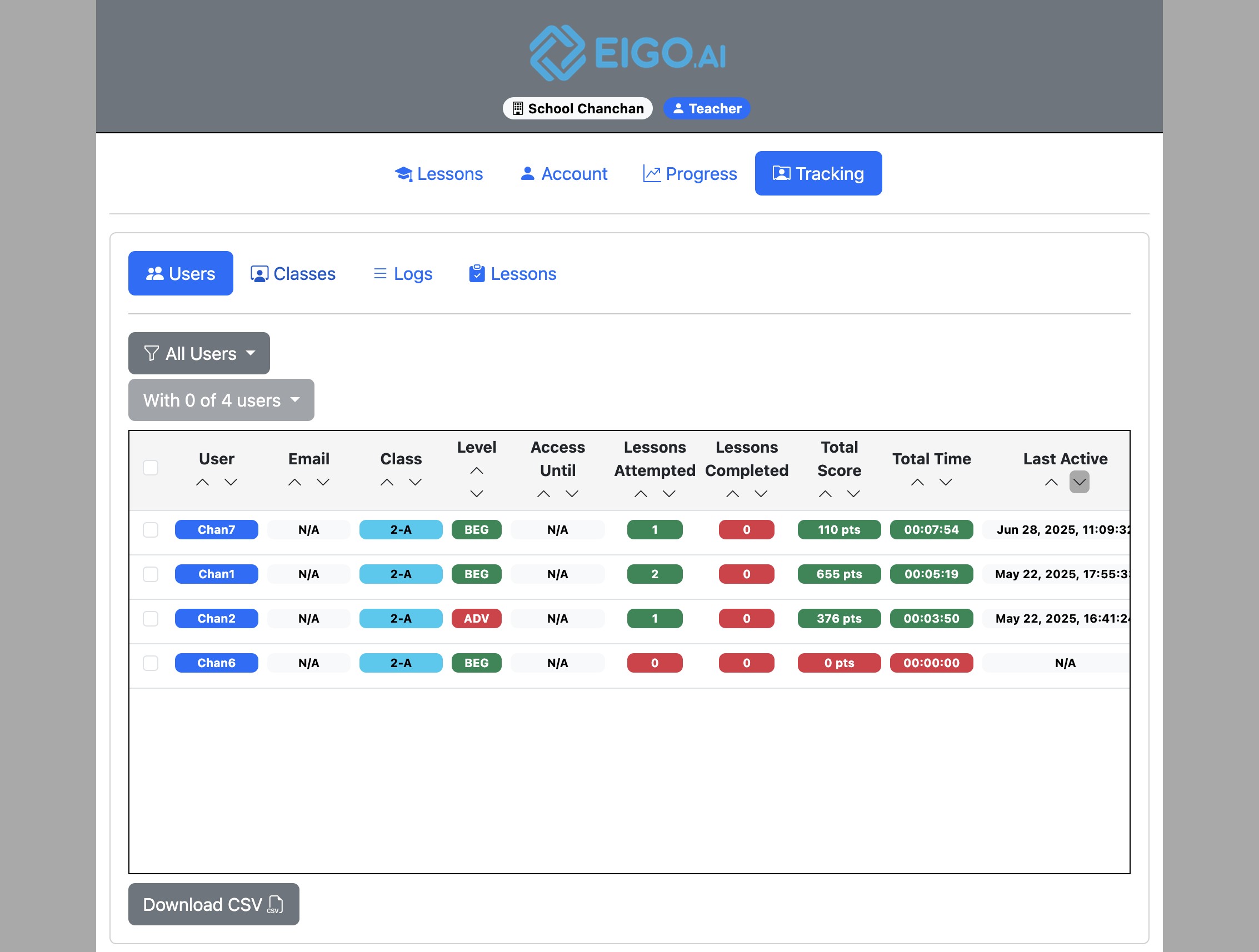
Click "Classes".
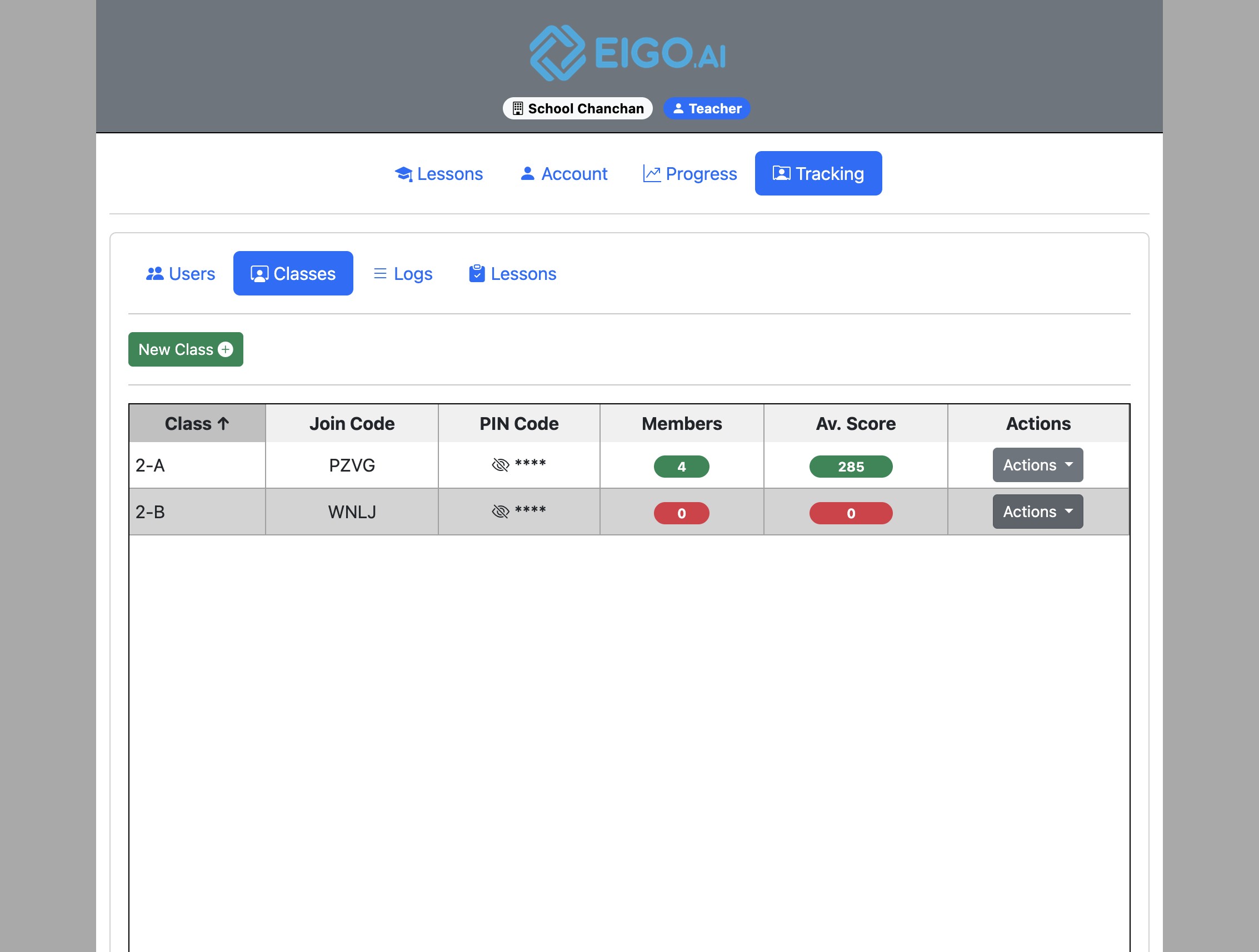
Click "Actions".
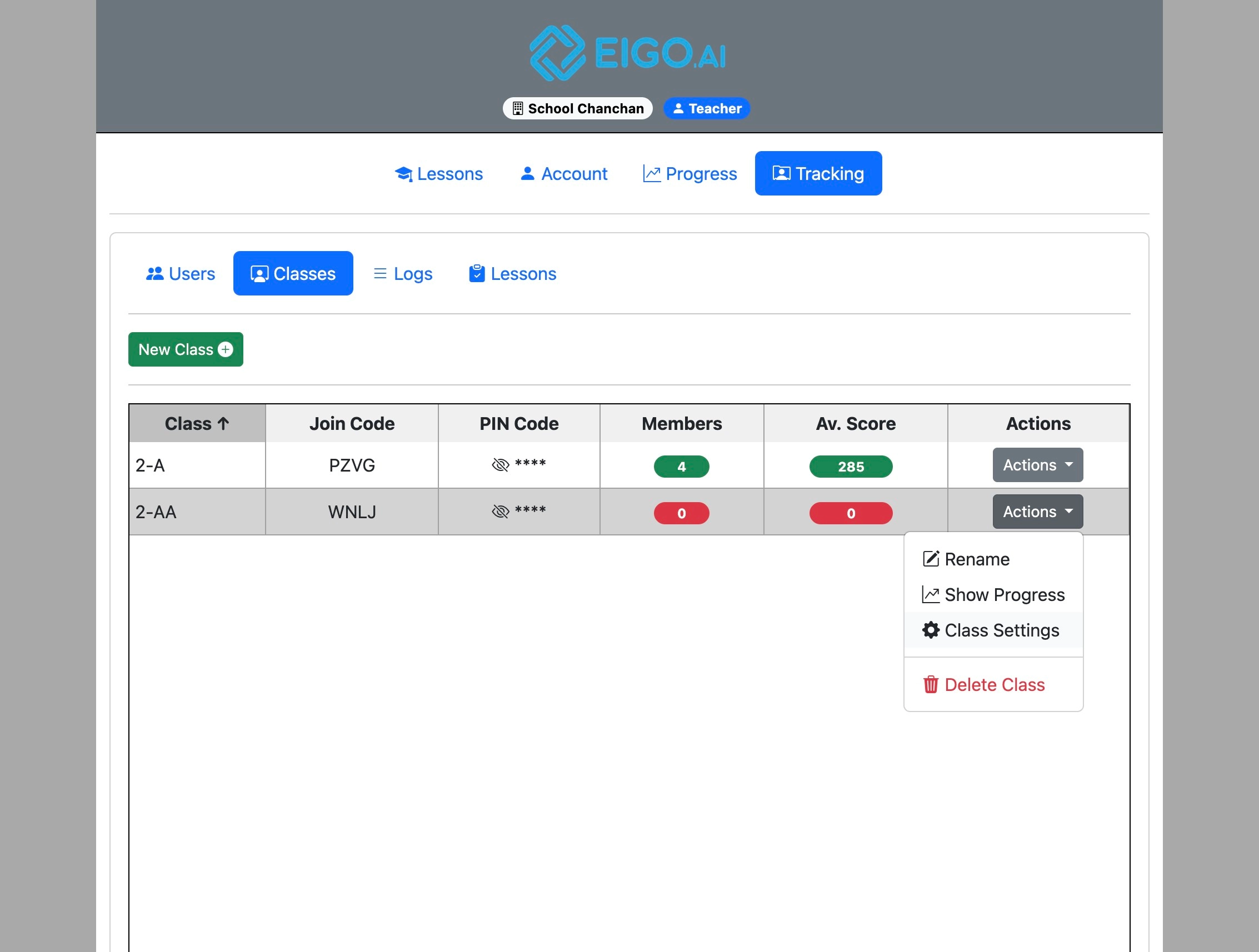
Click "Class Settings"
Lesson Options
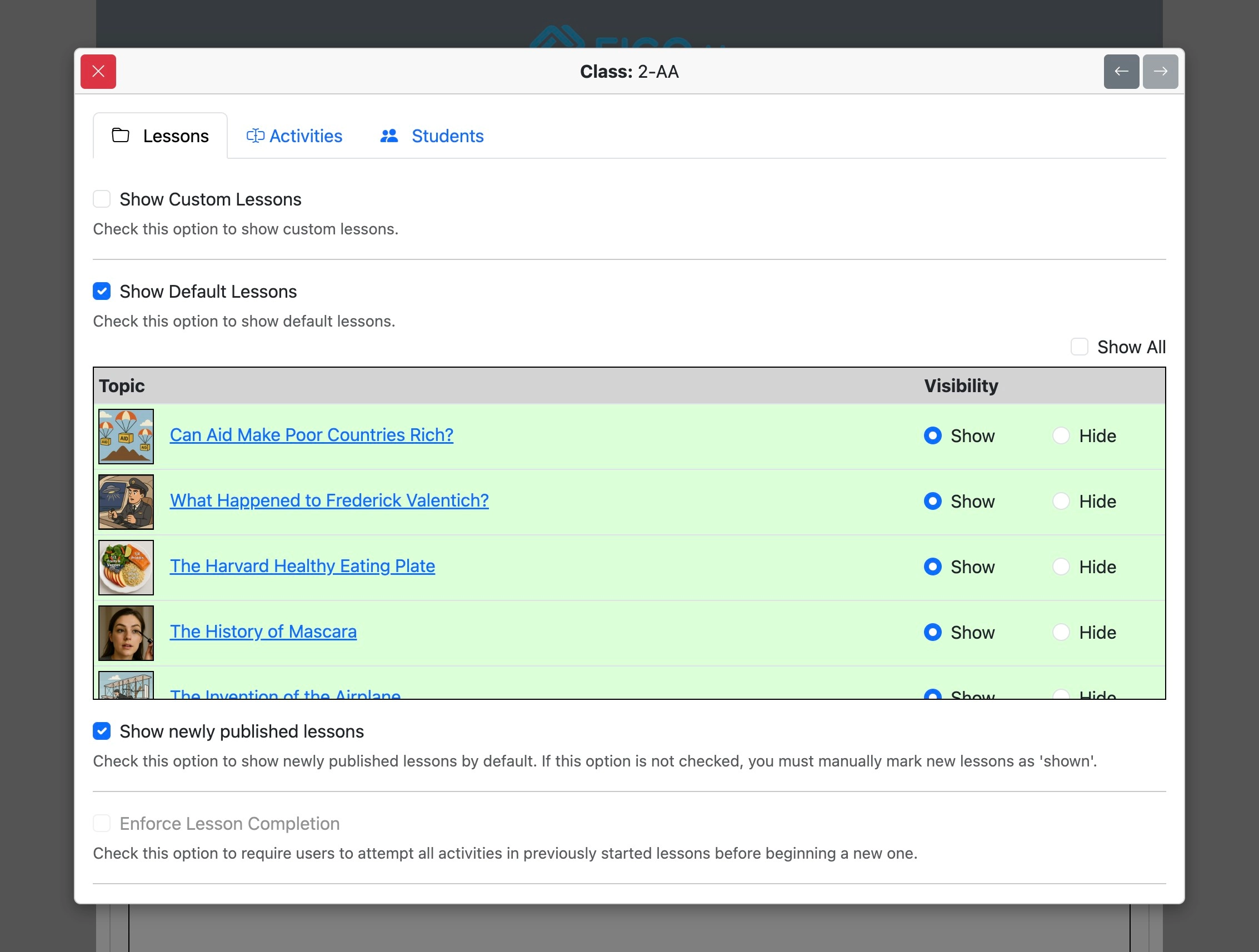
The "Lessons" tab shows options relating to lessons.
Check the box to show or hide all custom lessons.
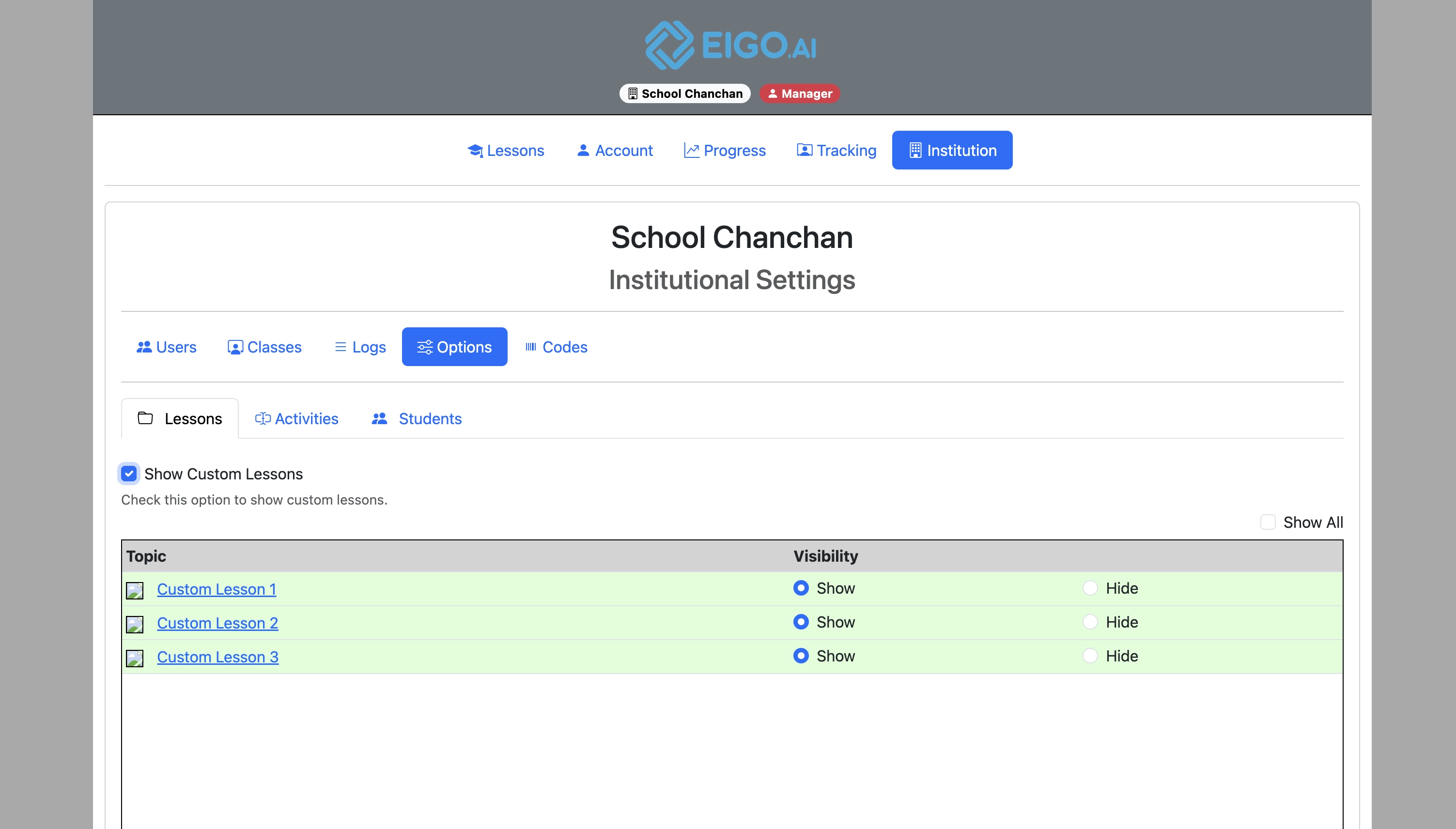
The “Show Custom Lessons” option may not be displayed if your institution has no custom lessons. To create custom lessons, please contact your institution.
Check the box to show or hide all default lessons.
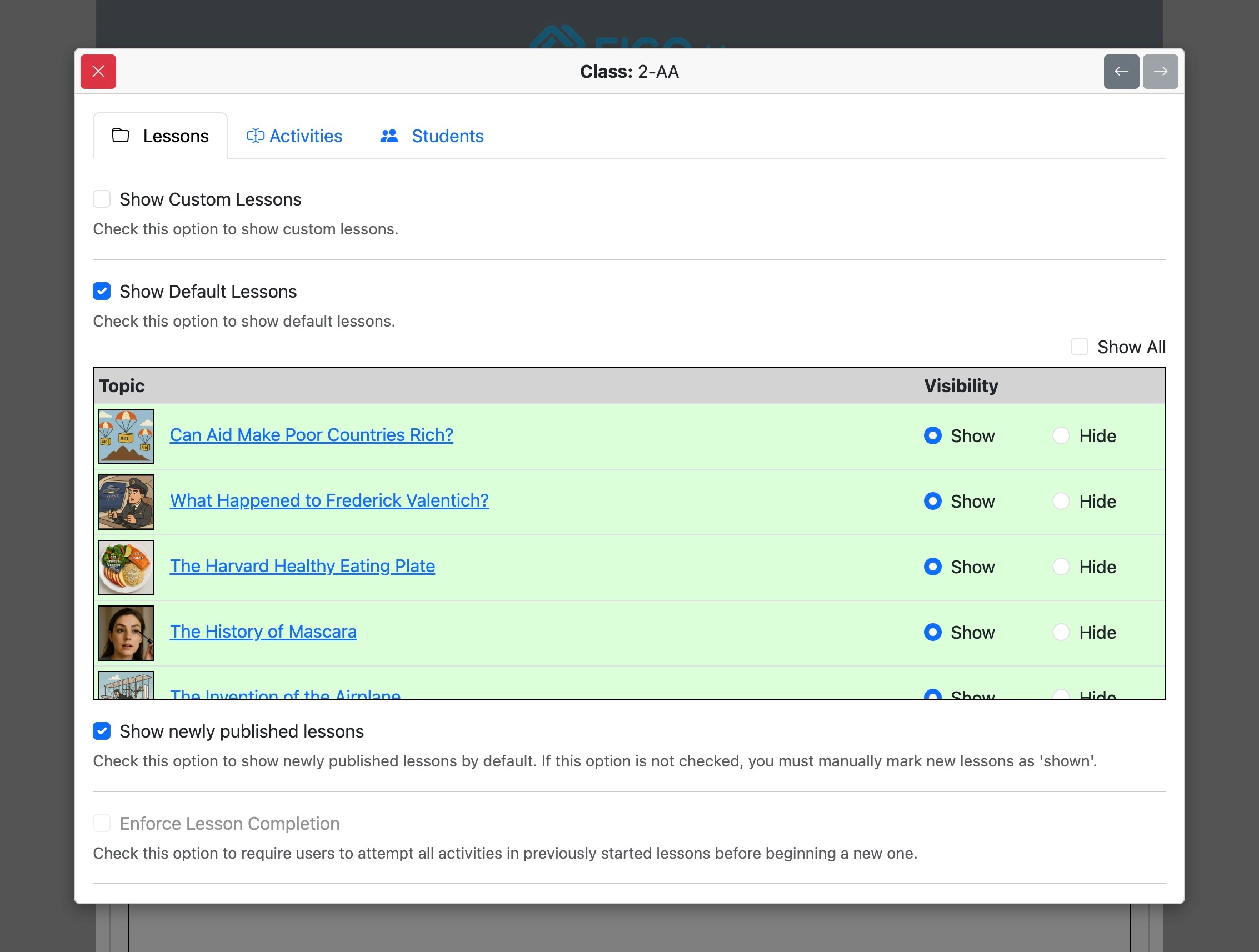
You can also select individual default lessons that you want to show or hide.
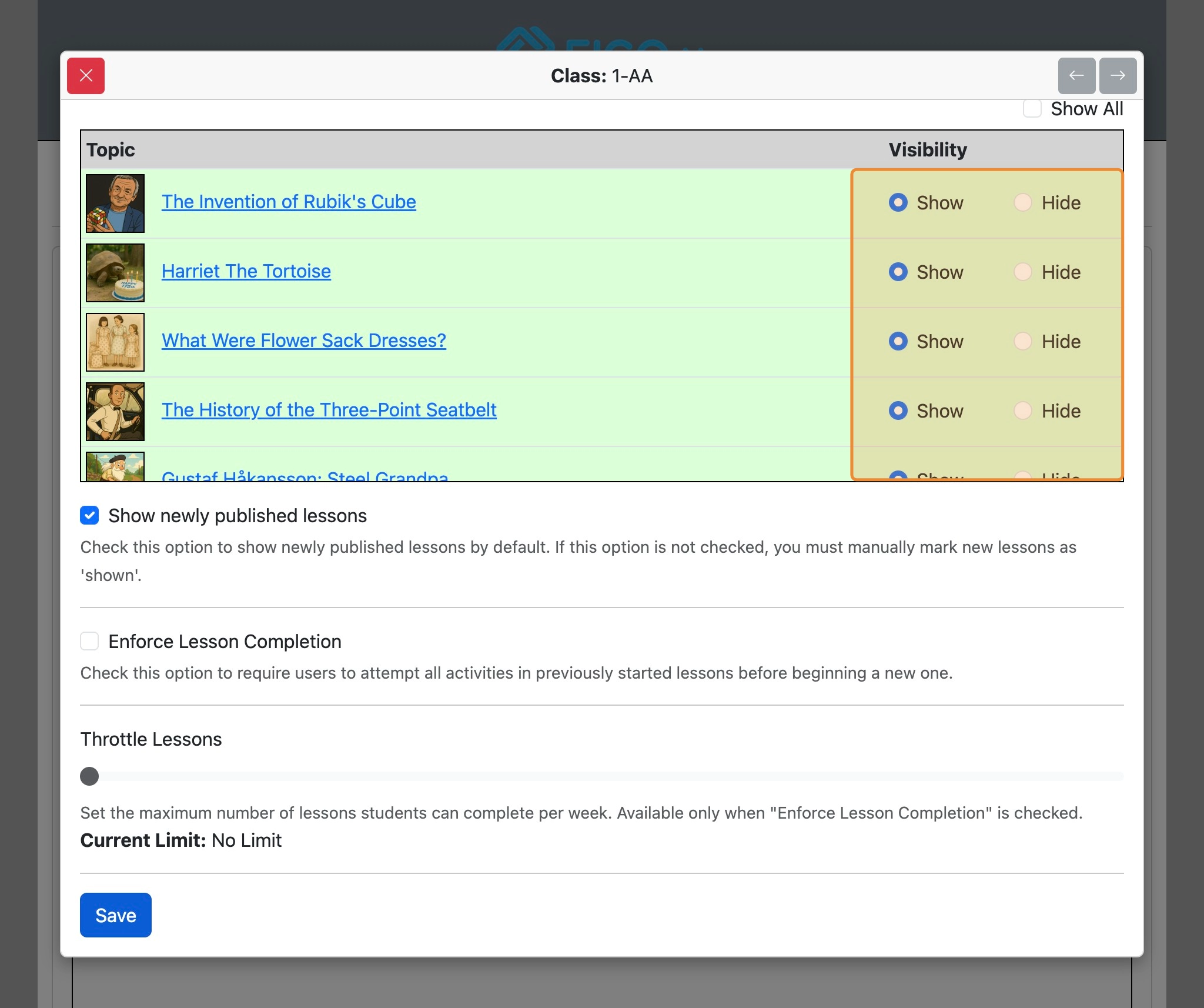
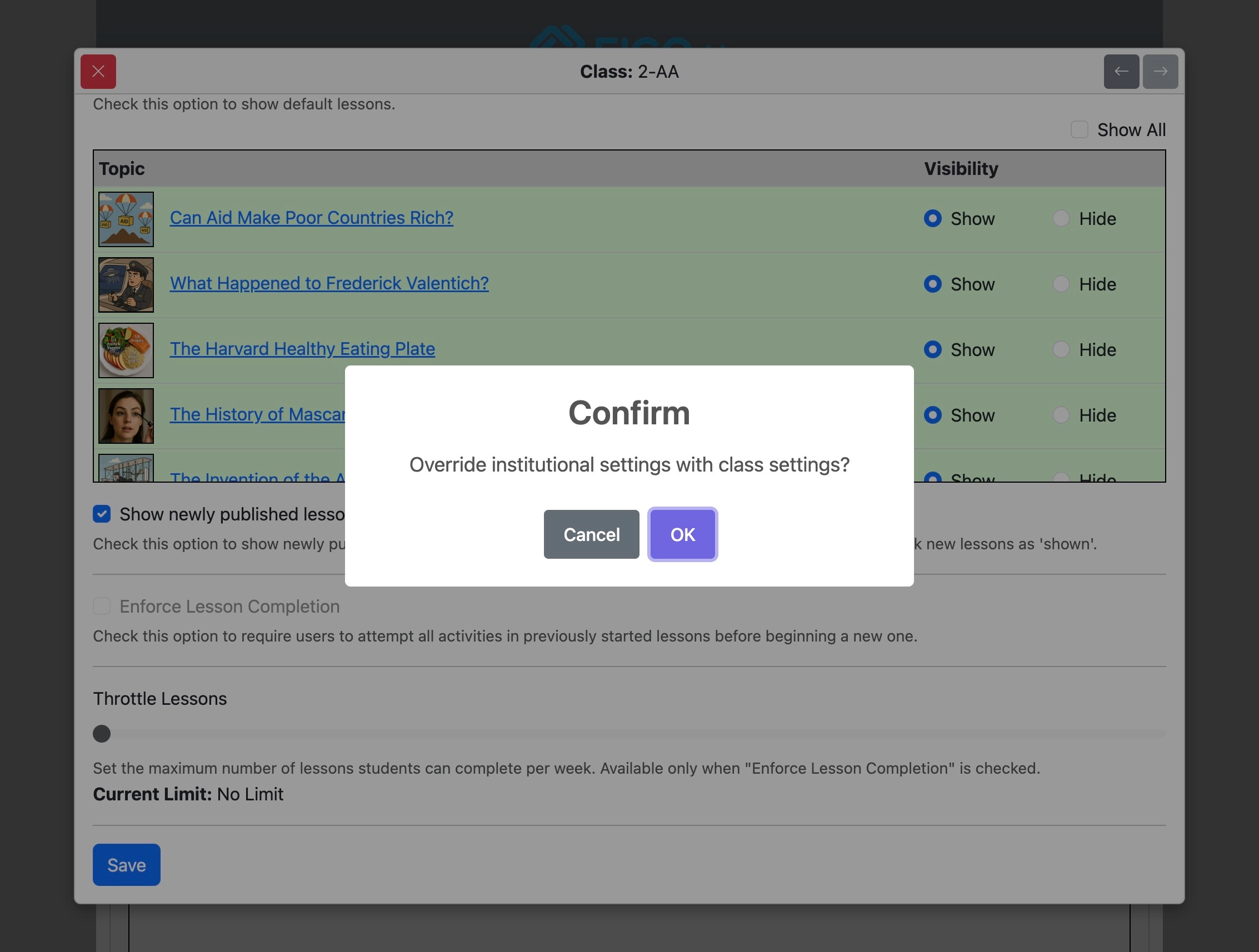
Eigo.AI publishes 1-2 new lessons per week. Check the box to automatically show new lessons to students. If this option is not checked, you will need to manually show newly published lessons.
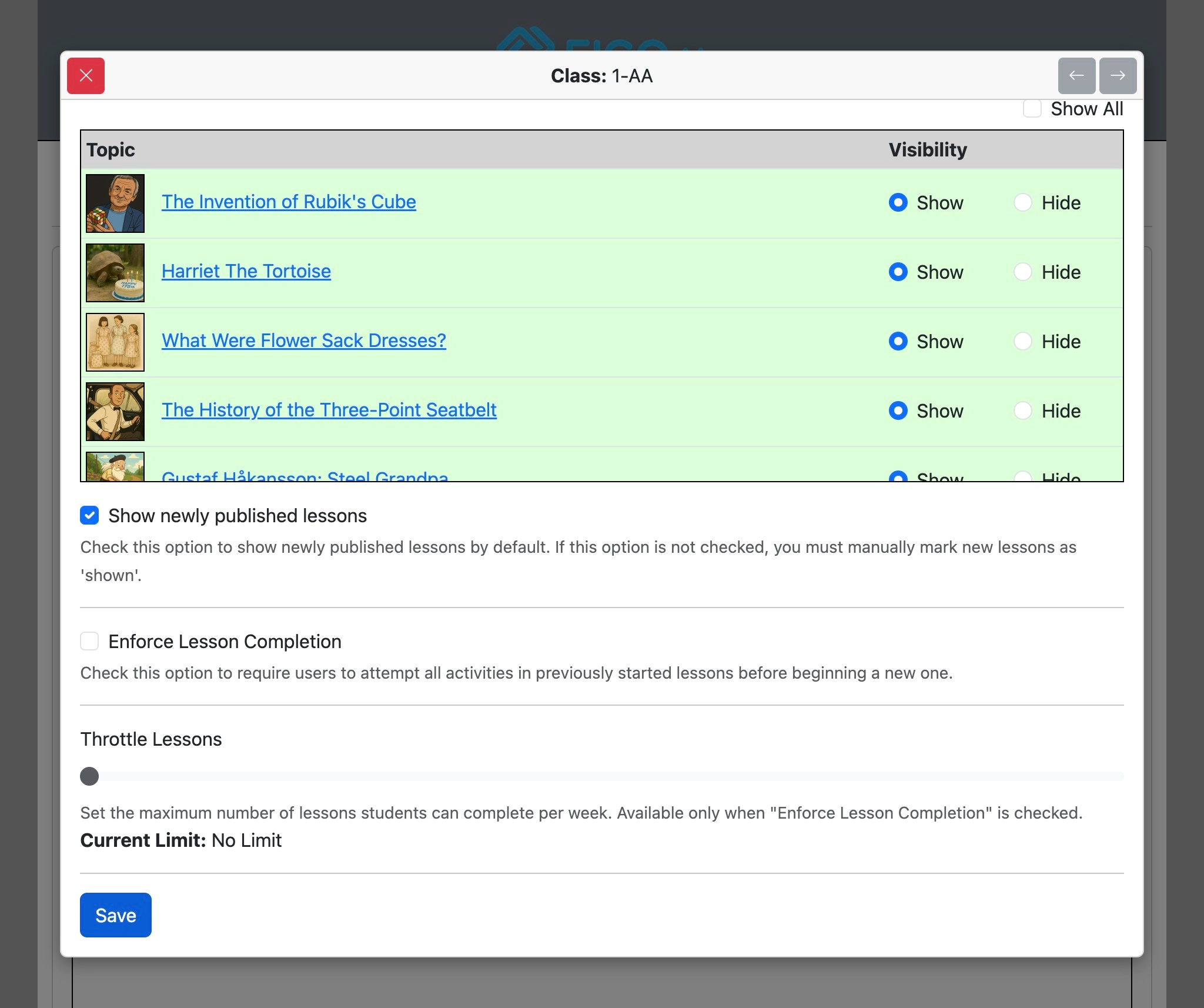
Select 'Enforce Lesson Completion' to require students to complete all activities in a lesson before moving to the next one.
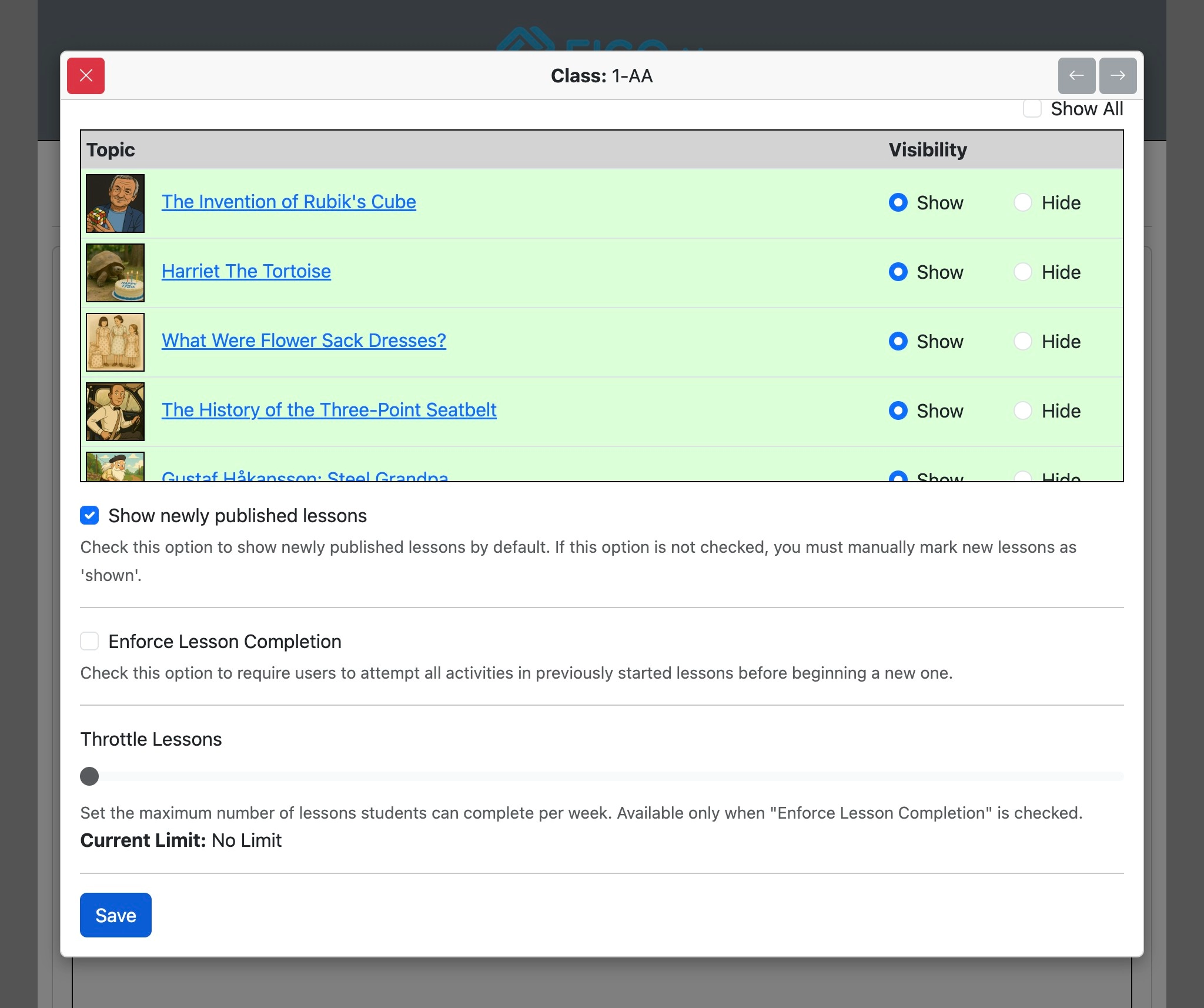
Selecting 'Enforce Lesson Completion' enables 'Throttle Lessons'. Use the slider to set how many new lessons a student can complete in a rolling 7-day period. Completed lessons remain available for review and resubmission according to the activity settings.
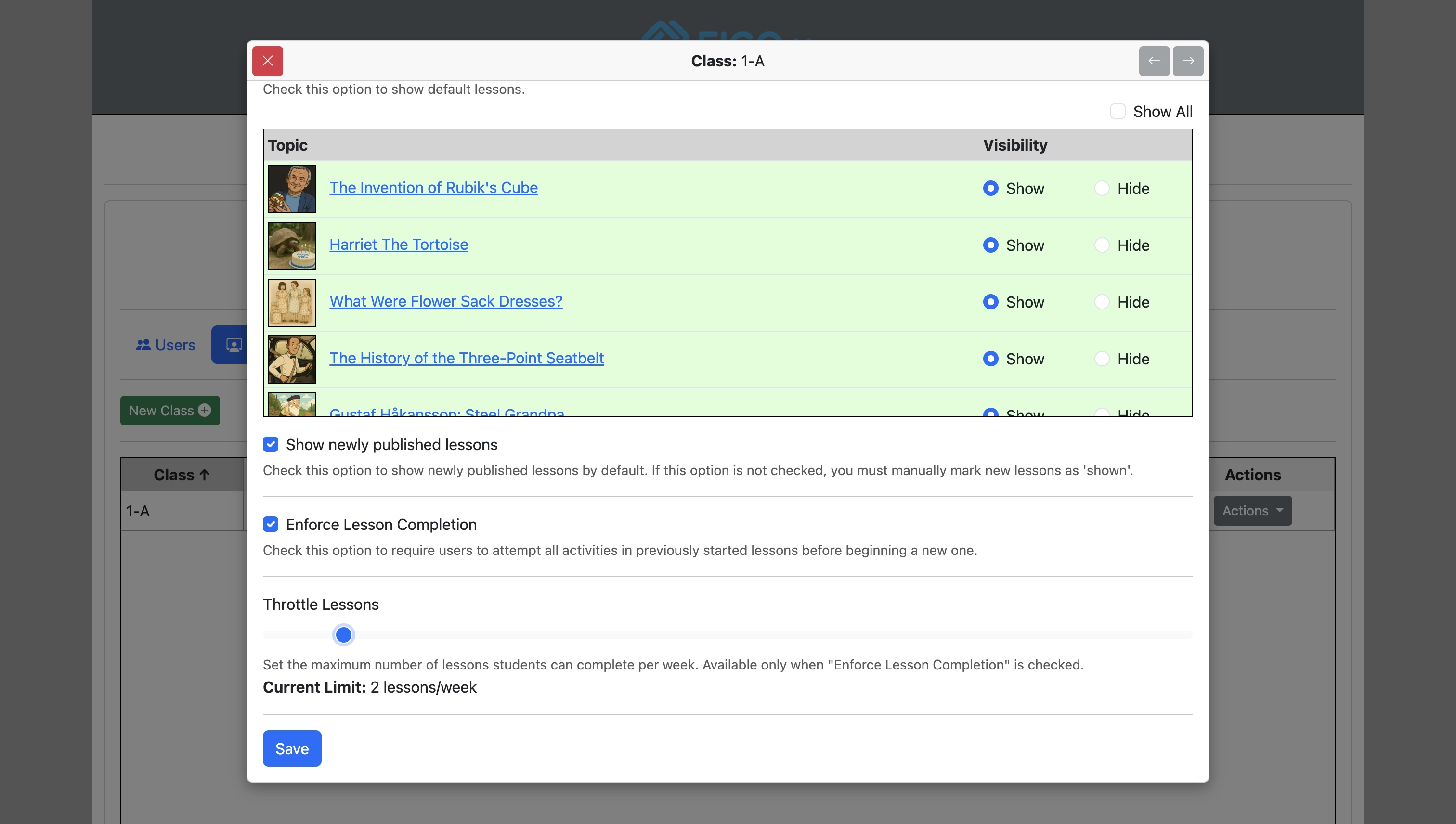
Click "Save" to confirm and save settings.
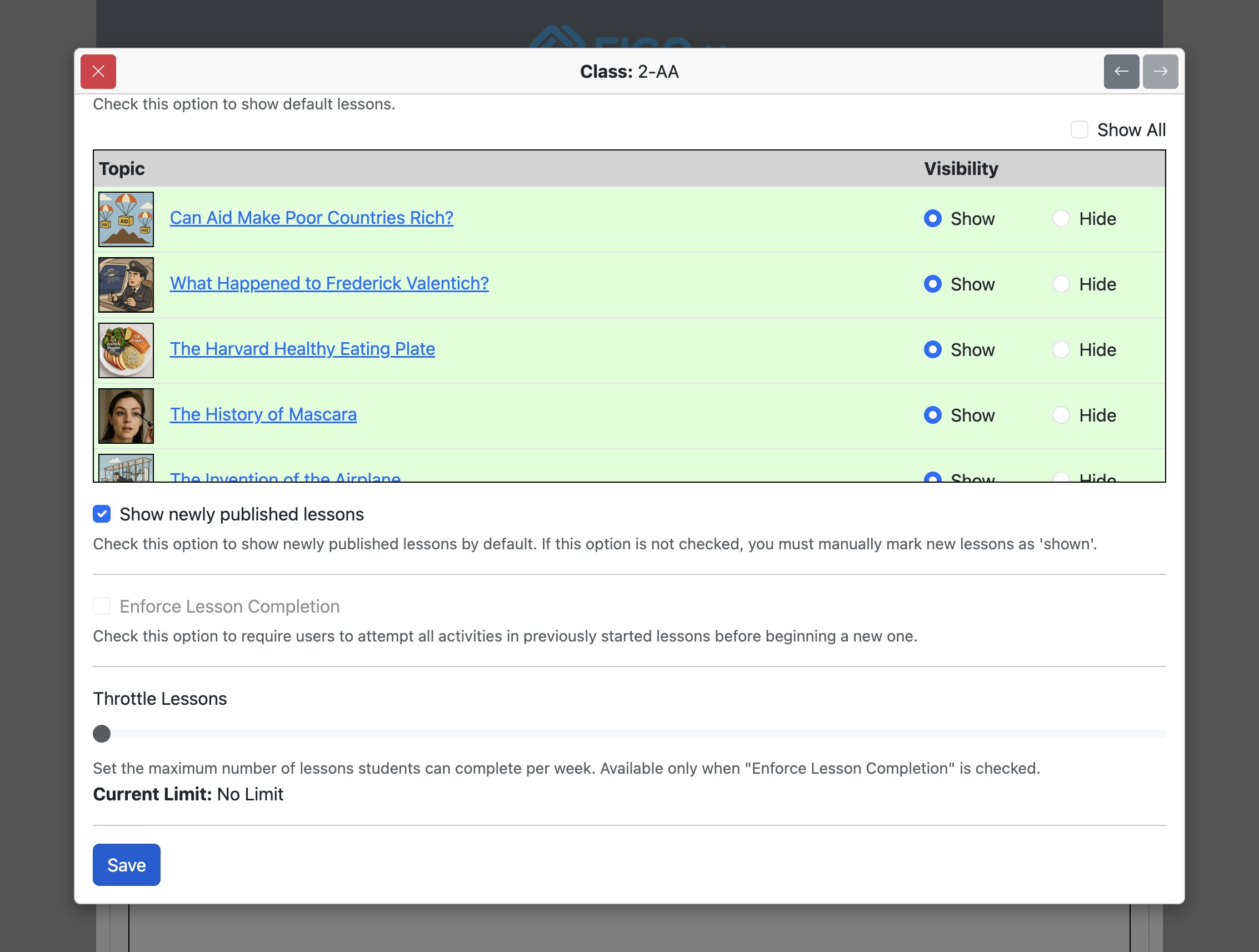
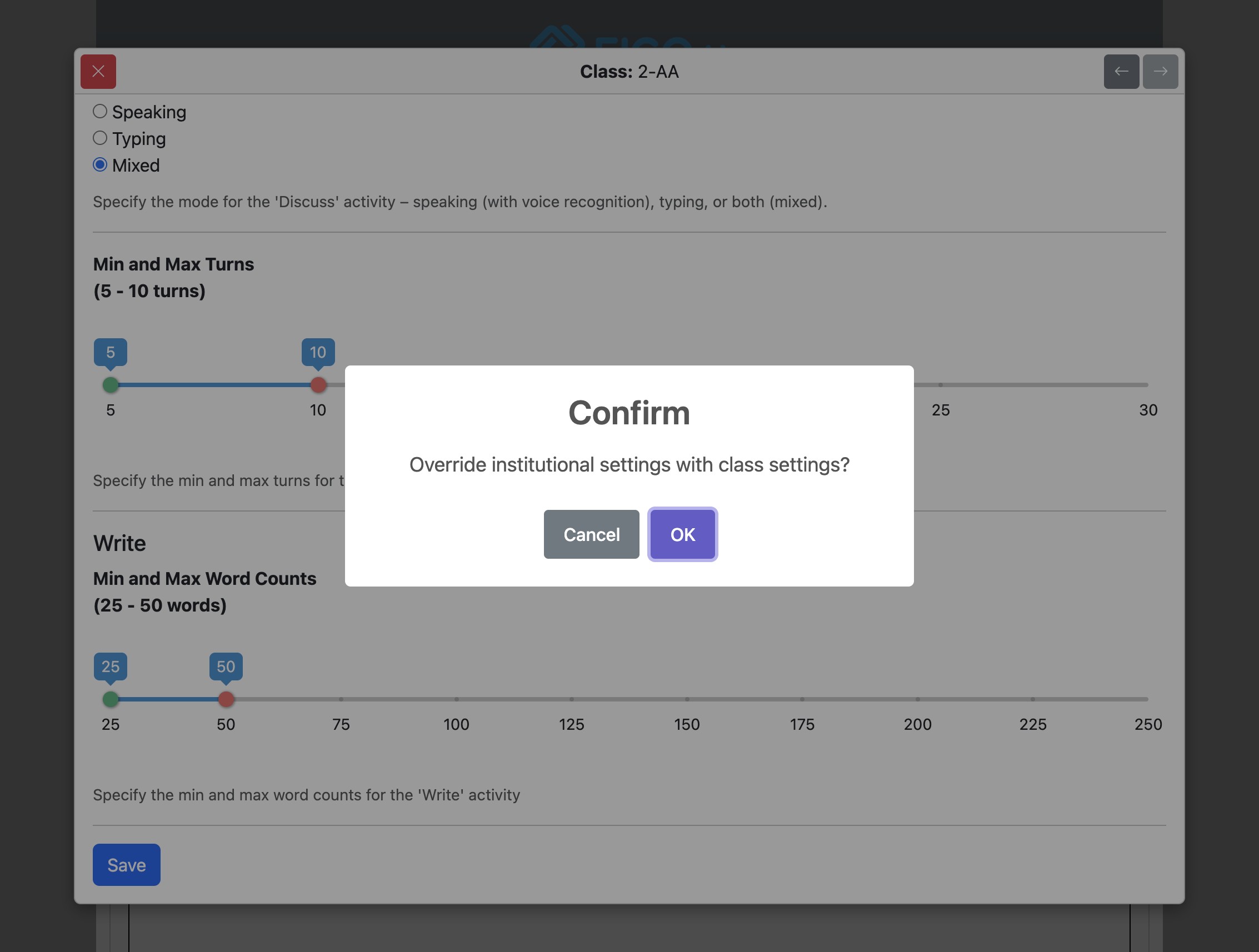
Click "OK" to confirm overriding institutional settings for the specific class.
Activity Settings
Click the "Activities" tab to show settings relating to activities.
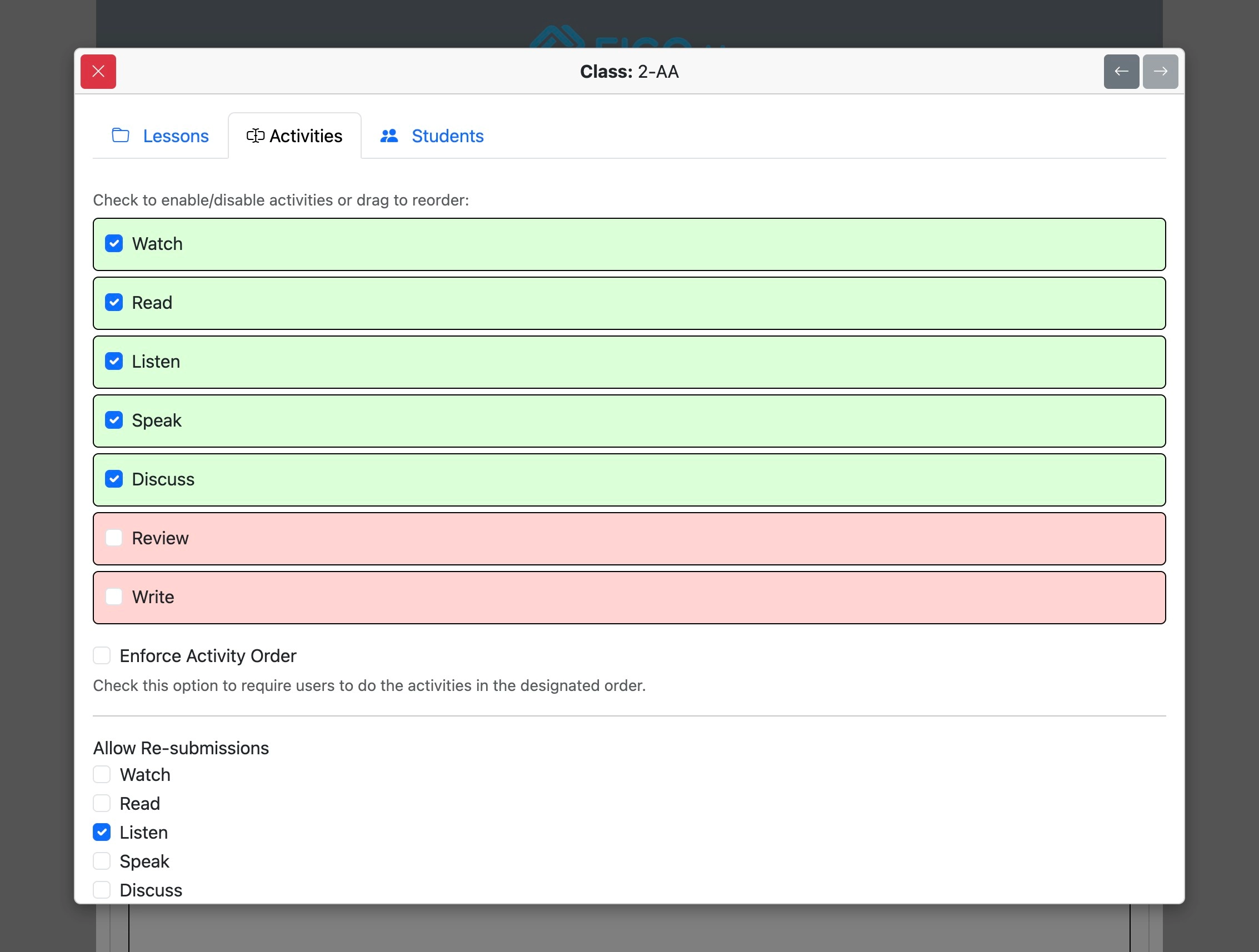
Check the box next to the activity name to disable or enable it.
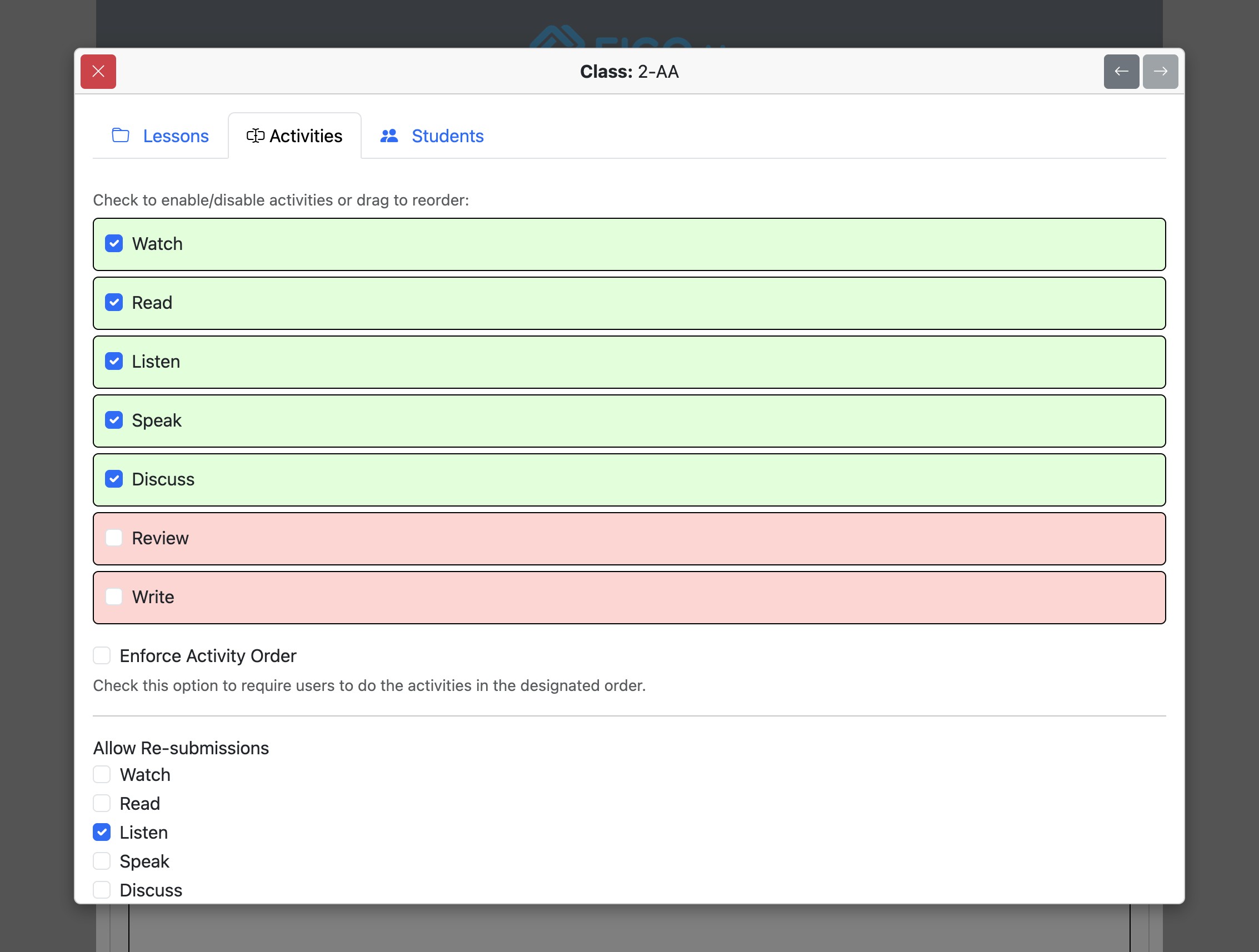
Drag the activities to rearrange their order.
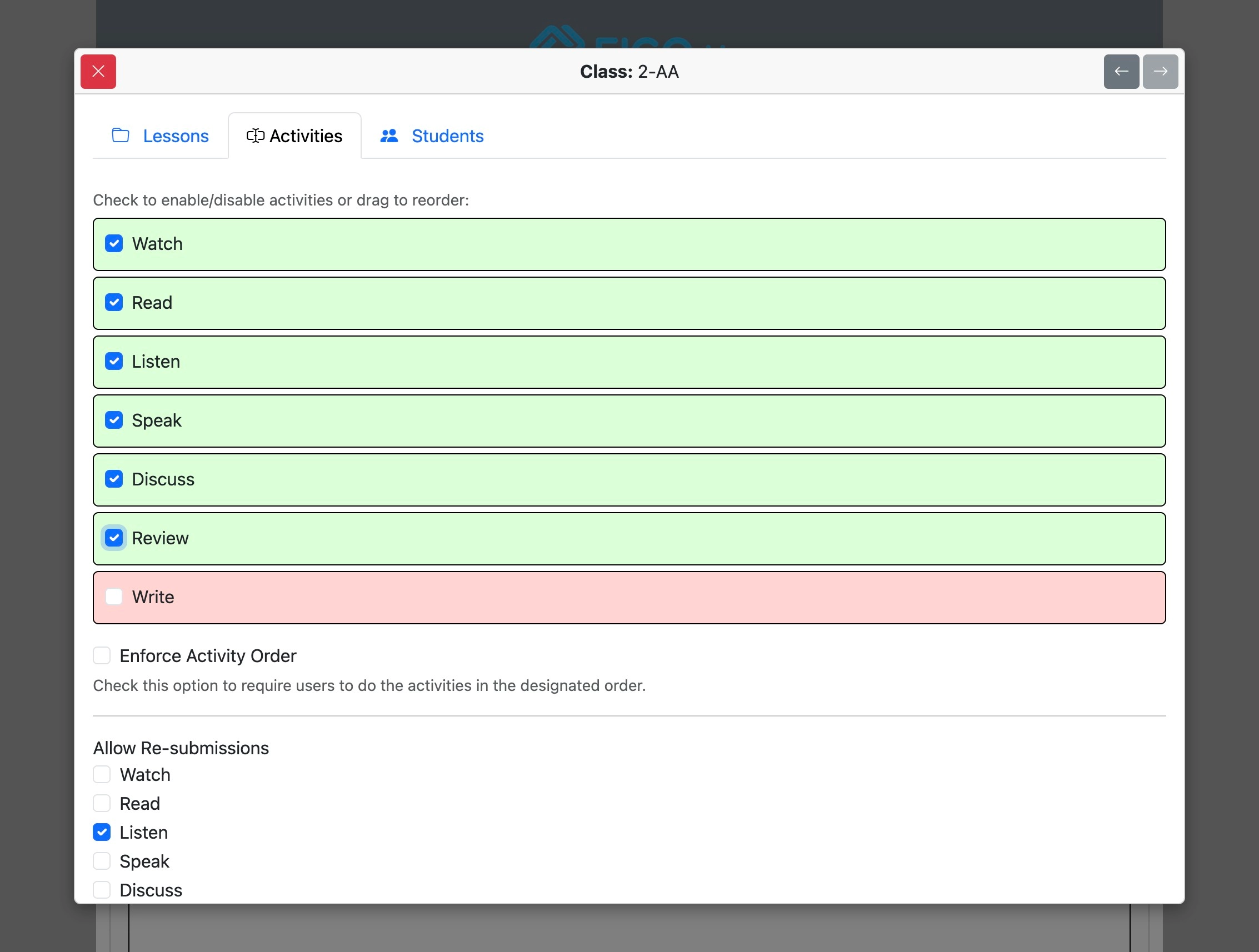
Check “enforce activity order” to make the student do the activities in the specified order.
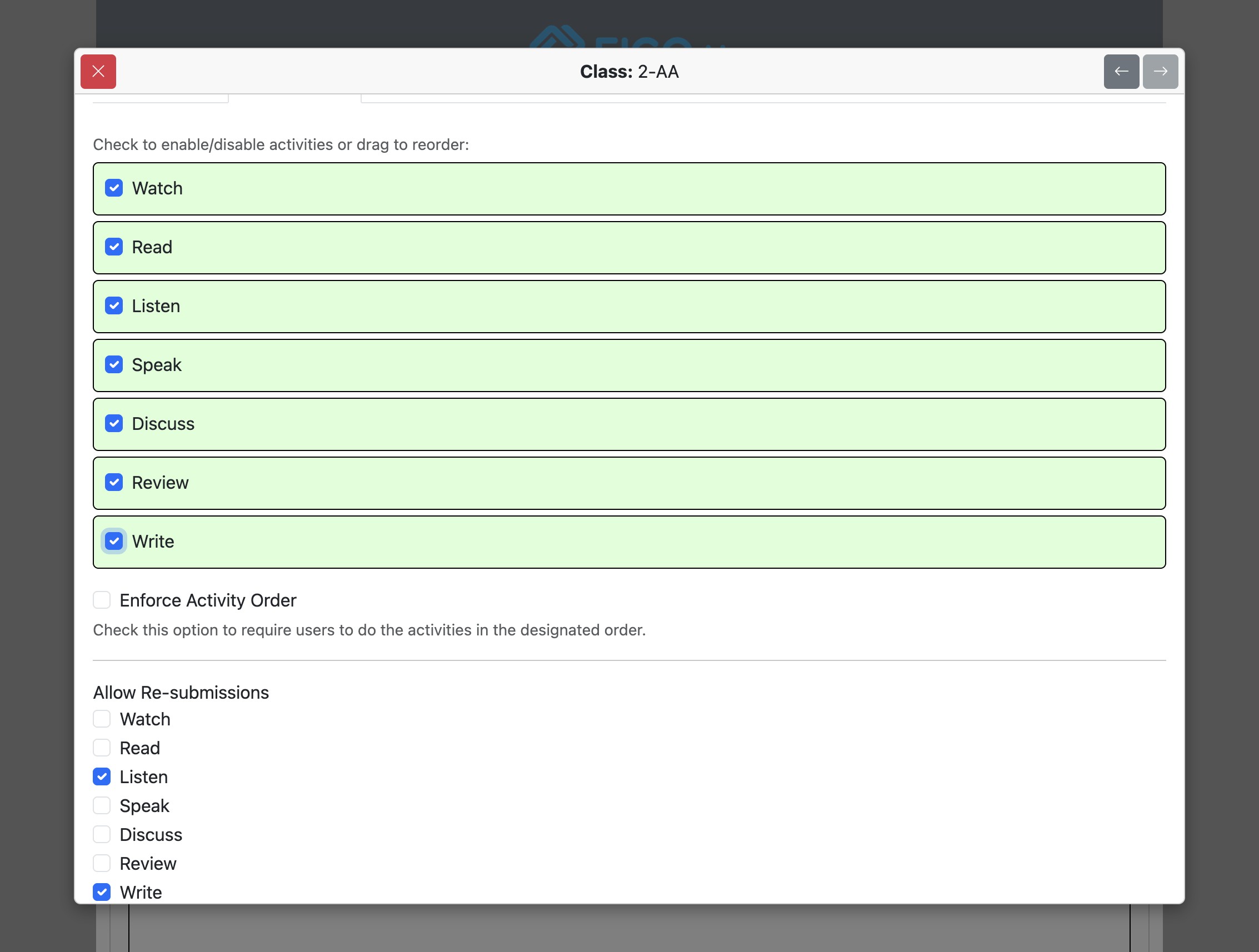
Check the boxes under “Allow Re-submissions” to specify which activities students can re-submit.
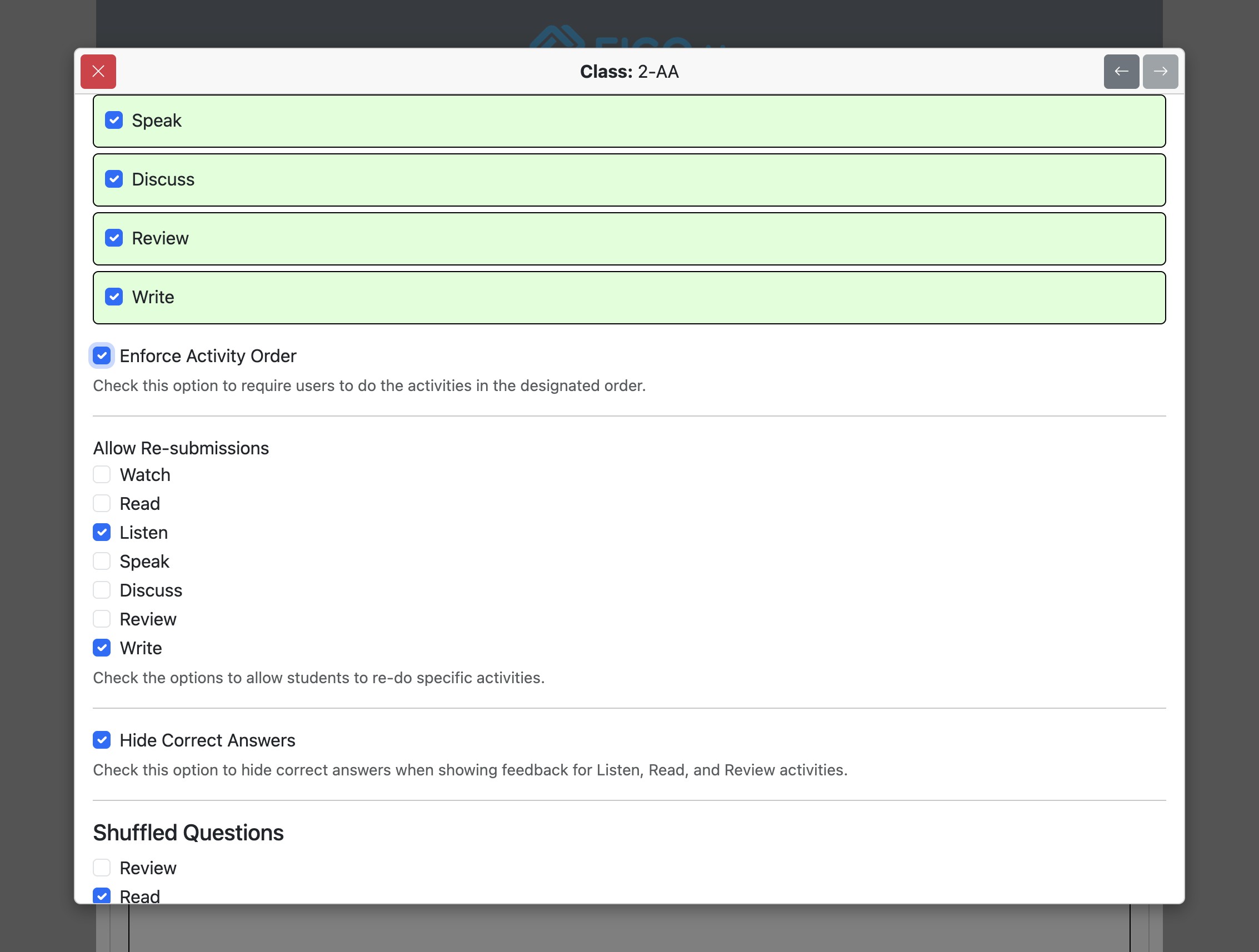
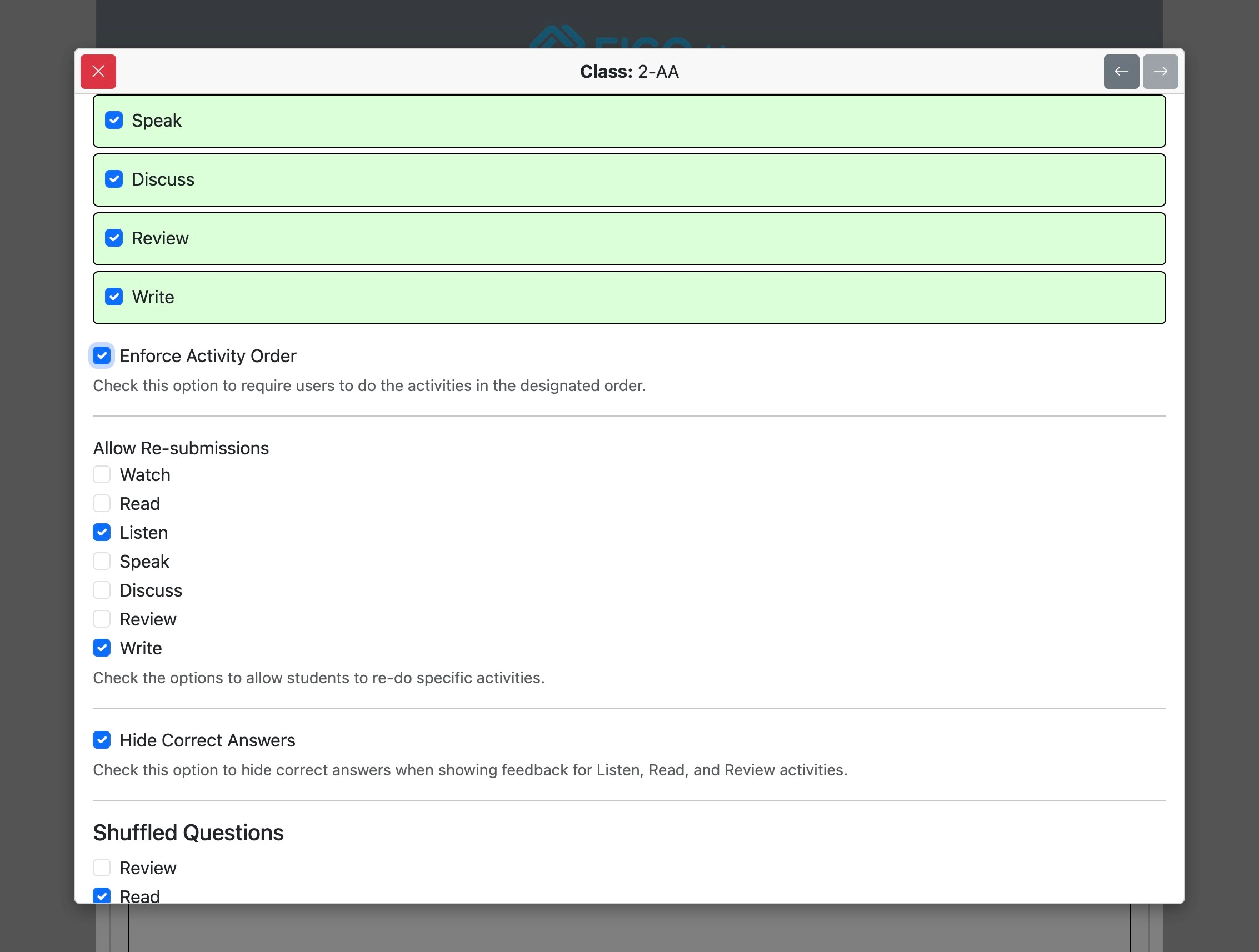
Check or uncheck “Hide Correct Answers” to allow or prevent students from seeing correct answers after submitting activities. They will still see which questions they got right or wrong even if this option is checked.
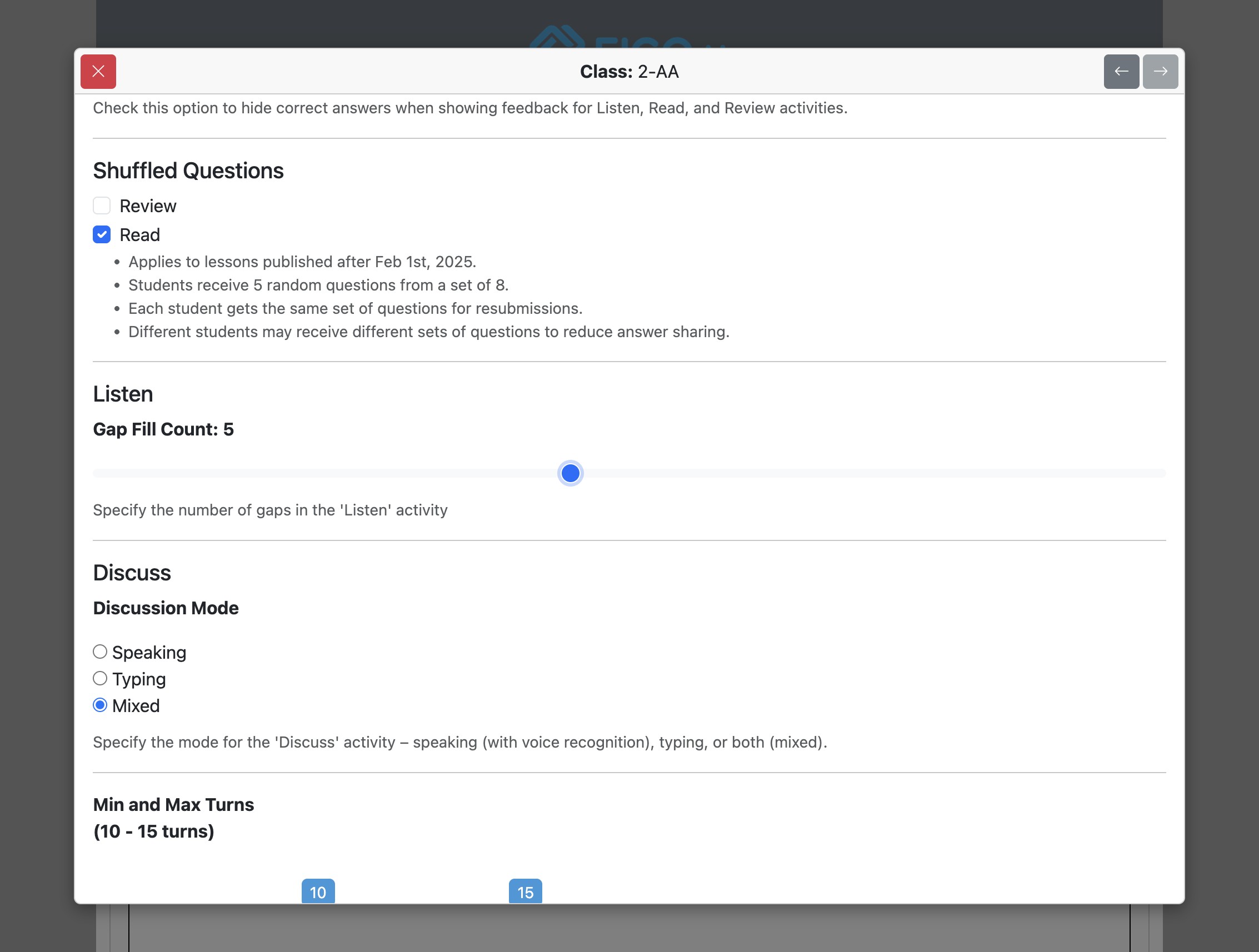
Under “Shuffled Questions” you can randomize supported activity questions to reduce answer-sharing. Shuffling applies to lessons published after February 1, 2025; enabled activities show five random questions from a pool of eight, the same student keeps the same set on resubmission, and different students may receive different sets.
Check "Listening Mode for Questions" in the Read section to hide Read quiz question and answer-choice text from students and show audio controls instead. Students hear each question and choice in their selected voice, which helps keep Read multiple-choice questions as listening tasks when browser-based AI tools can read on-screen text. Use "Speech Transcription Method" to choose the speech-to-text backend for recorded answers: WebSocket live transcription when available, or Lambda as the fallback path.
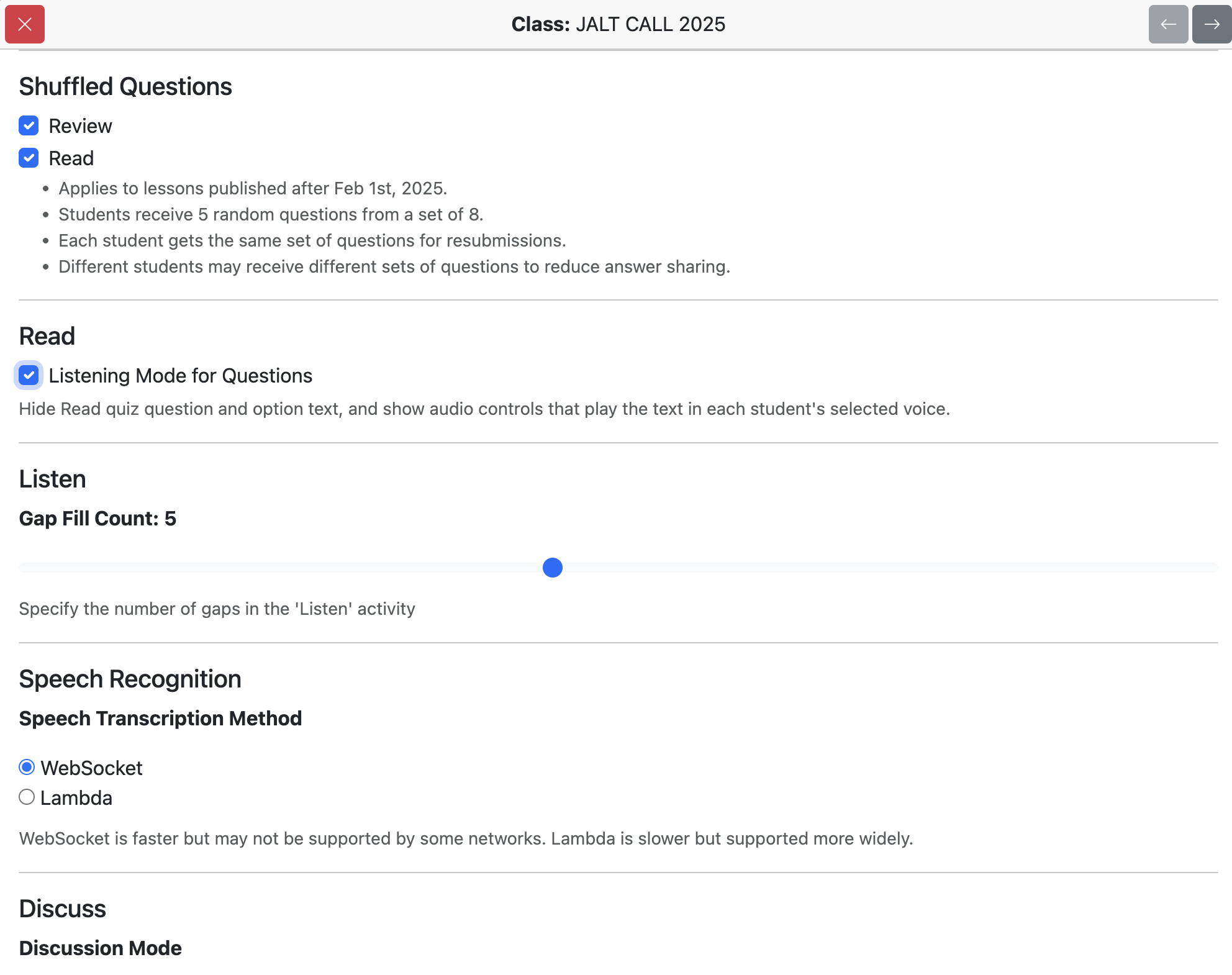
Move the slider to specify how many words will be removed from the listening gap fill activity. Words are selected automatically starting with the longest word in the text. Words with special characters such as hyphens or apostrophes are excluded.
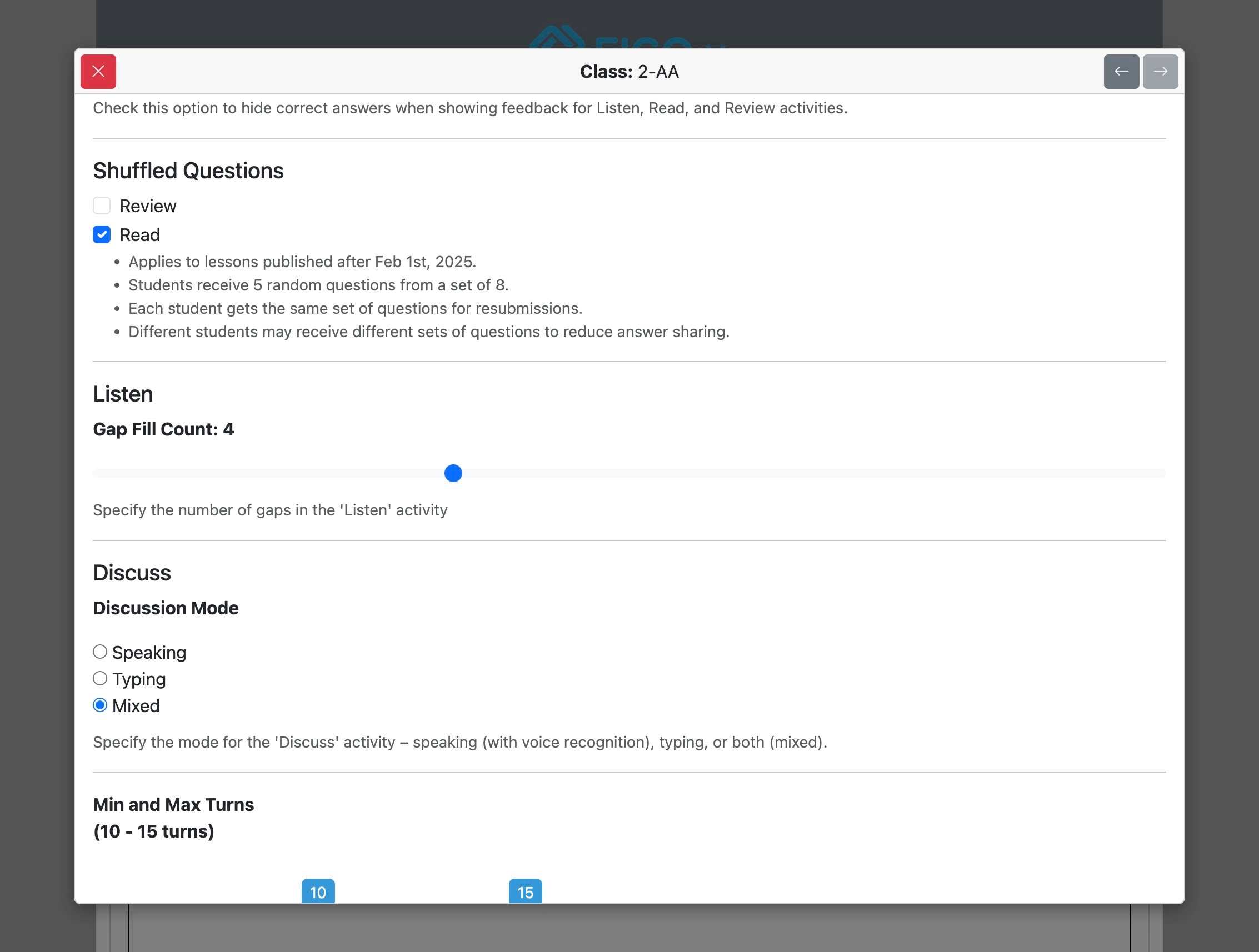
Select how you want the students to participate in the 'Discuss' activity whether via audio recording or typing the response.
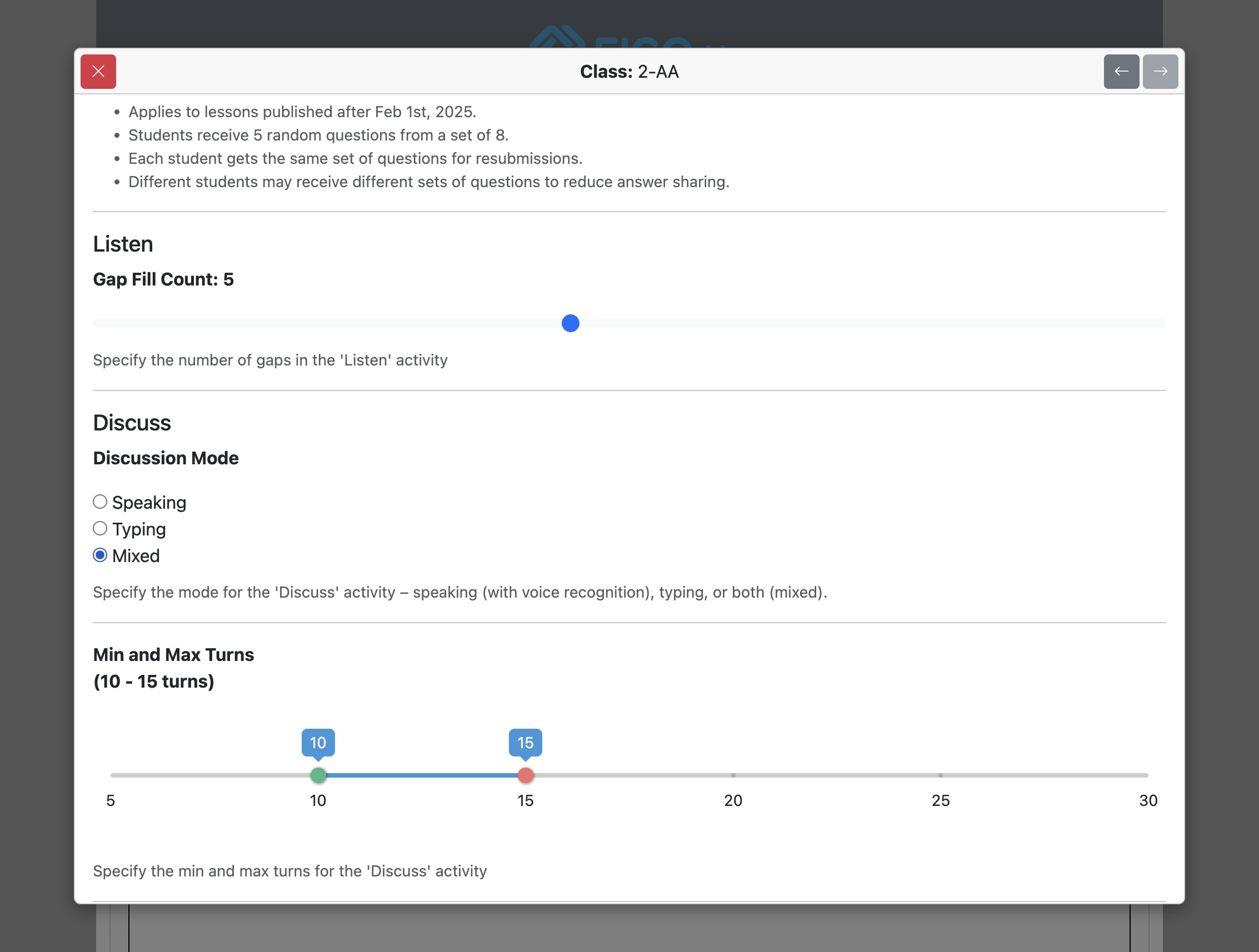
Use the slider to set minimum and maximum turns in the 'Discuss' activity.
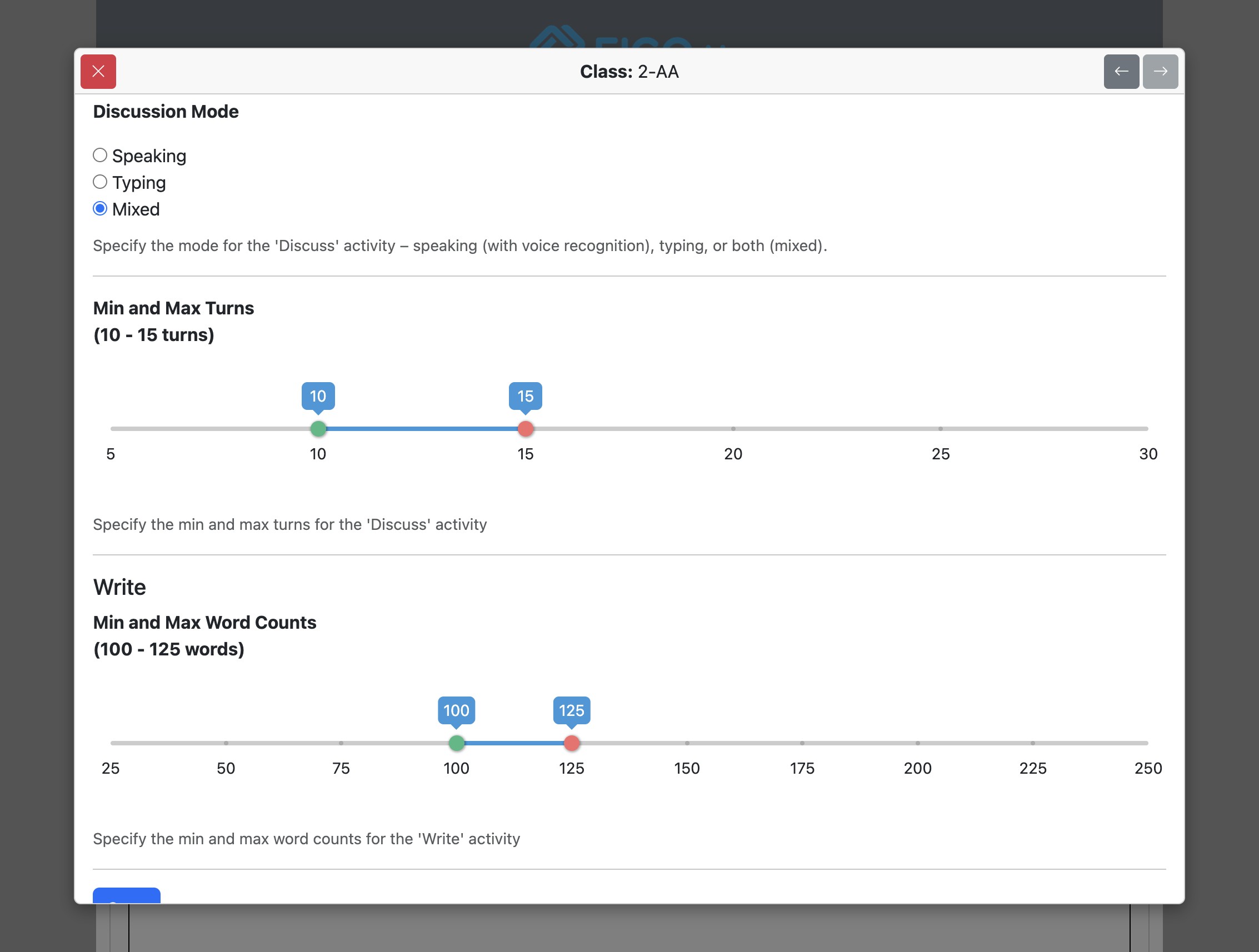
Use the slider to set minimum and maximum word counts in the 'Write' activity.
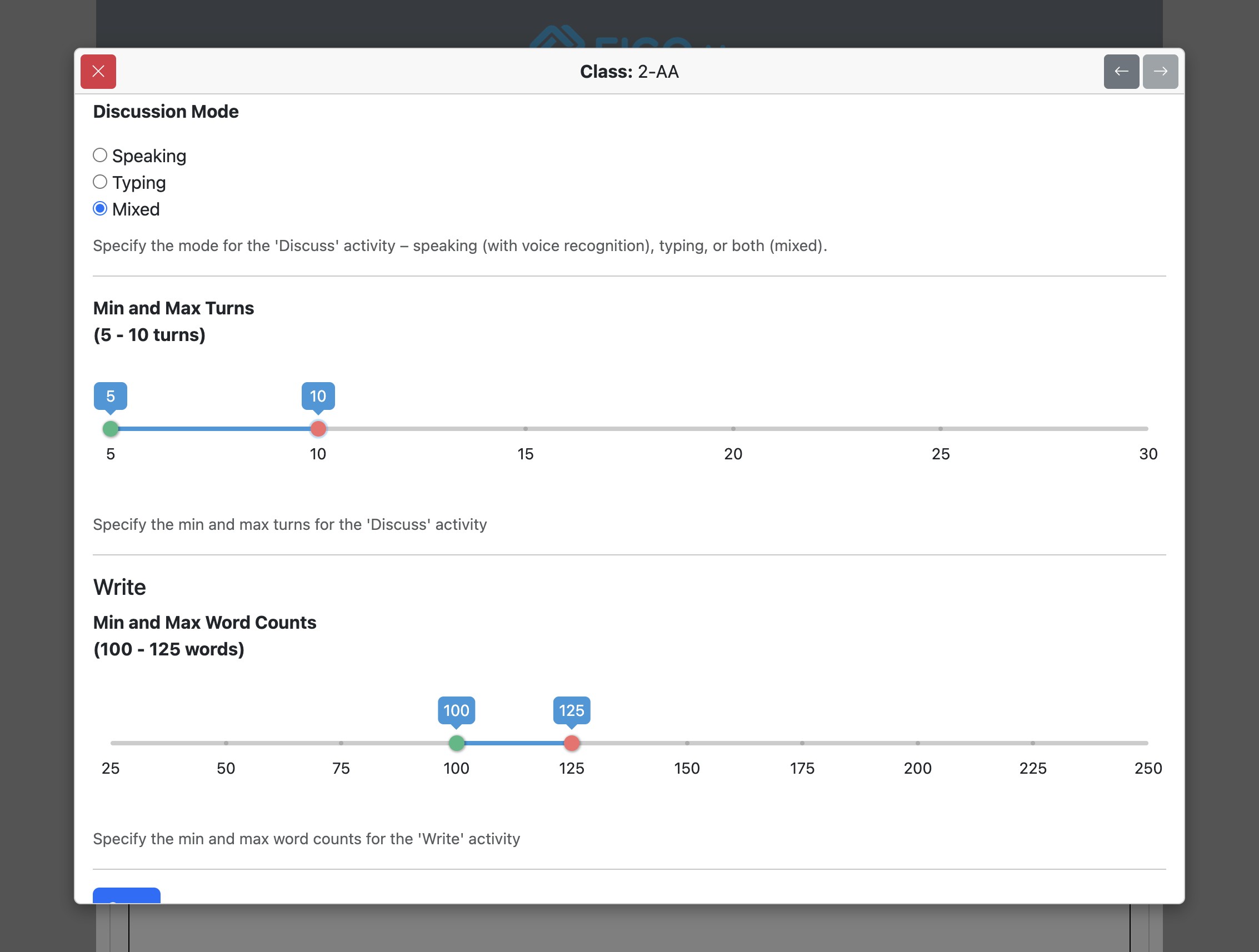
Click "Save" to confirm and save settings.
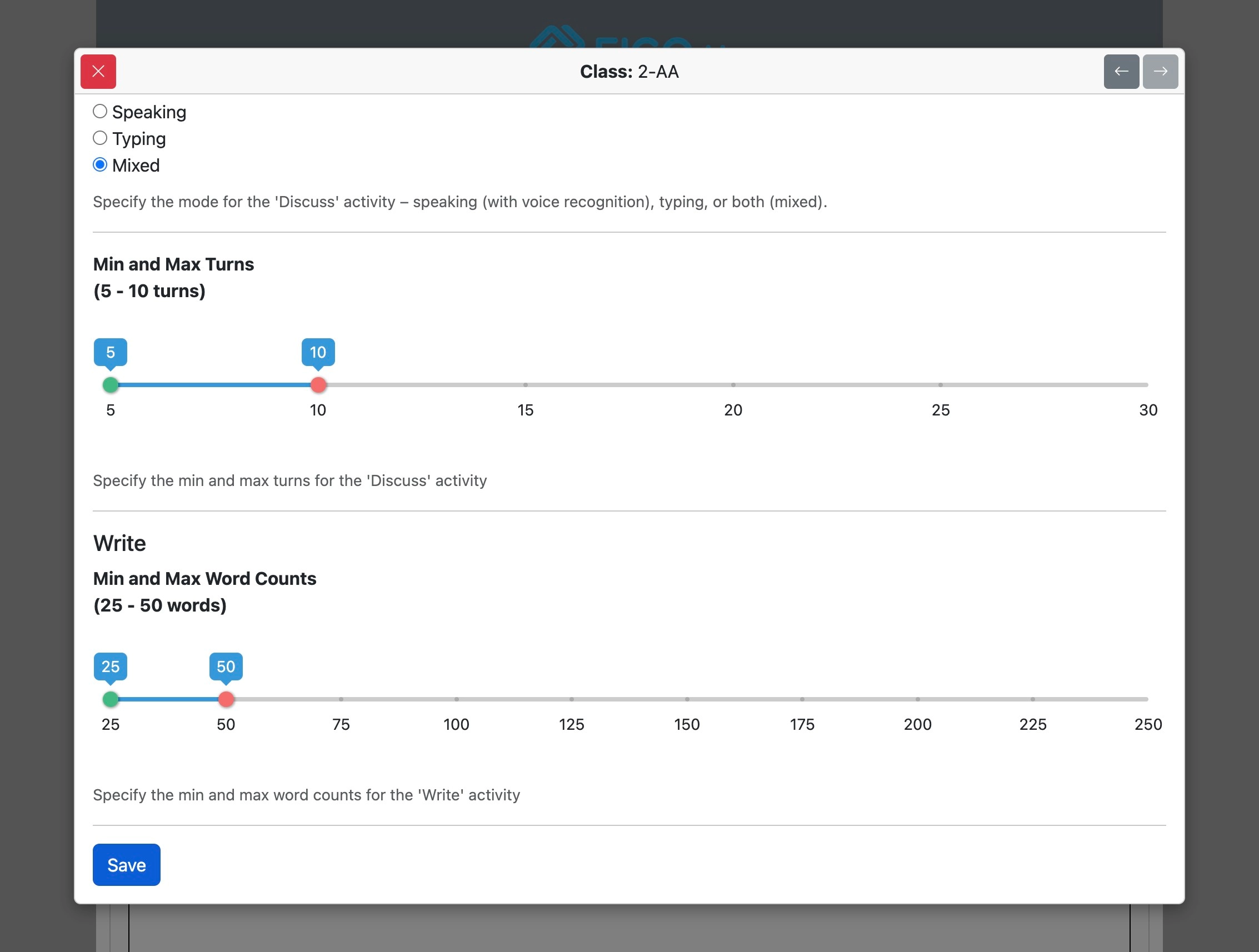
Click "OK" to confirm overriding institutional settings for the specific class.
Classroom Activities
In the “Activities” tab, under “Classroom Activities”, uncheck “Show in student view” to hide Classroom Activities and Pair Activities from students. This option is on by default. Click “Save” and confirm the class override if prompted.
Students Settings
Feedback and definitions language
Open the Students tab. Allow students to select the feedback and definitions language is checked by default. Uncheck it to require English for students’ vocabulary help and new Write/Discuss feedback and disable their language selector. Click Save and confirm the class override if prompted.
This applies to existing and newly enrolled students, including those who previously selected Japanese or another language. New feedback and vocabulary help use English even if a student still has an older page open; ask students to reload to see the locked selector. Previously generated feedback is unchanged. Lesson texts and exercises are unchanged, and teachers, managers, and administrators keep their own language choice.
Saved class overrides take precedence over institution defaults. If a class already has its own saved settings, uncheck this option in that class too, or reset the class to inherit institution settings. Older saved class overrides allow language selection until you change this option.
Institution managers can set the default under Institution → Options → Students; see Institutional options.
For classroom guidance and help with the separate automatic translation warning, see Ensuring students use Eigo.AI in English. See also student language settings.
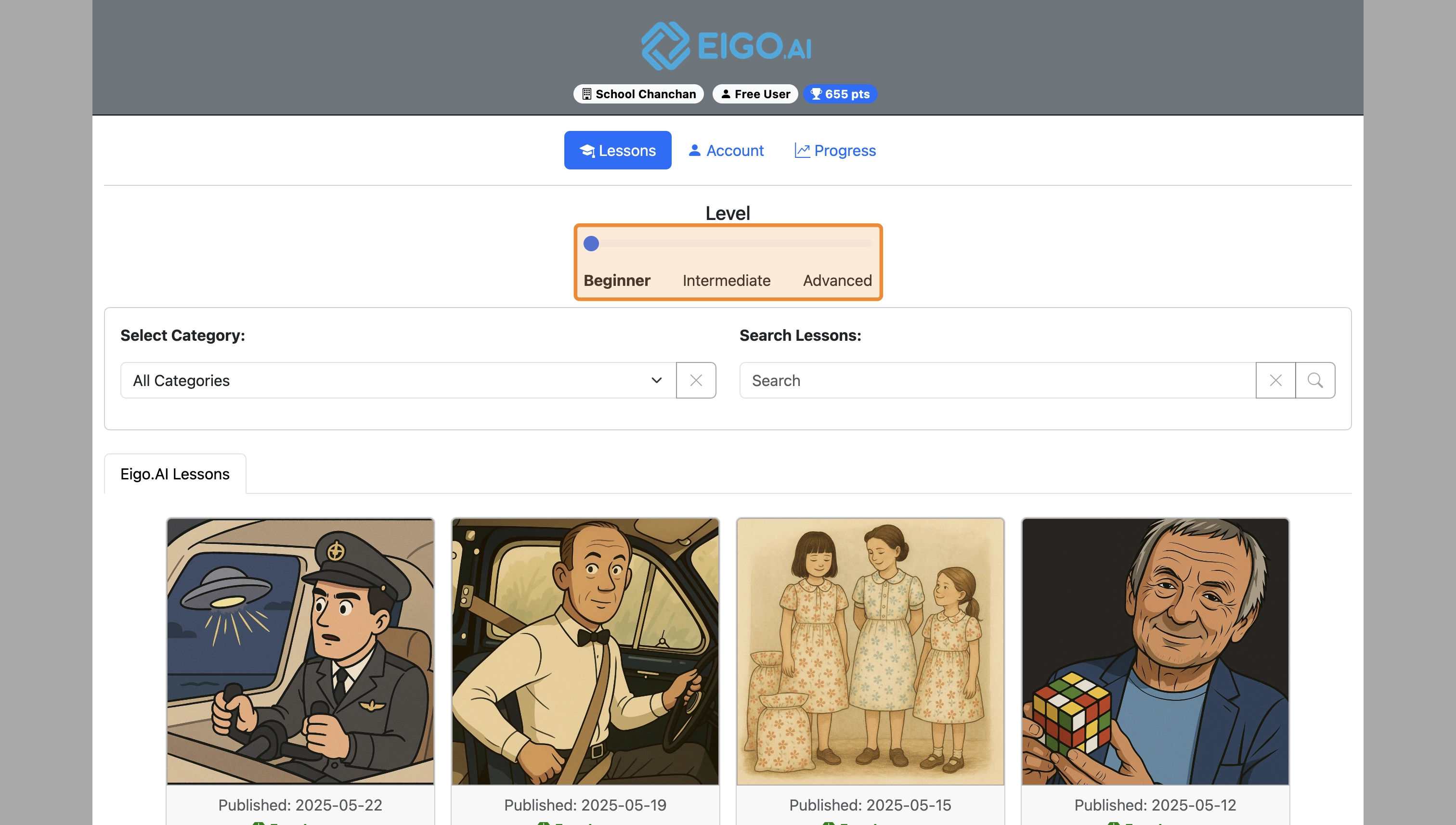
In the Students tab, turn on Show Level Switcher to reveal Beginner, Intermediate, and Advanced checkboxes. Turning it on checks all three; uncheck any levels students should not select. Keep at least one checked, then save. Turning the switcher off clears all checkboxes and keeps each student at their current level. Institution settings provide the defaults; saved class settings override them.
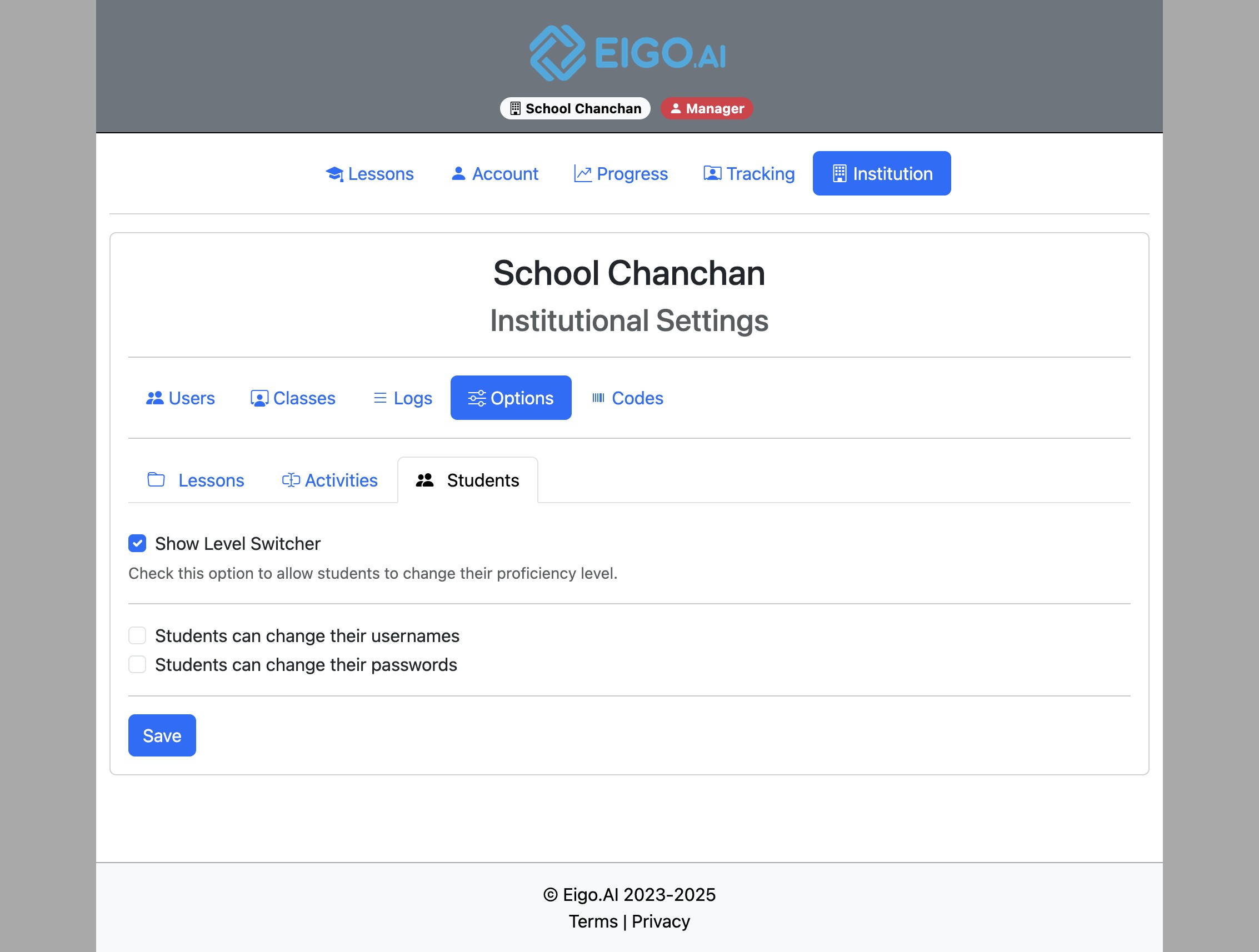
Students see all three level buttons, with unchecked levels disabled for new lessons. They can still finish lessons already started at those levels. When they next load the study page for an unstarted lesson at a disabled level, they must choose an allowed level. Their level does not change automatically, and previous progress is kept. Lessons already open and ongoing requests are unaffected. Teachers and managers can still select any level.
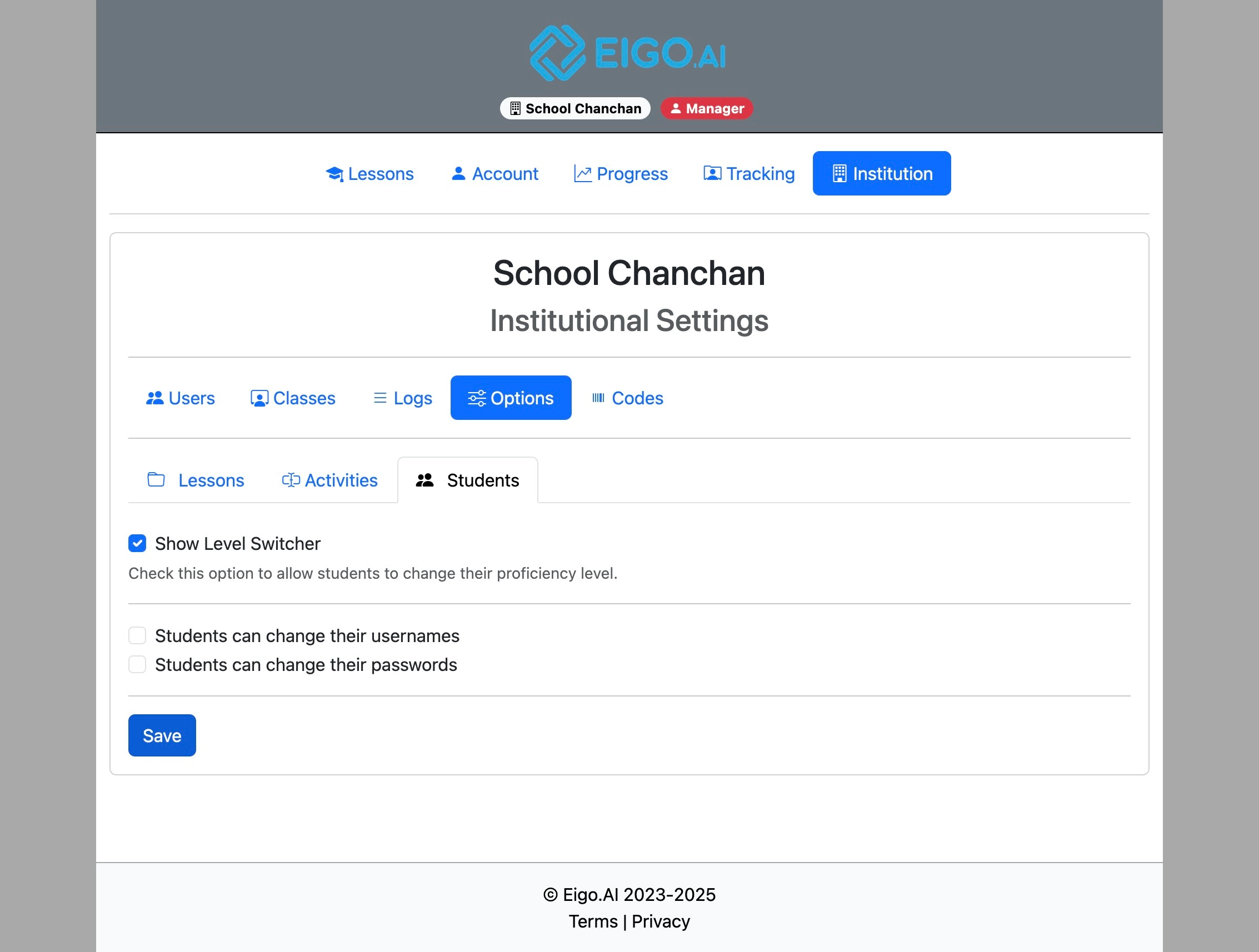
Enable the checkboxes to permit students to update their usernames and passwords.
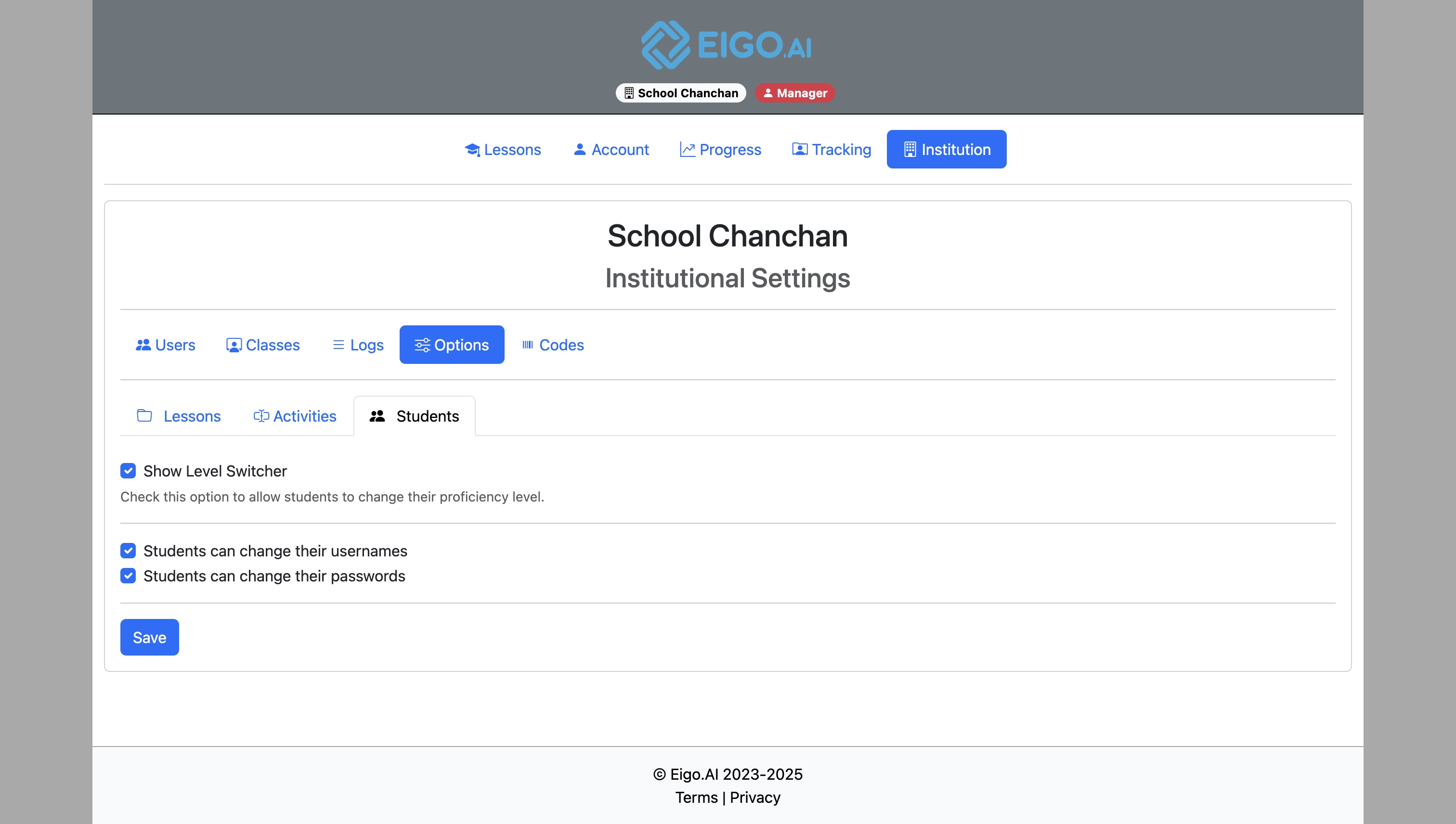
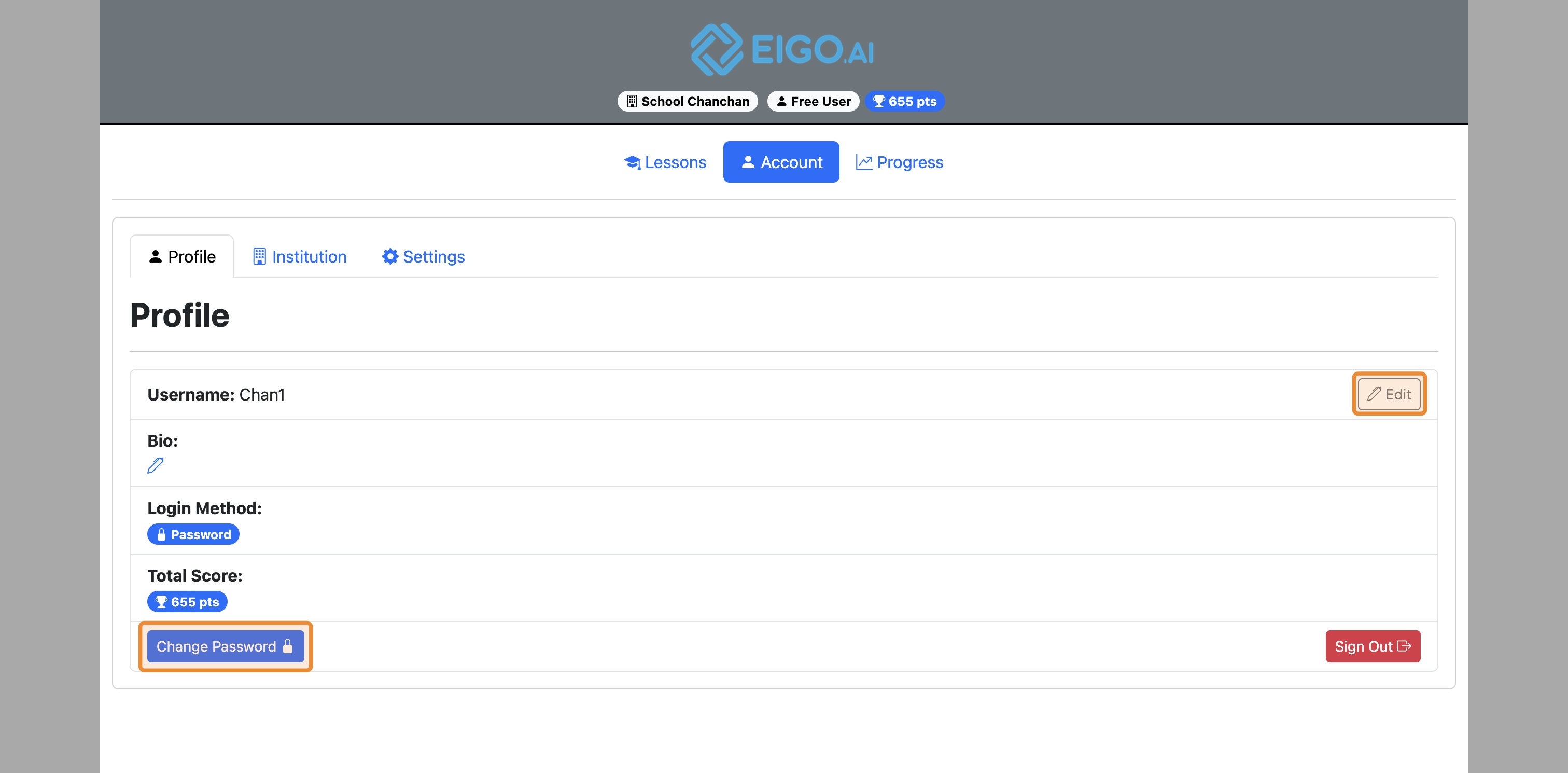
This allows students to change their username and password in their profile.
Click "Save" to confirm and save settings.
Weekly teacher digest
The weekly teacher digest is a personal account setting, separate from institution and class options. Open Account → Settings → Notifications to see the Coming soon notice. The digest and timezone controls are currently disabled, and weekly emails are paused.
It is off by default. When released, each subscribed teacher will receive one email on Mondays between 09:00 and 10:00 in their chosen digest timezone, covering the previous Monday–Sunday across all classes they teach. The Digest timezone selector starts with the browser’s timezone and will be customizable when the digest is released. The saved timezone controls the reporting dates and delivery time and stays the same when travelling; daylight saving changes are handled automatically. Empty classes are omitted. Managers receive their own teaching classes, not an institution-wide report.
The email summarizes study hours, submission points, completed lessons, participation and students with no points recorded that week. It highlights Write and Discuss evaluations above 90% or below 20%, with links to review the submissions after signing in.
Once the digest is available, stop it by choosing Off in your account notification settings. The email’s Unsubscribe from these notifications link opens this section directly; sign in first if needed. Opening the link does not change your preference until you choose Off.