Use “Show users as” to select Usernames, Full names, or Anonymized. Full names falls back to the username when no full name is recorded. Anonymized shows ********** for names and email fields, including CSV exports, and suppresses identifying tooltips. User-table and submission-log names use the same compact width in Username and Full names modes; hover over a shortened name to see it in full. Detail dialogs inherit the view’s selection. Each reporting view remembers its own choice for your signed-in account in this browser; changing one view does not change the others. This display setting masks account labels, not names or personal information written inside student responses.
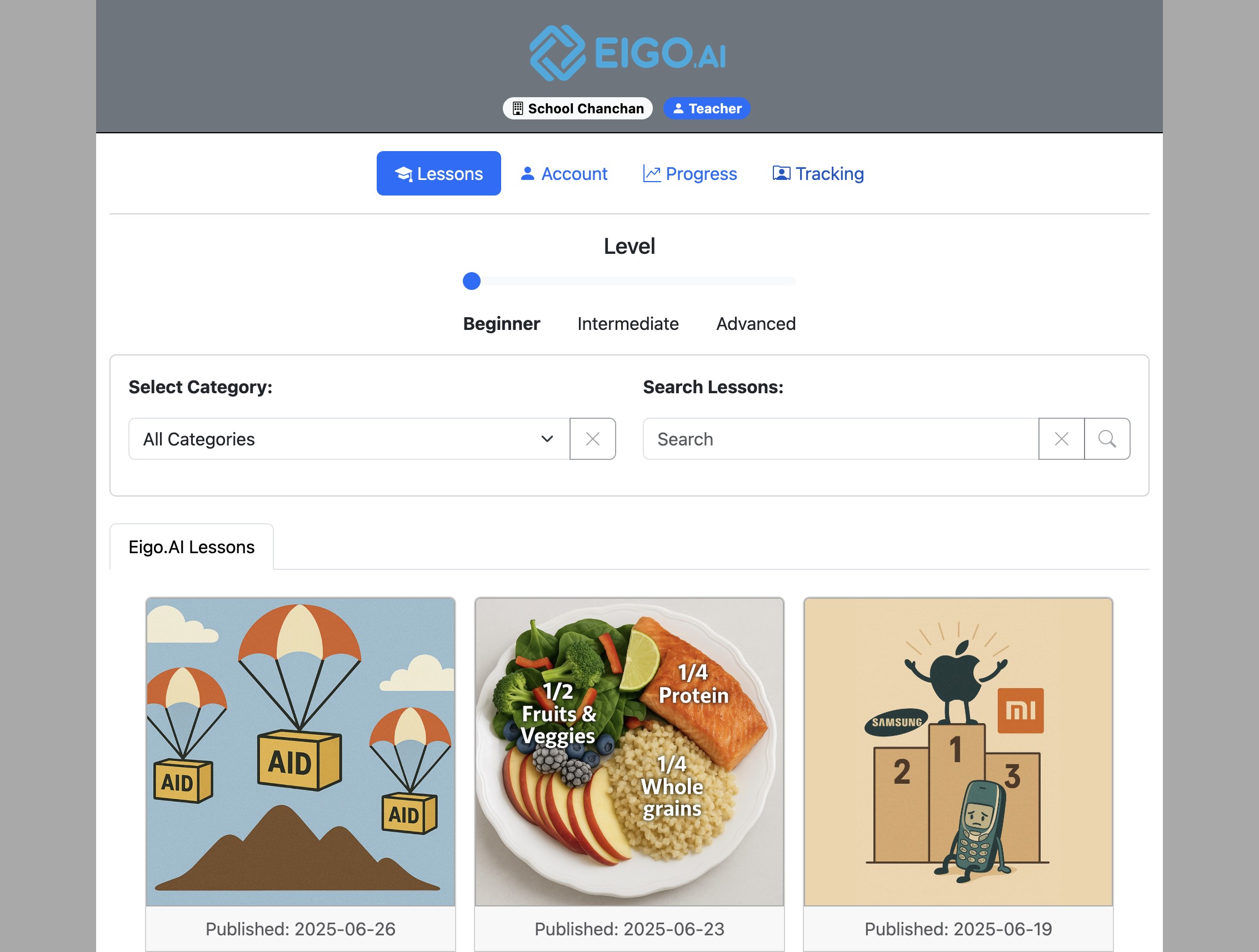
Sign in to Eigo.AI and click "Tracking".
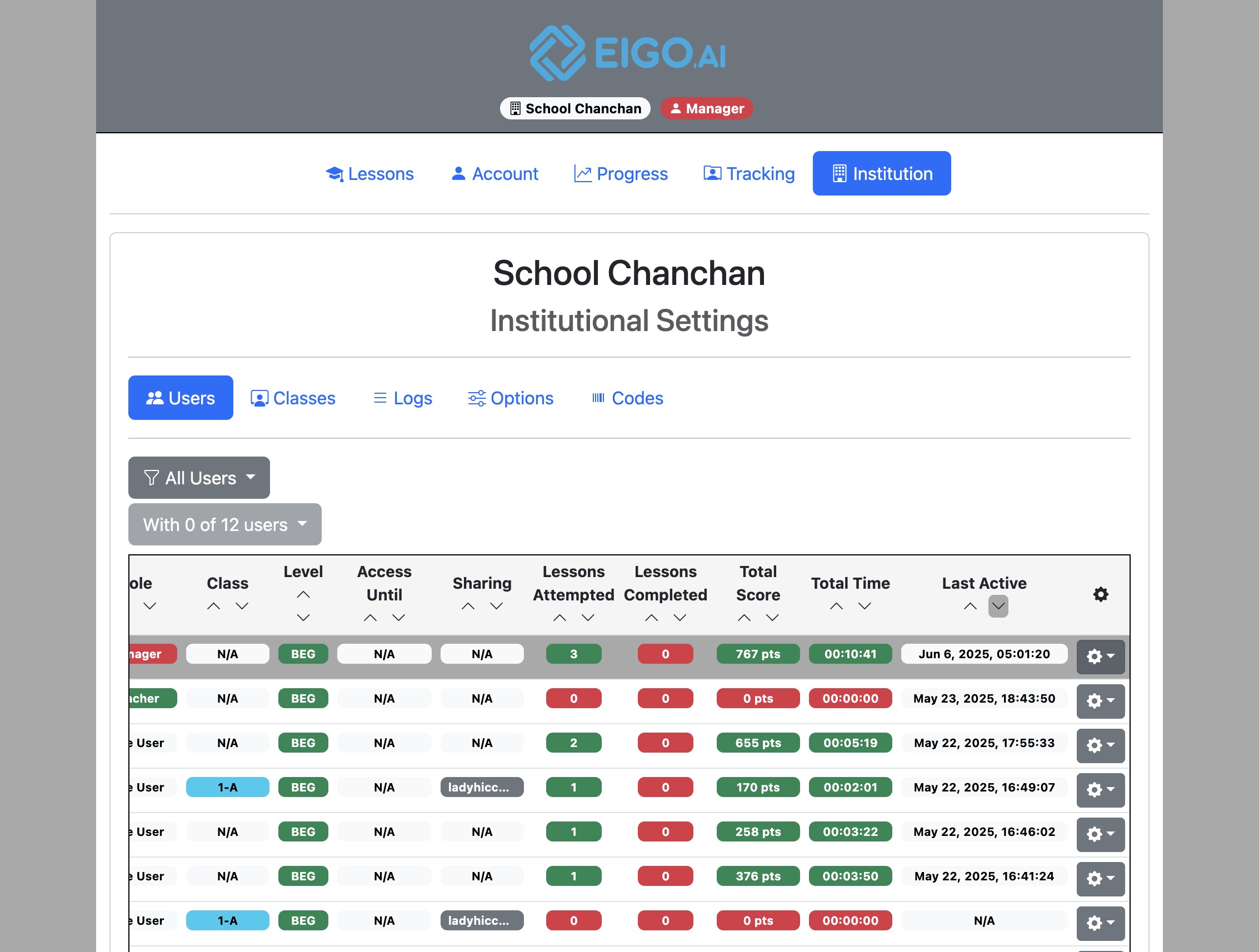
Click the gear button to open a dropdown menu for the selected user.
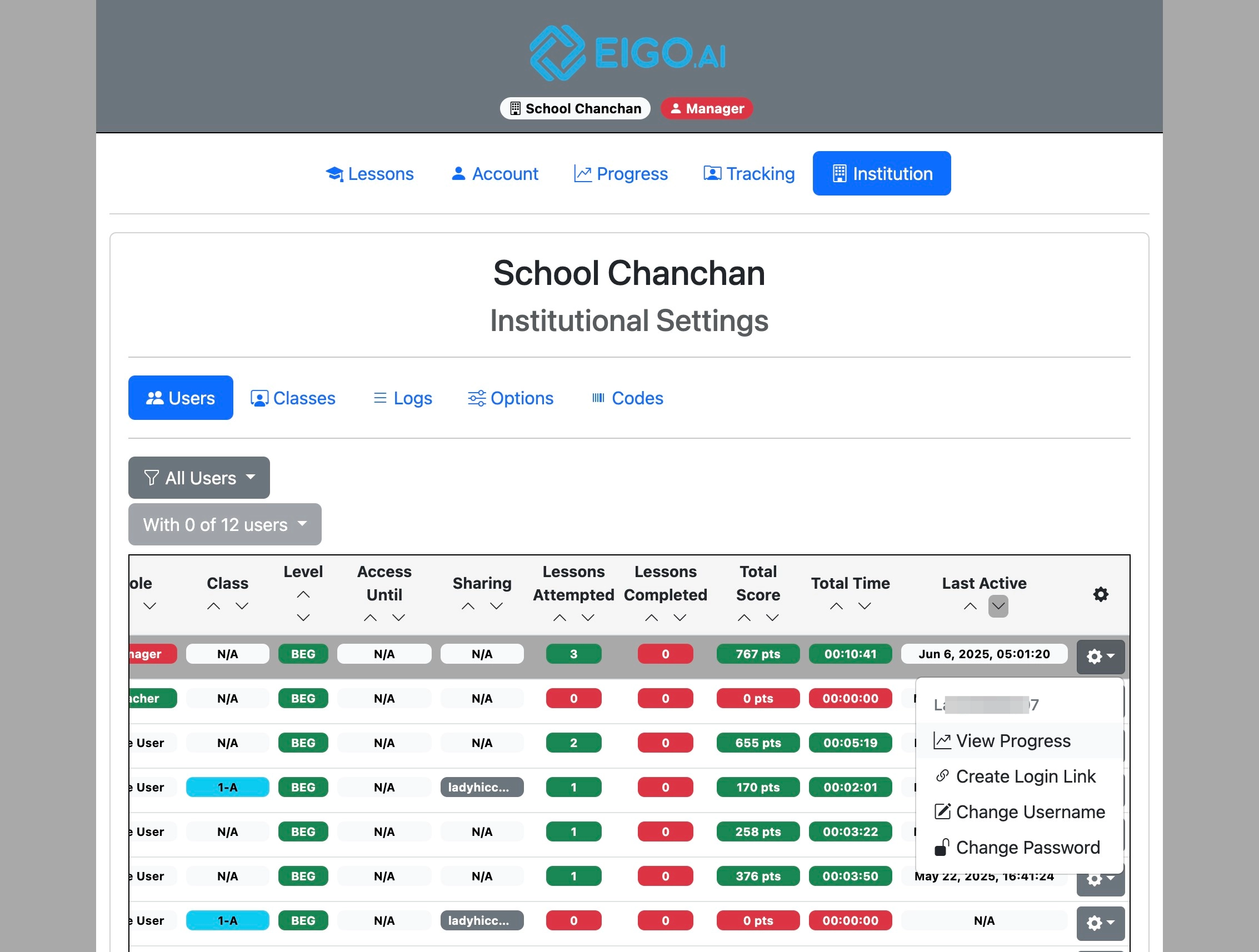
Click "View Progress".
Scores
Click "Scores".
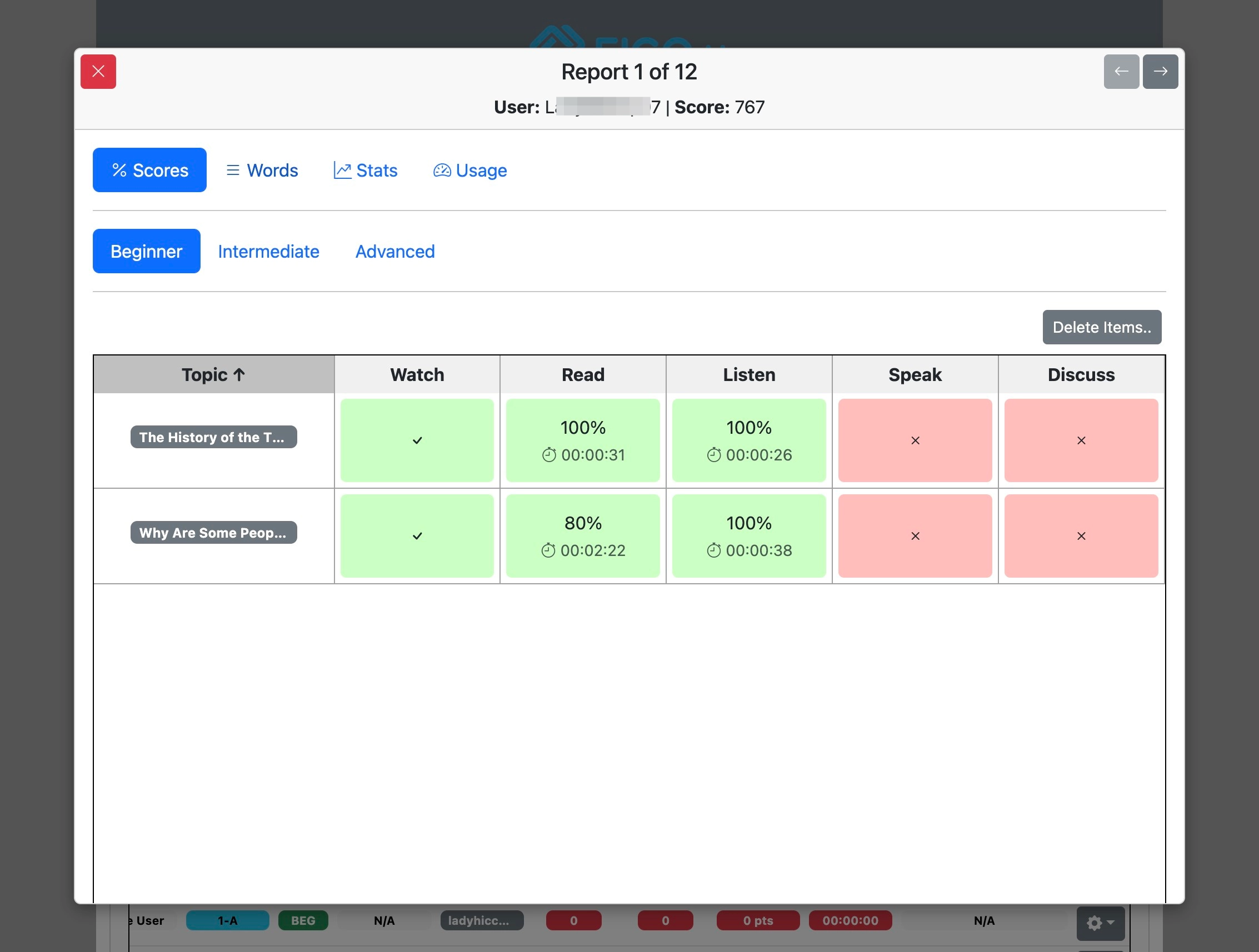
Scores of the user per level per activity are displayed. Above the Scores table, the summary shows Lessons completed, Lessons studied, Study time, and Activity points for the selected level and period. Completed lessons have all required activities submitted; lessons studied have at least one activity submitted during the period. Points are separate from lesson counts. Use Custom dates to review a semester.
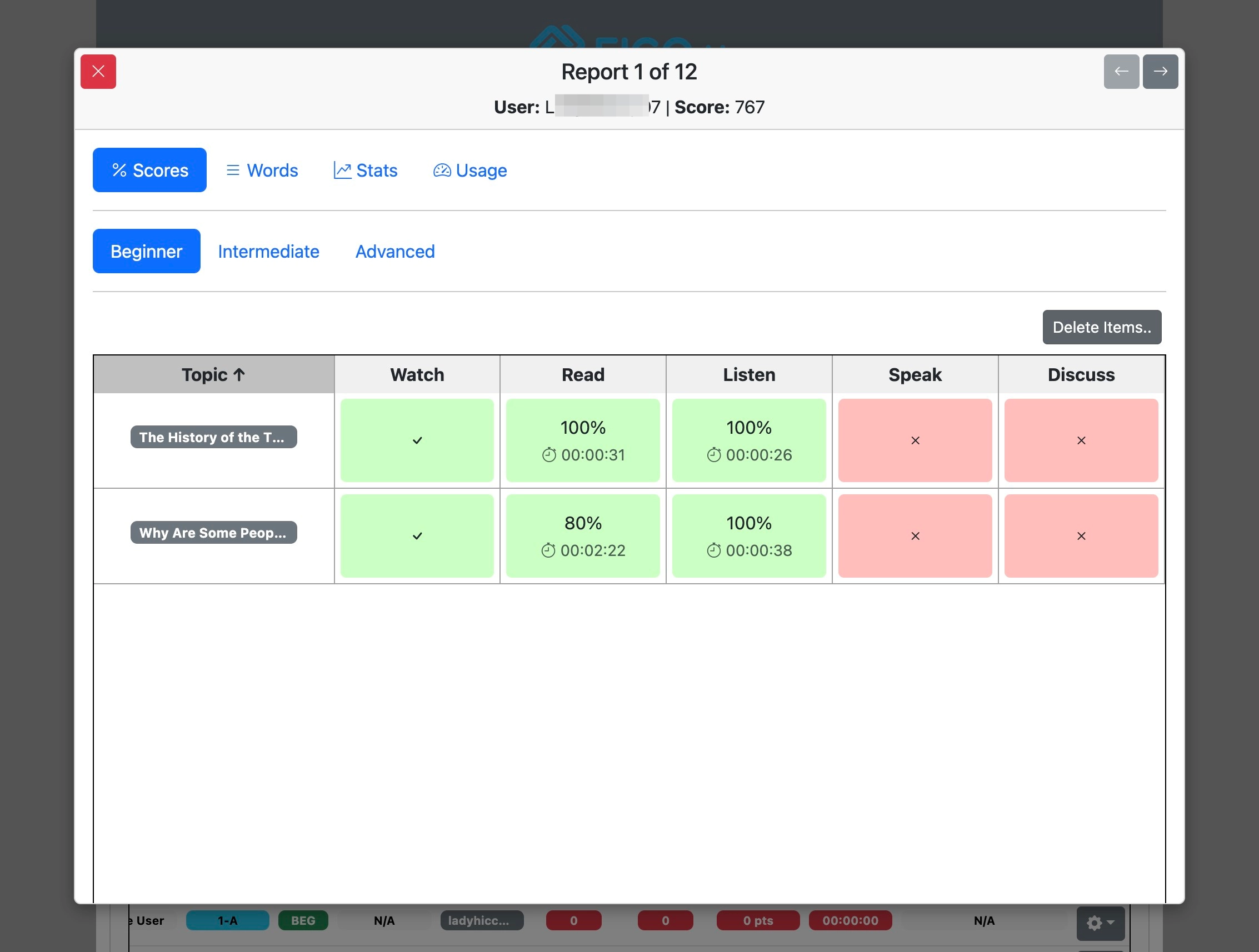
Red boxes indicate 'Not Submitted' and the green boxes indicate 'Submitted'.
Switch between 'Beginner', 'Intermediate' and 'Advanced' to view scores under those levels.
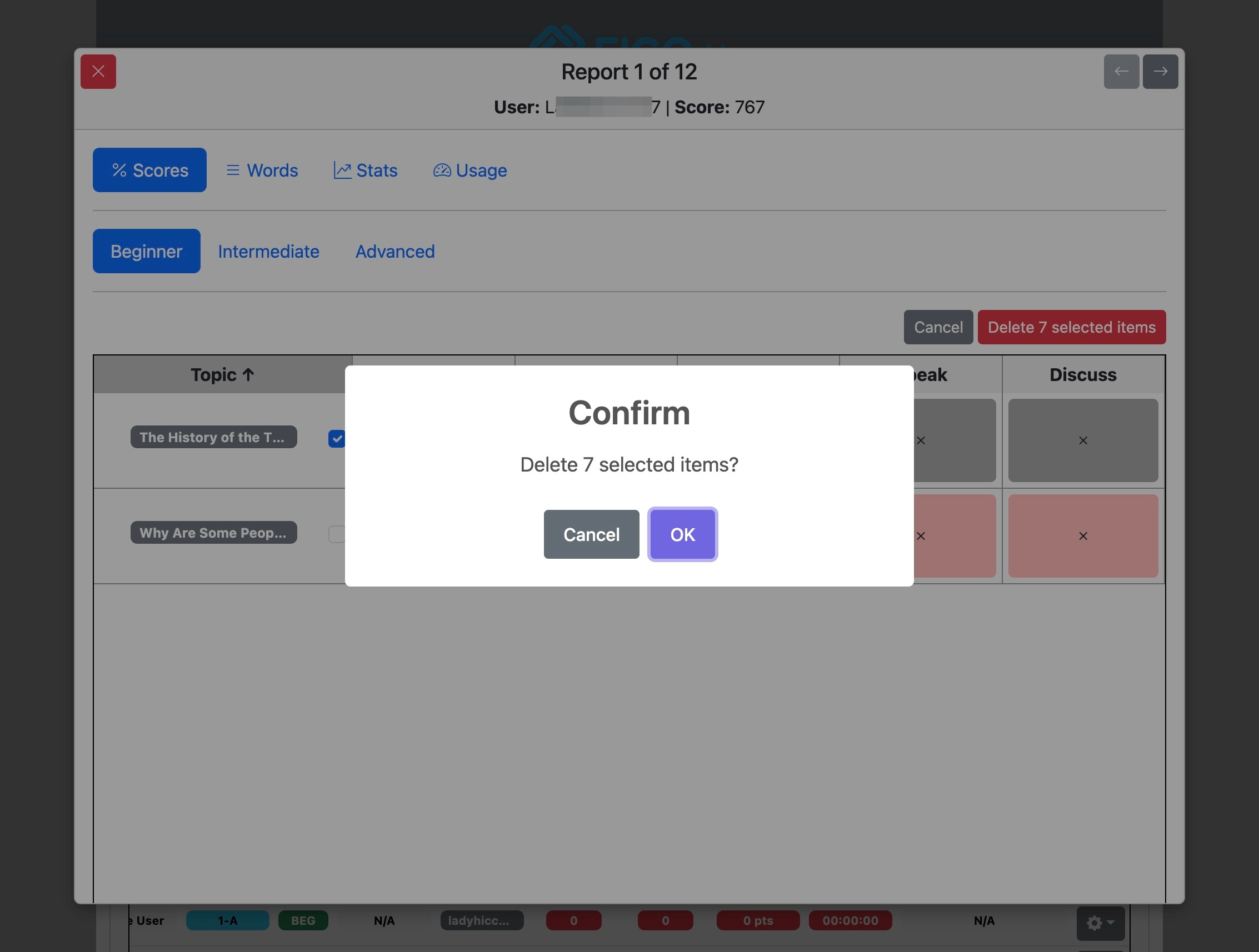
To delete a score click "Delete Items".
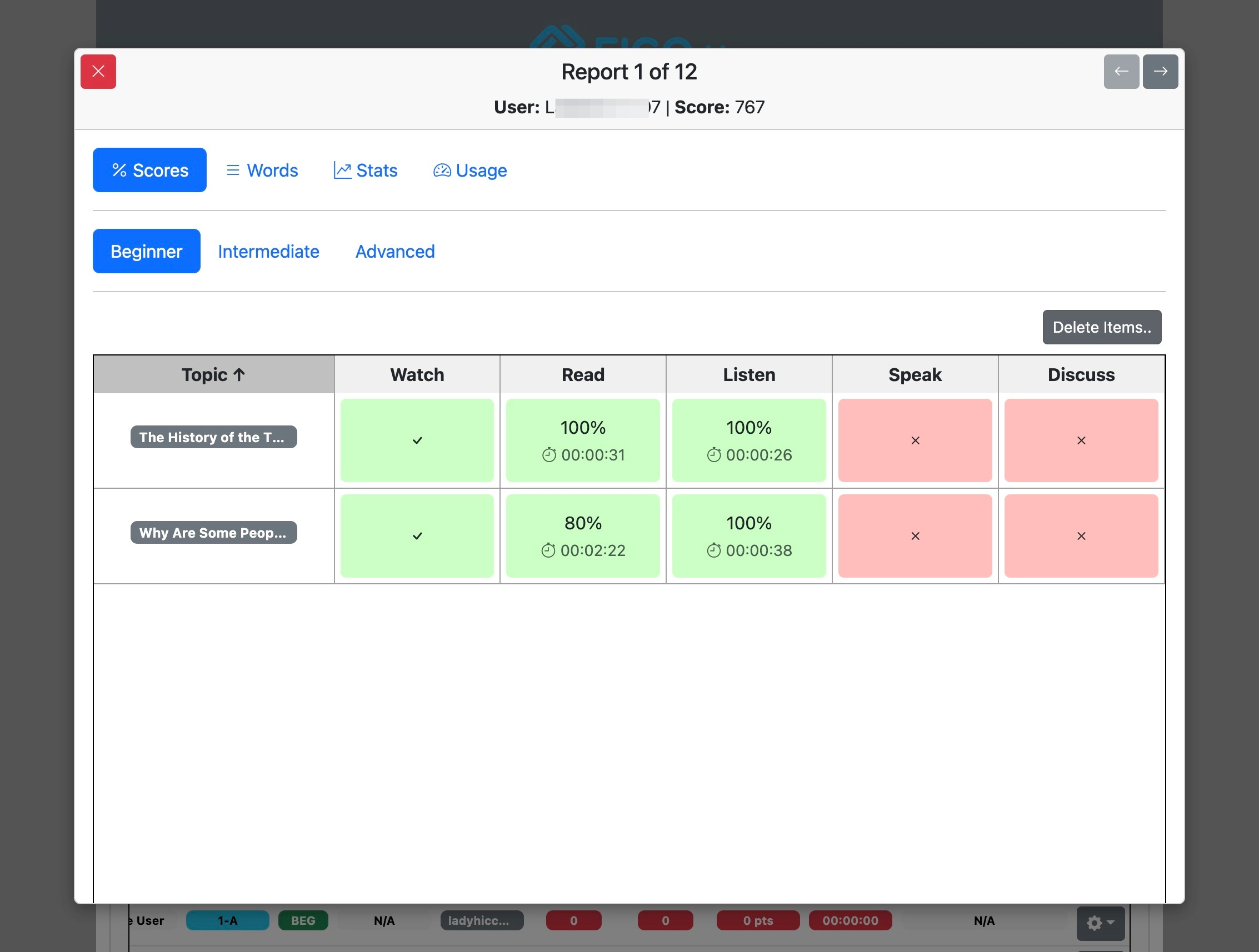
Checkbox can be used to select all progress in the lesson, or individual activity scores within a lesson can be checked by clicking on them.
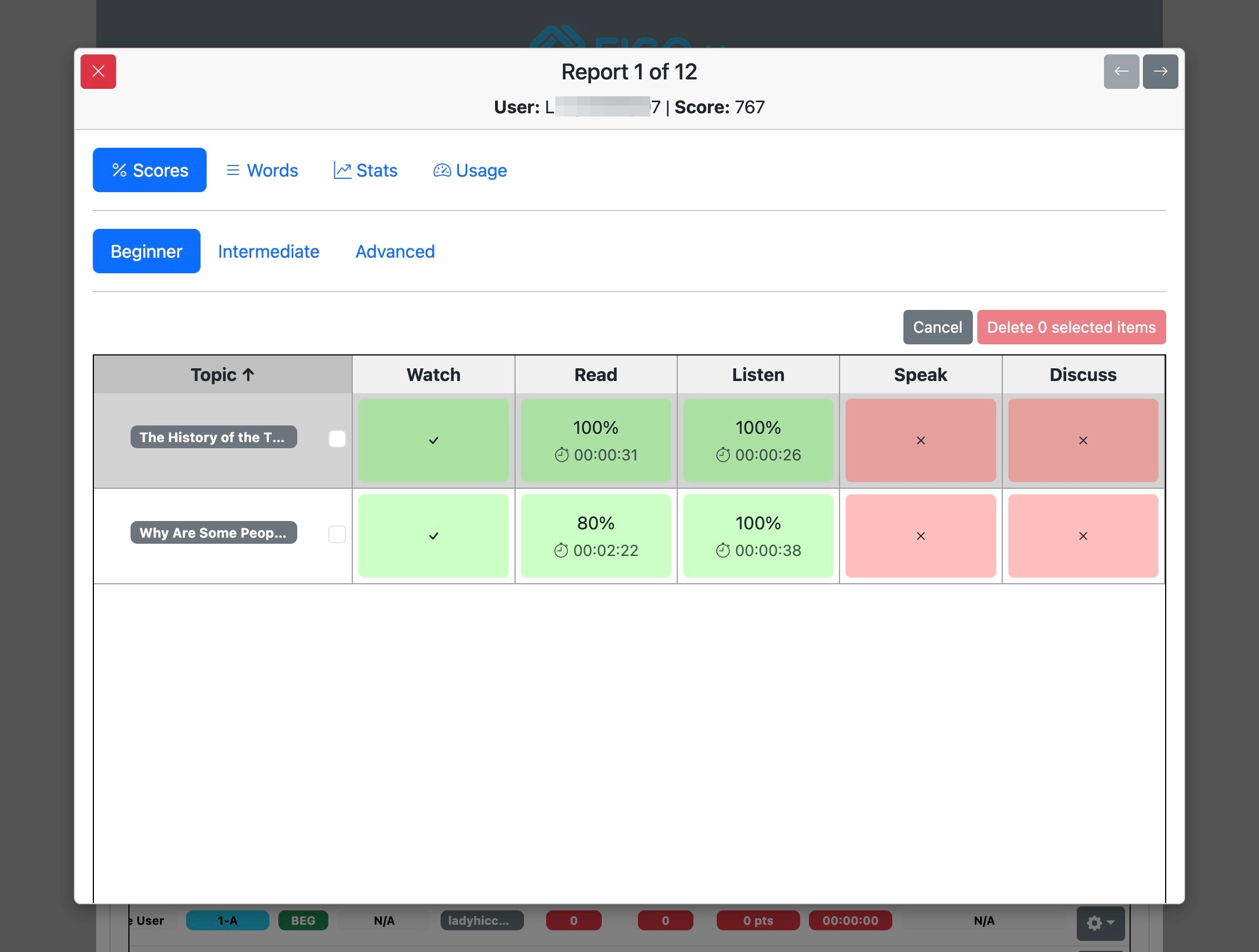
After selection click "Delete selected items" to remove recorded scores.
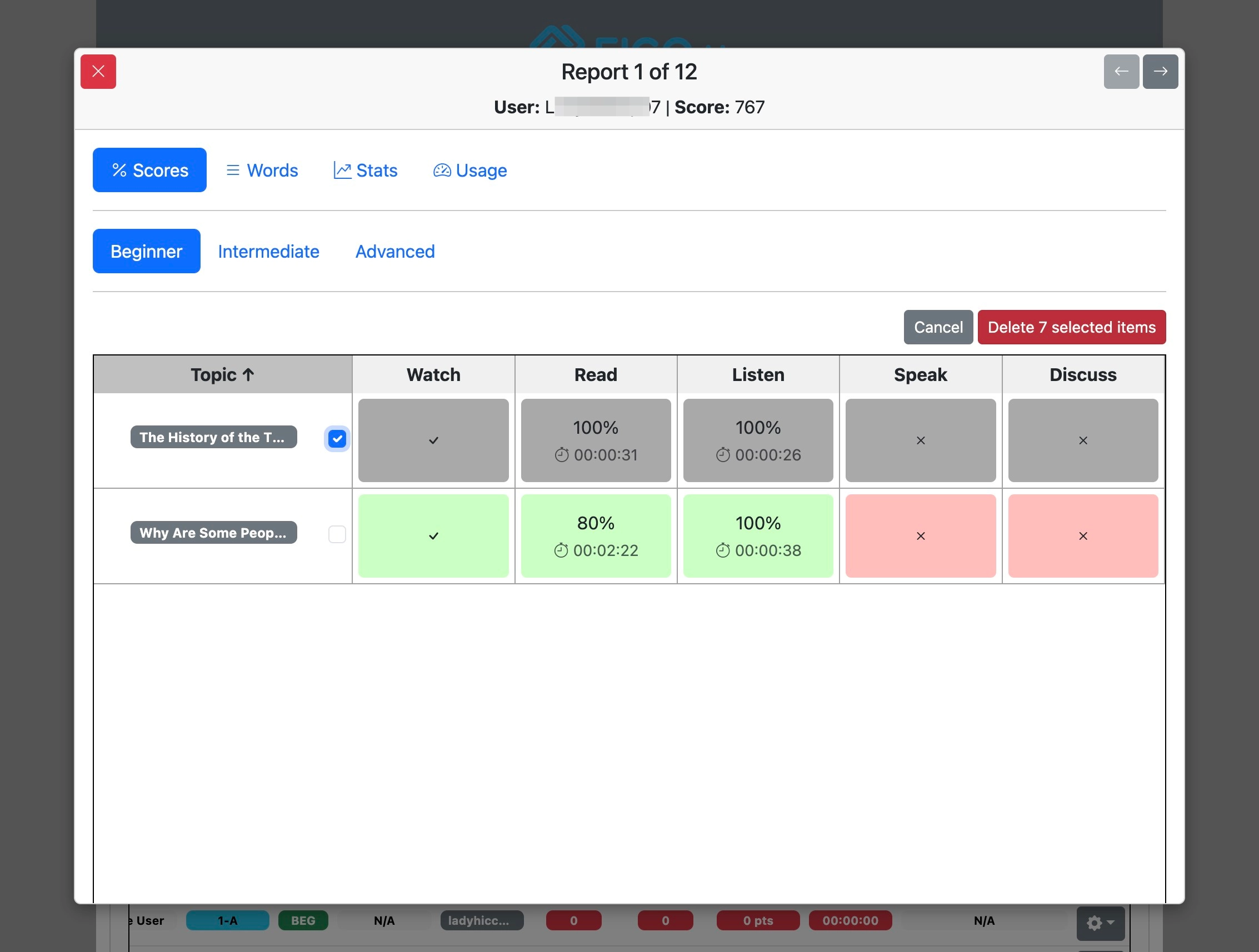
Click "OK" to confirm.
Words
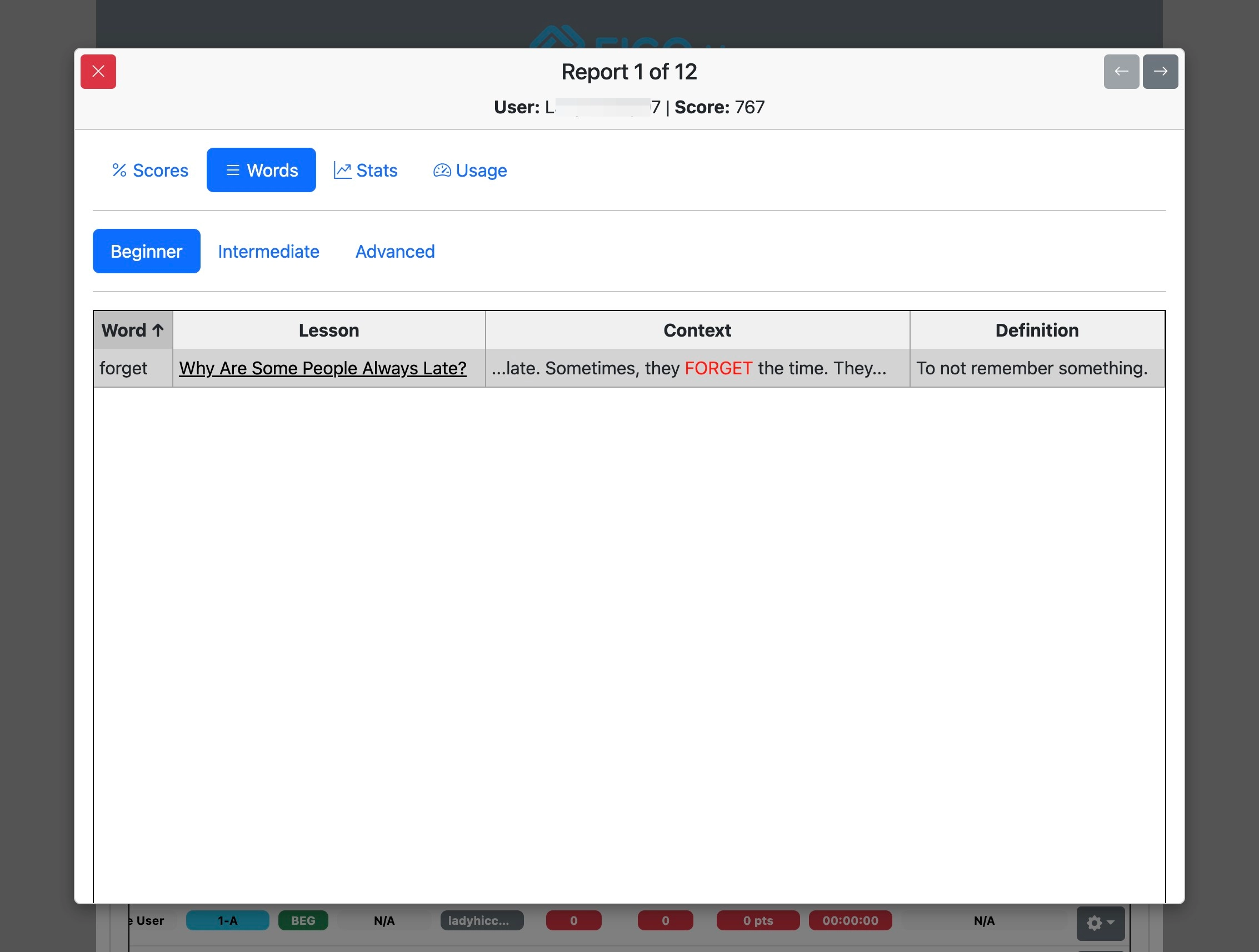
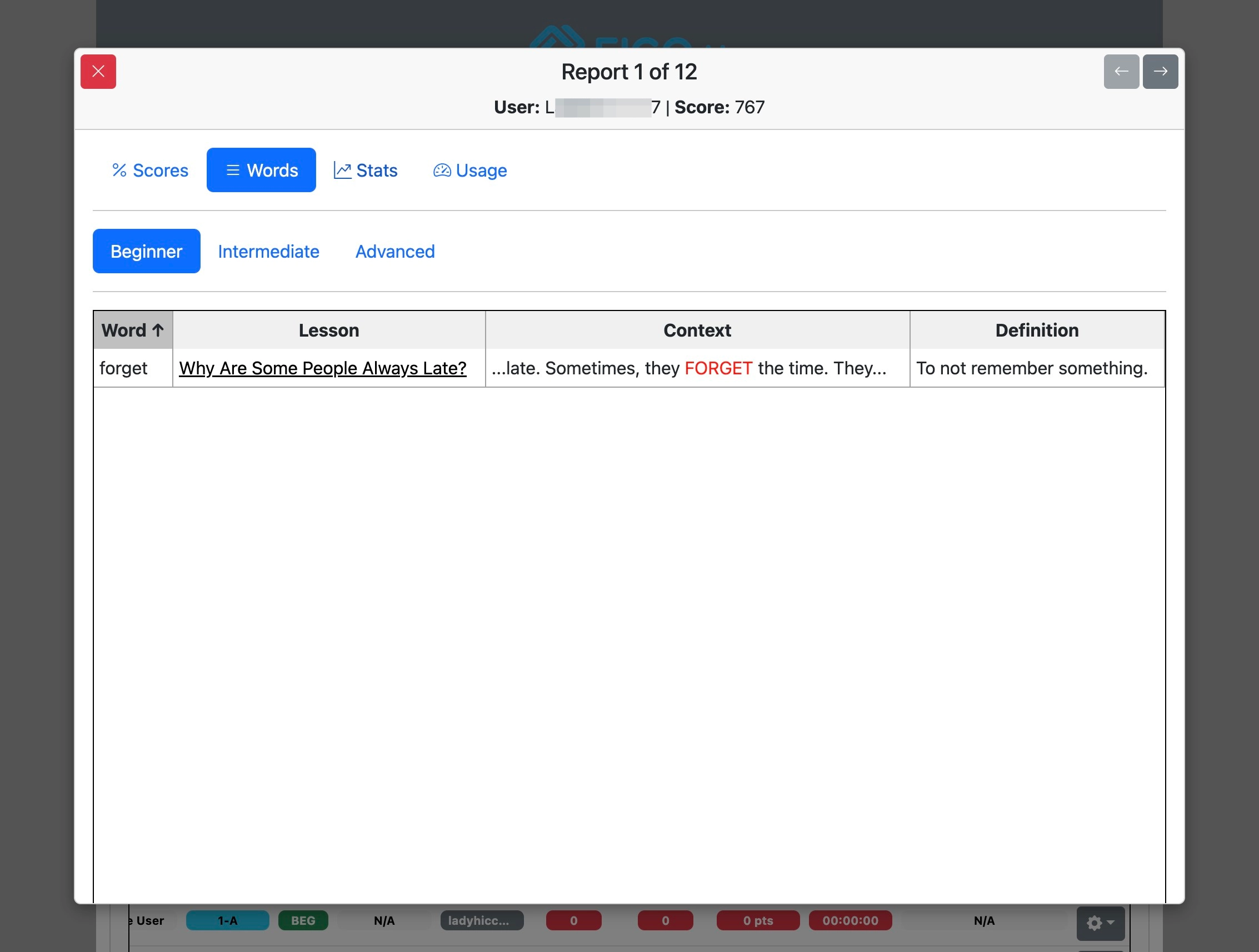
Click "Words"
Switch between 'Beginner', 'Intermediate' and 'Advanced' to view saved words under those levels.
View the Student Manual for a guide on how to review saved words.
Stats
Click "Stats"
View our Student Manual for a guide on how to read stats.
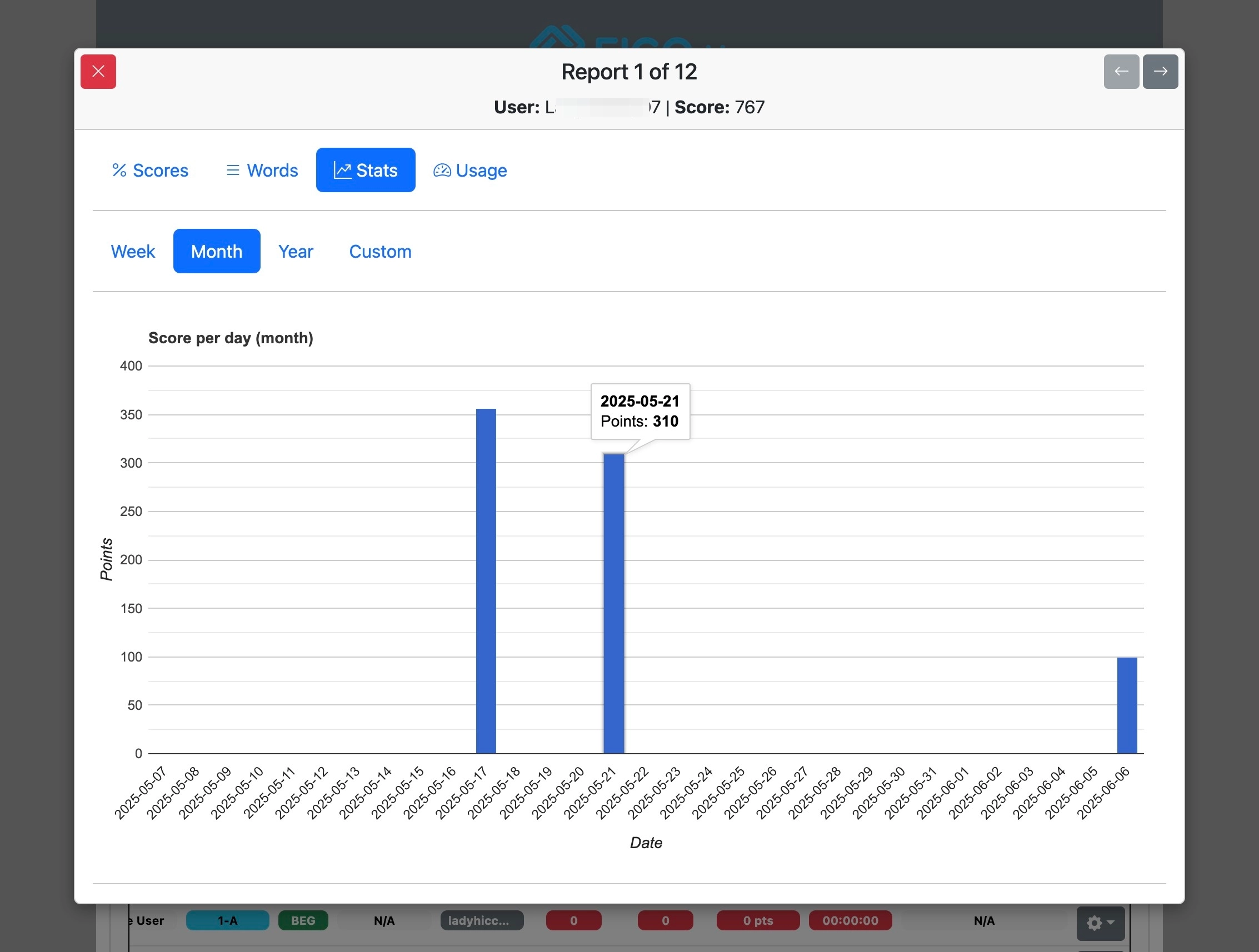
Stats can be viewed by All Time, Week, Month, Year, or Custom range.